
Import Bank Statements in TallyPrime
| List of Banks Supported for Statement Import |
Importing bank statements to TallyPrime helps you:
- Auto-create vouchers: TallyPrime reads your bank statement and fills in the payment or receipt details for you – whether you want to create single, multiple, or a consolidated voucher.
- Auto-Reconcile bank transactions: It checks your bank statement against your transactions in books and helps you spot which ones match and which ones might need appropriate actions.


- Your bank must be supported for bank statement import. TallyPrime supports import of Bank Statements for 145+ banks.
If your bank/statement format is not supported, then write to support@tallysolutions.com. We will set it up. - The bank statement date is later than the Reconciliation Beginning Date.
- Ensure the following:
- The statement is not already open.
- The statement is in the correct format.
- You can import bank statements that are CSV/Excel format, download from the bank portal.
- You cannot import bank statements in the following format:
- CSV/Excel converted from PDF.
- You have the Write permission to the folder.
There are two ways to make bank statement entries a part of your Company data:
- Download the bank statement and import it to TallyPrime.
- Get Statement using Connected Banking.
- Gateway of Tally > press Alt+O (Import) > Bank Statement.
- In the Import Bank Statement screen, specify the required information.
- Select Bank Ledger.
- Specify File Path.
- Select File Type as Supported.
- Select the File to Import.
- Set Show Preview as Yes.
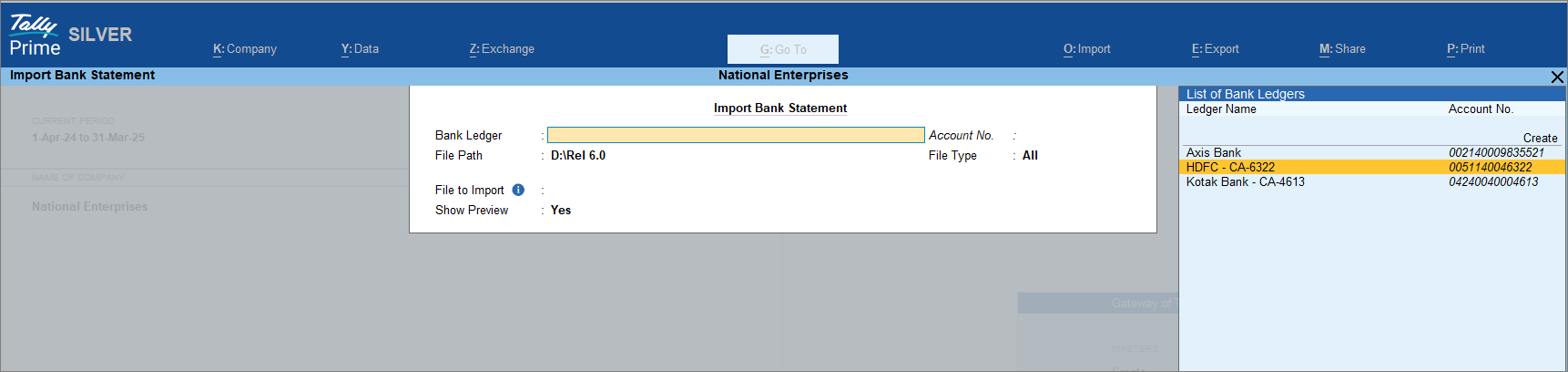
- Press Ctrl+A to import the Bank Statement.
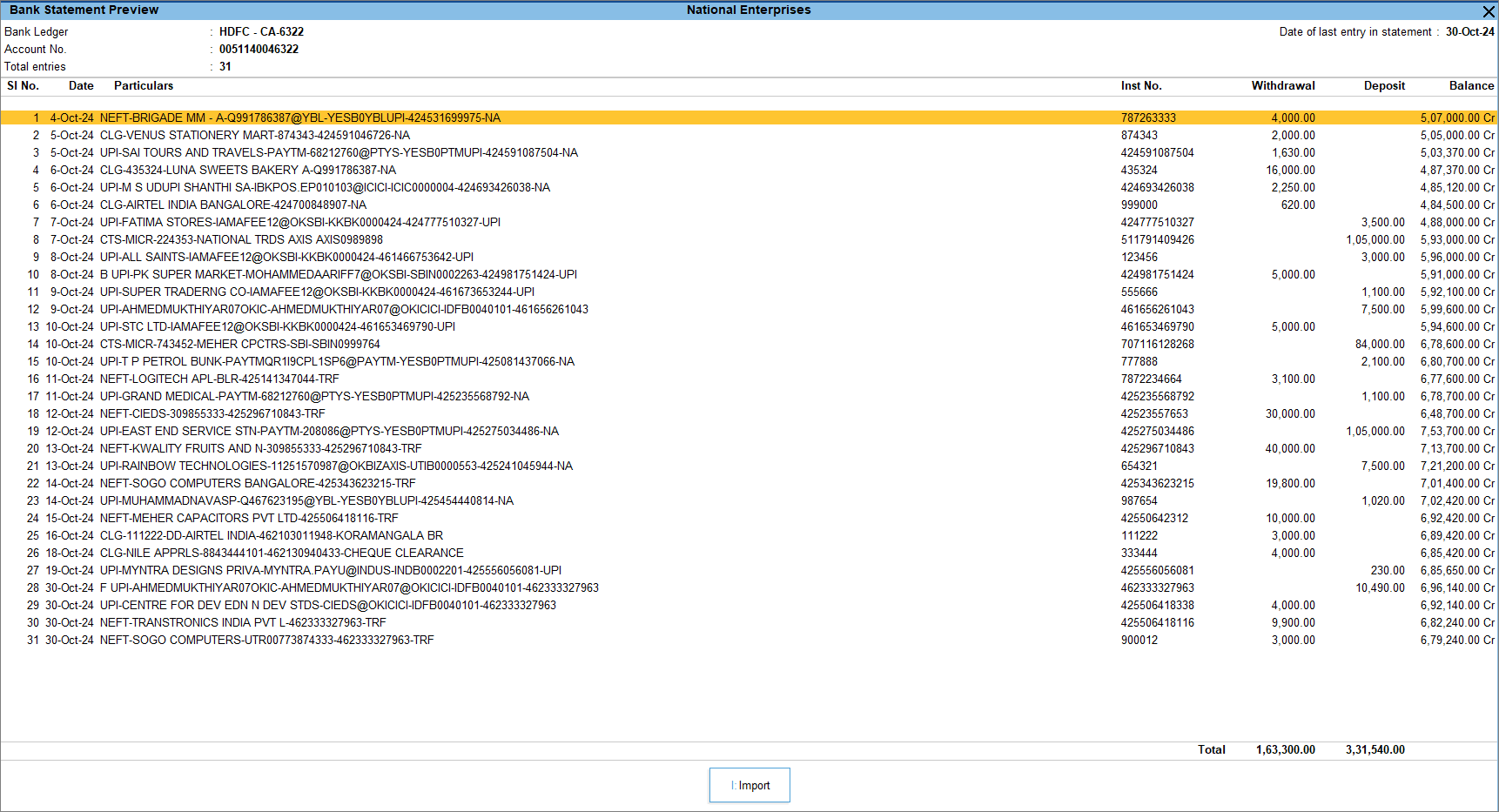
- In the Bank Statement Preview screen, press I (Import) to complete the import.
You can see the total number of entries imported and exact matches in the Summary of Imported Statement.
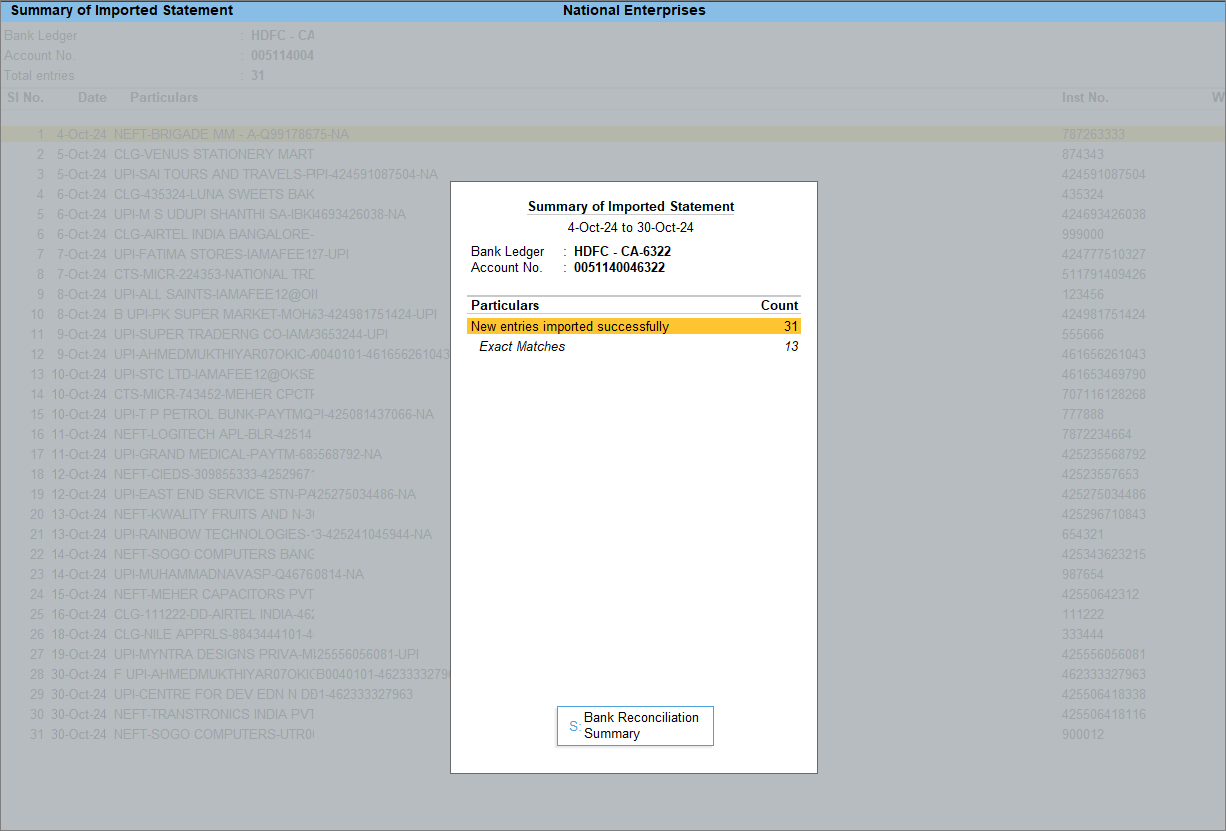
- Press S (Bank Reconciliation Summary) to go to the Bank Reconciliation Summary report.
You can then reconcile the book and bank transactions.
At any point in time, you can view imported entries in the Imported Bank Data report.
In case you have imported the statement for a wrong period or reconciled the transactions, you can always reset bank statement data.
Questions & Answers
- My bank is supported for bank statement import. However, I am unable to import the bank statement. How do I proceed?
You need to ensure that the bank statement you are importing meets the prerequisites.
- Where can I view the bank statement transactions imported to TallyPrime?
To view Imported Bank Data:- Press Alt+G (Go To) > type or select Imported Bank Data, and press Enter.
Alternatively, Gateway of Tally > Banking > Imported Bank Data. - Press F2 (Period) to change the period for which you want to view the imported data.
You can drill down from any of the rows to view transactions for a specific day.
- Press Alt+G (Go To) > type or select Imported Bank Data, and press Enter.
- What should I do if I accidentally imported a wrong bank statement?
In such a case, you can reset the bank statement data.
Is this information useful?
YesNo


