Managing Support Tickets in Developer Portal
The Support module helps you track, respond to, and resolve customer issues raised for your marketplace solutions. This guide walks you through how to efficiently manage support tickets from start to closure.
Accessing the Support Module
-
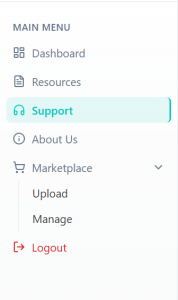
From the Main Menu, click on Support
-
You will land on the Support Dashboard
Understanding the Dashboard
The dashboard gives a quick overview of your ticket activity:
|
Metric |
Description |
|---|---|
|
Total Tickets |
Total number of tickets raised |
|
Open |
Tickets that require action |
|
Closed |
Successfully resolved tickets |

Filtering Tickets by Date
Use the Date Filter dropdown to view tickets within a specific time range:
-
Today
-
Last 7 Days
-
Last Month
-
Last 3 Months
-
Current FY
-
Custom
Viewing Support Tickets
Scroll to the Support Tickets section to see all tickets.
Key Actions Available
|
Action |
Description |
|---|---|
|
Search Tickets |
Enter keywords to find specific tickets |
|
Sort (Oldest First/Latest First) |
Organize tickets by date |
Understanding Ticket Information
Each ticket displays:
|
Field |
Description |
|---|---|
|
Ticket Number |
Unique identifier for the ticket |
|
Customer Name |
Name of the customer who raised the ticket |
|
Subject |
Brief description of the issue |
|
Date |
Date the ticket was created or last updated |
|
Status (Open / Closed) |
Current status of the ticket |

Opening a Ticket
-
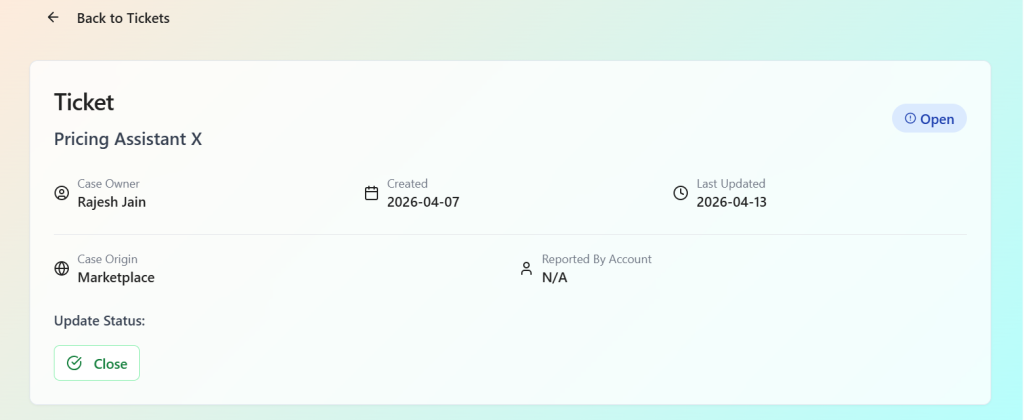
Click on a ticket to view detailed information
Ticket Details Include:
|
Field |
Description |
|---|---|
|
Ticket ID and Subject |
Unique identifier and title of the ticket |
|
Case Owner |
The individual responsible for handling the ticket |
|
Created Date |
Date the ticket was initially created |
|
Last Updated Date |
Date of the most recent activity on the ticket |
|
Case Origin (Marketplace) |
Source from which the ticket originated |
|
Reported By |
The customer who reported the issue |
Understanding the Ticket Activity Timeline
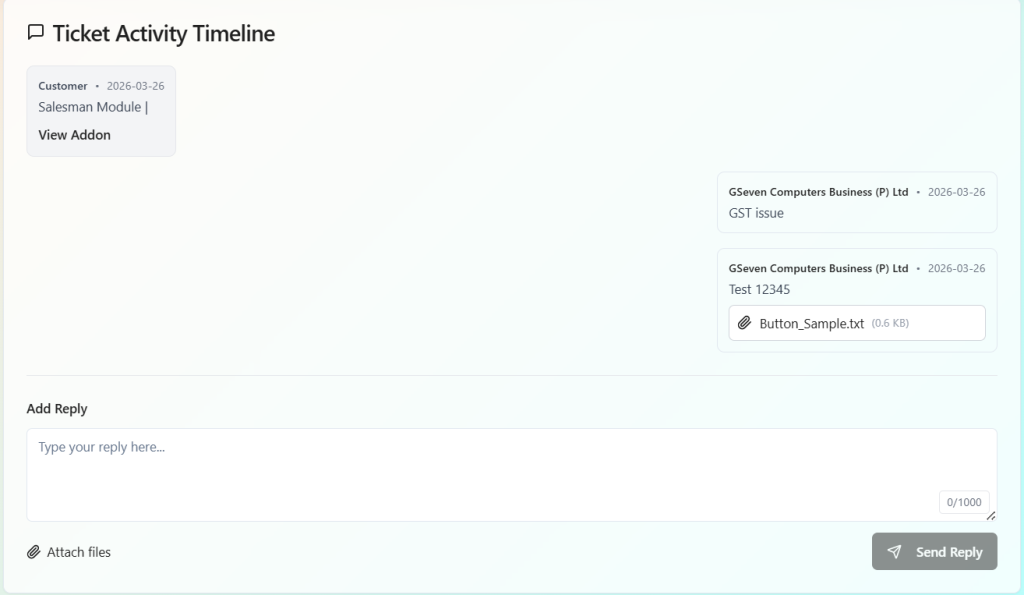
The Ticket Activity Timeline shows the complete interaction history:
-
Customer messages
-
Developer responses
-
Attachments (screenshots, files)
Responding to a Ticket
To reply to a customer:
-
Scroll to the Add Reply section
-
Enter your response
-
Attach files if required
-
Click Send Reply
Attaching Files
You can attach supporting files such as:
-
Screenshots
-
Logs
Updating Ticket Status
-
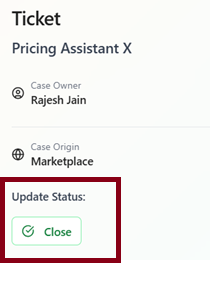
Once the issue is resolved, click Close
Best Practices for Handling Tickets
Respond Promptly
- Respond within 24 hours of the ticket being raised.
-
Acknowledge new tickets early, even if resolution takes time
Understand the Issue
-
Review ticket details and attachments carefully
-
Replicate the issue, if needed
Communicate Clearly
-
Use simple and clear language
-
Provide step-by-step guidance
Provide Complete Resolution
-
Share the final solution
-
Include root cause (if needed)
Avoid Premature Closure
-
Ensure no further clarification is required before closing
Before Closing a Ticket
Make sure:
-
The issue is fully resolved
-
The customer has been clearly informed
-
Any required files or steps are shared
-
No pending questions remain