
Track Revenue from Sales in TallyPrime
You can track revenue generated from sales in TallyPrime by allocating sales transactions to the relevant Cost Centres.

Ensure that:
- In F11 (Company Features), you have set Enable Job Costing and Enable Cost Tracking to Yes.
- You have enabled cost allocation for stock items in the ledger.
In the Accounting Ledger Creation/Alteration screen, set Allow cost allocation (stock item) to Yes.
This option appears when Apply Cost Tracking of Stock Items for Ledgers is enabled under F12 (Configure). - You have created Cost Centres.
- You have created ledgers, as applicable.
- Press Alt+G (Go To) > Create Voucher and press F8 (Sales).
- Press Ctrl+H (Change Mode) and select As Voucher.
- Cost Centre/Classes: Select the applicable Cost Centre.
- Dr: Debit the Party ledger.
- In the Cost Allocations screen, select the project name under Name of Cost Centre.
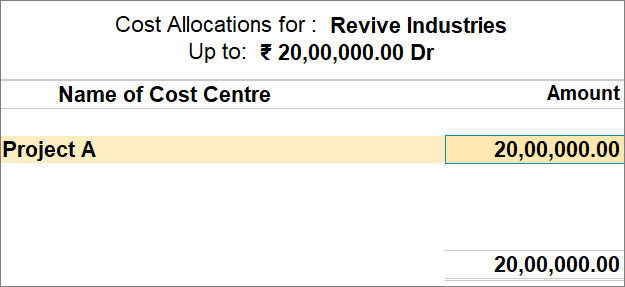
If the stock items are meant for multiple projects, you can allocate them to different Cost Centres. This ensures that each project is assigned only its share of the sales. - Cr: Credit the Sales ledger.
- In the Inventory Allocations screen, select the stock item.
- In the Item Allocations screen, enter the Quantity and Rate.
The Amount gets calculated, and the details are filled in the Inventory Allocations screen.
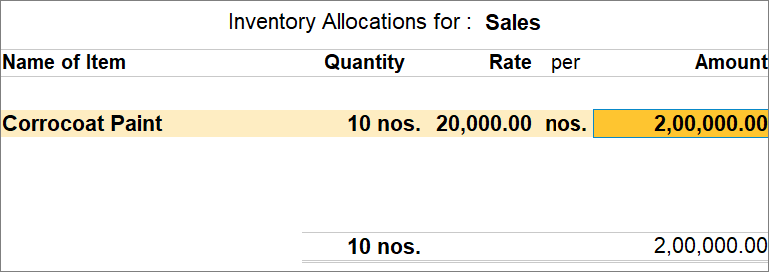
- Press Ctrl+A to save the Inventory Allocations screen for the sales invoice.
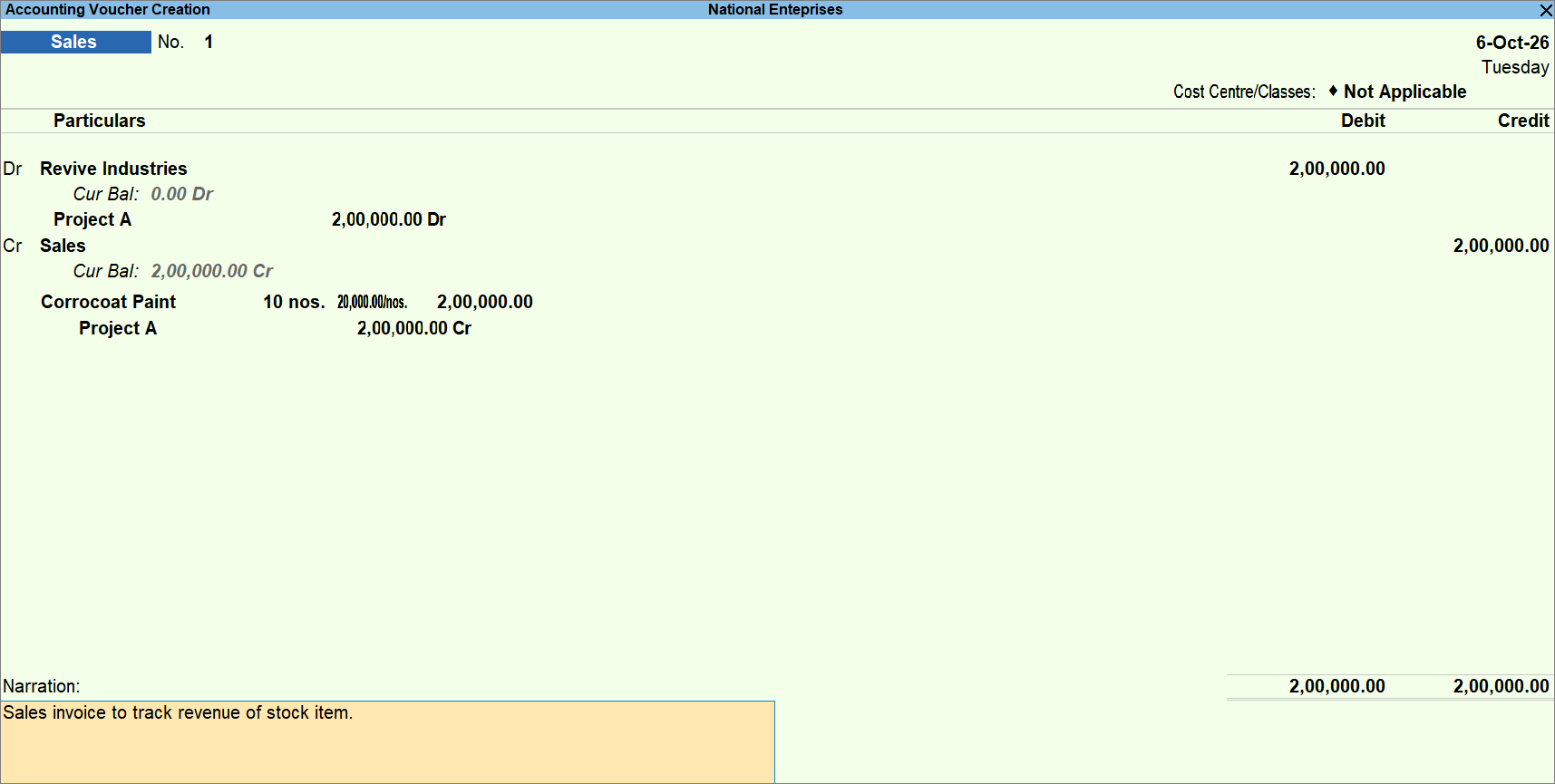
- Press Ctrl+A to save the voucher.
Is this information useful?
YesNo


