
Track Expenses Incurred During Projects in TallyPrime
In TallyPrime, you can track expenses incurred during projects or job work using either of the following methods:
- Accrue your expenses using Journal Voucher.
- Record payment while tracking the expense incurred for the job work or project.

Ensure that:
- In F11 (Company Features), you have set Enable Job Costing and Enable Cost Tracking to Yes.
- You have enabled cost allocation for stock items in the ledger.
In the Accounting Ledger Creation/Alteration screen, set Allow cost allocation (stock item) to Yes.
This option appears when Apply Cost Tracking of Stock Items for Ledgers is enabled under F12 (Configure). - You have created Cost Centres.
- You have created ledgers, as applicable.
Accrue Expenses in Journal Voucher
- Press Alt+G (Go To) > Create Voucher and press F7 (Journal).
- Cost Centre/Classes: Select the applicable Cost Centre.
- Dr: Debit the expense or income ledger.
- Cr: Credit the payable account, say, the purchase ledger.
- In the Inventory Allocations and Stock Item Allocations screens, provide the necessary details.
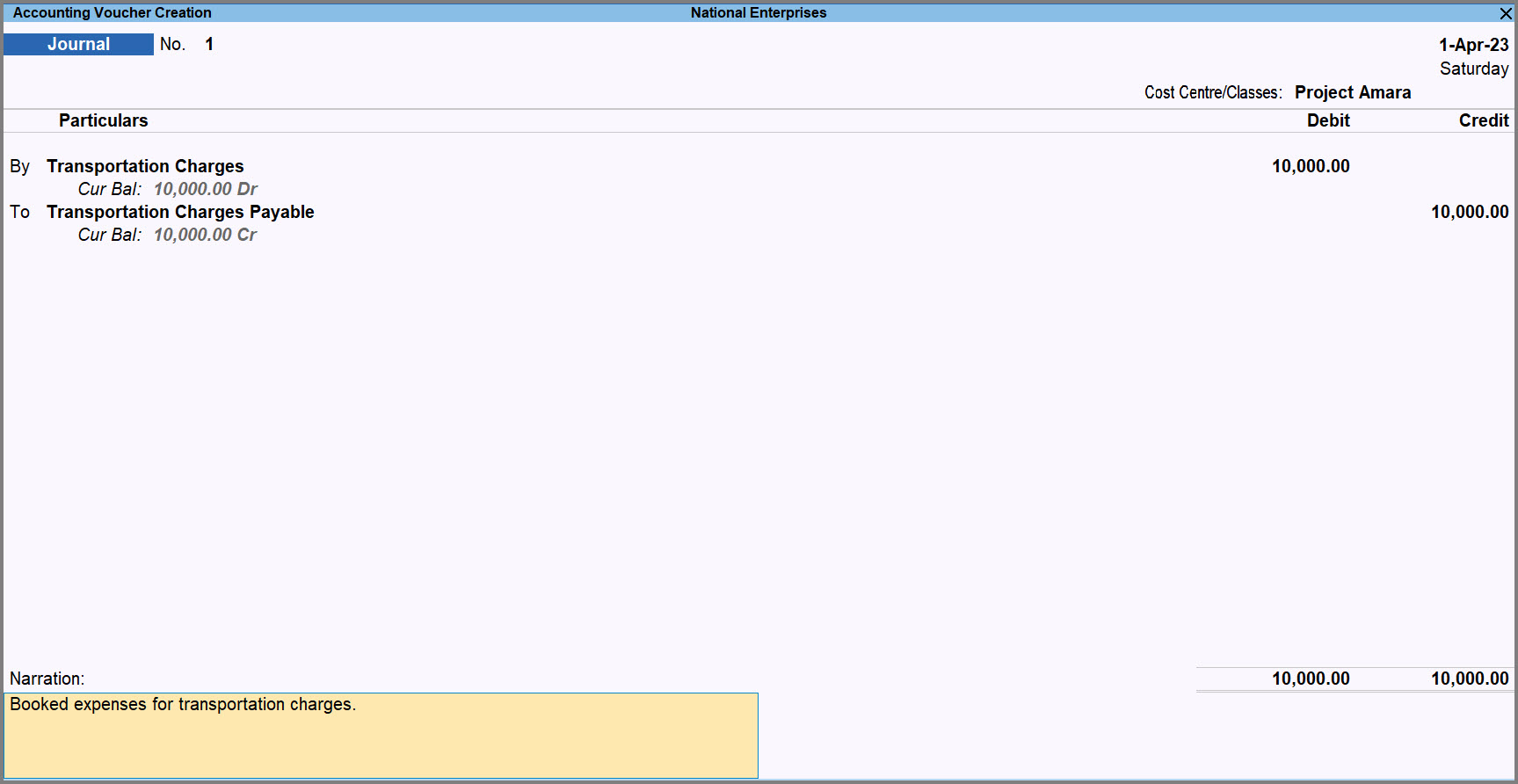
- Press Ctrl+A to save the voucher.
The cost gets allocated to the specified Cost Centre.
Record Payments for Expenses
- Press Alt+G (Go To) > Create Voucher and press F5 (Payment).
- Cost Centre/Classes: Select the applicable Cost Centre.
- Select the bank/cash ledger and the expense ledger.
- Enter the Amount.
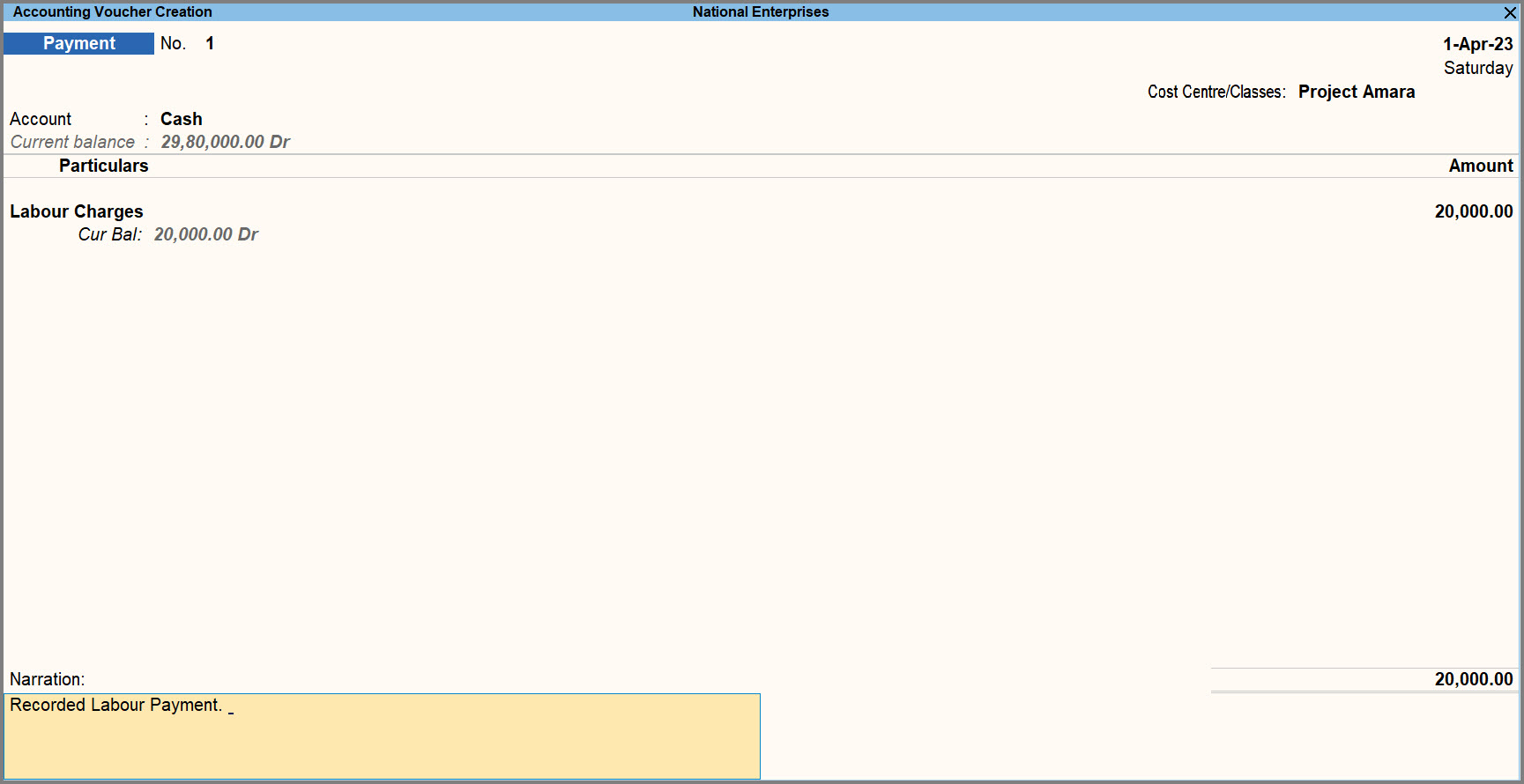
- Press Ctrl+A to save.
The cost is allocated to the specified Cost Centre.
Questions & Answers
- I want to distribute the expense across multiple Cost Centres. How can I do that?
If an expense is applicable to more than one project, it can be allocated across multiple Cost Centres.
While creating the voucher:- Select Not Applicable as Cost Centre/Classes.
- In the Stock Item Allocations screen, allocate expenses to multiple Cost Centres.
To know more, refer to Track Cost While Purchasing Materials for Job Work in TallyPrime.
Is this information useful?
YesNo


