
Record Manufacturing Journal in TallyPrime
If your business is involved in manufacturing finished goods, then in TallyPrime, you can:
- Record manufacture of finished goods: Record the components consumed and the finished goods, co-products, by-products, and scrap produced during manufacturing.
- Maintain damaged or scrapped stock item details: Create a Stock Journal voucher with details of items scrapped during production.
- Assess selling price of the finished goods: Use the Cost Estimation report to review the estimated cost of a product and assess a suitable selling price.
- Generate purchase requisition for manufacturing: Create a user-defined optional voucher type under the Stock Journal voucher and record the requisition of items for manufacturing or consumption.

Ensure that:
- You have created stock items.
- You have created godowns.
- You have created the Bills of Materials for the finished products.
Record Manufacture of Finished Goods
- Press Alt+G (Go To) > Create Voucher and press Alt+F7 (Stock Journal).
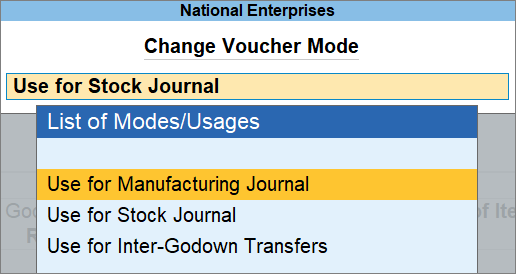
- Press Ctrl+H (Change Mode) > Use for Manufacturing Journal.
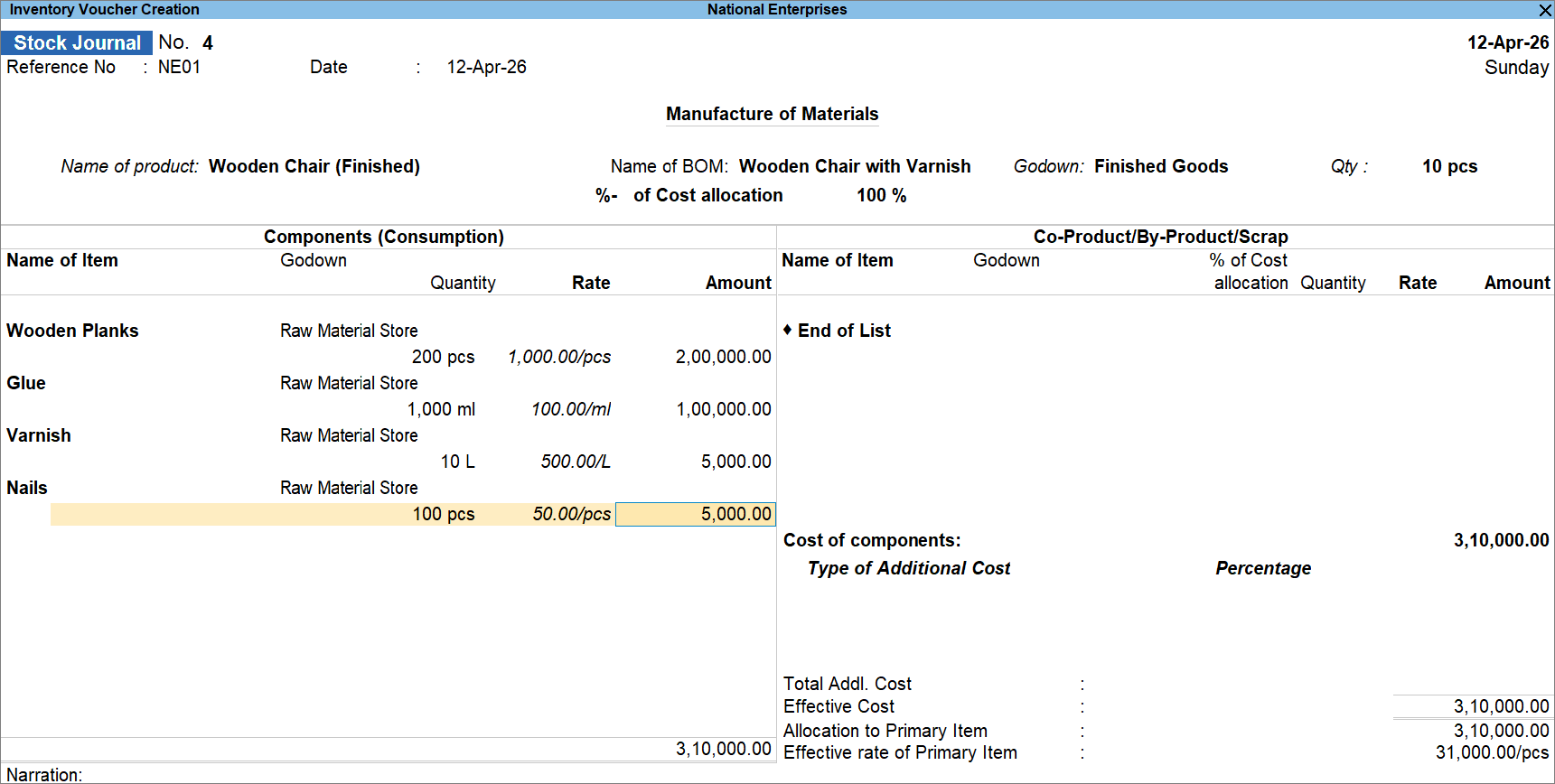
- Specify the basic details of the finished product to be manufactured.
- Name of Product: Select from the List of Stock Items.
- Name of BOM: Select from the BOM List.
You can also record a Manufacturing Journal without a BOM if you haven’t created one. - Godown: Select from the List of Godowns.
Based on the details, the components get selected under Components (Consumption).
- Select the stock item and enter the Rate of the Components.
The Amount gets calculated.
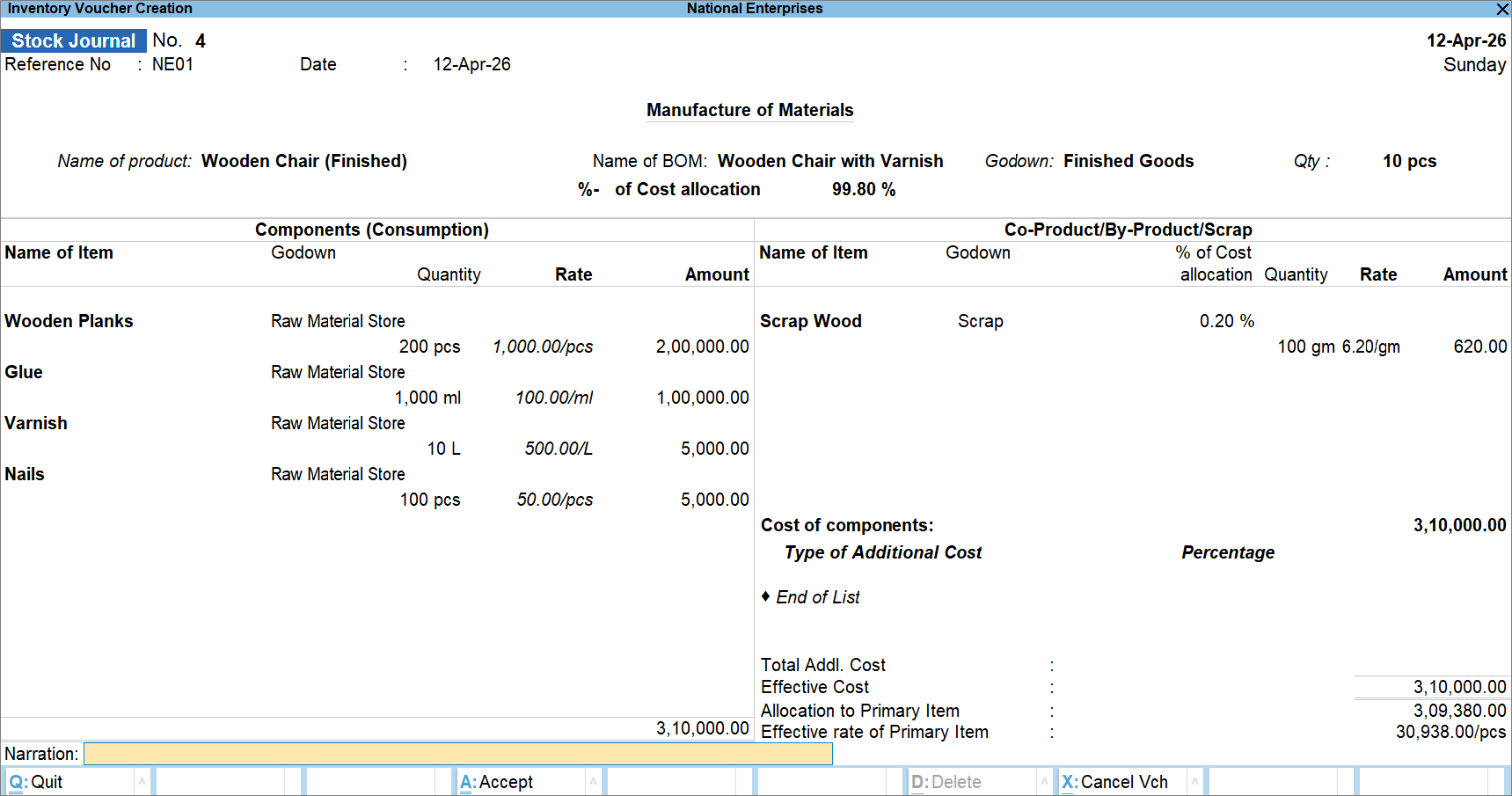
- Specify the Co-Product/By-product/Scrap, if applicable.If there are no co-products, by-products, or scrap applicable to the transaction, press F12 (Configure) and enable Skip Co-product/By-Product/Scrap.
- Name of Item: Select from the List of Stock Items.
- Godown: Select from the List of Godowns.
- % of Cost Allocation: Enter the percentage of expenditure to be allocated to the co-product, by-product, or scrap.
- Select the stock item and enter the Quantity and Rate.
The Amount gets calculated.
- Specify the Co-Product/By-Product/Scrap, if applicable.
If there are no co-products, by-products, or scrap applicable to the transaction, press F12 (Configure) and enable Skip Co-product/By-Product/Scrap.
- Type of Additional Cost: Select the additional cost ledger, if any, and enter the Percentage.
The total Cost of Components and Type of Additional Cost incurred to manufacture the finished goods is displayed in the Effective Cost field.
The per-piece cost of the primary item manufactured (finished item) is displayed in the Effective Rate of Primary Item field. - Provide other necessary details and press Ctrl+A to save.
Record Damaged or Scrapped Stock Item Details
- Press Alt+G (Go To) > Create Voucher and press Alt+F7 (Stock Journal).
- Press Ctrl+H (Change Mode) > Use for Manufacturing Journal.
- Under Source (Consumption), enter the Name of Item.
- Select the Godown created for scrap items and enter the Rate and Quantity.
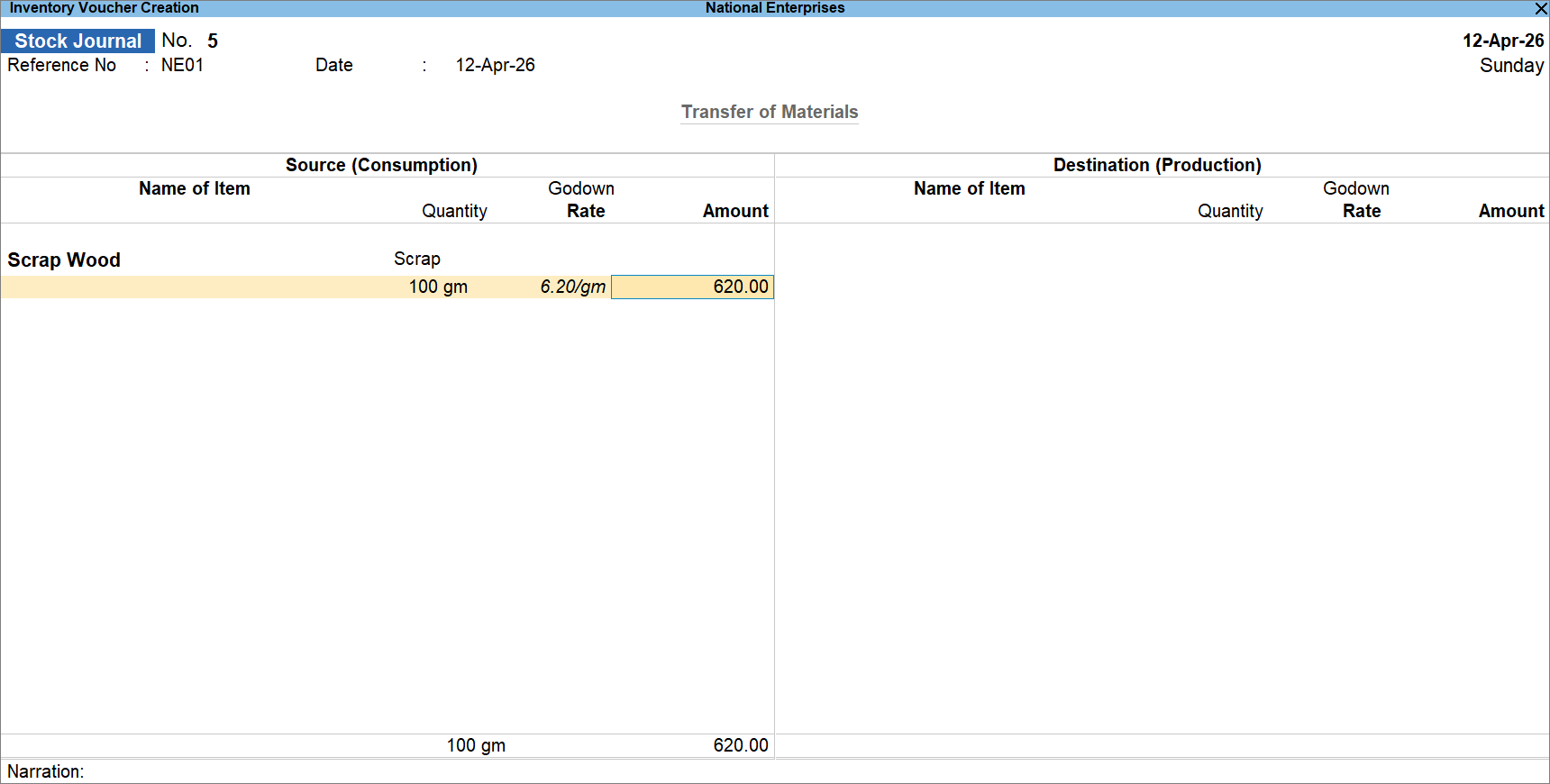
- Press Ctrl+A to save the voucher.
You can view the scrap details in the Godown Summary.

After you account for the manufacturing of goods using Manufacturing Journal and account for the scrap generated, you can view the Cost Estimation report.
- Press Alt+G (Go To) > type or select Cost Estimation and press Enter.
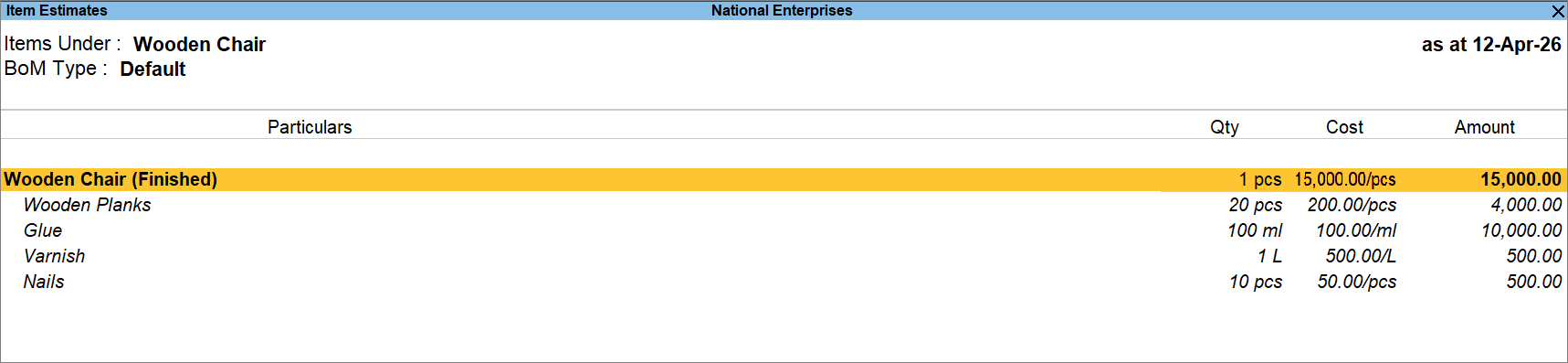
In the report you can view the Cost of the stock item.
Generate Purchase Requisition for Manufacturing
- Create a voucher type for purchase requisition under Stock Journal.
- Press Alt+G (Go To) > Create Master > Voucher Type.
- Name: Enter the name of the voucher type, say Purchase Requisition.
- Select type of voucher: Select Stock Journal from the List of Voucher Types.
- Enable the options Mark this voucher type as ‘Optional’ by default and Use as a Manufacturing Journal.
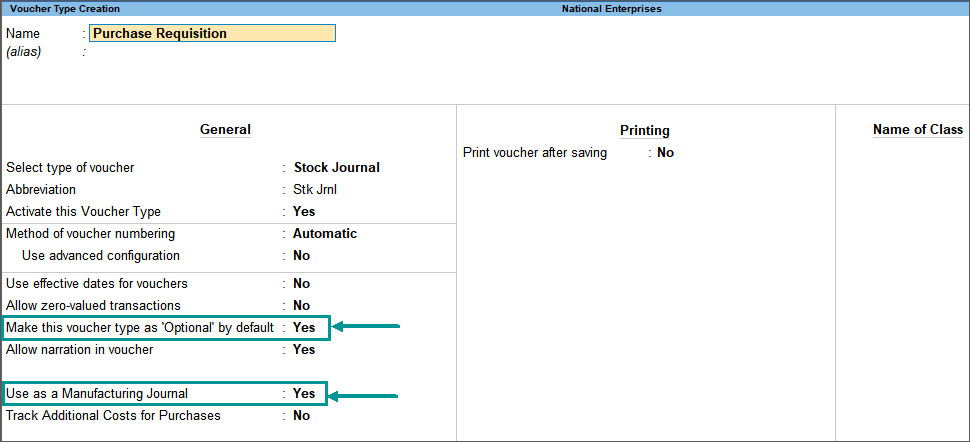
- Record the purchase requisition voucher.
- Press Alt+G (Go To) > Create Voucher > F10 (Other Vouchers) > select Purchase Requisition and press Enter.
- Record the Manufacturing Journal.
Questions & Answers
- I have created a Bill of Materials, but I need to update the quantities and raw materials. Can I make these changes while creating a voucher?
Yes, you can do so. When you record the Manufacturing Journal by selecting the product and the required Bill of Matrerial (BoM), the components specified in the BoM are automatically displayed under Components (Consumption). You can review and update the details before saving the voucher.
Is this information useful?
YesNo


