Object
You need to work with actual business data, not just display it on the screen. The Object definition helps you do exactly that by representing a single instance of a business entity such as a Ledger, Voucher, or Stock Item within Tally. It provides a structured way to access, create, or modify data, ensuring that changes are applied intentionally and in the correct context. By using an Object definition, you can interact with Tally’s data model safely and meaningfully, making it essential for validations, automations, and data-driven logic.
Syntax
[Object : <Object Name> ]
Example
[Object: TSPL User Object]
➥ Download the Object Sample1(Behave as, Action) cyclictable
➥ Download the Object Sample2(Collection, Storage) collectionstorage , tabulardisplay, TestXML
➥ Download the Object Sample3(Current Report, Current Collection) browsergoto
➥ Download the Object Sample4(Local Formula, Full Width) fullwidthobject
Attributes
The Storage attribute gives the power to the TDL object to behave as dynamic objects holding data temporarily when XML/ JSON data is read by the collection. The attribute specifically lets you map to the leaf level values in the data being read, by specifying the leaf level tag name and relevant Tally Data Type in the object definition. The associated values for these objects can change during the execution of Tally.
The source of these objects can be from a variety of data sources like ODBC, XML, JSON, DLL, and so on. Typically, the structure of data (XML/JSON) being read is replicated in the object definition using the Collection and Storage attributes, providing the exact mapping. While leaf level tags are mapped with storage attribute, the array objects are mapped to the collection attribute.
(For more information on gathering data from other sources, refer to Collection definition attribute DataSource).
Syntax
Storage: <Source leaf Tag Name>: <Tally Data Type>
<Source leaf Tag Name> is the leaf level tag name in the source data
<Type>is Tally data Type
Example
[Collection: TSPL XML Get CollObjSpec]
Remote URL : “http://Localhost/TestXML.xml”
XML Object : TSPL Customer Data
Client Only : Yes
[Object: TSPL Customer Data]
Storage : Name : String
Storage : EmpId : String
Collection : Phone : TSPL XML Phone Coll
Collection : Address : TSPL XML AddressColl
[Object: TSPL XML Phone Coll]
Storage : OfficeNo : String
Storage : HomeNo : String
Storage : Mobile : String
[Object: TSPL XML AddressColl]
Collection : AddrLine : String
Explanation
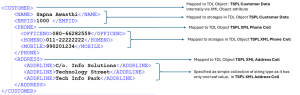
This example shows how the xml file TestXML.xml located in the localhost, can be read and mapped to the TDL Object. It starts with the Collection: TSPL XML Get CollObjSpec which starts reading the XML structure from the file specified via attribute Remote URL. The XML Object attribute provides the initial TDL Object TSPL Customer Data where the TDL Object mapping starts. The Object attributes Storage is used to map information of leaf tags in the XML format and Collection is used to map to arrays/repeated grouped information in the XML format.
The following figure shows clearly how the XML data is getting mapped to the TDL Objects as seen in the example code above.
TallyPrime offers the powerful capability to create objects with TDL. These objects called as external objects though cannot be used to store data in the database, it can be used for some intermediate data manipulations and temporary storage. Classified as Static objects and dynamic objects, the attribute collection is used in dynamic objects which simply means it can dynamically (because the values are not set beforehand) hold external data temporarily in memory for performing some operations on it.
The associated values for these objects can change during the execution of Tally. The source of these objects can be from a variety of data sources like ODBC, XML, JSON, DLL, and so on.
(For more information on gathering data from other sources, refer to Collection definition attribute DataSource).
Syntax
Collection:<Source Object Name>:<Type>
<Source Object Name> is the source object name from XML/JSON source file from where data is to be copied
<Type> can be an TDL Object Definition Name in case of a complex collection or a simple data type in case of simple collection
Example
[Collection: TSPL XML Get CollObjSpec]
Remote URL : “http://Localhost/TestXML.xml”
XML Object : TSPL Customer Data
Client Only : Yes
[Object: TSPL Customer Data]
Storage : Name : String
Storage : EmpId : String
Collection : Phone : TSPL XML Phone Coll
Collection : Address : TSPL XML AddressColl
[Object: TSPL XML Phone Coll]
Storage : OfficeNo : String
Storage : HomeNo : String
Storage : Mobile : String
[Object: TSPL XML AddressColl]
Collection : AddrLine : String
Explanation
This example shows how the xml file TestXML.xml located in the localhost, can be read and mapped to the TDL Object. It starts with the Collection: TSPL XML Get CollObjSpec which starts reading the XML structure from the file specified via attribute Remote URL. The XML Object attribute provides the initial TDL Object TSPL Customer Data where the TDL Object mapping starts. The Object attributes Storage is used to map information of leaf tags in the XML format and Collection is used to map to arrays/repeated grouped information in the XML format.
The following figure shows clearly how the XML data is getting mapped to the TDL Objects as seen in the example code above.
Unlike how local formula is referred in field, local formula in object definition has a different behavior. This is used to add methods to the object to have a specific value, like how a ledger object has methods which holds a specific value, like Name gives the Ledger Name. When this object is in context, the values held by these local formulas can be retrieved with the $ prefix like how a method is retrieved from the primary objects.
Whether you are defining a new object or modifying an existing object, this attribute defines the data that object holds. This makes it possible to define newer methods in existing objects that can be used to retrieve data additional to what the default object schema offers. For example, a ledger object has default methods OpeningBalance and ClosingBalance, an additional method can be added to this to give the difference between them DiffBalance: $ClosingBalance – $OpeningBalance, and viola! Now a new method ‘DiffBalance’ is available in object ledger throughout the application.
And when it’s a totally new object, you have the power to define the data that the object holds and the method names that holds them. For example, you create objects for different states and define methods that whole values like Name of state, Country, national language, population and so on, and make a collection of all these objects and use it as collection of states to show as a table or display in a report.
For a new object definition, most commonly specified local formula label is ‘Name’. Makes it easier to use it along with primary objects especially in Tables.
Syntax
Local Formula : <Formula Name/Label> : <Expression>
OR
<Formula Name/Label> : <Expression>
<Formula Name/Label>: is a user defined name
<Expression>: Any expression that the local formula needs to be assigned
Example
[#Object: Ledger]
DiffBalance:$ClosingBalance-$OpeningBalance
Explanation
A new method DiffBalance is added to the Ledger object which gives the difference of ledger methods $ClosingBalance and $OpeningBalance
Have you seen how powerful the Tables are in TallyPrime with their multifunctional capabilities? It’s not just a plain list to select from; you can create, you can browse, you can switch contexts and so on. Everything from a single point.
One of the core capabilities that makes this possible is the attribute ‘Behave As’. It defines the behaviour of the object from a list of keywords, so that the system understands where to place it in the table and what are the associated attributes that can be associated with an object with a specific behavior. Let us understand the utility of this attribute based on the keywords used as attribute value i.e. Default / Action / Label / Config / On The Fly / External Action.
In the tables that list masters in a voucher in TallyPrime, the item ‘Create’ is an object defined as Action. Thus, it’s placed on the top of the table and in the field the attribute ‘Skip action’ will work only on these objects.
Syntax
Behave As: <Behavior Type Keyword>
<Behavior Type Keyword> is one of the keywords – Default / Action / Label / Config / On The Fly / External Action.
| Default | This is used to specify when as an object for selection. In the absence of the attribute, Behave As, this is the default value. |
| Label | The properties of an Object behaving as a Label is to expand and collapse the hierarchical elements exploded from the current Label Object and should be an unselectable item. For example, In ‘Create’ menu item; Accounting Masters, Inventory Masters and many more such text that are in bold are label. This aids to group options that are visible in a table for better clarity. |
| Config | The properties of an Object behaving as a Config is to set the variable values and is an unselectable item. To re-gather the table to reflect the change in the variable values, the Field Attribute, Process Change Table or Cyclic Behavior must be set to Yes. For example, in TallyPrime configuration tables, configurations that just toggle between values are Config objects. |
| On the Fly | Usually, when user types in a value that is not in the list, an error message is shown as Spelling Error. Objects with the Keyword On The Fly is designed to appear at the top of the Table; similar to Action and External Action. When the table does not contain the items with text entered by the user, this text appears next to the On the Fly Object. The corresponding actions specified against On the Fly Objects in the field attribute ‘Act on table Element’ or ‘Trigger’ or ‘TriggerEx’ are executed when the user has enters a new value. |
| Action & External Action |
The properties of an Object behaving as an Action or an External Action is
There are 2 action keywords:
|
Example
[Field: TSPLActasReport]
Use : NameField
Table : Ledger, TSPLCreate
Show Table : Always
Trigger : Ledger,Yes : $$IsSysNameEqual:CreateNew:$$EditData
Skip Action : Yes
[Collection: TSPLCreate]
Object: TSPLCreate
[Object: TSPLCreate]
Name : $$SysName:Create
Behave As : External Action
Explanation
This example shows that the object TSPLCreate with sysname Create, which behaves as an external action specified via the attribute Behave as, is added to the top right end of the table displayed in the field TSPLActasReport along with ledgers . The cursor is placed on the first item after the action objects which is on the first item after Create in this case. When this item is selected, trigger report to create ledger is opened with the Trigger attribute.
Action is a core attribute that makes Tables in TallyPrime bring together various functionalities in one place. Almost every Table you see in TallyPrime uses ‘Action’ attribute. The attribute allows you to specify all the actions that is supposed to be linked with the object with a label so that these defined actions can be called through the action ‘Execute Obj actions’ with a specific label, which is typically called with the ‘Act on Table Element’ attribute at the Field definition, defining what should happen when a specific table item is selected in the field. In short, the action statements defined in the object is executed through action ‘Execute Obj actions’ which takes a label as parameter. Multiple action statements can be defined with the same label and they will be executed in the order specified.
Syntax
Action: <Label>:<Action>:<Action Parameters>
<Label> is a string that can be used to identify the action statement.
<Action>:<Action Parameters> is the action and corresponding parameters.
Example
[Field : TSPLCyclic Table]
Use : Name Field
Table : TSPLList of Stock Groups, TSPL Primary
Show Table : Always and Never Hide
Skip Action : Yes
Act On Table Element : Yes : Execute Obj Actions: TSPLChildStockItems
Act On Table Element : ($$CurrentTableObj:$Name = $$Sysname:Back): Execute Obj Actions : Table Action
Process Change Table : Yes
[Object: TSPL Primary Object]
Name : $$SysName:Primary
Action : TSPLChildStockItems: Set : TSPLStockGroupName: $$CurrentTableObj:$Name
Action : TSPLChildStockItems: Change Table: TSPLChildStockItemsCollection, CycleBack Action: Yes
[#Object: Stock Group]
Action : TSPLChildStockItems: Set : TSPLStockGroupName : $$CurrentTableObj:$Name
Action : TSPLChildStockItems: Change Table: TSPLChildStockItemsCollection, CycleBack Action: Yes
Explanation
The example shows that the field TSPLCyclic Table has a table with cyclic behavior enabled via the attribute Process Change Table, where when stockgroup or primary is selected, stockitems; corresponding to the selected stockgroup are listed with an action object item ‘Back’ to go back to the stockgroup table. Once a stock item is selected, the field is accepted.
- When any stockgroup or primary from the table is selected the action corresponding to the label TSPLChildStockItems in the selected object type will be executed which in this case is stock group
- When back is selected, action corresponding to label TableAction is executed from the object definition ObjAlterCycleBack in collection CycleBackAction. This is to go back to stock group table from stock item table
Have you witnessed the two of the best features of TallyPrime that brings the ease of accessing any report in the Go To table in the TallyPrime product and Browser Reports in the Tally website? Did you know you could very easily add your reports to the list and exercise the power of these features? The attribute Current Report and Current Collection make it possible. Current Report takes the Report Name that needs to be displayed. Current Collection takes the Collection Name that has the trigger report and the actual report to be opened. Well, these attributes work in conjunction with the methods necessary for the object. We would discuss all these attributes and methods together.
Syntax
Current Report / Display Report : <Display Report Name>
Current Collection / Display Collection : <Display Collection Name>
Adding to Browser Reports List
| Current Report | Current Collection |
|
[#Collection: List of Custom Browser Reports] [Object: <Object Name>] |
[#Collection: List of Custom Browser Reports] [Object: <Object Name>] |
Attributes
- CurrentReport: The attribute that takes the Report Definition that should be displayed when the user clicks on the display name in the browser report list. It works in conjunction with Display Report method.
- CurrentCollection: The attribute that takes the Collection Definition. This collection has the object context and Trigger, Variable and Report, attributes. Once the display name in the list is clicked the trigger report is opened and when user selects an object relevant report is opened. All this info is in the collection definition. It works in conjunction with Display Collection method.
Methods
- Name: The expected method value is the display name of the report in the browser list. When you open the browser report list, this is the name that will appear in the list.
- DisplayReport: The expected value is the Name of the report definition.
- DisplayCollection: The expected value is the Name of the Collection definition.
- IsAccessAvailable: The method value is to specify a condition to check if the report is available for the user to view in the browser as per the security settings defined by the administrator. It accepts a logical value.
- IsFeatureEnabled : The method value is to specify a condition to check if the customised report can be displayed based on the relevant features that are enabled in the F11: Features screen of TallyPrime. It accepts a expression that evaluates to a logical value.
- IsAlias: The method value is required to identify whether the current collection or current report holds an alias or not. Aliases are not listed initially in ‘List of Reports’. These aliases are visible to a user only on search. It accepts an expression that evaluates to a logical value.
Example
[#Table: GT CommonReports]
Add : Object : At End : GT PartyContactDetails
[Object: GT PartyContactDetails]
Use : Go To Report Obj
Name : $$LocaleString:”Party Ledger Details”
Current Report : TSPL CustomerDetailsXMLJSON
Explanation
This example shows that the Report TSPL CustomerDetailsXMLJSON is added to the Goto list at the end of the common reports section of the Go to List. Object GT PartyContactDetails provides the details of the report line item to be added in the list. It uses the default object Go To Report Obj via the Use attribute, defines the display name in the table as “Party Ledger Details” via the method Name and the report name to be displayed as TSPL CustomerDetailsXMLJSON via the attribute Current Report. This object is added to the goto list by modifying the Table GT CommonReports using the Add:Object statement
When user clicks on Party Ledger Details in the Go to List, the report TSPL CustomerDetailsXMLJSON opens.
Adding to Goto Reports List
| Current Report | Current Collection |
|
[#Table: GT CommonReports] Add: Object : <Object Name> [Object: <Object Name>] |
[#Table: GT CommonReports] Add: Object : <Object Name> [Object: <Object Name>] |
Here the Object uses the default object definition ‘Go To Report Obj’ and ‘GT Collection Template Object ‘ as the template objects already contains required methods and actions for the object to get listed in the GoTo table. The report will be added to the Common Reports section of the table. If you want the report to be added in some other section, you can modify the relevant table.
- Name: The method accepts the display name of the report in the Goto Report list. When you open the Go to report list, this is the name that will appear in the list.
- Action : Goto Action: Display Current Report: The label GotoAction is called in the Goto reports field and the action DisplayCurrentReport takes the Report definition given in the CurrentReport attribute
- CurrentReport: The attribute ‘CurrentReport’ that takes the Report Definition as its value. When user clicks on it, the report is displayed.
- Action : Display: Display Current Collection : The label GotoAction and DisplayAction is called in the Goto reports field and the action DisplayCurrentCollection takes the Collection definition given in the CurrentCollection attribute.
- CurrentCollection: The attribute that takes the Collection Definition as its value. This collection has the object context and Trigger, Variable and Report, attributes. Once the display name in the list is clicked the trigger report is opened and when user selects an object relevant report is opened. All this info is in the collection definition.
Example
[#Collection: List of Custom Browser Reports]
Add : Object : TSPL Party Contact Details
[Object: TSPL Party Contact Details]
CurrentReport : TSPL CustomerDetailsXMLJSON
DisplayReport : “TSPL CustomerDetails”
Name : “Party Contact Details”
IsAccessAvailable : $$Allow:Display:AccountsMasters
IsFeatureEnabled : $$IsAccountingOn or $$IsInventoryOn
Explanation
This example shows that the Report TSPL CustomerDetailsXMLJSON is added to the browser list. The Object TSPL Party Contact Details contains the details of the report to be added in the browser list. The display name of the report in the browser list “Party Contact Details” is set using the method Name, The access rights of the report is set via the method IsAccessAvailable specifying that the report can be accessed only by users who have display access to accounting masters, The method IsFeatureEnabled specifies that report is enabled only when Accounting and inventory is switched on in company F11 features. The report name to be displayed is specified as TSPL CustomerDetailsXMLJSON via the attribute Current Report. This object is added to the browser list by modifying the Collection List of Custom Browser Reports using the Add:Object statement
When user clicks on Party Ledger Details in the browser, the report TSPL CustomerDetailsXMLJSON opens.
Have you seen how the file path in the company selection and File selection tables occupy the entire width of the table and doesn’t shrink into the first column? Feels like that’s how it should be isn’t it! But that functionality is achieved by setting FullWidth attribute to Yes in the Object level. Without this the path would get shrunk into the first column and look illegible and messy. At collection definition column widths are specified with attribute Format. However, if the maximum space is required for an Object, where the value of the object is especially dynamic or it needs to occupy space across the columns, Full Width can be specified.
Points to remember
- The use of this attribute is when the table has more than one column to display and certain object/ objects need to occupy full width across columns. For example, path object occupies full width while it explodes to companies having 3 columns with name, number and status. Here even if there are 3 columns, the path object occupies the complete width of the table.
- Even if one object has Fullwidth mentioned as yes, the collection where the object is mentioned, only the first Format attribute will be considered and will occupy the fullwidth in the table, and the rest will be ignored.
- This attribute is considered only when the object is displayed in a table.
Syntax
<Logical Expression> is Logical value or expression that evaluates to a logical value
Example
[Object: TSPL East]
Behave As : Label
Name : “States belonging to Eastern India”
Full Width: Yes
Explanation
The example defines an object TSPL East, which behaves as Label as specified in Behave As attribute, with name displayed as ‘States belonging to Eastern India’ as specified in the attribute Name and the attribute Fullwidth with value Yes specifies that this is displayed occupying fullwidth of the Table.