How to Upload a Solution on Tally Marketplace
Uploading your solution to the Tally Marketplace (Developer Portal) is a simple and structured process designed to help developers showcase their work efficiently. By following the steps below, you can add your solution, provide all necessary details, and publish it for visibility on the marketplace.
Step 1: Navigate to Upload
-
Log in to the Developer Portal.
-
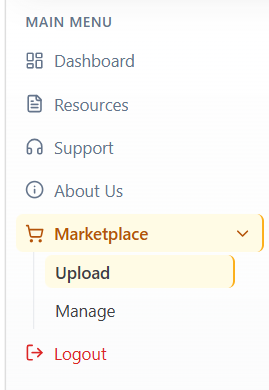
Go to Marketplace → Upload from the left menu.
-
The Upload page opens.
Step 2: Upload Files & Assets
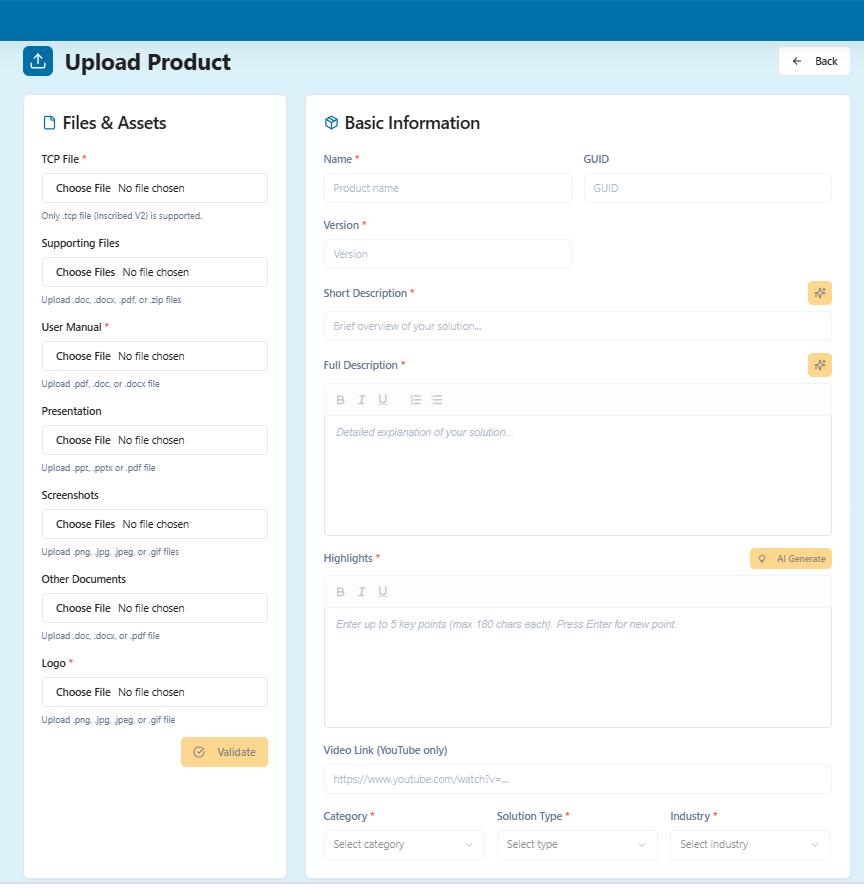
Fill the Files & Assets section.
Mandatory Files
-
TCP File*
-
User Manual*
-
Logo*
Optional (Recommended)
-
Supporting Files
-
Presentation
-
Screenshots
-
Developer Manual
After uploading the TCP, click Validate. On successful validation, GUID and Version are auto-populated and locked.
Step 3: Fill Basic Information
Provide the required product details.
AI-Assisted Description Generation
The platform provides AI assistance for:
-
Short Description
-
Full Description
-
Highlights
Short Description*
-
You can either type the short description directly in the text box, or use the AI tool to generate it.
-
To generate the short description with AI:
-
Click AI Generate. A text field appears.
-
Write about your solution in the text field and click Create.
-
The generated short description is shown. Make any changes you need.
-
Click Accept to add it to the Short Description field.
-
Full Description*
-
You can either type the full description directly in the text box, or use the AI tool to generate it.
-
To generate the full description with AI:
-
Click AI Generate. A text field appears.
-
Write about your solution in the text field and click Create.
-
The generated full description is shown. Make any changes you need.
-
Click Accept to add it to the Full Description field.
-
Short Description and Full Description are separate fields and must be completed individually.
Highlights
-
Click AI Generate to auto-create highlights.
-
The AI uses the Short and Full Description content to generate up to 5 key pointers.
-
You can edit any highlight.
-
You may regenerate if needed.
Other Basic Information Fields
Fill the remaining fields:
-
Name*
-
Video Link (YouTube, optional)
-
Category*
-
Solution Type*
-
Industry*
Step 4: Configure Requirements
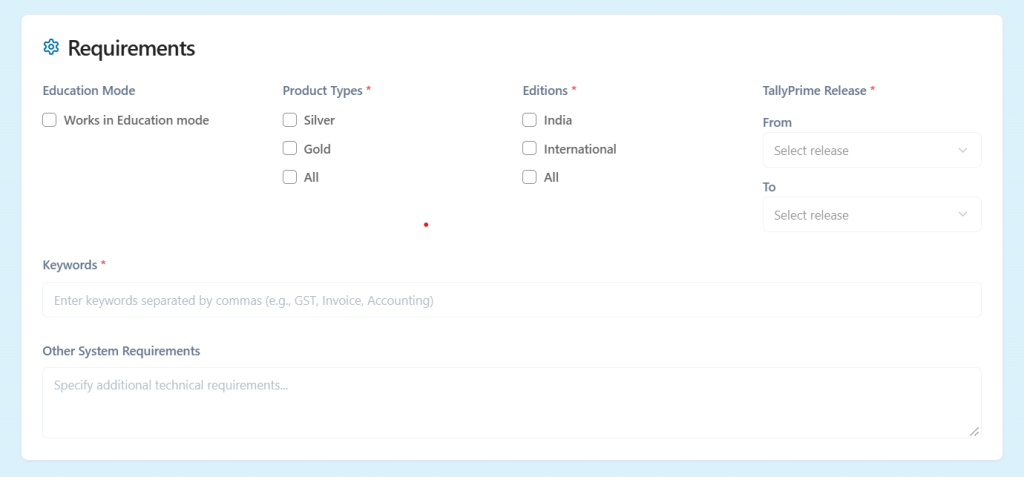
Specify compatibility:
-
Education Mode support
-
Product Types (Silver/Gold/All)
-
Editions (India/International/All)
-
TallyPrime Release (From–To)
-
Keywords *
-
Other System Requirements (if any)
Note: Keywords help customers find your solution on the Marketplace. Customers search in their own words, like “e-way bill,” “TDS,” “stock ageing,” or “WhatsApp reminder,” and the right keywords make sure your solution appears for those searches. Relevant keywords, such as synonyms, abbreviations, key features, and the industries you serve, bring the right customers to your listing.
Step 5: Enter Pricing Information
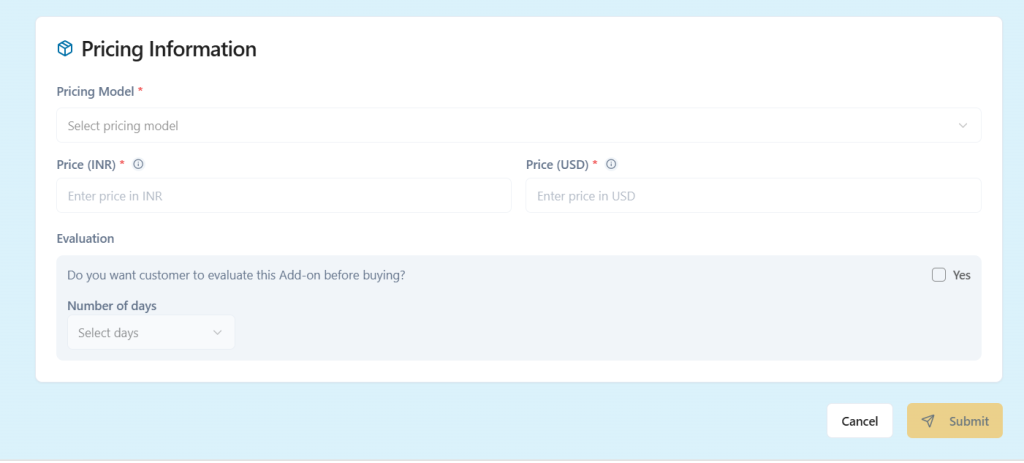
Provide:
- Pricing Model*: select Paid.
- Price (INR)* or Price (USD)*: provide the price in INR or USD, depending on your solution’s edition (India or International).
- Evaluation (Trial) (optional)
- Enable trial
- Select number of days
There are no platform price restrictions. Price based on your solution value.
Step 6: Submit and Review Pricing
-
Click Submit.
-
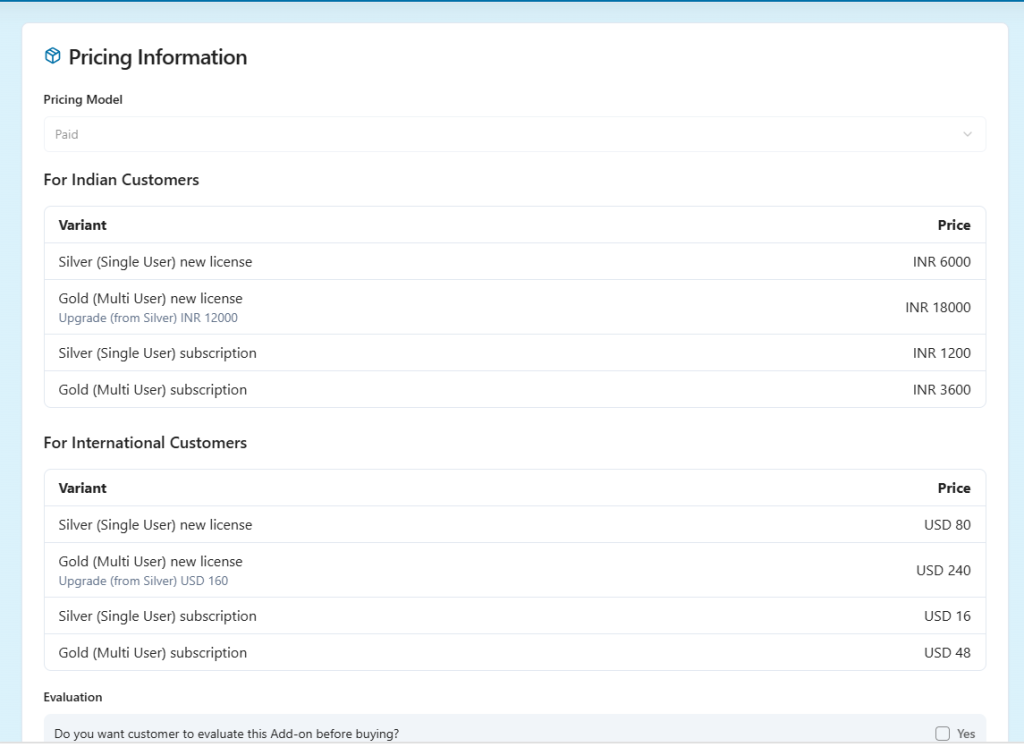
A Final Pricing Summary screen will appear showing calculated pricing variants.
-
Carefully review all prices.
-
Click Confirm to proceed.
Step 7: Publish
-
After confirmation, your solution is published to the Marketplace.