
Validate HSN/SAC of Stock Items
TallyPrime enables you to get the HSN/SAC information as entered in the portal and verify the details in TallyPrime irrespective of whether you have the details entered in the respective stock item, stock group, or company. You can also validate the details from the GST Rate Setup report.
Before you begin | Prerequisite
- Enable GST for your Company.
- Ensure that you have the correct HSC/SAC of the stock items.
If your business has a turnover exceeding Rs. 5 Crore in the previous financial year, then you need to have 4, 6, or 8 digit HSN codes for Stock Items as per new mandate under Notification 78/2020 issued by the GST authority.
Validate HSN/SAC Using Masters
Step 1: Open the master where the HSN/SAC is specified.
- Press Alt+G (Go To) > Alter Master > Stock Item.
- Select the required stock item and press Enter.
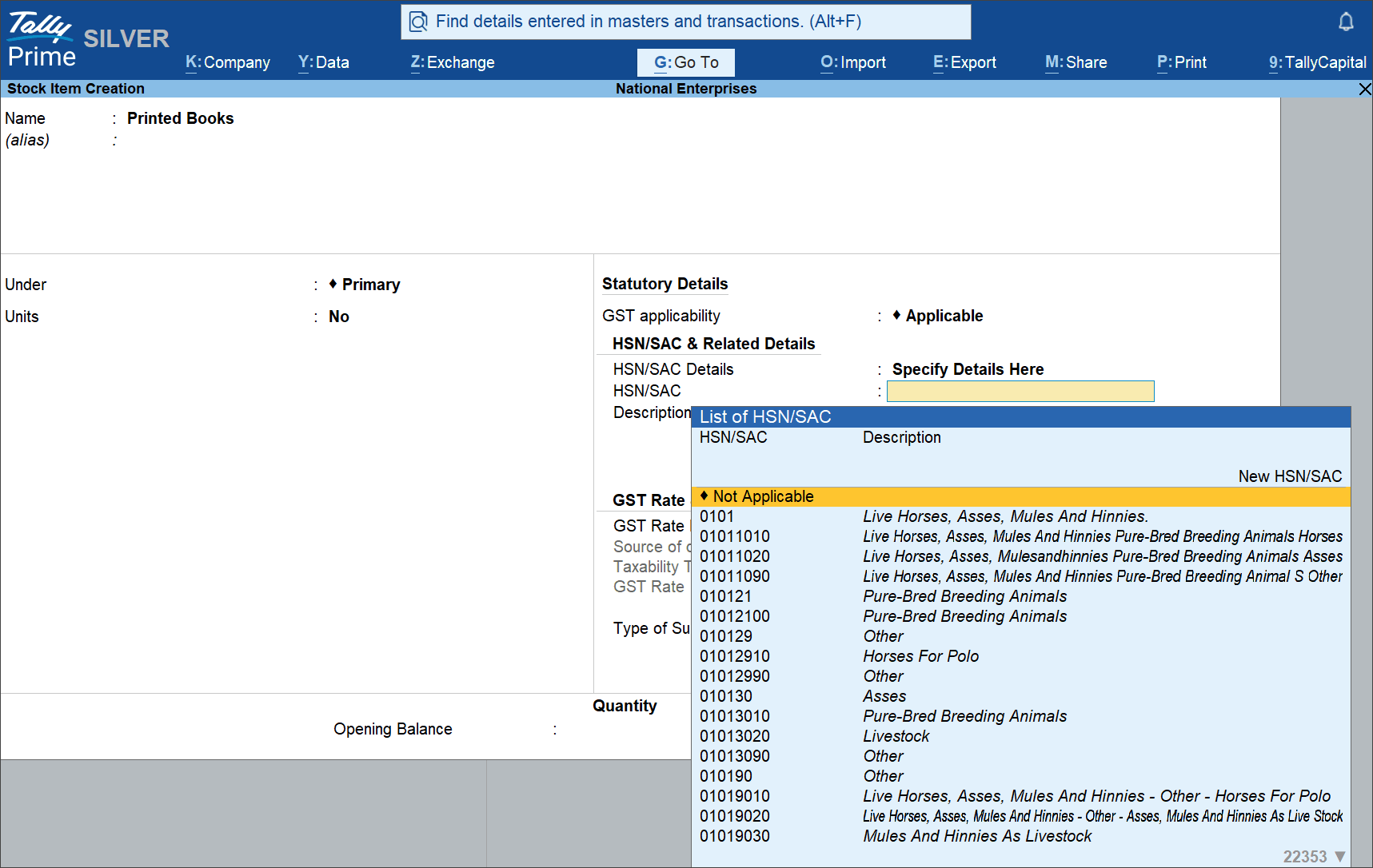
For Stock Group
- Press Alt+G (Go To) > Alter Master > Stock Group.
- Select the required stock group and press Enter.
For Company
- Press F11 (Company Features).
- Set/Alter Company GST Rate and Other Details: Yes.
- In the Update HSN/SAC Details for screen, set HSN/SAC Details to Specify Details Here.
-
HSN/SAC: From the List of HSN/SAC, select or enter the HSN/SAC.
-
Description: It gets automatically filled for the relevant HSN/SAC.
-
Step 2: Get HSN/SAC info from Portal & verify.
- Under HSN/SAC & Related Details, check if a valid HSN/SAC is specified.
For TallyPrime 2.1 & earlier:- Enable Set/Alter GST Details: Yes.
For Company, this option is available under Enable Goods and Services Tax: Yes > GST Details. - Ensure that the HSN/SAC is valid.
- Enable Set/Alter GST Details: Yes.
- Press Alt+B (Get HSN/SAC Info).
- If prompted, log in using your e-Invoice or e-Way Bill credentials.
(This appears if you are not logged in or if your previous session expired.) - In the Get HSN/SAC Info Summary screen, verify the details entered in Stock Item against the details as on the portal and make necessary changes, if needed.
If the HSN entered was incorrect, the portal will reject the request for validation with the Reason of Rejection as Invalid HSN Code. You can enter the correct HSN for the Stock Item and then validate other HSN/SAC information for the same.

- Press Ctrl+A to save.
For TallyPrime 2.1 & earlier,  .
.
Validate HSN/SAC Using GST Rate Setup Report
Step 1: Open GST Rate Setup and identify the masters for HSN validation
- Press Alt+G (Go To) > type or select GST Rate Setup and press Enter.
- Select the Stock Items/Stock Groups using spacebar.
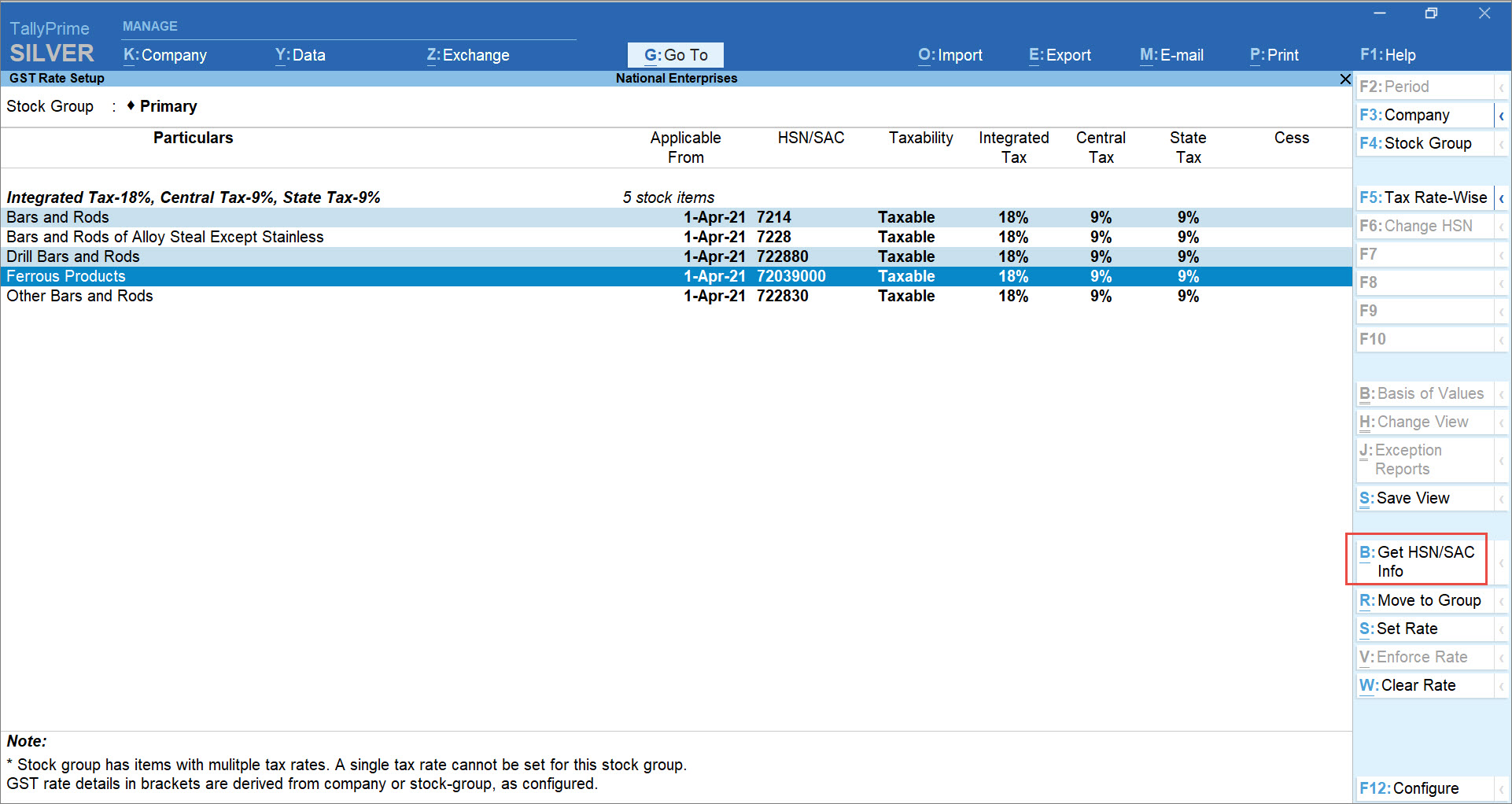
Step 2: Get HSN/SAC Info, review & update the details
- Press Alt+B (Get HSN/SAC Info).
- If prompted, log in using your e-Invoice or e-Way Bill credentials.
(This appears if you are not logged in or if your previous session expired.) - In the Get HSN/SAC Info Summary screen, verify the details entered in Stock Item/Stock Group against the details as on the portal and make necessary changes, if needed.
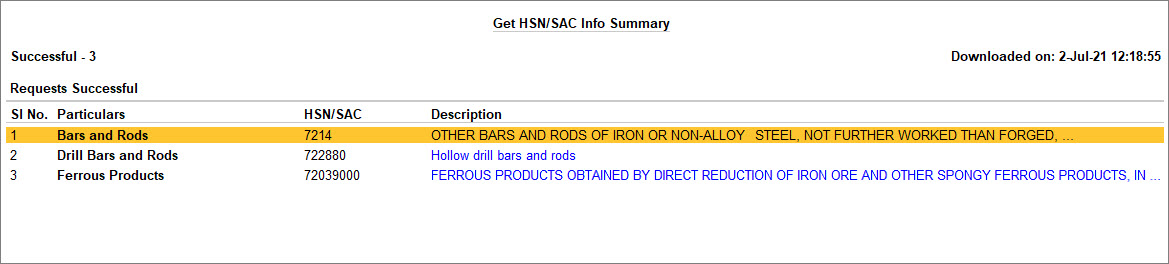
- Press Alt+F5 to view complete Description of all the Stock Items/Stock Groups.
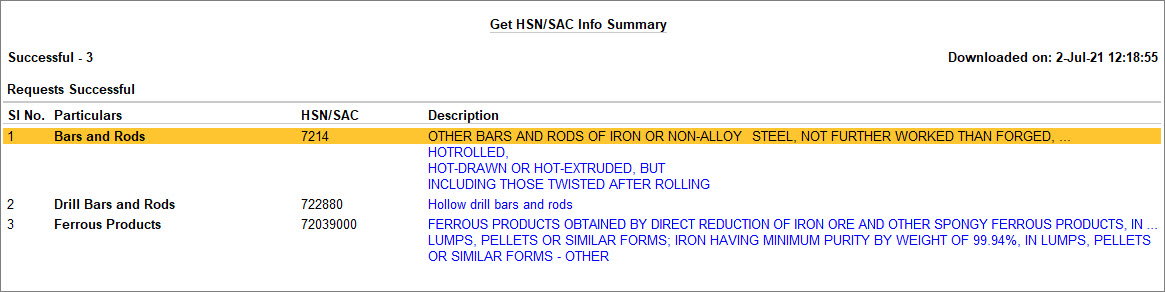
- Press Ctrl+A to save.
Q&A
- Is it possible to validate the HSN/SAC while Creation/Alteration of a Stock Item or Stock Group?
Yes, you can validate the HSN/SAC from the Stock Item or Stock Group Creation/Alteration screen.
- In the Stock Item or Stock Group Creation/Alteration screen, press Alt+B (GET HSN/SAC info).
- What login credentials should I use to perform Get HSN/SAC Info in TallyPrime?
When you perform Get HSN/SAC Info in TallyPrime, use either the e-Invoice or e-Way Bill login credentials, depending on the feature you have enabled in the GST Details screen. If you have enabled both e-Invoice and e-Way Bill, log in using the e-Invoice credentials. -
I’m not able to see the HSN/SAC list while creating a ledger. What should I do?
To view the HSN/SAC list while creating a ledger,
-
Ensure you are using the latest release of TallyPrime.
-
Check if TallyPrime is running in Educational Mode.
If you still cannot see the list, you need to reinstall TallyPrime with the latest release.
Why do HSN/SAC descriptions appear condensed, and how can I view the complete description?
When you select an HSN/SAC in a master, by default, only four lines of the description are displayed.
To view the entire description:-
Click in the description field and scroll.
Why isn’t the description of the HSN/SAC I created showing in the list or other masters?
A newly created HSN/SAC appears only in the master where they are created, and their descriptions are not displayed in the list view. -
For any further queries, refer to Online Validation of GSTIN and HSN Using TallyPrime – FAQ.


