
Notifications in TallyPrime
The Notifications report in TallyPrime ensures you never miss a time-sensitive or mandatory business activity. It provides a consolidated view of critical alerts, helping you take timely action and avoid business downtime.
View Notifications
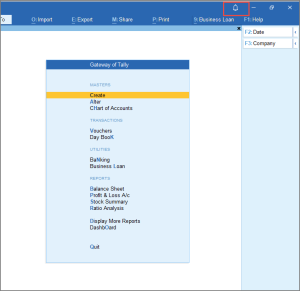
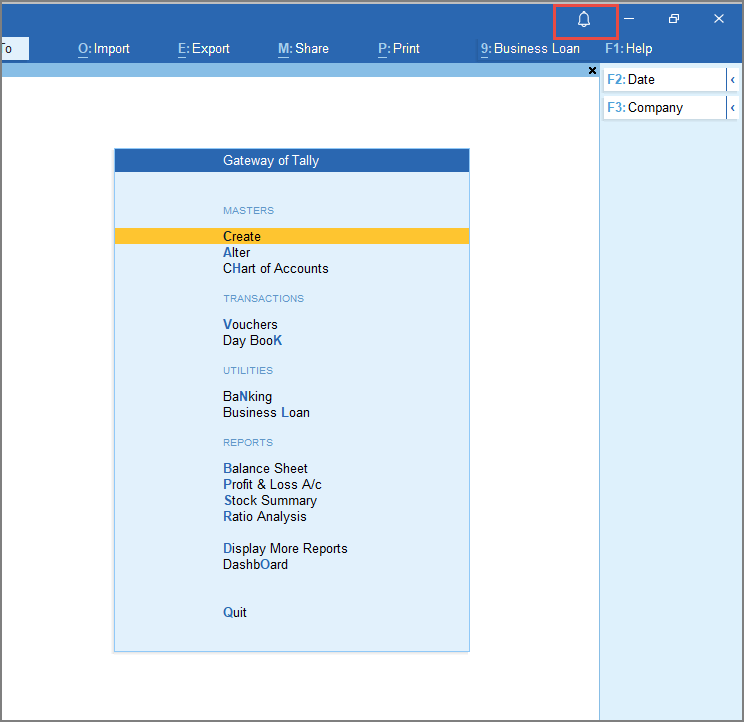
A red dot on the bell icon, located at the top of the TallyPrime screen, indicates a new notification. You can access the Notifications report from any screen by clicking the icon or directly from the Gateway of Tally.

You can view the Notifications report from any screen in TallyPrime.
- Press Ctrl+Alt+N (Notifications).
Alternatively, click the Bell icon.
The Notifications report appears with the details about all the notifications:
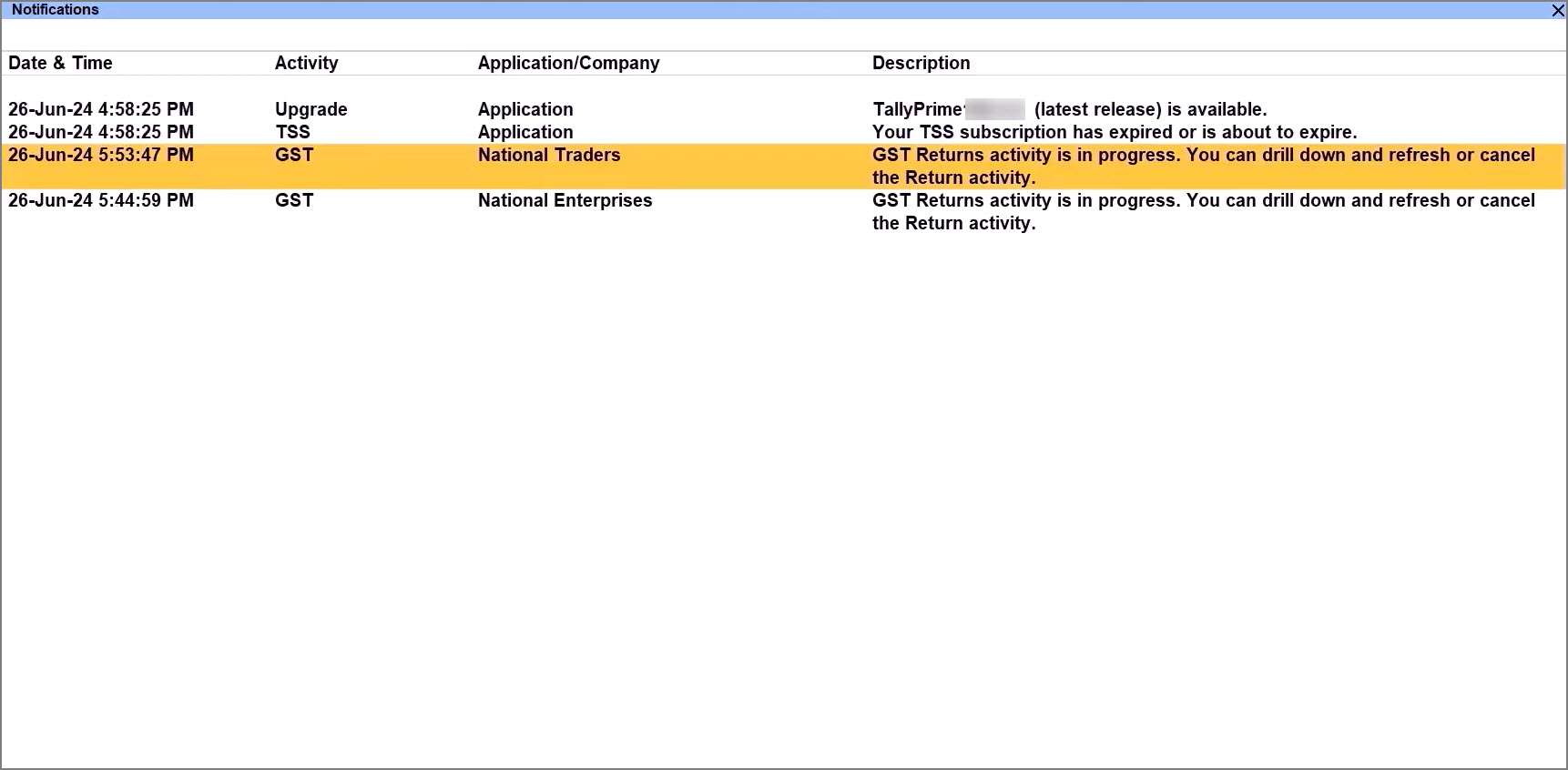
To learn more about the different types of Notifications, click here.
Tally Software Services (TSS) Notifications
These notifications alert you when your TSS subscription is nearing its expiration or has already expired.
Licensing Notifications
These alerts inform you of issues with your TallyPrime license, such as reaching a usage limit, a rental license expiring, or a loss of internet connectivity that prevents license access.
TallyPrime Upgrade Notifications
This type of notification informs you whenever a new version of TallyPrime is available for download.
GST Notifications
These notifications are related to the status of your GST returns, particularly if you need to refresh the status of an upload or download activity.
Backup Notifications
TallyPrime notifies you if no backup is scheduled for the loaded company and when a backup fails. It also shows a notification if your company data needs repair due to corruption, as this may result in data loss. This is applicable from Release 7.0.
Tally Scheduler Notifications
These notifications alert you if the Tally Scheduler is not running, which could interrupt your scheduled tasks and backups. This is applicable from Release 7.0.
TallyDrive Notifications
TallyPrime issues these notifications to help you manage your TallyDrive storage. They alert you when your storage is nearing its capacity, is about to expire, or has already expired. This is applicable from Release 7.0.
Notifications from Add-Ons
If you use TallyPrime with add-ons that include notification features, you can receive alerts related to those add-ons in the Notifications report. This is applicable from Release 7.0.
View Notifications based on Activity Type and Notification Status
You can configure the Notifications report based on the type of Activity and Notification status. This is applicable from Release 7.0.
- To configure the report based on the Activity type, press F4 (Activity) and select the Activity from the List of Activities.
- To configure the report based on the Notifications Status, press Ctrl+B (Basis of Values) and select the Notifications Status as Read, Unread, or All (Unread & Read)
View Notifications as per your preference
You can also configure the type of notifications you want to appear on the Notifications report, and whether you want any notifications or not. This is applicable from Release 7.0.
- Press F1 (Help) > Settings > Display > Show Notifications for Activity.
- Configure the options as required.
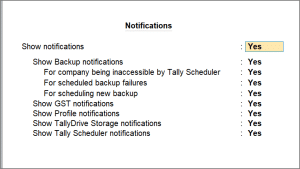
- Press Ctrl+A to save the configuration.
View Notifications from Add-Ons
If you have deployed add-ons in TallyPrime and customized it with notifications, you will receive notifications from the add-ons as well on the Notifications report. This is applicable from Release 7.0.
- Press F1 (Help) > Settings > Display > enable the option Allow AddOns to send Notifications.
- Select Manage Notifications from AddOns and press Enter.
Under Particulars, you can view the Notifications available in the Add-Ons along with their Description. - Enable the required Notifications and press Ctrl+A to save the report.
Act on Notifications
Notifications in TallyPrime require you to take action. Press Enter on any notification to open the relevant screen and take action, as required.
To learn more about the different types of Notifications and how to act on it, click here.
- TSS Notification: If you receive a notification about an expired TSS subscription, pressing Enter takes you to the TSS renewal screen.
Notification as it appears: Your TSS subscription has expired or is about to expire - TallyPrime Upgrade Notification: When a notification for a new TallyPrime release appears, pressing Enter directs you to the TallyPrime upgrade screen.
Notification as it appears: TallyPrime Release x.y (latest release) is available. - GST Status Notification: For a notification about GST return activity, pressing Enter opens the Refresh GST Status screen, allowing you to refresh or cancel the activity.
Notification as it appears: GST Returns activity is in progress. You can drill down and refresh or cancel the Return activity. - Backup Notification: If a backup fails or the there is no backup schedule created for the loaded company, you can press Enter on the notification to go to the Backup Log report or the backup schedule creation screen respectively.
Examples of backup failed notification: Backup failed for National Enterprises (100001) or Secure your data by scheduling backup for your company. - Tally Scheduler Notification: A notification that the Tally Scheduler is not running allows you to press Enter to start it.
Notification as it appears: Tally Scheduler is not running. Press Enter to start it to ensure uninterrupted scheduled tasks and view related notifications. - TallyDrive Notification: If you get a notification that your TallyDrive storage is almost full, pressing Enter takes you to the TallyDrive Management report, where you can extend your storage. For expired storage, pressing Enter redirects you to the Tally Solutions customer portal to renew your subscription.
Examples of a TallyDrive notification: Your extended TallyDrive storage will expire on <DD/MM/YY> or Your extended TallyDrive storage has expired on <DD/MM/YY>. Renew now to avoid permanent loss of your backup data. - Notifications from Add-Ons: These notifications will vary depending on the specific add-on you are using. The content and format are determined by the add-on developer.
Unread notifications, whether they’re new or unaddressed, will be highlighted in bold. Once you press Enter on a Notification, it will change to the regular text format. However, it will continue to appear in the report, for you to take action later.
Dismiss Notification
Press Spacebar to select the notification or multiple notifications, and press Alt+D (Dismiss).
This is applicable to Release 7.0.
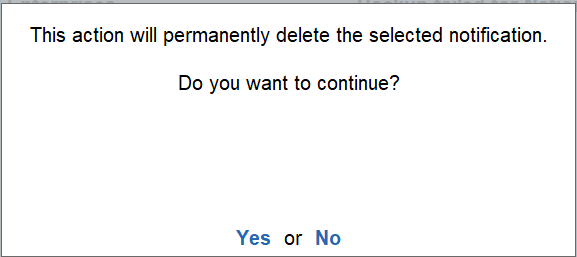
Note that this action will permanently delete the selected notifications.
Customise Notifications Indicator | Red Dot
You can configure the appearance of the red dot on the Bell icon as per your preference. This feature is useful when you have viewed a notification but intend to act on it later. The red dot will serve as a reminder to read and act on the notifications awaiting attention.
By default, the red dot appears only in case of New Notifications.
To configure the appearance of the red dot,
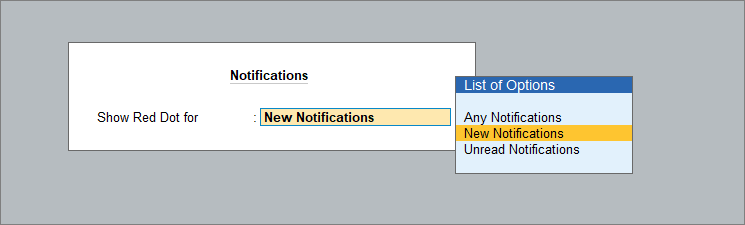
- Press F1 (Help) > Display > type or select Show Red Dot for.
- Select your preferred option from the List of Options.
- Any Notifications: The red Dot appears when notifications are present in the report. They can be read or unread.
- New Notifications: The red Dot appears only when there are new notifications in the report.
- Unread Notifications: The red Dot appears when there are unread notifications in the report.
Once configured, the red dot on the Bell icon will appear as per your preferred option.


