Upgrade to Latest Release & Update TallyPrime Server License
Upgrade TallyPrime Server to the latest release to access new features, performance improvements, and compliance updates. You can upgrade the application from within TallyPrime Server or by installing the latest setup.
Upgrade to Latest Release
If you are an existing user of TallyPrime Server, as your existing configurations will be carried forward to the latest release. When you upgrade TallyPrime Server, your existing license and configuration settings are retained. The Setup Manager detects the existing installation and updates it to the latest release.
You can upgrade TallyPrime Server in either of the following ways:
- From within TallyPrime Server.
- By installing the latest setup downloaded from the Tally website.
Upgrade from Within TallyPrime Server
You can continue updating license and begin using the updated server to ensure smooth and efficient business operations.
- Start TallyPrime Server.
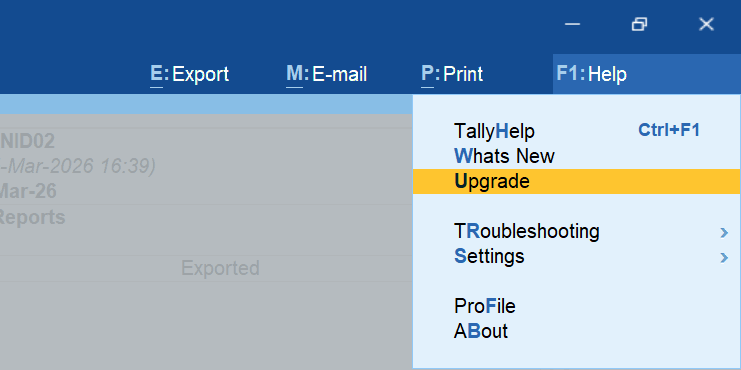
- Go to F1 (Help) > Upgrade.
- Follow the on-screen steps to complete the update.
- Once the upgrade is completed, click Start TallyPrime Monitor.
Your existing license and configurations will carry forward. - If prompted, enter the license details again and activate the license.
Download from Tally website and install
- Download the TallyPrime Server setup file from the Tally website.
- Double-click the setup.exe file to open the TallyPrime Server Setup Manager.
- Press I (Update) to update the existing TallyPrime Server installation.
Alternatively, you can press O (More Actions) and select one of the following options:- Install New, if you want to install TallyPrime Server afresh, without updating your existing TallyPrime Server application.
- Select Application from Drive, use this option if the existing installation is not listed. Browse to the installation folder and select it.
- Press C (Configure) if you want to change the default settings.
- Configure options such as the Application Path, Desktop Shortcut, Start Menu Entry Name, and so on.
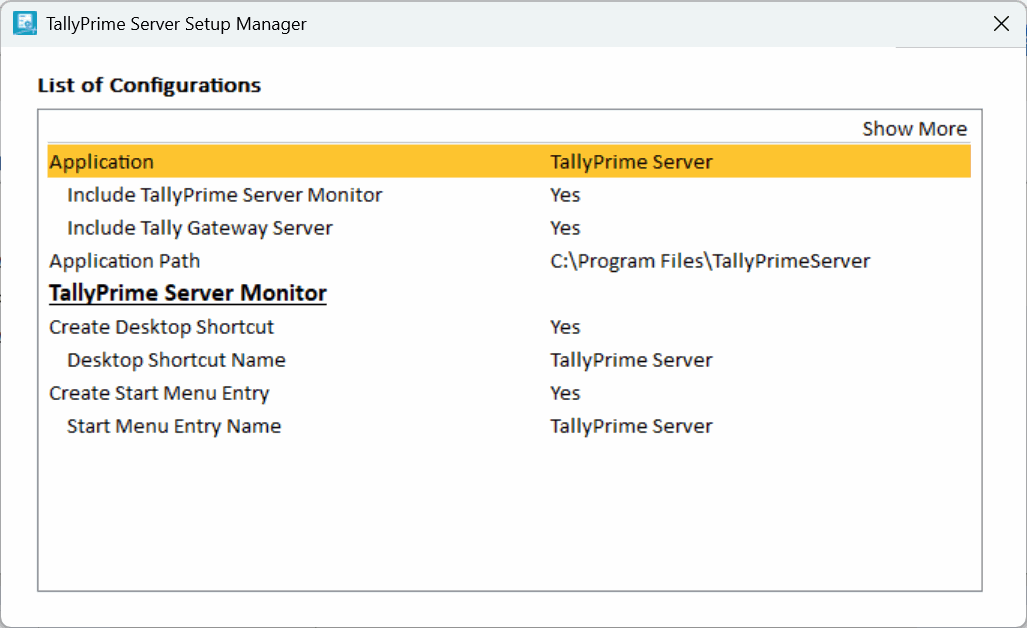
- Press Esc to save and go back to the TallyPrime Server Setup Manager screen.
- Configure options such as the Application Path, Desktop Shortcut, Start Menu Entry Name, and so on.
- Press Esc, and then I (Update) to complete the installation.
Update the License
After upgrading TallyPrime Server, update the license to use the latest release.
- Start TallyPrime Server.
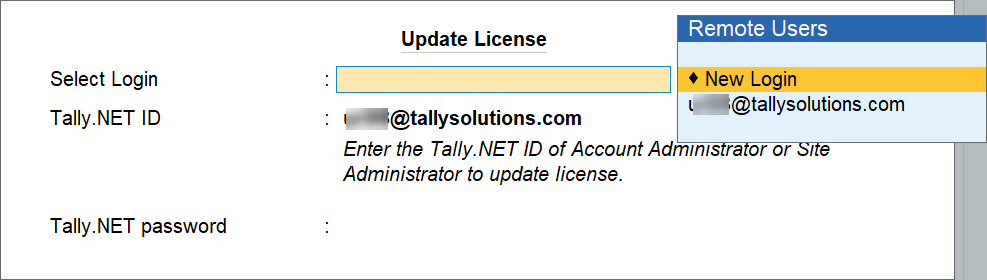
- Press F1 (Help) > Settings > License > Manage License > press F5 (Update).
- Select an existing login or enter new Tally.NET credentials to update the license.
Questions & Answers
- Is it necessary to upgrade TallyPrime Gold with TallyPrime Server?
Yes. When upgrading TallyPrime Server, ensure that TallyPrime Gold is also upgraded to the same release version. Running different versions of TallyPrime Gold and TallyPrime Server can lead to compatibility issues and may prevent the products from functioning as intended. To ensure uninterrupted operation, always keep both products on the same release.