
Validate GSTIN/UIN of Parties
Accurate GSTIN/UIN for parties are essential for compliant transactions, smooth return filing, and ITC claims. Validating these details ensures authenticity and avoids errors. TallyPrime facilitate validation of the GST details of one or more parties, as needed, by using the party’s GSTIN/UIN and retrieving information from the Portal.
Before you begin | Prerequisites
- Enable GST for your Company.
- Set up e-Invoicing or e-Way Bill and log in to stay connected with the portal.
- Ensure that you have the valid GSTIN/UIN of the party
Validate GSTIN/UIN of a Party from Party Ledger

The steps to validating the GSTIN/UIN is the same as setting up a party ledger for GST by using the party’s GSTIN/UIN and fetching GST registration details of the party from the portal.
- Press Alt+G (Go To) > Alter Master > Ledger > select the party ledger.
- Press Alt+L (Fetch Details Using GSTIN/UIN).
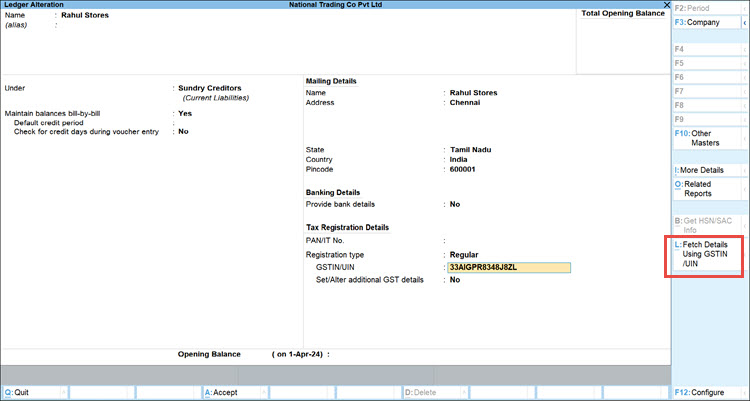
For TallyPrime 2.1 & earlier, press Alt+L (Get GSTIN/UIN Info). - Press Y to confirm.
- If prompted, log in using your e-Invoice or e-Way Bill credentials.
(This appears if you are not logged in or if your previous session expired.) - In the GSTIN/UIN Info screen, verify the details entered in the party master against the details as on the portal and make necessary changes under As per Books, if needed.
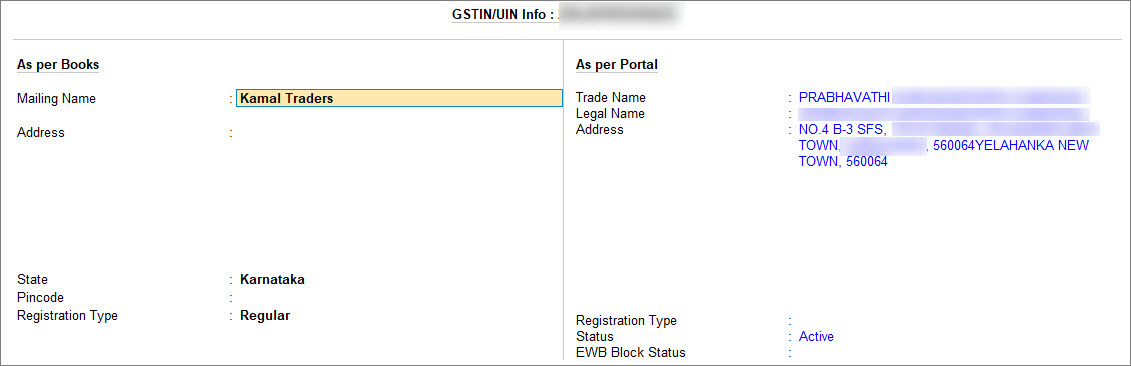
If the GSTIN/UIN entered was incorrect or invalid, the NIC portal will reject the request for validation with the message Could not retrieve data. You can enter the correct GSTIN/UIN for the party and then validate again. - Press Ctrl+A to save.
Validate GSTIN/UIN of Multiple Parties from Validate Party GSTIN/UIN Report
- Press Alt+G (Go To) > Update Party GSTIN/UIN or Validate Party GSTIN/UIN and press Enter.
You can open the same report from GSTR-1 > F6 (Validate Party GSTIN/UIN). This will help you validate only the parties relevant to your Return Period. - Select the Name of Group and Name of Ledger, as required.
You can select All Items under Name of Group. As a result, the report will display all the ledgers created under each group. If you do not see all the ledgers for the selected Group, then press F8 (All Ledgers). - Press Alt+L (Fetch Details Using GSTIN/UIN).
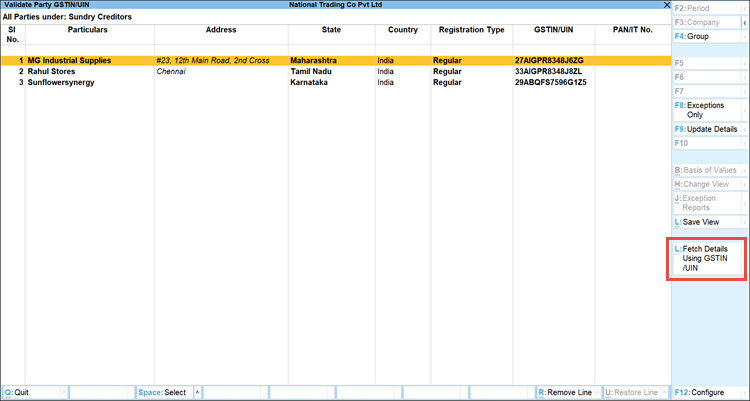
For TallyPrime 2.1 & earlier, press Alt+L (Get GSTIN/UIN Info). - Press A (All GSTINs/UINs).
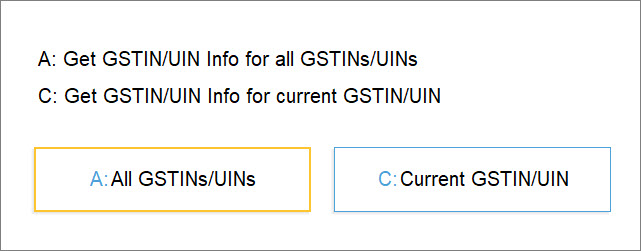
If you press C (Current GSTIN/UIN), then the GSTIN/UIN Info will be validated for the party that is selected in the Update Party GSTIN/UIN report.
Note: If there are one or more Parties for whom GST number is not entered in the Party ledger or the GST number entered in the Party ledger has less than 15 characters, then a confirmation screen appears. You can press Y to accept or make corrections in the Party ledger before initiating the exchange.
- If prompted, log in using your e-Invoice or e-Way Bill credentials to exchange the details with the portal.
(This appears if you are not logged in or if your previous session expired.)
TallyPrime exchanges information with the portal and displays the Exchange Summary.
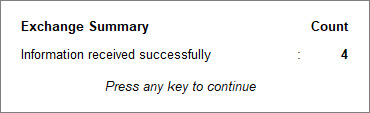
If there are Parties with an invalid GSTIN/UIN, then the portal will reject the request and mark as Information Not Found. You can enter the correct GSTIN number of the Party and then use the Fetch GSTIN/UIN Info option again. - Press Esc to continue.
The details retrieved from the portal gets displayed under the GSTIN/UIN Status column. - Press F9 (Update Details) to update the GSTIN/UIN of the parties as per the portal, where there is a mismatch.
- Press Ctrl+A to save the changes.
Validate GSTIN/UIN of a Party During Voucher Entry
Validate your party’s GSTIN/UIN details while recording purchases or sales transactions, in a few simple steps.
Validate GSTIN/UIN of the supplier
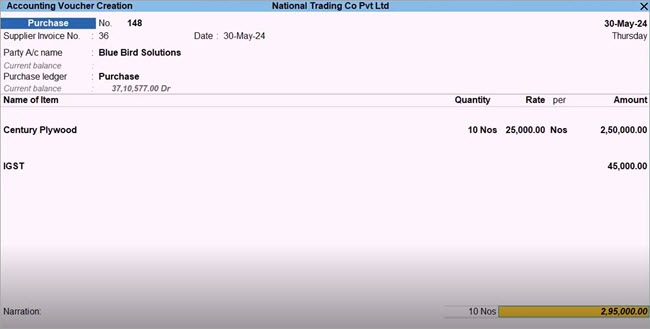
- Record a purchase voucher.
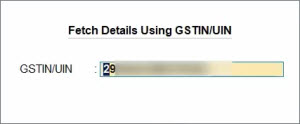
- In Party Details screen, press Alt+L (Fetch Details Using GSTIN/UIN).
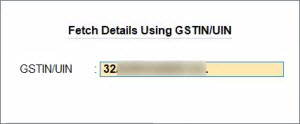
- Enter the GSTIN/UIN of the party.
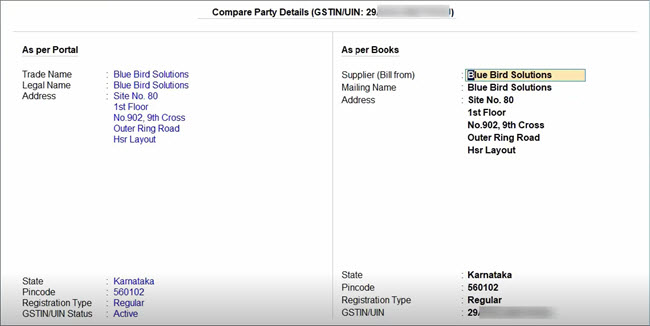
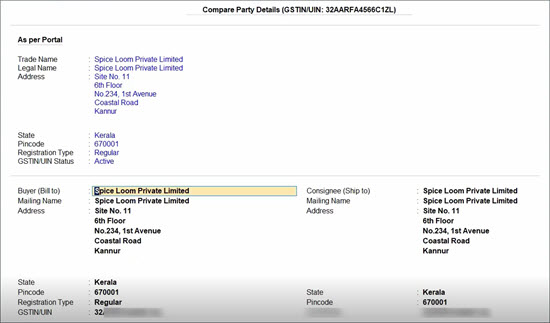
- In the Compare Party Details screen, verify the party details, such as address, PAN, registration type, status, and make necessary changes under As per Books, if needed.
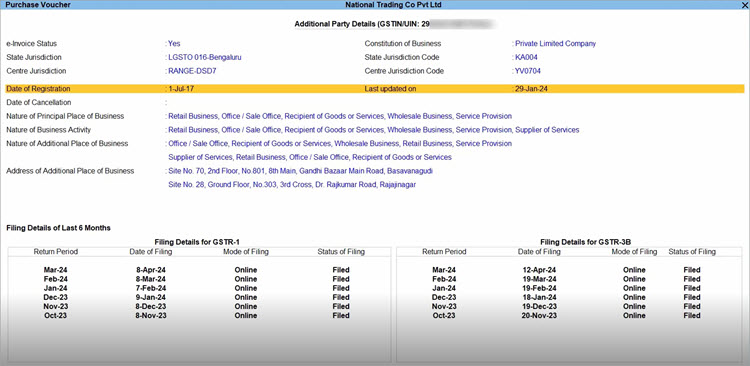
- To view the filing history of the supplier, press Alt+S (Filing History).
The Additional Party Details screen displays the filing details of the party, such as e-Invoice applicability, the jurisdiction, the nature of business, and the filing details of the last six months.
- Press Ctrl+A to save the details.
- Enter other necessary details, as needed and press Ctrl+A to save.
Validate GSTIN/UIN of the buyer & consignee
- Record a sales voucher.
- In Party Details screen, press Alt+L (Fetch Details Using GSTIN/UIN).
- Enter the GSTIN/UIN of the party.
In the Compare Party Details screen, verify the buyer and consignee details, such as address, registration type, and status, as per the portal, and make necessary changes, if needed.
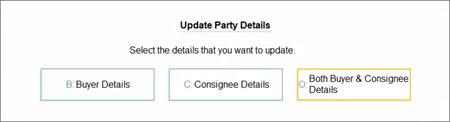
- Press Alt+W (Copy Details), if you want to copy the details for the buyer, the consignee, or both.
- In the Update Party Details screen, select the required option to update.
The Party Details screen appears, where you can view the updated details of the buyer as well as the consignee.
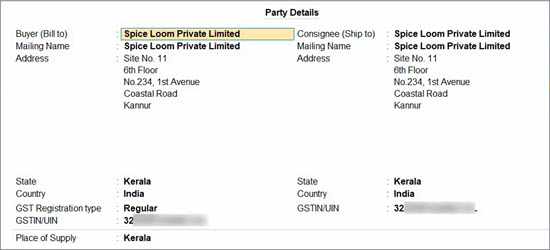
- Press Ctrl+A to save the details.
- Enter other necessary details, if needed, and press Ctrl+A to save.
Q&A
- Is it possible to copy any details from the As per Portal section, and paste it on the As per Books section?
Content from the As per Portal section cannot be copied and pasted on the As per Books section. You can export and update data in TallyPrime. When copying from MS Excel to TallyPrime, avoid pasting invisible spaces or special characters into fields, as they can cause errors. - TallyPrime displays Requests failed (Try again) in Exchange Summary. What is the reason for the request failure?
TallyPrime displays Requests failed (Try again) in Exchange Summary whenever there is a technical failure such Internet connectivity or the service is down. - What login credentials should I use to perform Get GSTIN/UIN Info in TallyPrime?
When you perform Get HSN/SAC Info in TallyPrime, use either the e-Invoice or e-Way Bill login credentials, depending on the feature you have enabled in the GST Details screen. If you have enabled both e-Invoice and e-Way Bill, log in using the e-Invoice credentials.
For any further queries, refer to Online Validation of GSTIN and HSN Using TallyPrime – FAQ.


