
Upgrade to Latest Release & Update TallyPrime Server License
To take advantage of the latest features and enhancements, it is recommended to upgrade your existing TallyPrime Server license to the most recent release. Updating your license ensures continued access to new capabilities, performance improvements, and compliance updates. The process is simple and can be completed directly within TallyPrime Server using your login credentials.
Before you begin | Prerequisites
- Previously installed TallyPrime Server from an earlier release
For Existing Users | Upgrade to Latest Release
If you are an existing user of TallyPrime Server, then you will feel right at home very soon, as your existing configurations will be carried forward to the latest release. The Setup Manager will detect the last installation of the server on your computer, and help you update to TallyPrime Server latest release.
You can upgrade from the previously installed version of TallyPrime Server,
- In App Upgrade
- Download from the Tally website and install
In App Upgrade
To upgrade your TallyPrime Server application,
- Start TallyPrime Server.
- Go to F1 (Help) > Upgrade.
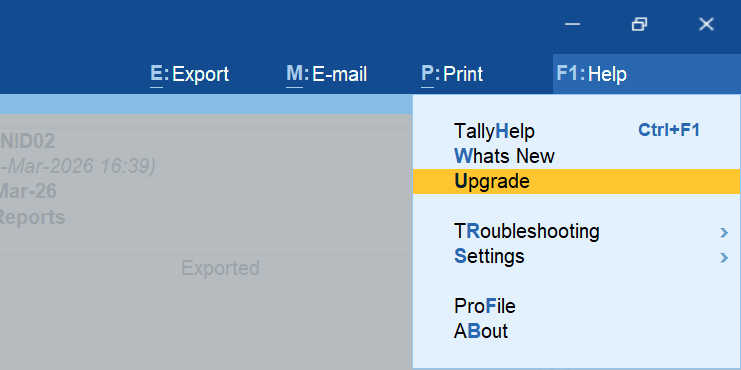
- Follow the on-screen steps to complete the update.
- Once the upgrade completes, click Start TallyPrime Monitor.
Your existing license and configurations will carry forward. - If prompted, re-enter license details and activate.
By following these steps, you can easily upgrade TallyPrime Server.
Download from Tally website and install
- Download the TallyPrime Server setup file from the Tally website.
- Double-click the setup.exe file to open the TallyPrime Server Setup Manager.
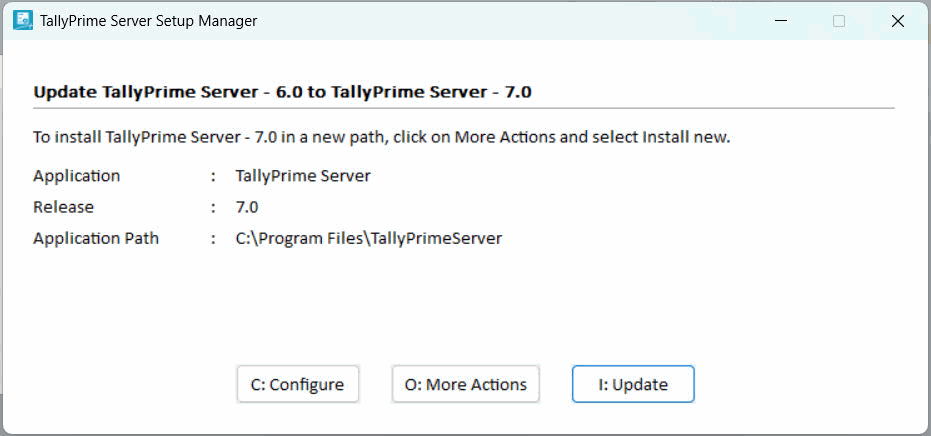
- Press I (Update), if you want to update your previous versions of TallyPrime Server to TallyPrime Server 7.0.
Alternatively, you can press O (More Actions) and select one of the following options:- Install New, if you want to install TallyPrime Server afresh, without updating your existing TallyPrime Server application.
- Select Application from Drive, if you think there is a server installation on your computer that is not listed on the screen. This might happen when the application is copied from one location to another. This option will help you browse your computer and select the suitable folder.
- Press C (Configure) if you want to change the default settings.
- Configure the options such as the Application Path, Desktop Shortcut, Start Menu Entry Name, and so on.
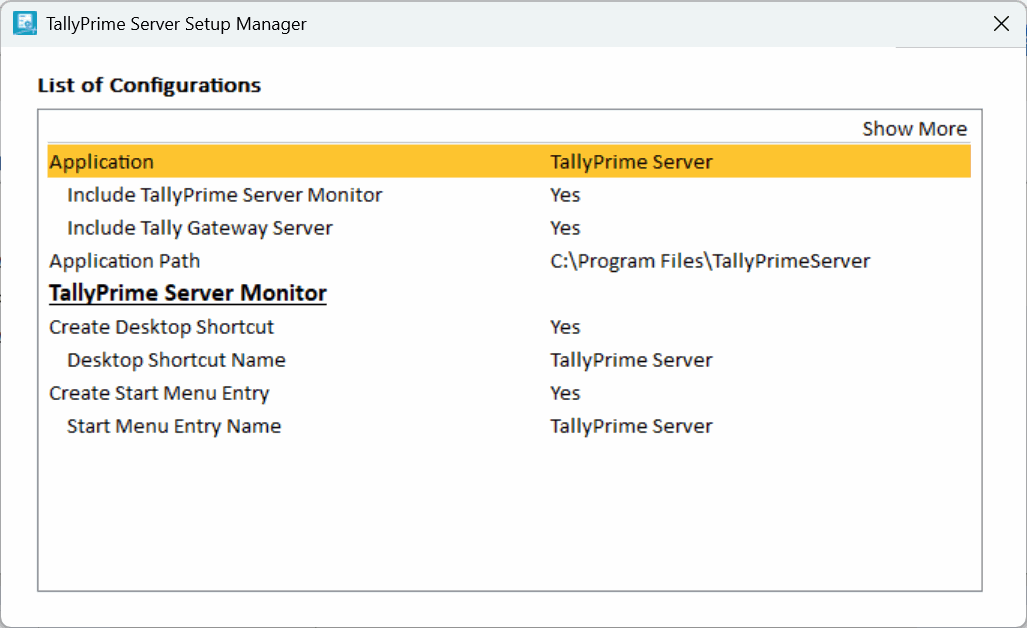
- Press Esc to save and go back to the TallyPrime Server Setup Manager screen.
- Configure the options such as the Application Path, Desktop Shortcut, Start Menu Entry Name, and so on.
- Press Esc, and then I (Update) to complete the installation.
You can continue updating license and begin using the updated server to ensure smooth and efficient business operations.
Update License
You can update your license to avail all the benefits of the latest releases.
- Start TallyPrime Server.
- Press F1 (Help) > Settings > License > Manage License > press F5 (Update).
- Select a login or enter new login details to update the license.
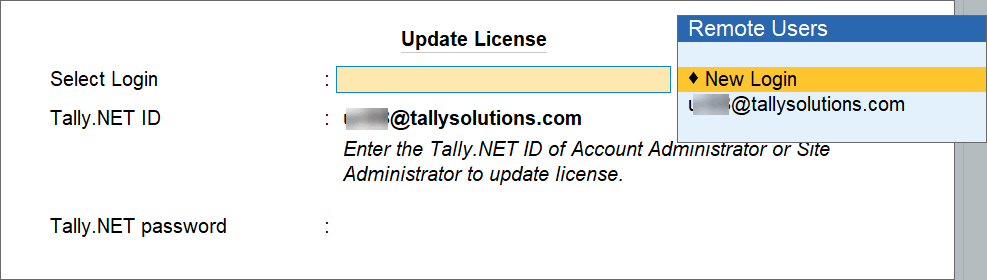
Once the update is completed successfully, your license will be aligned with the latest release, enabling you to access all new features, improvements, and updates available in TallyPrime Server.


