Migrate TCS Data from TallyPrime Release 1.1.3 or Earlier
This page is relevant only if your company data contains TCS transactions created in TallyPrime Release 1.1.3 or earlier.
If you have TCS data created in TallyPrime Release 1.1.3 or earlier, the TCS provisions introduced in Budget 2020 were handled differently in those releases. After upgrading, some existing TCS masters and transactions may need to be updated so that they appear under the appropriate sections of the Form 27EQ report.
Upgrade to the latest available TallyPrime release before making these changes. After upgrading, follow the relevant procedures to update your existing TCS data.
In TallyPrime, you can:
- Configure TCS Nature of Goods for accrual or realisation-based calculation.
- Update advance receipt transactions recorded in the earlier release.
- Update sales transactions recorded in the earlier release based on whether they are below or above the threshold.
- Review cash sales with TCS duty, which continue to appear under the relevant section in Form 27EQ.
Update TCS Nature of Goods Masters
If your TCS data was created in TallyPrime Release 1.1.3 or earlier, review the TCS Nature of Goods masters used with those transactions. You can configure the master for realisation or accrual-based TCS calculation. The Tax calculation based on realisation option is available in the TCS Nature of Goods master in later releases.
Configure a TCS Nature of Goods for Realisation
Use this configuration when TCS needs to be calculated on receipt of the invoice value.
On the TCS Nature of Goods Creation/Alteration:
- Select the required TCS Nature of Goods.
- Set Tax calculation based on realisation to Yes.
- Under Threshold/exemption limit, enter 50,00,000.
- Set Calculate tax on value exceeding Exemption Limit to Yes.
- Press Ctrl+A to save the master.
When this option is set to Yes, TCS is calculated on the amount exceeding the threshold. For example, if the threshold is ₹50,00,000 and the receipt amount is ₹50,10,000, TCS is calculated on ₹10,000. If the option is set to No, TCS is calculated on the entire ₹50,10,000.
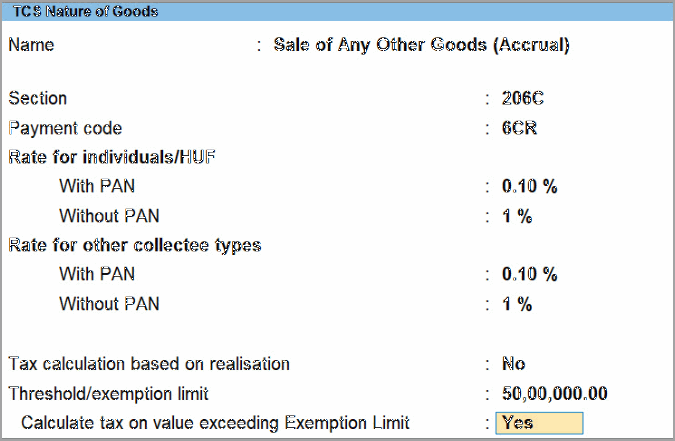
Configure a TCS Nature of Goods for Accrual
Use this configuration when TCS needs to be calculated while recording the sales transaction.
On the TCS Nature of Goods Creation/Alteration:
- Select the required TCS Nature of Goods.
- Set Tax calculation based on realisation to No.
- Under Threshold/exemption limit, enter 50,00,000.
- Set Calculate tax on value exceeding Exemption Limit to Yes.
- Press Ctrl+A to save the master.
When this option is set to Yes, TCS is calculated on the amount exceeding the threshold. If it is set to No, TCS is calculated from ₹1.
Note: If you have already created separate TCS Nature of Goods masters for realisation and accrual, you do not need to alter them for this purpose.
Update TCS Advance Receipt Transactions
Review TCS advance receipts recorded in Release 1.1.3 or earlier and update the transactions that need to be classified under the appropriate sections of Form 27EQ.
Advance Receipts Below the Threshold Limit
TCS advance receipts below the threshold that were recorded in the earlier release can appear under Not Relevant in this Return in Form 27EQ. It is recommended keeping transactions dated in 2020-21 unaltered. For transactions recorded in 2021-22, you can update them to appear under Under Exemption limit.
- Alter the relevant TCS Nature of Goods master to calculate TCS based on realisation.
- Go to Alt+G (Go To) > Form 27EQ.
- Select Not Relevant in this Return and drill down to the required transaction.
- Press F12 (Configure) and set Use TCS Allocations to Yes.
- In TCS Allocation Details, select the TCS Nature of Goods configured for Realisation.
- The transaction will appear under Under Exemption limit in Form 27EQ.
Advance Receipts Exceeding the Threshold Limit
For advance receipts exceeding the threshold limit, no changes are required when the transaction already has the relevant TCS Nature of Goods selected.
The transaction remains under Included in return when it has either:
- TCS Nature of Goods configured for Realisation with Tax calculation based on realisation set to Yes, or
- TCS Nature of Goods configured for Accrual with Tax calculation based on realisation set to No.
The transaction is treated as an Advance Receipt and remains under Included in return in Form 27EQ.
Update TCS Sales Transactions
Sales Transactions Below the Threshold Limit
Sales transactions recorded in the earlier release with TCS Nature of Goods set to Not Applicable can continue to appear under Not Relevant in this Return in Form 27EQ. It is recommended to keep the transactions dated in 2020-21 unaltered. For transactions recorded in 2021-22, you can move them to Included in return when required.
- Alter the relevant TCS Nature of Goods master to calculate TCS based on accrual.
- Go to Alt+G (Go To) > Form 27EQ.
- Select Not Relevant in this Return and drill down to the required transaction.
- Press F12 (Configure) and set Use TCS Allocations to Yes.
- In TCS Allocation Details, select the TCS Nature of Goods configured for Accrual.
- Press Ctrl+A to save the transaction.
The transaction will appear under Included in return > Under Exemption limit in Form 27EQ.
View the source report
If you want to retain the sales transaction on a realisation basis, you do not need to alter the transaction. It will continue to appear under Not Relevant in this Return in Form 27EQ.
Sales Transactions Exceeding the Threshold Limit
Sales transactions exceeding the threshold that were recorded by selecting a TCS Nature of Goods in TCS Allocation Details appear under Included in return > Booking with Collection Voucher in Form 27EQ.
To maintain the transaction as an accrual-based TCS transaction:
- Go to Alt+G (Go To) > Alter Master > TCS Nature of Goods.
- Select the relevant TCS Nature of Goods.
- Set Tax calculation based on realisation to No.
- Press Ctrl+A to save the master.
- Open the required sales transaction.
- In TCS Allocation Details, select the TCS Nature of Goods configured for Accrual.
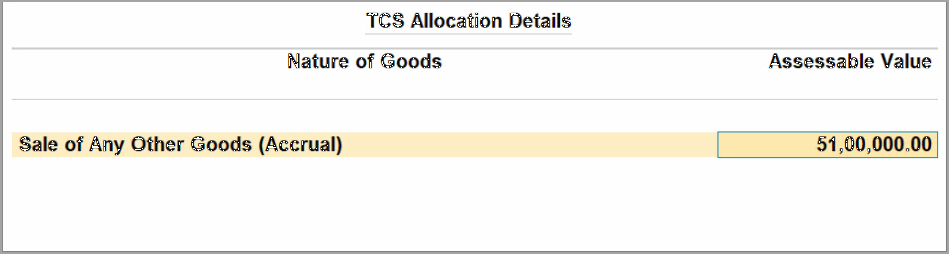
The transaction appears under Included in return > Booking with Collection Voucher in Form 27EQ.
If you select a TCS Nature of Goods configured for Realisation, the transaction appears under Not Relevant in this Return in Form 27EQ.
You ca also review TCS cash sales recorded with a TCS Duty ledger and TCS Nature of Goods.
Go to Form 27EQ > Included in return > Booking with Collection Voucher.