
Configure Tax Details in TallyPrime (Payroll)
You can use the Tax Configuration screen to make all the necessary configurations.
View the Tax Configuration screen
- Press Alt+G (Go To) > Alter Master > type or select Payroll Income Tax Configurations > and press Enter.
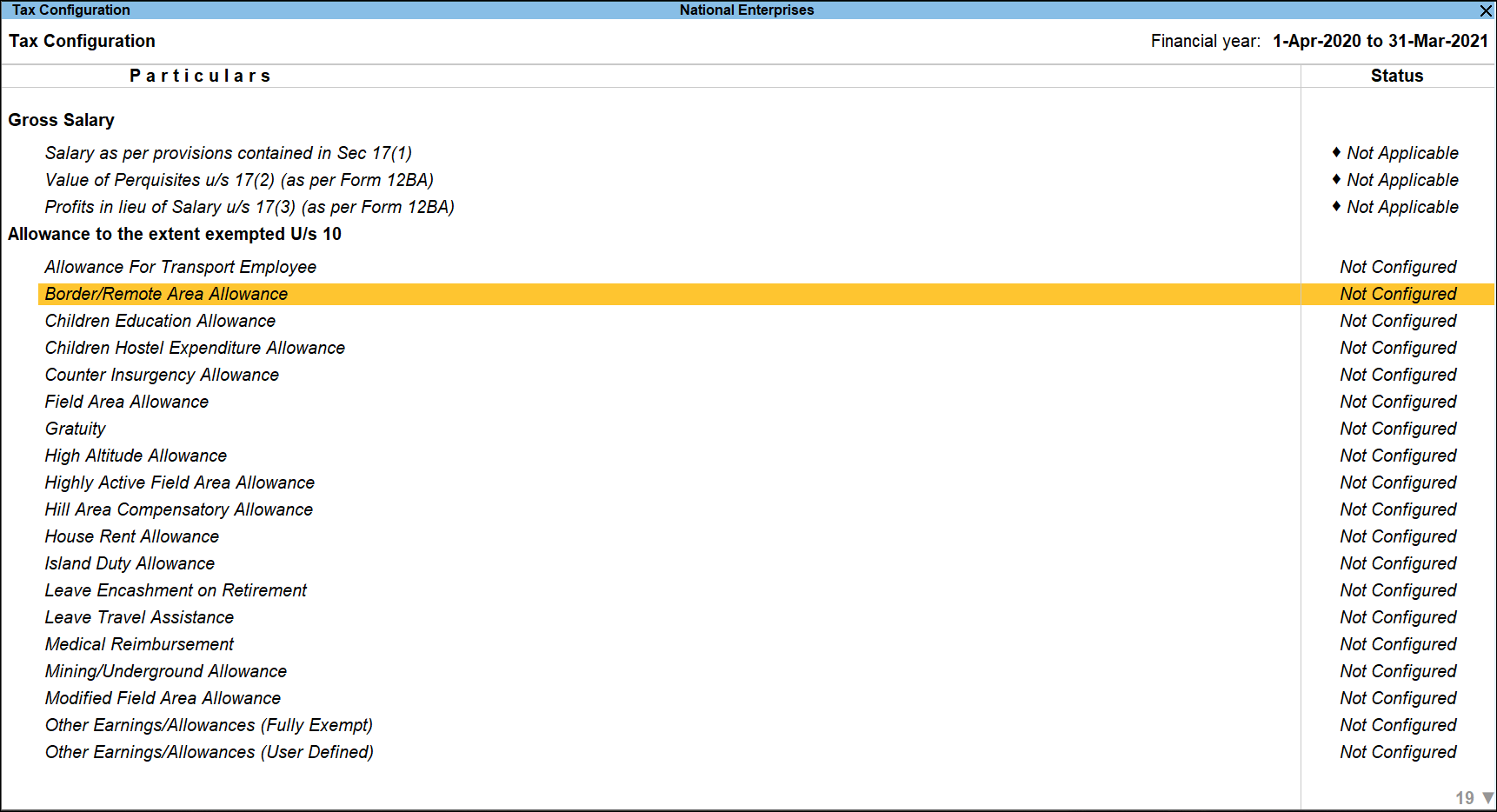
You can drill down into each component, and make the required changes.
Salary as per provisions contained in Sec 17(1)
- Select Salary as per Provisions contained in Sec 17(1), and press Enter.
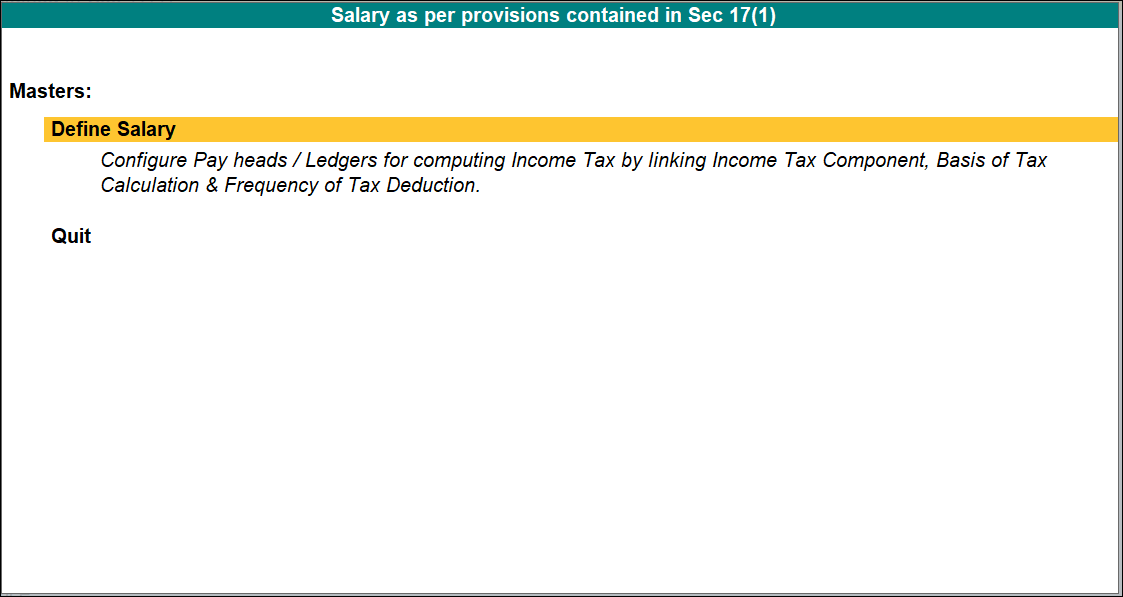
- Press Enter on Define Salary.
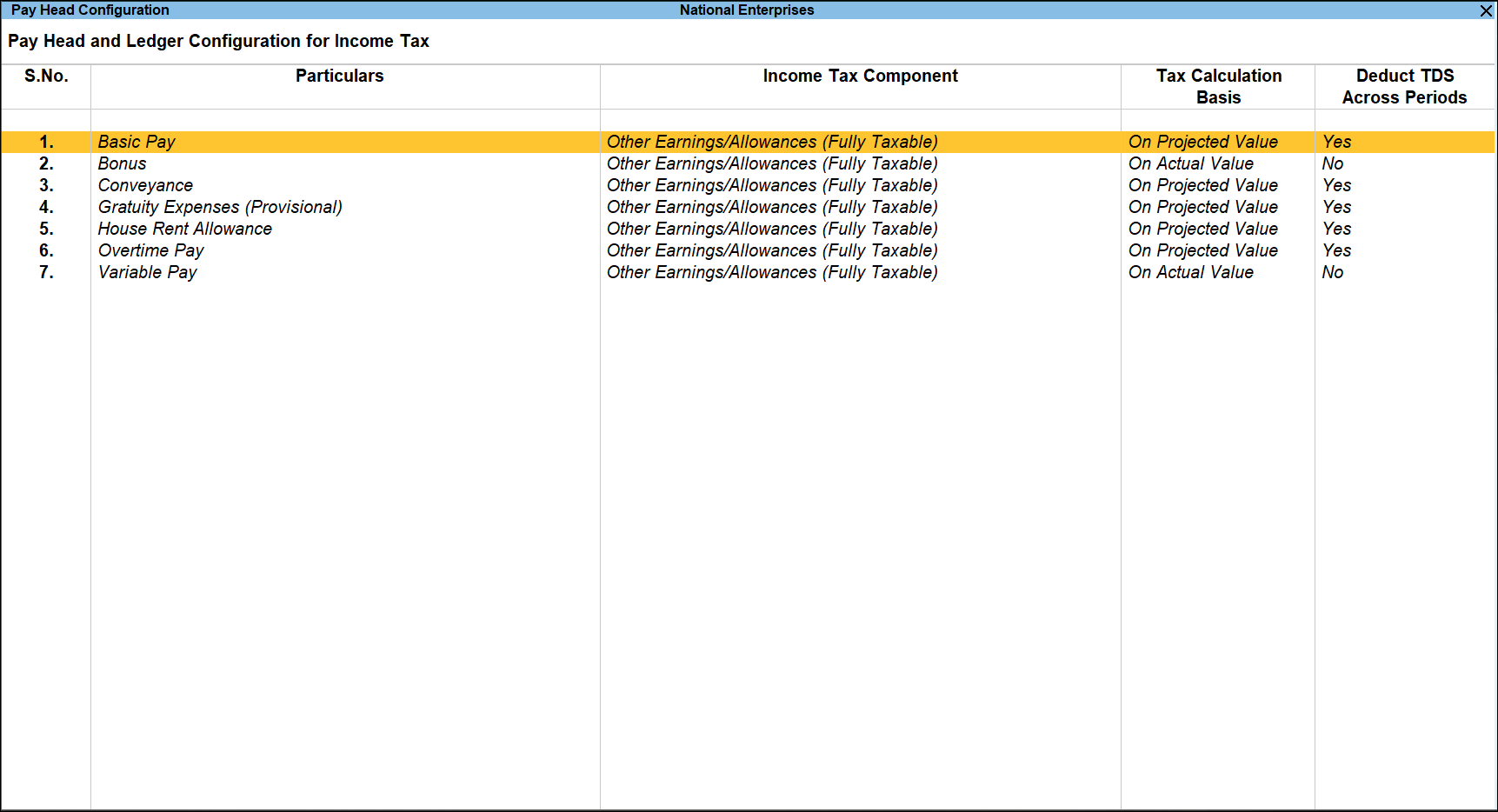
You can configure the pay heads and ledgers to select the appropriate Income Tax Component, Tax Calculation Basis and Deduct TDS Across Period(s) as explained in the Pay Head Configuration screen.
Details of Perquisites
- Select Value of Perquisites U/s 17(2) (as per Form 12BA) in Tax Configuration screen, and press Enter.
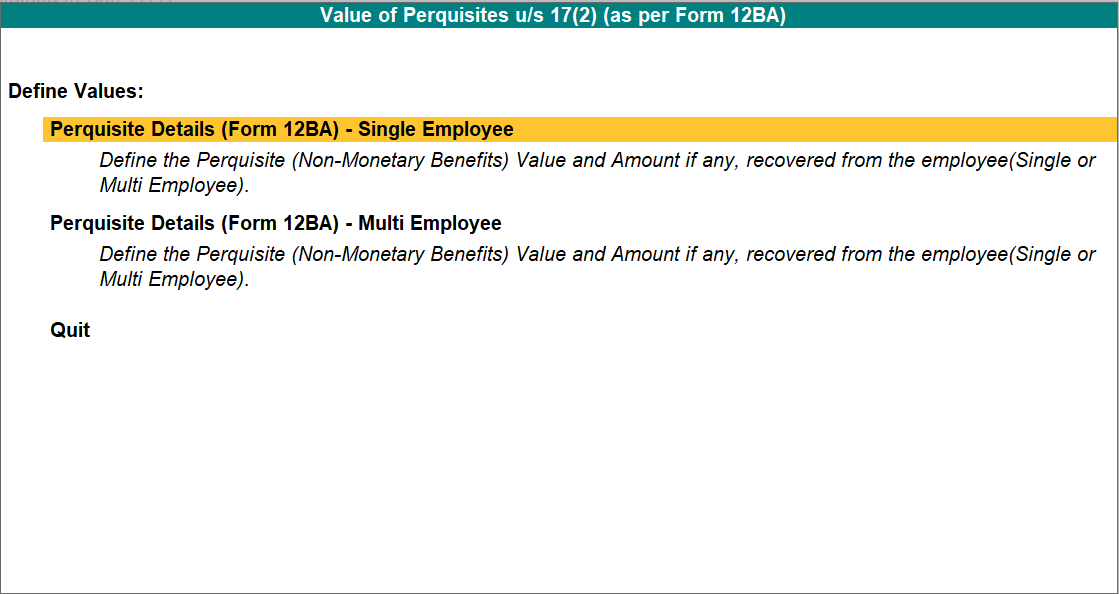
- Select Perquisites Details (Form 12BA) – Single Employee or Perquisites Details (Form 12BA) – Multi Employee to define perquisite details for a single employee or all employees respectively.
Single Employee
- Select Perquisites Details (Form 12BA) – Single Employee, and press Enter.
- Select an employee from the List of Employees, and press Enter.
- In the Perquisites screen,
- Select the required allowances in the Nature of Perquisites field.
- Specify the applicable date in the Effective From field.
- Enter the perquisite amount in the Value of Perquisites (Computed Value) field.
- Specify the amount, if any, recovered from the employee. Leave it blank if nothing is recovered.
- The Amount of Perquisite Chargeable to Tax is displayed by default.
- Enter the amount on which tax is paid by the employer.
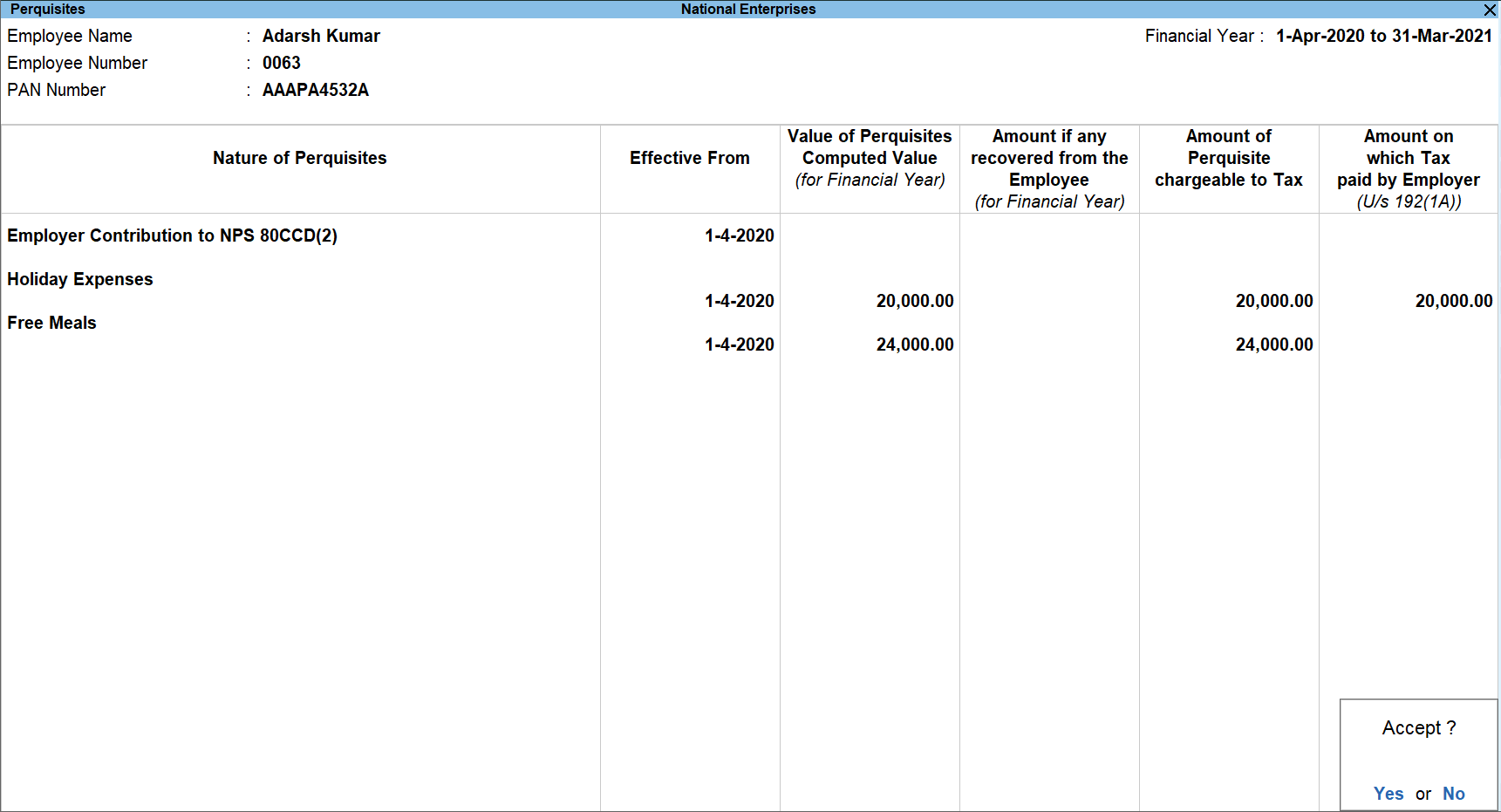
- Press Ctrl+A to save.
Multi Employee
- Select Perquisites Details (Form 12BA) – Multi Employee, and press Enter.
- Select the required employee group, tax regime, and expenses from the perquisites list, and follow the steps mentioned for Single Employee.
Details of Profits in lieu of Salary
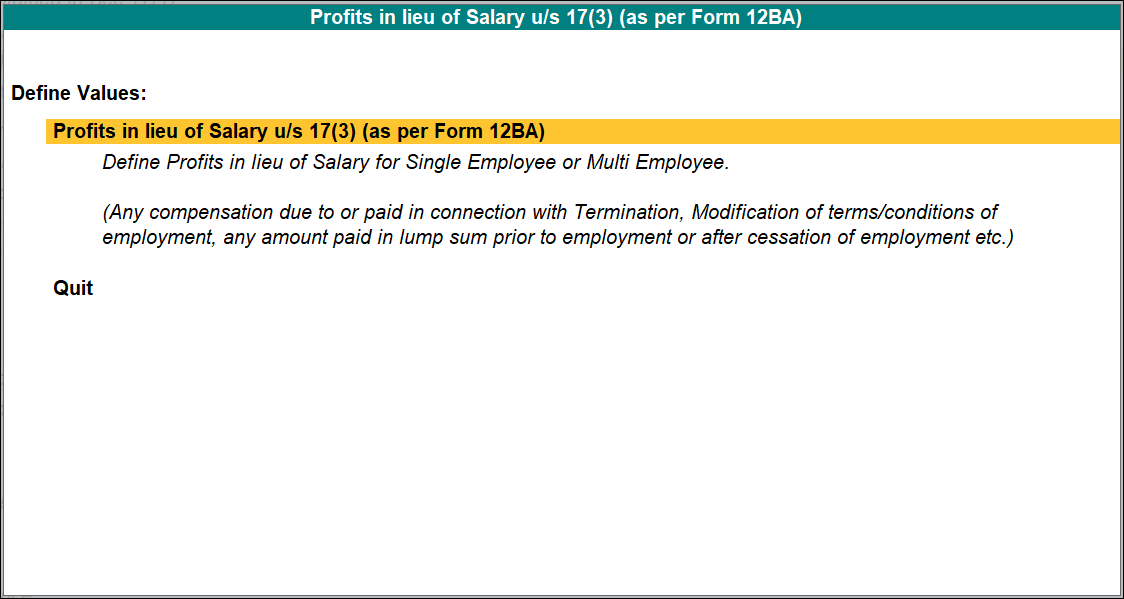
- Bring cursor, on Profits in lieu of Salary u/s 17(3) (as per Form 12BA) in Tax Configuration screen, and press Enter.
- Select the required Employee Name / Group or All Items.
- Select Any, Regular Tax Regime, or Tax Regime u/s 115BAC in the Tax Regime field to apply the details to all employees or a specific tax regime. This field is not applicable when an individual employee is selected.
- In the Effective From field, specify the date from which the profits in lieu of salary are applicable.
- In the Annual Amount Chargeable to Tax field, specify the amount paid to the employee as profit on which tax is to be paid by the employee.
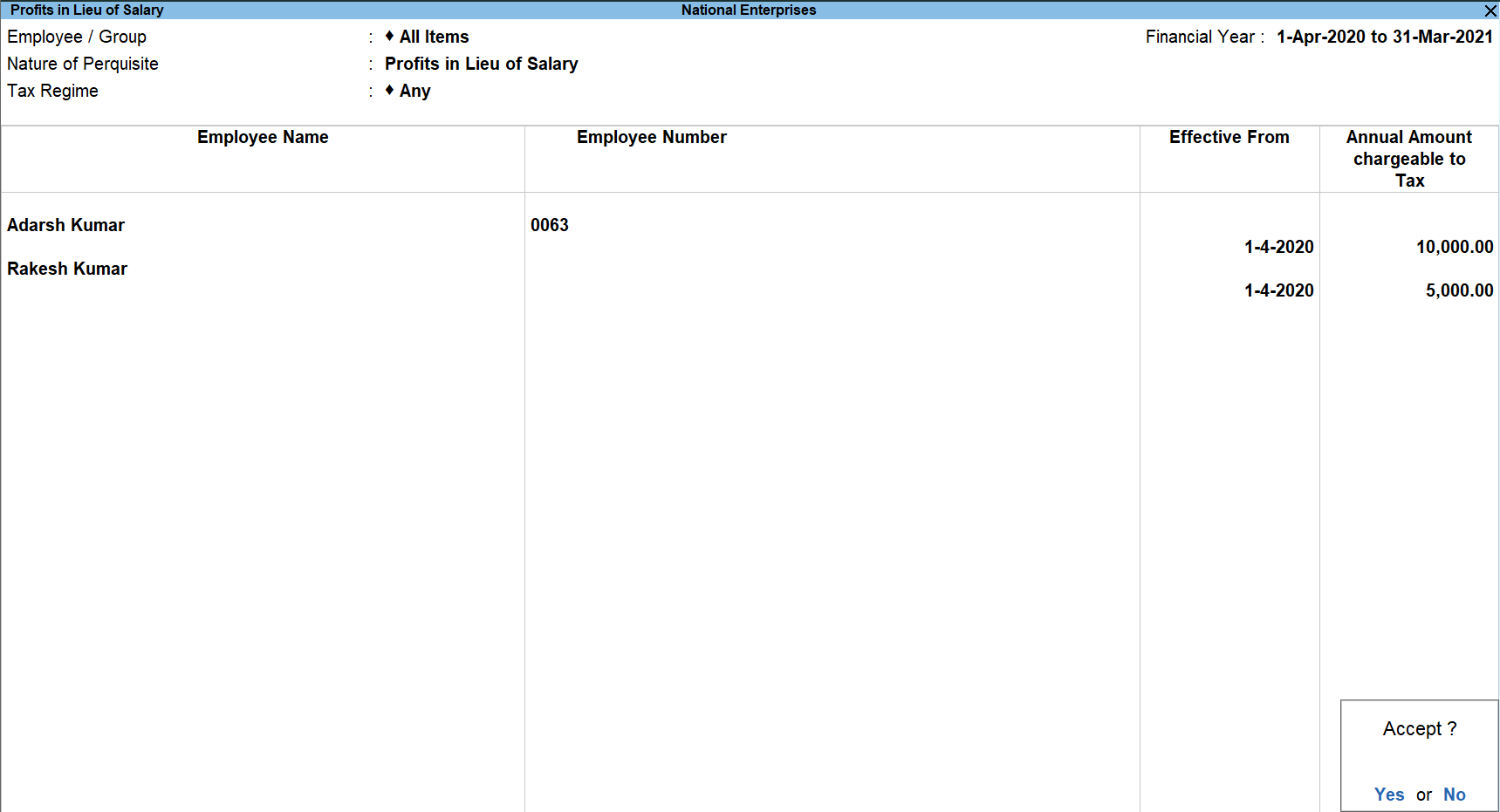
- Press Ctrl+A to save.
Details of Allowances U/s 10
- Select the required allowance under Allowances to the extend exempted U/s 10 in Tax Configuration screen, and press Enter.
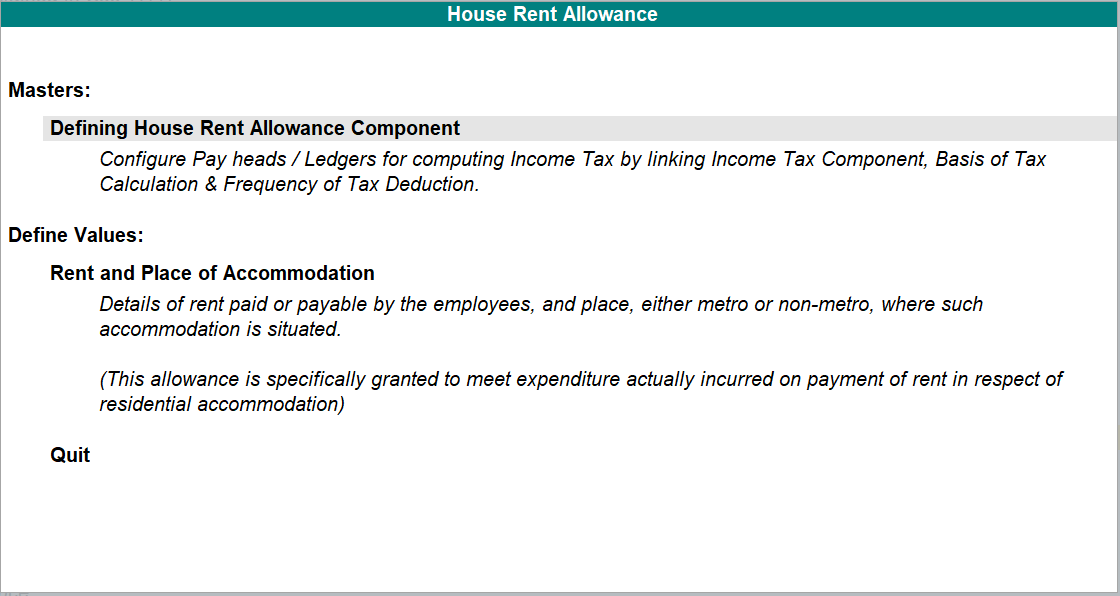
- Drill down on Define Values to enter the declaration details for selected allowance, as explained in Declarations menu.
- Drill down on Masters to configure pay heads for the required income tax component, as explained in the Pay Head Configuration menu.
Deductions U/s 16
- Select Entertainment Allowance or Professional Tax (Tax on Employment) under Deductions U/s 16 in Tax Configuration screen, and press Enter.
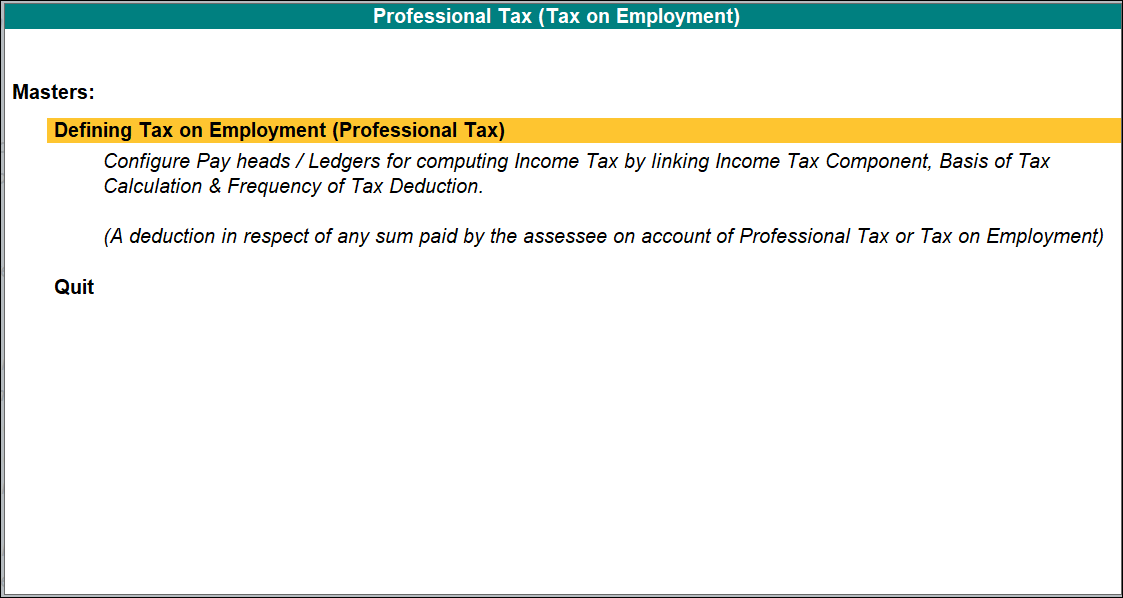
- Press Enter to configure the pay head/ledger for the selected allowance or tax. This is similar to Pay Head Configurations discussed earlier.
Other Income Declared by Employees
- Select either Other Income (House Property / Other Sources) / Interest on Housing Loan under Other Income declared by Employee in Tax Configuration screen, and press Enter.
- Select the required employee from the List of Employees.
- Select Income from House Property from the list in the Particulars of Income Other than ‘Salaries’.
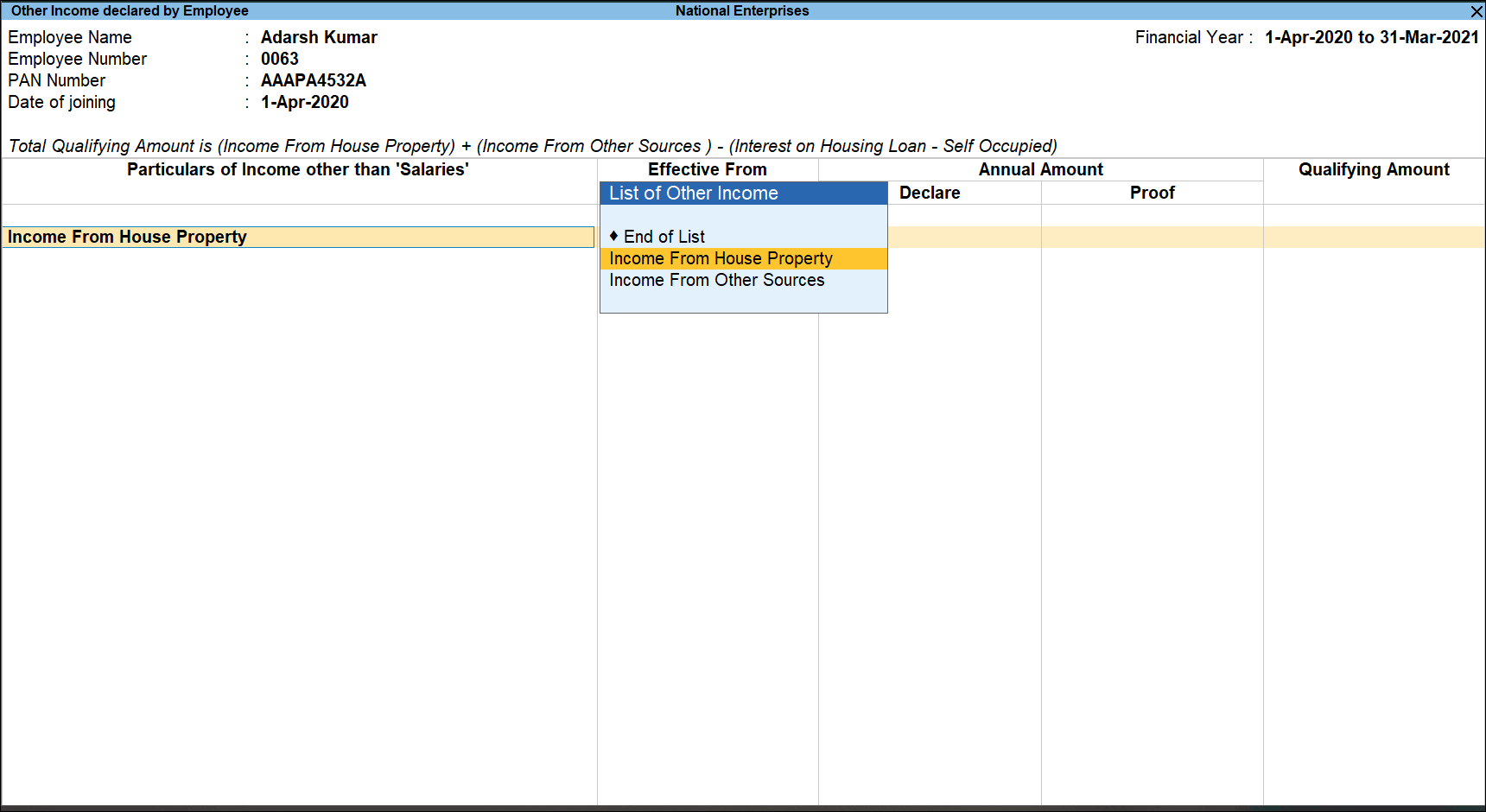
- Specify the Effective From date.
- Specify the Details of Income from House Property. Based on the details provided the income from house property is calculated.
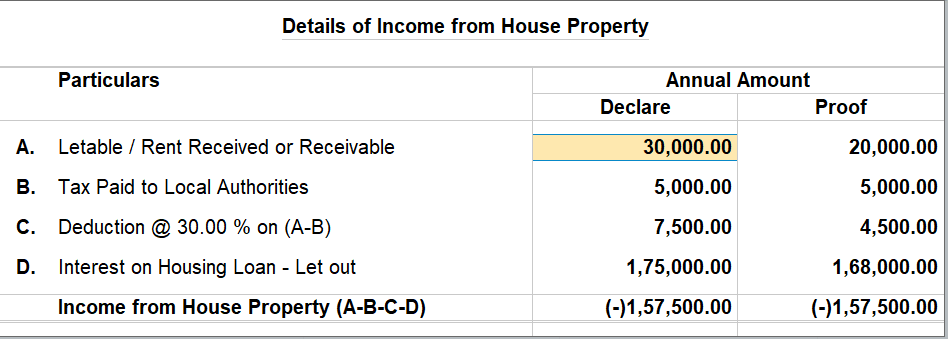
- Follow a similar process for the other incomes that are applicable.
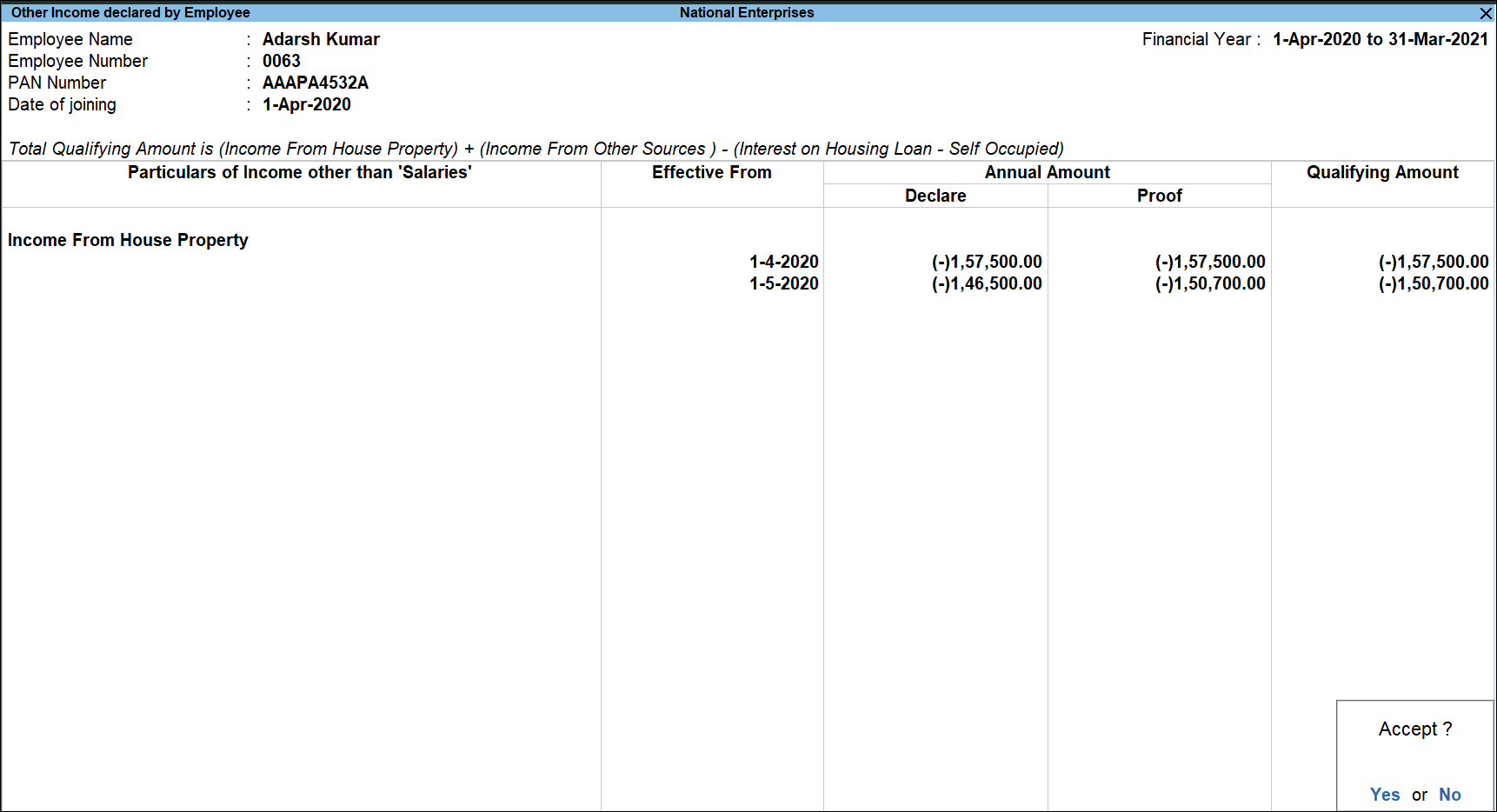
- Press Ctrl+A to save.
Deductions Under Chapter VI-A
Investments
- Select Investments (80C, 80CCF, 80CCG etc) under Deductions under Chapter VI-A in Tax Configuration screen, and press Enter.
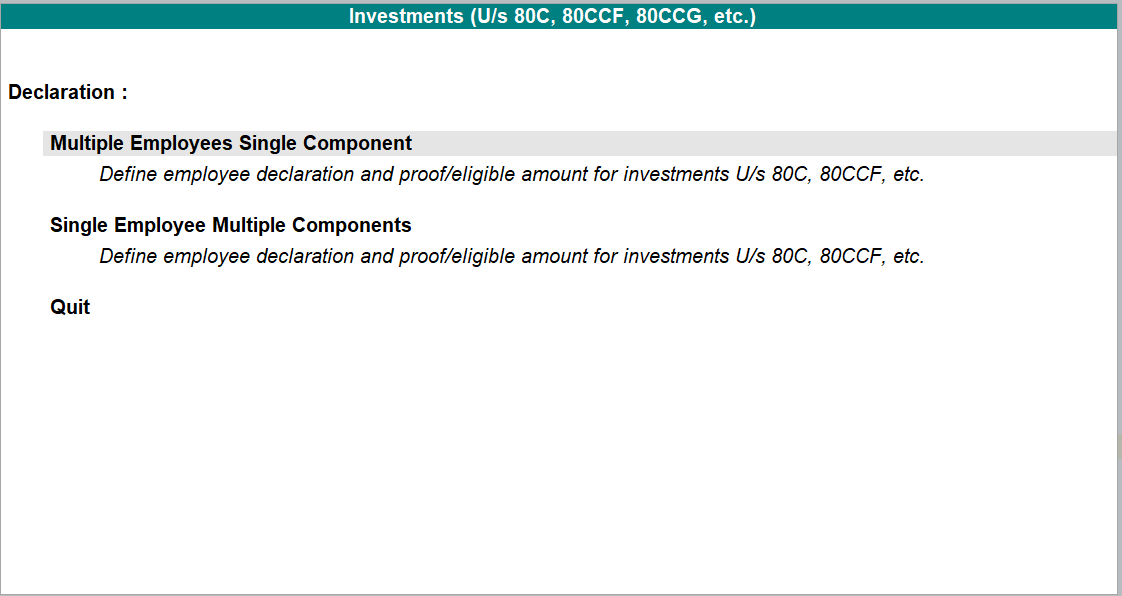
- To add investment declarations for all employees, select Multi Employee Single Component and follow the process explained in Investments – Multi Employee Single Component.
- To add investment declarations for employees one by one, select Single Employee Multi Component and follow the process explained in Investments – Single Employee Multi Component.
Other Deductions
- Select Others (80D, 80DD and 80E etc.) under Deductions under Chapter VI-A in Tax Configuration screen, and press Enter.
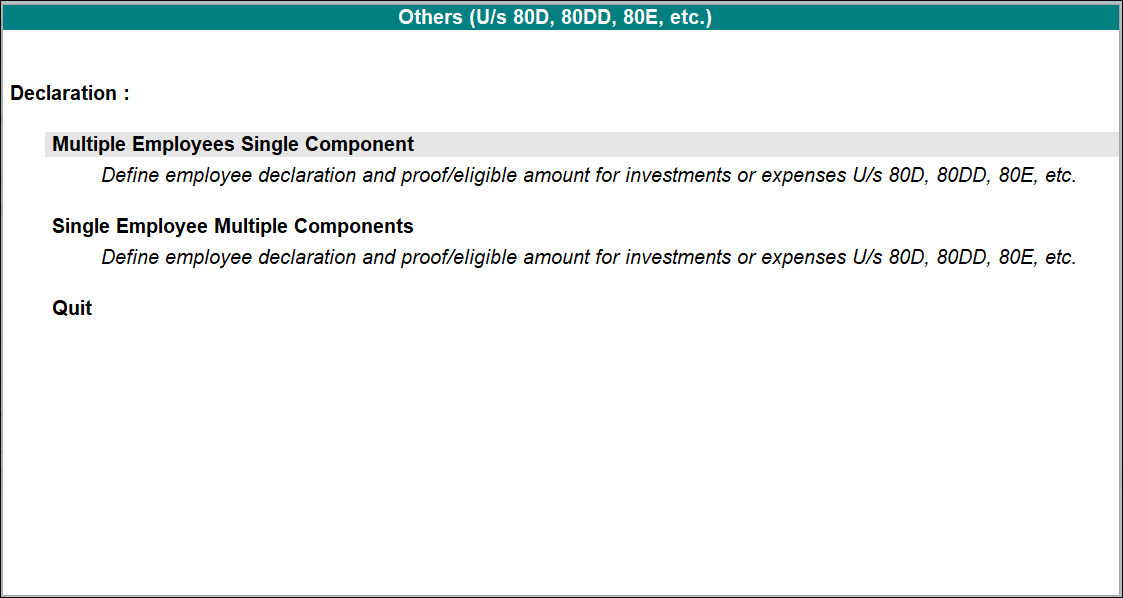
- To add Others declaration for all employees, select Multi Employee Single Component, and follow the process explained in Investments – Multi Employee Single Component.
- To add Others declaration for employees one by one, select Single Employee Multi Component, and follow the process explained in Investments – Single Employee Multi Component.
Reliefs
- Select Relief (U/s 89, 90 & 91) in Tax Configuration screen, and press Enter.
- Select the required employee from the List of Employees, and press Enter.
- Select the required Section from Relief list under the Particulars of Relief.
- Enter the start date in the Effective From field.
- Specify the relief amount in the Annual Amount field.
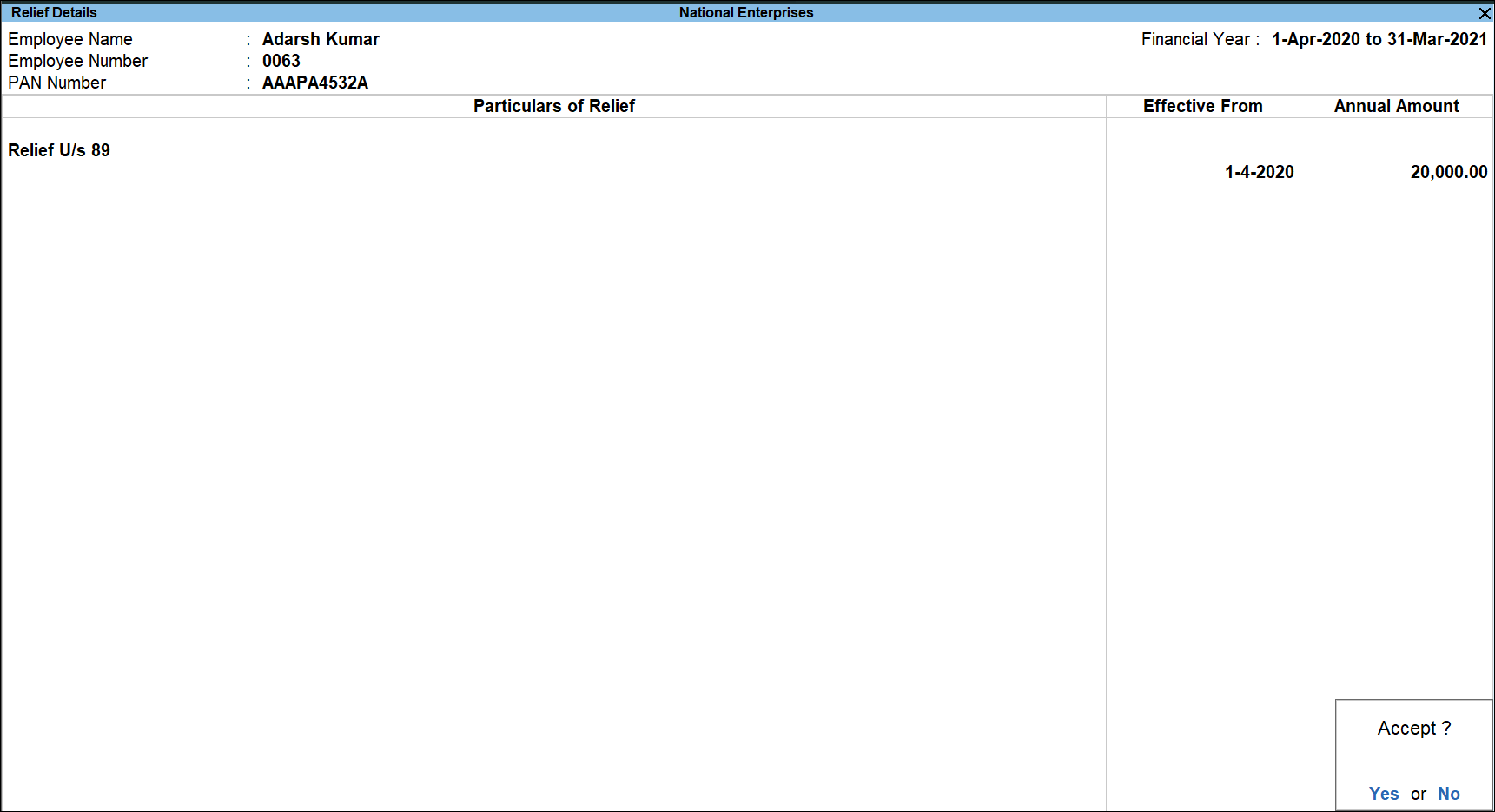
- Press Ctrl+A to save.
Tax Deduction Details
Advanced Tax Declared by Employee
- Select Advanced Tax Declared by Employee in Tax Configuration screen, and press Enter.
- Select the required employee, and press Enter.
- Specify the details of the advance tax paid.
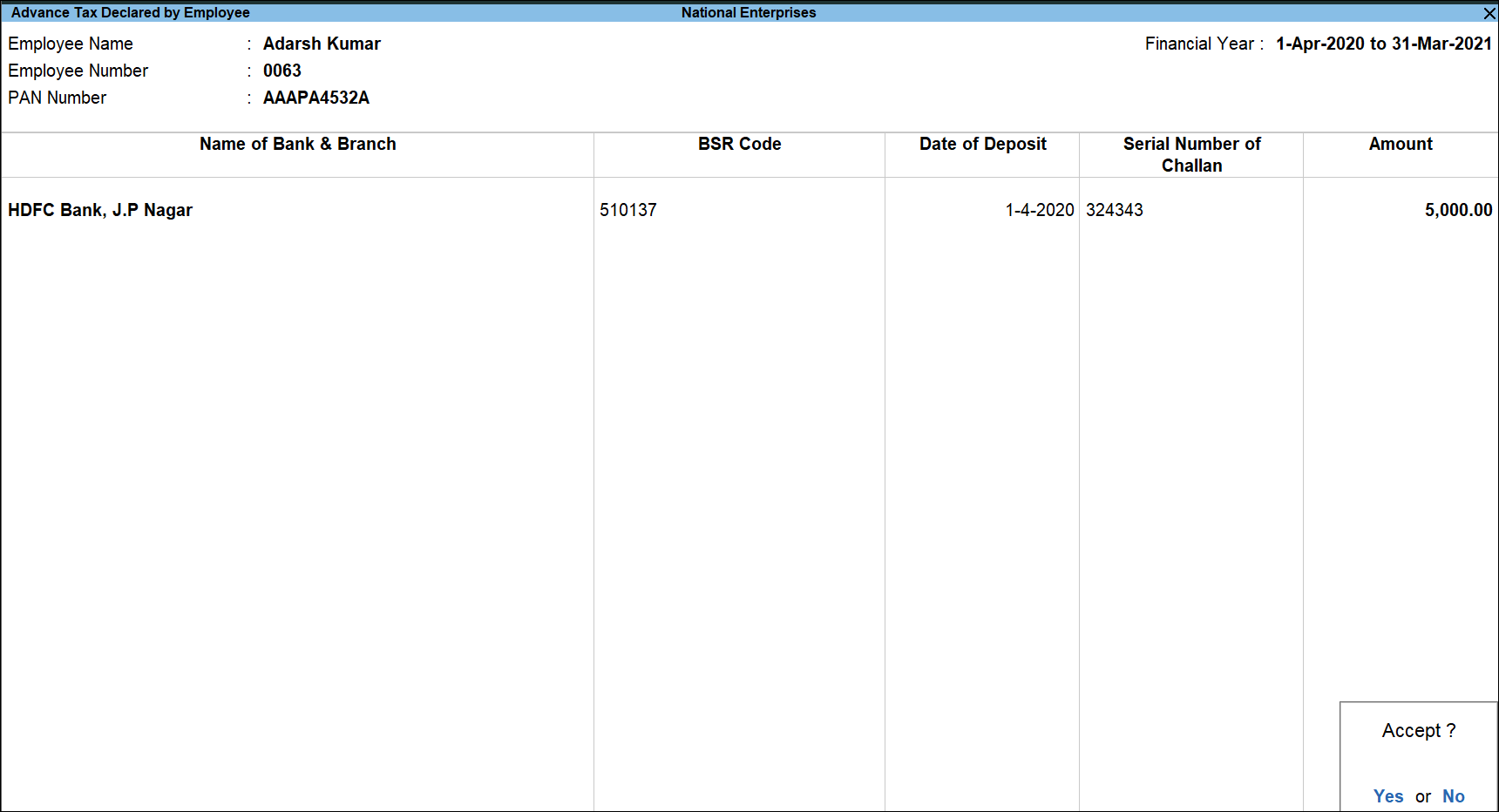
- Press Ctrl+A to save.
Tax Deducted by Previous Employer
- Select Tax Deducted by Previous Employer in Tax Configuration screen, and press Enter.
- Select the required employee, and press Enter.
- Specify the details of the Tax Deducted by Previous Employer.
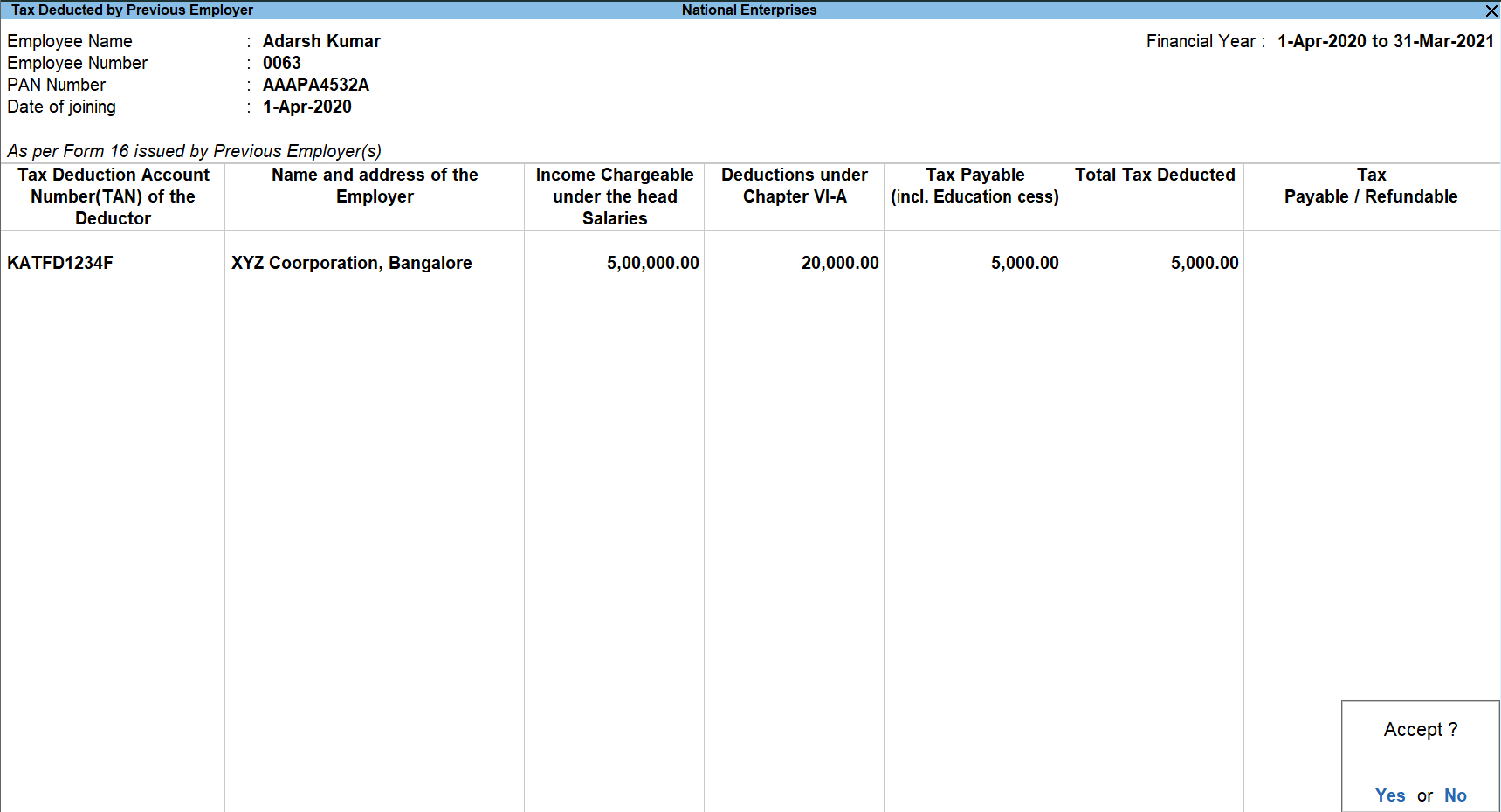
- Press Ctrl+A to save.
Tax Deducted Other than Salary
- Select Tax Deducted Other than Salary in Tax Configuration screen, and press Enter.
- Select the required employee, and press Enter.
- Specify the details of deductor, as shown below.
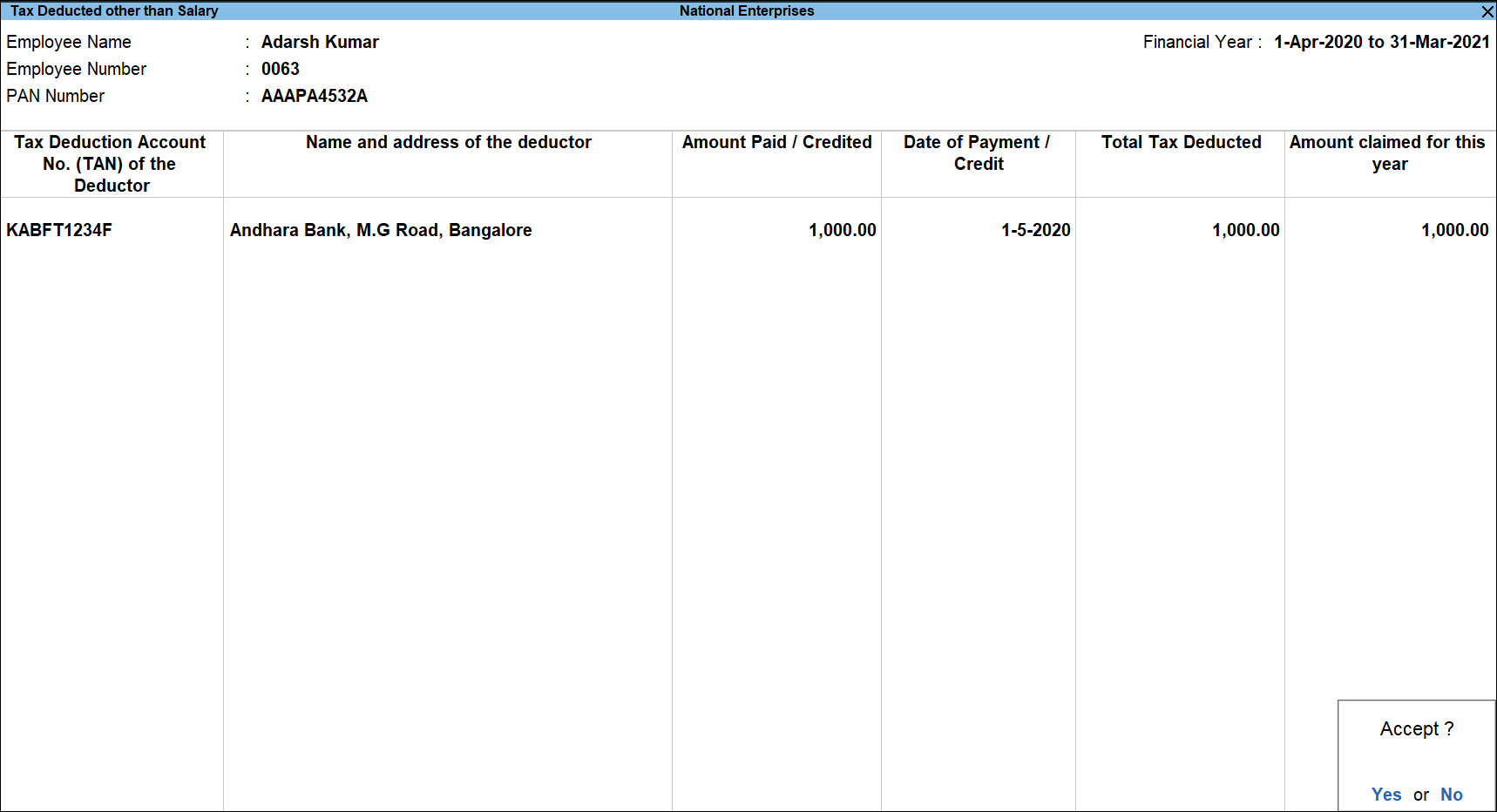
- Press Ctrl+A to save.
Self Assessment Tax Declared by Employee
- Select Self Assessment Tax Declared by Employee in Tax Configuration screen, and press Enter.
- Select the required employee, and press Enter.
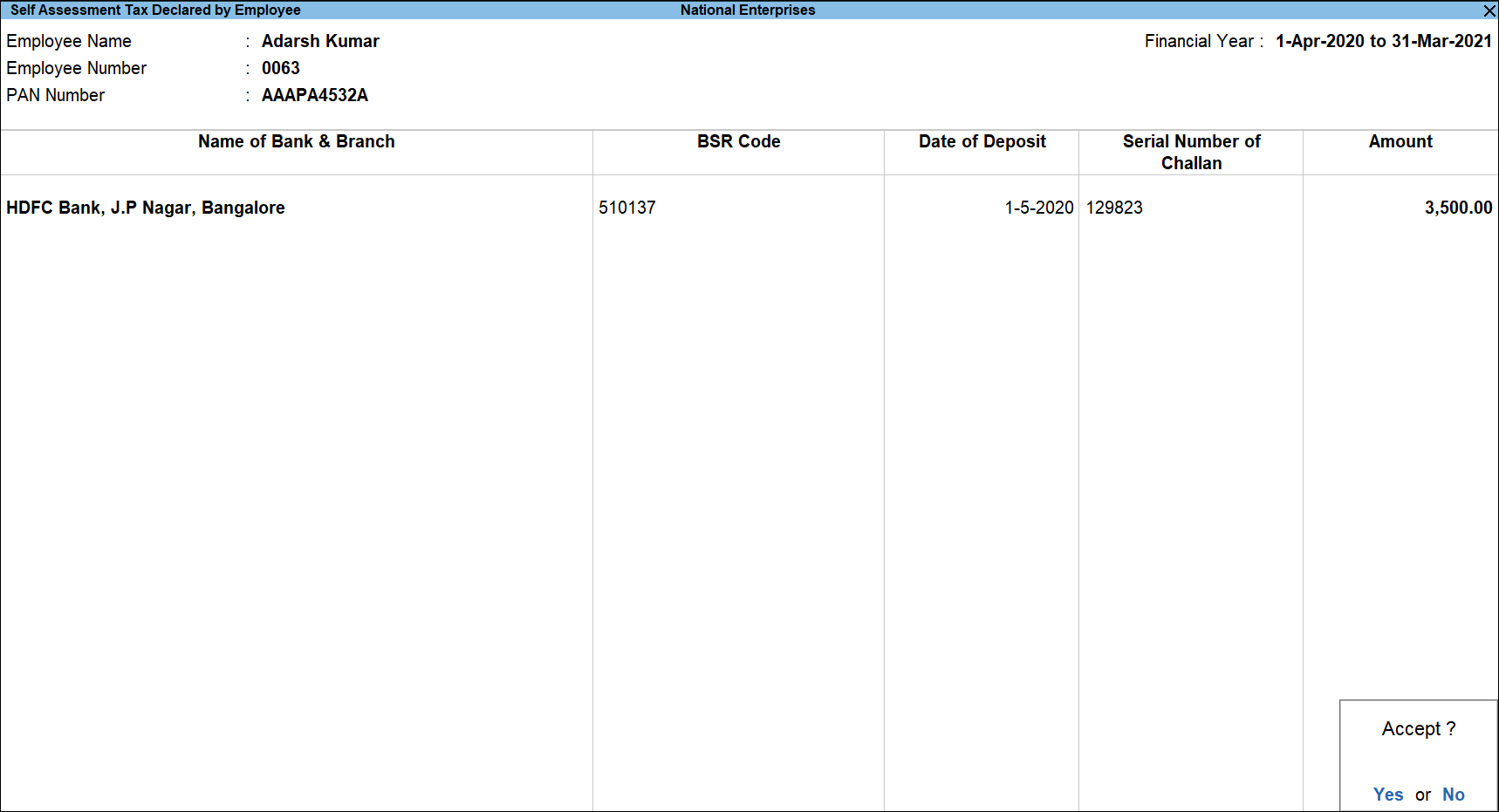
- Press Ctrl+A to save.
Is this information useful?
YesNo


