
Use GSTR-3B Report in TallyPrime
For TallyPrime 3.1 and later
|For TallyPrime 2.1 & earlier|
TallyPrime provides a GSTR-3B report from recorded GST transactions. All fields map to the GSTR-3B table on the GST portal. GSTR-3B in TallyPrime supports compliance and ensures correct data reflection.
View Your GST Details in GSTR-3B Report
- Press Alt+G (Go To) > type or select GSTR-3B and press Enter.
GSTR-3B has the following sections. These sections address your specific needs with simple structure.
- Header – Company Information
- Total Vouchers – Statistics of Your Transactions
- Return View – Mirror of the Portal
- Nature View – Mirror of Company Books
Header | View Company Information
The header section in GSTR-3B captures key information. This includes Company name, GST Registration, Period, and the return status (Signed or Not Signed). You can change one or more of these details when needed. The report contents update based on the changes.

If your business has multiple GST registrations or GSTINs, the GSTR-3B report provides a view of combined GST details and activities across registrations. TallyPrime also provides the option to view GSTR-3B for one registration from any company.
View GSTR-3B for a specific GSTIN/UIN
- Press F3 (Company/Tax Registration) and select the required company or registration from the list.
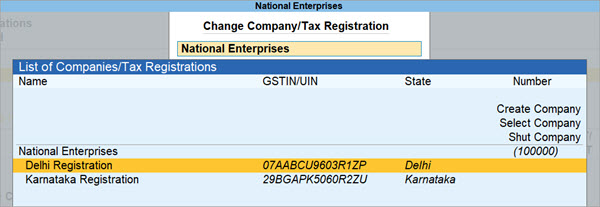
The GSTR-3B report will then open for the selected registration.
Based on your requirements, you can set a registration as the default using the Save View feature. GSTR‑3B will then open the details of that registration each time.
Total Vouchers | View Statistics & Verify Details
In the GSTR-3B report, you get to view the key figures of the transactions related to the return.
- The Total Vouchers section provides an overview of GST transactions. It shows transactions included in the return, ready for export, and needing corrections.
You can drill down to view details. - Based on actions, the report adds sections such as No Action Required After Export and Modified in Books After Export.
This helps you track changes in the report. - You can view pending actions across periods using extra columns.
These include Vouchers with Pending Actions of Earlier Periods or Future Periods, based on the chosen Basis of Values.

Total Vouchers
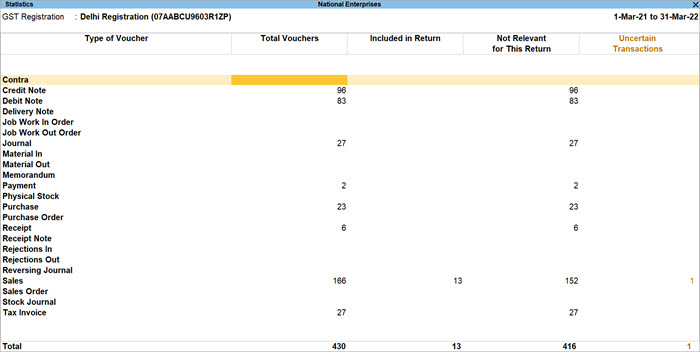
You can drill down to the Statistics screen for a detailed breakup of the type of vouchers involved, along with their statuses, such as: Included in Return, Not Relevant for This Return, and Uncertain Transactions.
Included in Return
Included in Return gives the count of vouchers included in GSTR‑3B. You can drill down to view the breakup of voucher types. For example, you can view the count of sales returns included in the return.
You can drill down again to view the full list of sales returns recorded during the period. You can also set the Effective Date and GST Status when needed.
If you are using TallyPrime Release 5.0, purchase invoices and Debit Notes without Supplier Number and Date appear under this section.

Not Relevant for this Return
Not Relevant for this Return shows the count of vouchers not required in GSTR‑3B for the period. This covers transactions of other registrations or periods, non‑GST transactions, and transactions you excluded.
You can drill down to view the categories of these transactions. You can also view the list of voucher types, such as credit notes, journals, payments, and receipts.
Uncertain Transactions (Corrections needed)
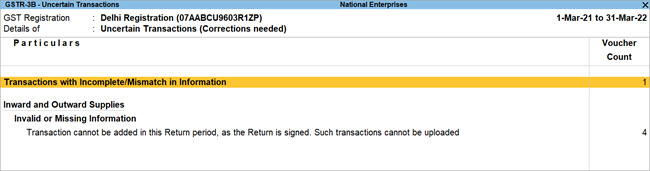
Uncertain Transactions gives you an overall count of the vouchers with GST-related errors.
Refer to the Resolve Uncertain Transactions section to know more.
Moved to other Return periods
Moved to Other Return Periods gives the count of vouchers where the Effective Date is different from the current period.
You may update the Effective Date for some transactions based on your requirements. For example, an order may be on hold, so you set the Effective Date for the next month.
You can drill down to view the list of transactions moved to another period.
Deleted Transactions After Filing Return
If you delete or change the voucher number or voucher type in a signed return, the transactions appear in the Deleted Transactions After Filing Return section.
Non-Accounting Transactions, Included in Return
If you delete or change the voucher number or voucher type in a signed return, the transactions appear in the Non‑Accounting Transactions, Included in Return section. These transactions are saved for compliance reasons. They do not appear in your company books.
In GSTR-3B, press F12 (Configure).
- Show Tax types in separate columns – Enable it to view the breakup of tax amount.
- Show break-up of nett values – Enable to view sales return values reduced from total sales to show the nett amount. Similarly for purchase.
- Format of Report – Enable this option to view the report in Condensed or Detailed format.
Return View | View GSTR-3B Details in the Format of the Portal
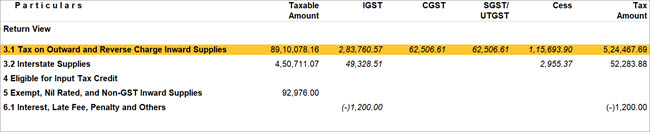
The Return View provides GSTR‑3B with the relevant transactions. The transactions appear in the sections mapped to the sections on the GST portal.
The Return View section will display the following sections, based on your transactions during the period:
- 3.1 Tax on Outward and Reverse Charge Inward Supplies
- 3.2 Interstate Supplies
- 4 Eligible for Input Tax Credit
- 5 Exempt, Nil Rated, and Non-GST Inward Supplies
- 6.1 Interest, Late Fee, Penalty and Others
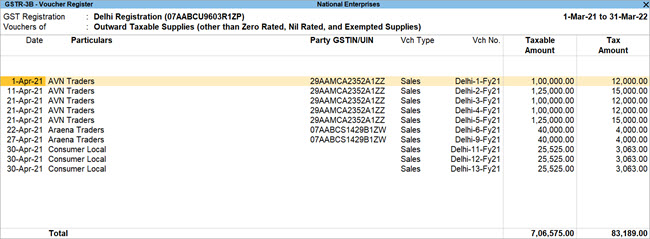
3.1 Tax on Outward and Reverse Charge Inward Supplies
This section captures the total taxable value for intrastate and interstate supplies, along with the tax applicable under CGST, SGST or UTGST, IGST, and Cess for outward taxable supplies and reverse charge inward supplies. You can view more detail under the following sub‑sections:
- 3.1a. Outward Taxable Supplies (other than Zero Rated, Nil Rated, and Exempted Supplies)
- 3.1b. Outward Taxable Supplies (Zero Rated)
- 3.1c. Other Outward Supplies (Nil Rated, and Exempted)
- 3.1d. Inward Supplies (applicable for Reverse Charge)
- 3.1e. Non-GST Outward Supplies

You can drill down from any of the sections to view the full list of relevant transactions recorded during the period.
3.2 Interstate Supplies
This section captures the total taxable value and the tax applicable under CGST, SGST or UTGST, IGST, and Cess for interstate supplies. You can view more detail under the following sub‑sections:
- Supplies to Unregistered Persons
- Supplies to Composition Dealers
- Supplies to UIN holders
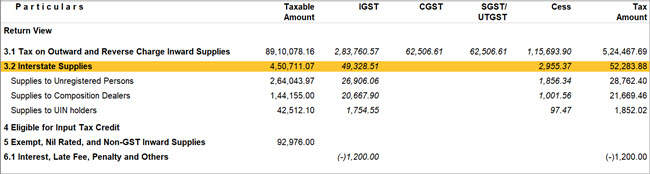
You can drill down from any of the sections to see that the relevant transactions are placed under the correct place of supply.

You can drill down from any of the places of supply to view the breakup against Liability in Current Period and Amendments.
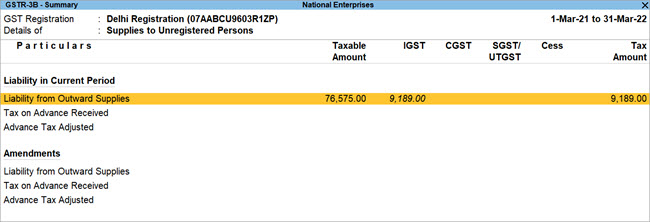
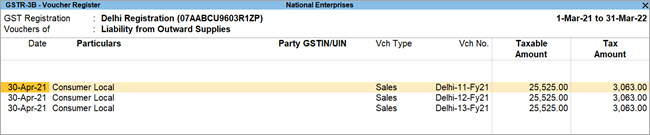
You can drill down from any entry under Liability in Current Period and Amendments to view the full list of transactions recorded during the period.
4 Eligible for Input Tax Credit
This section captures the total amount eligible for input tax credit and the breakup of the tax applicable under CGST, SGST or UTGST, IGST, and Cess. You can view more detail under the following sub‑sections.
- A. Input Tax Credit Available (either in part or in full)
- B. Input Tax Credit Reversed
- C. Net Input Tax Credit Available (A) – (B)
- D. Other Details
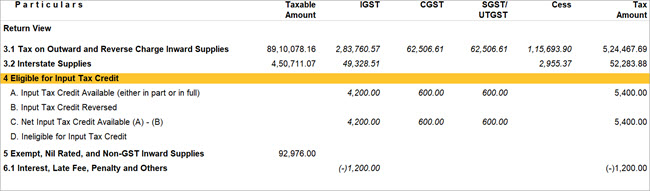
A. Input Tax Credit Available (either in part or in full)
This section captures the details of inward supplies on which input tax credit was availed. It includes import of goods or services, supplies liable for reverse charge, supplies from ISD, and other inward supplies as applicable.
You can drill down to view the following sub-sections:
- Import of Goods
- Import of Services
- Inward Supplies applicable for Reverse Charge (other than lines 1 & 2)
- Inward Supplies from ISD
- All other Input tax Credit
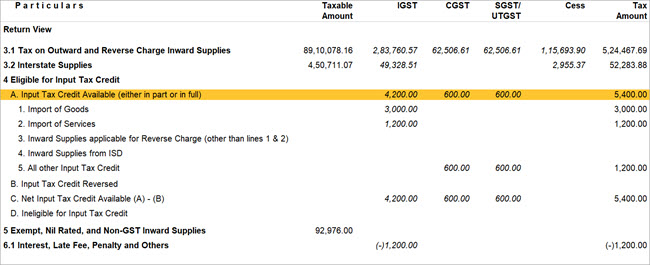
You can drill down from any of the sub‑sections to view the full list of relevant transactions recorded during the period.
B. Input Tax Credit Reversed
This section captures the reversal of input tax credit for inputs, input services, or capital goods used for a non‑business purpose or partly used for exempt supplies. If depreciation is claimed on the tax components of capital goods, plant, or machinery, input tax credit is not allowed. These reversals appear in this section.
You can drill down to view the following sub-sections:
- As per rules 38, 42 and 43 of CGST Rules and section 17(5)
- Others
As per rules 38, 42 and 43 of CGST Rules and section 17(5)
As per Notification No. 14/2022 – Central Tax, in Form GSTR‑3B, the details of ineligible ITC under section 17(5) will be reported in section 4B.1 (ITC Reversed) instead of section 4D.1. To comply with this change on the portal or the offline tool, you must check the details of your transactions in section 4D.1 of the GSTR‑3B report in TallyPrime and add them to section 4B.1 (ITC Reversed) in Form GSTR‑3B on the portal or the offline tool.
- Press Alt+G (Go To) > GSTR-3B, and drill down from section 4 Eligible ITC.
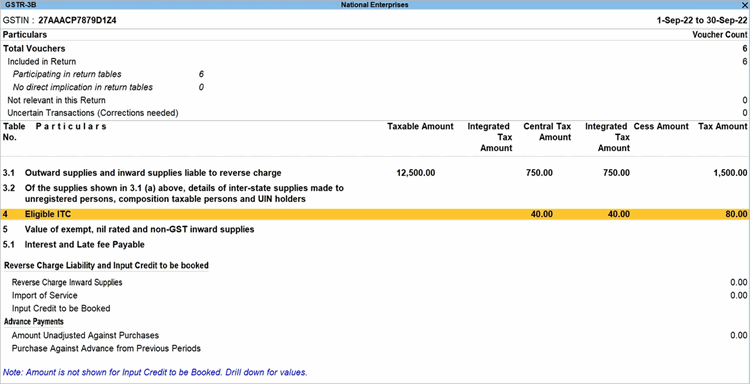
- Press Enter on section 4D (Ineligible ITC).
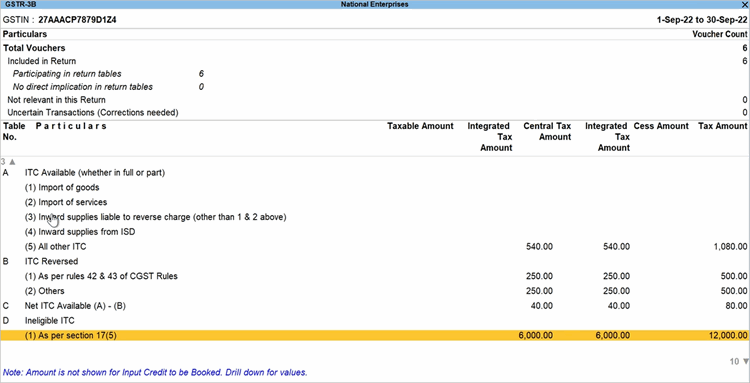
- Note down the GST details in sub-section (1) As per section 17(5).
- Open form GSTR-3B on the portal or the offline tool, and add the relevant details in section 4B.1 (ITC Reversed).
The relevant details from your books will now be available on the portal or the offline tool for filing GSTR-3B.
You can drill down from any of the above sub-sections to view the full list of relevant transactions recorded during the period.
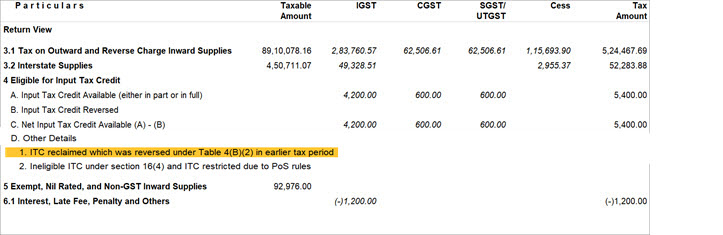
C. Net Input Tax Credit Available (A) – (B)
This section captures the difference between the previous two sections, A and B. It shows the difference between the input tax credit available and the input tax credit reversed.
D. Other Details
This section captures the ITC reclaimed that was reversed and the ineligible ITC.
You can drill down to view the following sub‑section:
ITC reclaimed which was reversed under Table 4(B)(2) in earlier tax period
As per Notification No. 14/2022 – Central Tax, in Form GSTR‑3B, the details of ITC reclaimed will now be reported in section 4D.1 along with section 4A.5 (ITC Available). To comply with this change on the portal or the offline tool, you must check the details of your journal entry in section 4A.5 of the GSTR‑3B report in TallyPrime and add them to section 4D.1 in Form GSTR‑3B on the portal or the offline tool.
- Press Alt+G (Go To) > type or select GSTR-3B, and press Enter.
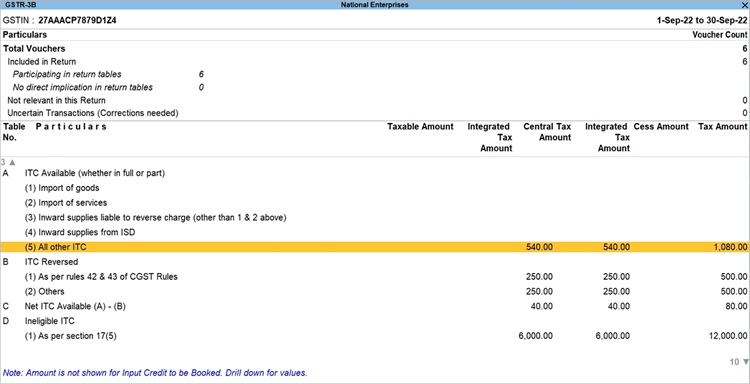
- Drill down from section 4 Eligible ITC.
- Drill down from sub-section 4 A(5) (All Other ITC).
- Drill down again to open the relevant journal voucher that was used to reclaim ITC reversal.
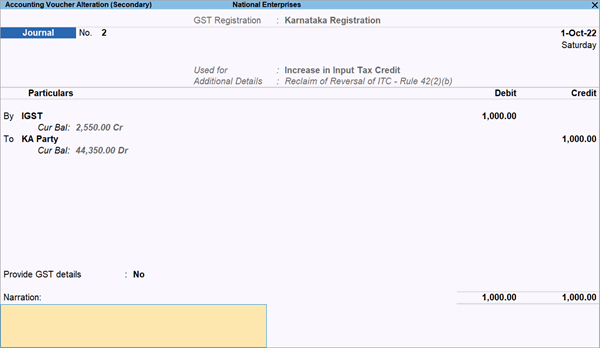
- Note down the Amount recorded in the journal voucher.
- Ensure that relevant details are added in 4D.1 (ITC Reclaimed).
- Open form GSTR-3B on the portal or the offline tool.
- Add the relevant details in section 4D.1 (ITC Reclaimed).
The relevant details from your books will now be available on the portal or the offline tool for filing GSTR-3B.
Ineligible ITC under section 16(4) and ITC restricted due to PoS rules
As per Notification No. 14/2022 – Central Tax, a new section 4D.2 has been introduced in Form GSTR‑3B on the portal and the offline tool. In this section, you must report the value of transactions that had a mismatch in place of supply. You must also report transactions that your suppliers reported after the filing of the Annual Return or the September return of the next financial year, whichever is earlier.
To comply with this change, you must download GSTR‑2B from the portal, check the relevant details in the ITC Not Available sheet, and add them to section 4D.2 in Form GSTR‑3B on the portal or the offline tool.
- Download return GSTR-2B from the portal.
- Open the downloaded file and go to the ITC Not Available sheet.
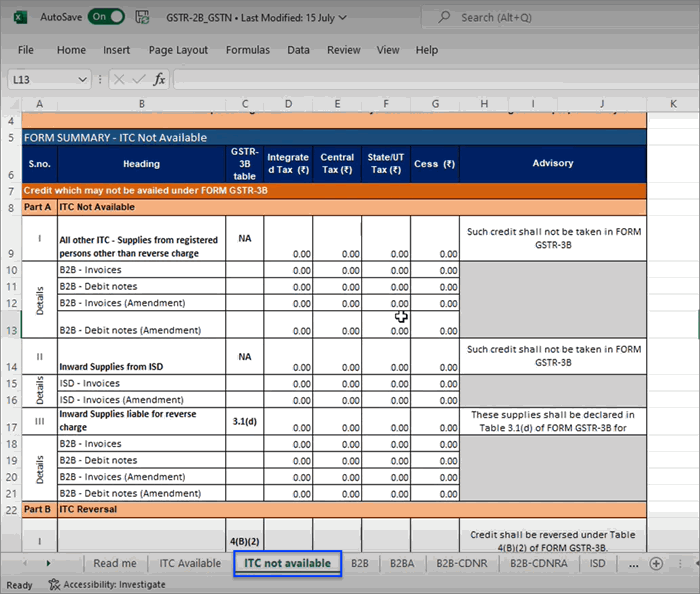
- Note down the relevant GST details.
- Ensure that relevant details are added in 4D.2.
- Open form GSTR-3B on the portal or the offline tool.
- Add the relevant details in section 4D.2.
The details from return GSTR-2B will now be available on the portal or the offline tool for filing GSTR-3B.
You can drill from from any of the above sub-sections to view the full list of relevant transactions recorded during the period.
5 Exempt, Nil Rated, and Non-GST Inward Supplies
This section will capture all the details of interstate and intrastate supplies, under the following sub-sections:
- From a Supplier under Composition Scheme, Exempt and Nil Rated Supplies
- Non-GST Supply
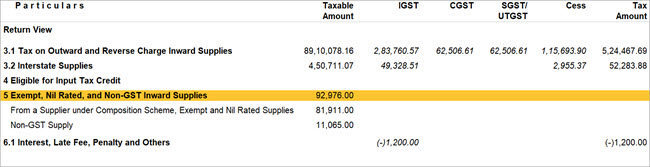
You can drill from any of the above sub-sections to view the full list of relevant transactions recorded during the period.
6.1 Interest, Late Fee, Penalty and Others
This section captures the details of tax paid under Interest, Late Fee, Penalty, and Other Charges. You can drill down to view the transactions placed in the respective sub‑sections.
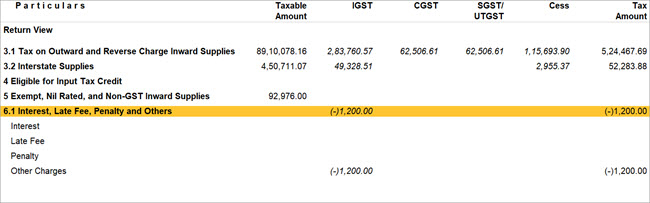
You can drill down from any of the sub‑sections to view the full list of relevant transactions recorded during the period.
Nature View | View GST Details as per Company Books
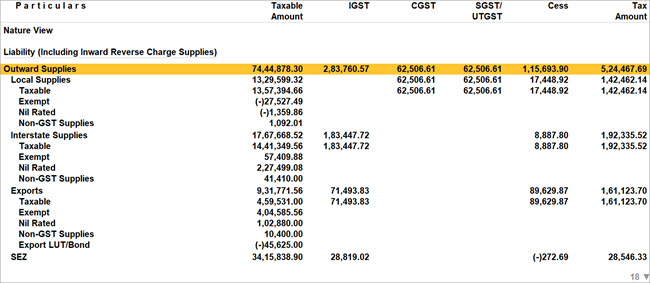
Within the GSTR‑3B report, TallyPrime provides a way to compare your return data with the data in your company books. To view these details, change the view from Return View to Nature View.
- In GSTR-3B, press F5 (Nature View).
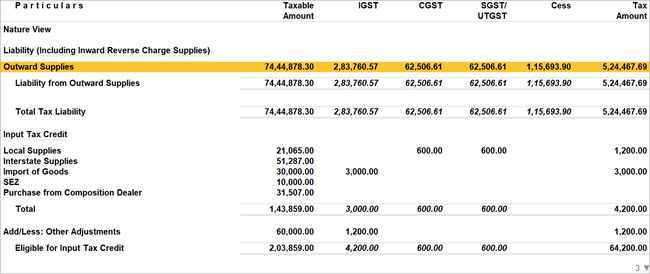
Along with providing a clear, detailed representation of GST information based on the nature of transaction, the Nature View:
- Breaks down liability by local, interstate, and export supplies, with details for taxable and exempt transactions.
- Shows further splits for taxable transactions:
- Supplies to registered dealers and consumers.
- Transactions at different GST rates (e.g., 12%, 18%, 28%).
- Enables quick comparison with company books (P&L, Sales Register, Chart of Accounts) to identify and fix errors before filing returns.
- Categorizes tax details into:
- Liability (including inward reverse charge supplies)
- Input Tax Credit
- Other Charges
Liability (Including Inward Reverse Charge Supplies)
This section provides a detailed view of the liability from your outward supplies. You can see the breakup under Outward Supplies, Tax on Advance Received, Tax on Advance Paid, and Liability from Inward Supplies
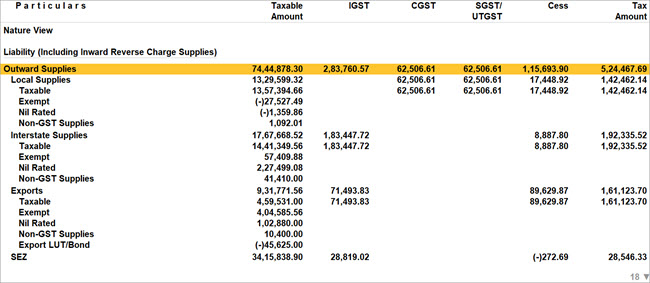
- To view liability details for local, interstate, and export supplies, press Shift+F5 on any entry
- Under each category, you can see taxable and exempt transactions.
- For registered dealers and consumers, Shift+F5 shows details like Sales Taxable and Deemed Exports Taxable.
- Drill down to transactions by GST rates (12%, 18%, 28%) by pressing Shift+F5.
Input Tax Credit
This section provides a detailed view of your input tax credit for the selected period. You can see the breakup under Local Supplies, Interstate Supplies, Import of Goods, SEZ, and Purchase from Composition Dealer.
- To view details of taxable and exempt transactions, press Shift+F5 on any category (e.g., Local Supplies).
- Under each category, drill down further to see purchase details like Purchase Taxable and Purchase – Non-GST.
- At the deepest level, press Shift+F5 to view transactions by GST rates (12%, 18%, 28%).
Other Charges
This section captures the details of tax paid across categories such as Interest, Late Fee, Penalty, and Others.
- To view a clear categorization of transactions, press Shift+F5 on Other Charges.
- Drill down from any sub-section to see the full list of relevant transactions recorded during the period.
Breakup of Eligible & Ineligible Input Tax Credit
The Nature View in GSTR-3B also provides you with further detailing under the Input Tax Credit section, in the form of three new sub-sections for total eligible & ineligible Input Tax Credit.
To add this detailing, press F12 (Configure) and enable Show breakup of Eligible and Ineligible for Input Tax Credit Supplies.
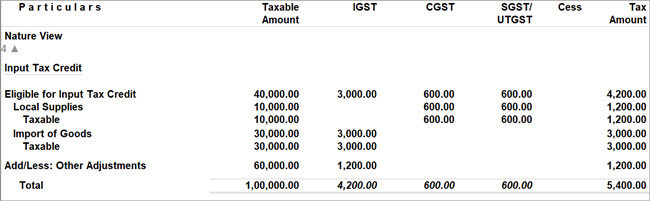
You will find that your data in the Nature View section will be represented in the following three sub-sections:
- Eligible for ITC
- Ineligible for ITC
- Other Inward Supplies
Drill down to view the full list of transactions.
- At this level, press F12 (Configure) to see the breakup of eligible and ineligible Input Tax Credit for each transaction.
- This gives flexibility to assess ITC eligibility and make informed decisions.
View ITC Breakup of GSTR-3B
The ITC Breakup of GSTR‑3B report gives a clear view of your ITC details. You can view the source of ITC and the details for the relevant period.
For example, in the current period, you can view the ITC that you availed in this period and in other periods. You can also view the ITC that was moved to a different period from the current period.
- In GSTR-3B, press F8 (ITC Breakup).
Alternatively, press Alt+G (Go To) > ITC Breakup of GSTR-3B. - Press F12 (Configure) to set the required options.
- Show breakup of Tax Amount: No.
- Show ITC Moved to Other Periods: Yes.
- Press Ctrl+A to save the configuration.
Now you can view the Total ITC as well as the breakup of ITC in the current period, ITC from other periods, and ITC moved to other periods.
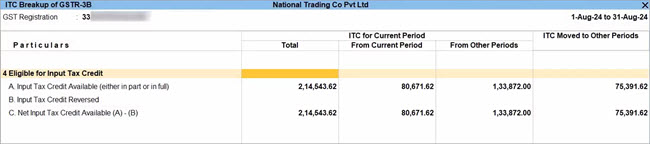
- Drill down from the From Other Periods column, to view the various categories of transactions such as Import of Goods, Import of Services, Inward Supplies from ISD, and All other Input Tax Credit.
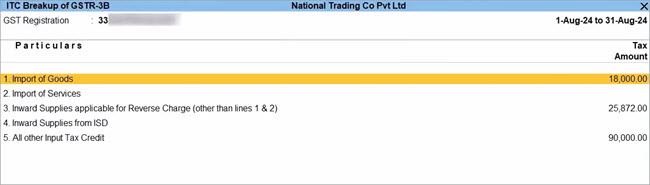
- Drill down from All other Input Tax Credit.
- Press F5 (Voucher-wise).
You can view the vouchers for the relevant months, along with transaction details such as Vch Type & No., Doc No. & Date, and Tax Amount.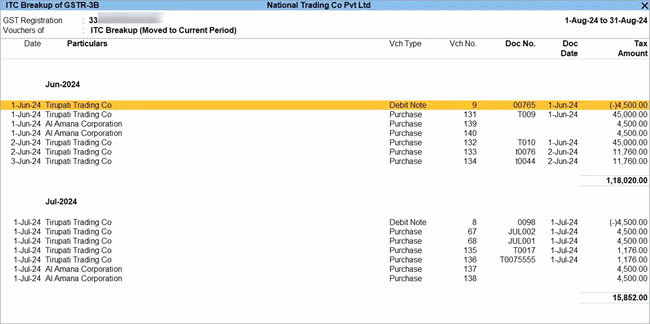
Similarly, you can view the ITC of the current Period moved to Other Periods.
In this way, ITC Breakup of GSTR-3B provides you with great clarity about your ITC details across return periods.
Getting Ready for GSTR-3B Filing
Apart from assured compliance, easy design, and great speed, GSTR-3B report comes with the following features, which will make your return filing experience as smooth as possible.
- Resolve Uncertain Transactions
- View Transactions Accepted as Valid
- Export GSTR-3B
- Mark GSTR-3B as Filed
Resolve Uncertain Transactions
Filing GSTR-3B can be challenging if there are errors or missing details in GST transactions, especially with large volumes. TallyPrime simplifies this by providing an intuitive classification of GST-related errors.
To file GSTR-3B error-free, you can:
- Use the Uncertain Transactions section to drill down and view all uncertain details.
- Easily correct errors or, if details are correct, choose to accept transactions as is.
Even with hundreds of transactions, finding and fixing issues is quick and simple.
All your uncertain transactions will be conveniently placed in one of the following four groups:
- Transactions with Incomplete/Mismatch in Information
- Outward Supplies
- Advance Receipts
- Tax and Other Adjustments
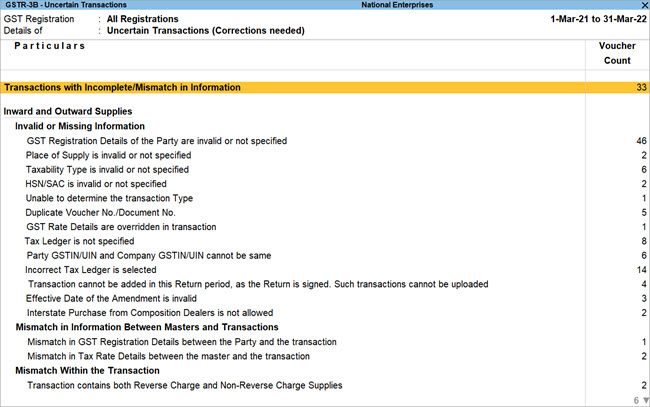
Within the above groups, you will find your uncertain details in one of the following sub-groups:
- Invalid or Missing Information
- Mismatch in Information Between Masters and Transactions
- Mismatch Within the Transaction
To accept transactions as is:
- Drill down from any uncertain section to view the full list of transactions.
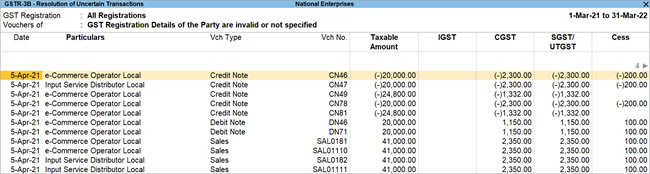
- To check transactions with missing or incorrect GSTIN/UIN, open GSTR-3B > GST Registration Details of the Party are invalid or not specified.
- If a GSTIN/UIN is correct and you want to proceed, then select the entry and press Alt + V (Accept As Is).
Vouchers with mismatch in GST Registration details between the Party and the transaction and those with mismatch in tax rate details between the master and transactions are ignored for conflicts.
To view such vouchers, press Ctrl+J (Exception Reports) > Vouchers Ignored for Conflicts.
View Transactions Accepted as Valid
Before finalizing your return, you can cross-check transactions you accepted as valid. The Transactions Accepted as Valid report lists all such entries, helping you verify their correctness.
-
- To view the Transactions Accepted as Valid report in GSTR-3B, press Ctrl+J (Exception Reports) > Transactions Accepted as Valid.
You will find that the transactions have been neatly grouped into three categories: - Mismatch between Expected and Modified Tax Amounts in transaction.
- Transactions accepted as is (Format).
- Transactions accepted as is.
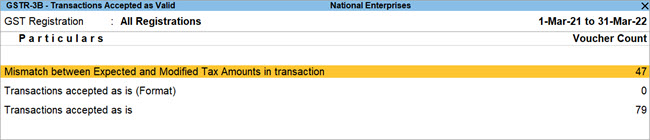
- To view the full list of transactions for the selected period, Drill down from any category.
- If a detail was incorrectly accepted as valid, select the entry and press Alt + J (Undo Accept As Is).
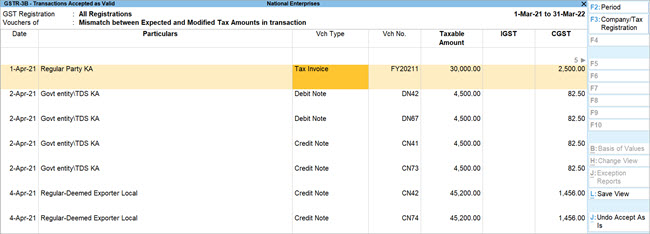
The transaction will move back to the Uncertain Transactions section.
- To view the Transactions Accepted as Valid report in GSTR-3B, press Ctrl+J (Exception Reports) > Transactions Accepted as Valid.
File GSTR-3B
Once you have verified your GSTR‑3B, you can share these details with the tax department. You can file GSTR-3B using one of the following methods:
- File GSTR-3B After Uploading Directly TallyPrime | Download, Reconcile, Upload, and File.
- File GSTR-3B by Exporting JSON File from TallyPrime.
- File GSTR-3B Using GSTR Offline Tool.
- File GSTR-3B Manually on the GST Portal.
Mark GSTR-3B as Filed
Once your GSTR‑3B is filed, you can mark it as filed. This helps you track your final return and prevent tampering. If filed transactions are modified, they appear in the Uncertain Transactions section.
- In the GSTR-3B report, Press F10 (Mark as Filed).
- Press S (Mark Current Return as Filed).
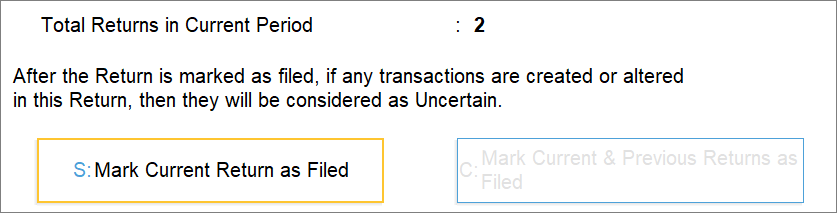
If anyone tries to modify any transactions in your signed return, then they will appear in Uncertain Transactions.
Undo Filing
Your signed returns are locked and tamper‑proof. If you need to update any transaction in your signed GSTR‑3B due to a business requirement, you can unlock or undo the signing. TallyPrime provides this option.
- In the GSTR-3B report, press Alt + F10 (Undo Filing).
- Press S (Undo Filing for Current Return),
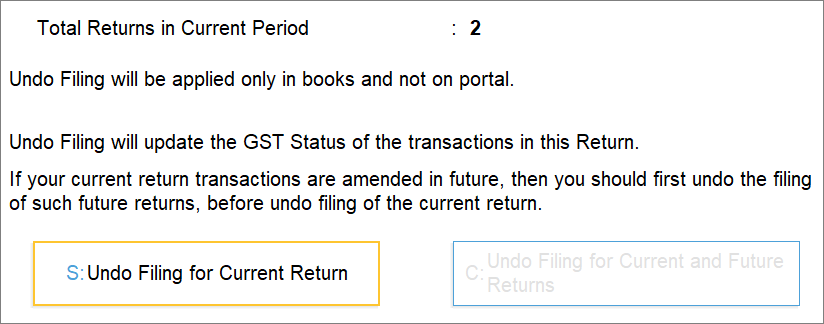
You can proceed to make any updates to your GSTR-3B data.
For easy preparation of filing your returns, you can easily upload GSTR-3B online right from TallyPrime.
Table as per GST Format
|
3.1 Details of Outward Supplies and inward supplies liable to reverse charge |
URD Purchases |
|
3.2 Of the supplies shown in 3.1 (a) above, details of inter-Sate supplies made to unregistered persons, composition taxable persons and UIN holders |
Reverse Charge Inward Supplies |
|
Import of Services |
|
Input Credit to be Booked |
|
5.1 Interest and Late fee Payable |
Amount unadjusted against supplies |
|
|
Sales against advance from previous periods |
|
|
Amount unadjusted against purchase |
|
Table Name |
Particulars |
|
Year |
Displays the year for which returns are filed. The calander year is captured in YYYY format. |
|
Month |
Displays the full name of the month for which the returns are filed. |
|
1. GSTIN |
Displays the GSTIN of the dealer filing the returns as recorded in the field GSTIN/UIN in the Company GST Details screen. |
|
2. Legal Name of the registered person |
Displays the company name of the dealer as recorded in the field Mailing name in the Company Creation screen. |
|
3.1 Details of Outward Supplies and inward supplies liable to reverse charge |
|
|
(a) Outward taxable supplies (other than zero rated, nil rated and exempted) |
Displays the Total Taxable value, Integrated Tax, Central Tax, State/UT Tax, and Cess in separate columns from sales and sales-related transactions with or without reverse charge applicability, recorded with:
Total Taxable value is the sum of all taxable values including the value of the debit and credit notes, and advance liabilities, excluding tax. |
|
(b) Outward taxable supplies (zero rated) |
Displays the Total Taxable value, Integrated Tax, Central Tax, State/UT Tax, and Cess in separate columns from sales and sales-related transactions recorded with:
Total Taxable value is the sum of all taxable values including the value of the debit and credit notes, and advance liabilities, excluding tax. |
|
(c) Other outward supplies (Nil rated, exempted) |
Displays the Total Taxable value, Integrated Tax, Central Tax, State/UT Tax, and Cess in separate columns from sales and sales related transactions recorded with:
Total Taxable value is the sum of all taxable values including the value of the debit and credit notes, and advance liabilities, excluding tax. |
|
(d) Inward supplies (liable to reverse charge) |
Displays the Total Taxable value, Integrated Tax, Central Tax, State/UT Tax, and Cess in separate columns for purchase or purchase-related transactions recorded with:
Total Taxable value is the sum of all taxable values including the value of the debit and credit notes, and advance liabilities, excluding tax. |
|
(e) Non-GST outward supplies |
Displays the Total Taxable value, Integrated Tax, Central Tax, State/UT Tax, and Cess in separate columns from journal transactions recorded with masters created by setting the option Is non-GST goods? to Yes. |
|
3.2 of the supplies shown in 3.1 (a) above, details of inter-Sate supplies made to unregistered persons, composition taxable persons and UIN holders |
|
|
Supplies made to Unregistered Persons |
Displays the Place of Supply, Total Taxable value, and Amount of Integrated Tax in separate columns from sales and sales-related transaction, along with:
Total Taxable value is the sum of all taxable values including the value of the debit and credit notes, and advance liabilities, excluding tax. |
|
Supplies made to Composition taxable persons |
Displays the Place of Supply, Total Taxable value, and Amount of Integrated Tax in separate columns from sales and sales-related transaction with:
Total Taxable value is the sum of all taxable values including the value of the debit and credit notes, and advance liabilities, excluding tax. |
|
Supplies made to UIN holders |
Displays the Place of Supply, Total Taxable value, and Amount of Integrated Tax in separate columns from sales and sales-related transaction, along with:
Total Taxable value is the sum of all taxable values including the value of the debit and credit notes, and advance liabilities, excluding tax. |
|
4. Eligible ITC |
|
|
(A) ITC Available (whether in full or part) |
|
|
(1) Import of goods
|
Displays the Integrated Tax, Central Tax, State/UT Tax, and Cess in separate columns with Nature of transaction as:
Displays only journal vouchers if recorded for the reverse charge tax liability or input credit. Purchases will not be displayed if journal vouchers are recorded with:
To display only purchases, exclude the journal voucher from the Participating in return tables of GSTR-3B. |
|
(2) Import of services
|
Displays the Integrated Tax, Central Tax, State/UT Tax, and Cess in separate columns with Nature of transaction as Imports Taxable with Type of Supply as Services. Displays only journal vouchers if recorded for the reverse charge tax liability or input credit. Purchases will not be displayed if journal vouchers are recorded with:
|
|
(3) Inward supplies liable to reverse charge (other than 1 & 2 above)
|
Displays the Integrated Tax, Central Tax, State/UT Tax, and Cess in separate columns.
To display only purchases, exclude the journal voucher from the Participating in return tables of GSTR-3B. |
|
(4) Inward supplies form ISD
|
Displays the Integrated Tax, Central Tax, State/UT Tax, and Cess in separate columns from journal transactions recorded with:
|
|
(5) All other ITC |
Displays the Integrated Tax, Central Tax, State/UT Tax, and Cess in separate columns from purchase transactions recorded with:
|
|
(B) Input Tax Credit Reversed |
|
|
As per rules 38, 42 and 43 of CGST Rules and section 17(5) Previously, this section was (1) As per rules 42 & 43 of CGST Rules. |
Displays the Integrated Tax, Central Tax, State/UT Tax, and Cess in separate columns from journal transactions recorded with:
|
|
(2) Others |
Displays the Integrated Tax, Central Tax, State/UT Tax, and Cess in separate columns from journal transactions recorded with:
|
|
(C) Net ITC Available (A)-(B) |
Displays the autocalculated values. |
|
(D) Other Details Previously, this section was called Ineligible ITC |
|
|
ITC reclaimed which was reversed under Table 4(B)(2) in earlier tax period |
The specific amount of the re-claimed ITC is reported in this section. This is particularly for disclosure purposes only and helps the system track the movement of temporary reversals. |
|
Ineligible ITC under section 16(4) and ITC restricted due to PoS rules |
Ineligible Input Tax Credit (ITC) under Section 16(4) and ITC restricted due to Place of Supply (PoS) rules are reported in Table 4(D)(2) of the GSTR-3B return. These amounts are declared to ensure they do not get credited to the taxpayer’s electronic credit ledger. |
|
(1) As per section 17(5) |
Displays the Integrated Tax, Central Tax, State/UT Tax, and Cess in separate columns from purchase and purchase-related transaction with:
|
|
(2) Others |
This field is left blank. |
|
5. Values of exempt, nil-rated and non-GST inward supplies |
|
|
From a supplier under composition scheme, exempt and nil rated supply |
Displays the taxable value from all purchase and purchase-related transactions. Displays value for inter-state supplies from the transactions recorded with Nature of transaction as:
Displays value for intra-state supplies from the transactions recorded with Nature of transaction as:
|
|
Non GST supply
|
Displays invoice value from a transaction recorded with ledgers or items created by setting the option Is non-GST goods? to Yes. The value is displayed in Inter-State supplies column if the supplier is from a different state and in the Intra-State supplies column if the purchases are made from a local supplier. |
|
5.1 Interest and Late Fees Payable |
|
|
Interest |
Displays the value of the journal voucher recorded with Nature of adjustment as Increase of Tax Liability, and Additional Details as Interest. |
|
Late Fees |
Displays the value of the journal voucher recorded with Nature of adjustment as Increase of Tax Liability, and Additional Details as Late Fees. |
|
6.1 Payment of tax |
This section will be left blank. |


