
Create & Manage Users in TallyPrime
Ensure security of your company data by creating users with appropriate roles, permissions, and passwords. Create as many users as you need depending on the user roles in your company. Manage user access, switch users, and update passwords as required to ensure that only authorised users can access your business information. Depending on your business needs, you can alter the settings of the user or even remove the user for the company.

Ensure that:
- Security is enabled for the company.
- You have the admin username and password.
Create Users for your Company

- Press Alt+K (Company) > Users and Passwords.
- Select User Roles.
You can select from the 5 different user roles available in TallyPrime. - Enter the Username and Password for the selected user role.
It is recommended to enter a strong password as per the password policy for the Company. - Provide additional permissions to the user depending on the features applicable to your company – Browser Access, Remote Access, & Local TDL Files.
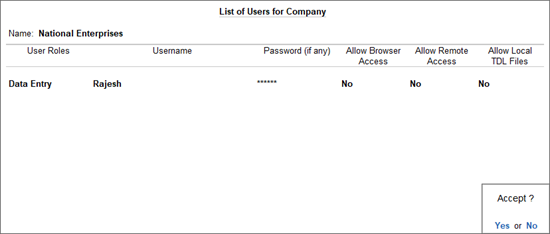
- Press F12 (Configure) and enable the required options. For example, you can:
- Set up a user’s status as Active or Inactive.
- Specify if the Password Policy is applicable to the user.
- Press Ctrl+A to save the user role.
You can now manage user roles & security levels as required for your business operations. If you have created more than one user, you can switch from one user to the other, when required.
Change Users
If you have created more than one users, you can change user for that company.
- Press Alt+K (Company) > Change User.
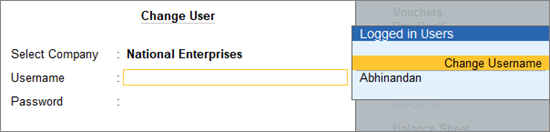
- In the Change User screen, select Change Username, and enter the Username and Password.
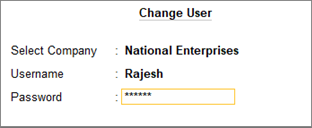
You will be logged in with the user credentials and have access to the company data as per the security permissions set for that user.
Change User Password
It is a best practice to change the user password from time to time, to ensure controlled and authorised access to your company data.
- TallyPrime prompts you to change the password when you log in for the first time, if the following is enabled:
Alt+K (Company), > Password Policy > Change password on first login. - Additionally, you can change the password anytime:
- Press Alt+K (Company) > Change Password.
- Enter the Old Password and then the New Password.
- Enter the new password again to confirm.
You will be prompted to login with your new password for the same username.
Remove Users/Security Levels
You can delete a user by remove the security level for that user role when not needed.
- Press Alt+K (Company) > Users and Passwords.
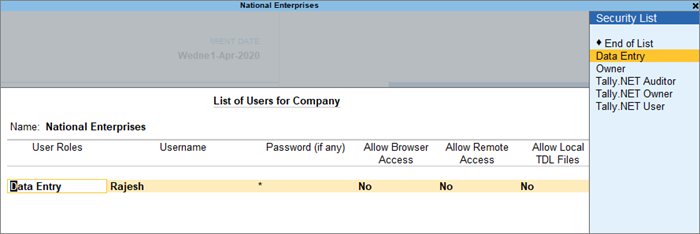
- Place the cursor on the Security Level that is not needed, press Spacebar, and select End of list.
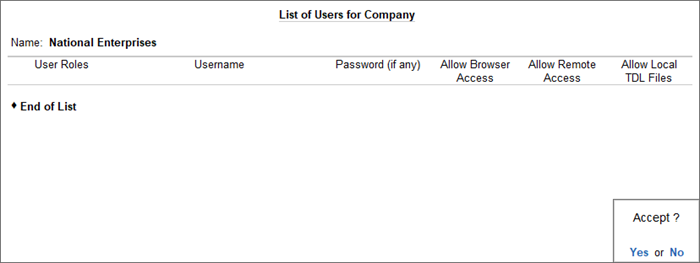
- As always, you can press Ctrl+A to save.


