
Install TallyPrime Server, Server Monitor, & Tally Gateway Server
New to TallyPrime Server? Getting started is quick and straightforward. Whether you are installing it for the first time or upgrading from a previous version, the setup is seamless and easy to follow. New users can follow the Setup Manager for a guided installation and configure settings if needed.
Before you begin | Prerequisites
- The required hardware is available
- TallyPrime Gold installation which will allow you to configure TallyPrime Server in one shot
For New Users | First Time Installation
If you have never installed TallyPrime Server on your computer, then don’t worry. The Setup Manager will guide you for a quick installation.
The TallyPrime Server installation setup.exe includes three applications: TallyPrime Server, TallyPrime Server Monitor, and Tally Gateway Server. To install TallyPrime Server on your computer, you need to have Windows administrator rights.
- Download the TallyPrime Server setup.exe from the Tally website.
- Double-click the setup.exe file to open the TallyPrime Server Setup Manager.

- Press C (Configure) if you want to change the default settings.
- Configure the options such as the Application Path, Desktop Shortcut, Start Menu Entry Name, and so on.
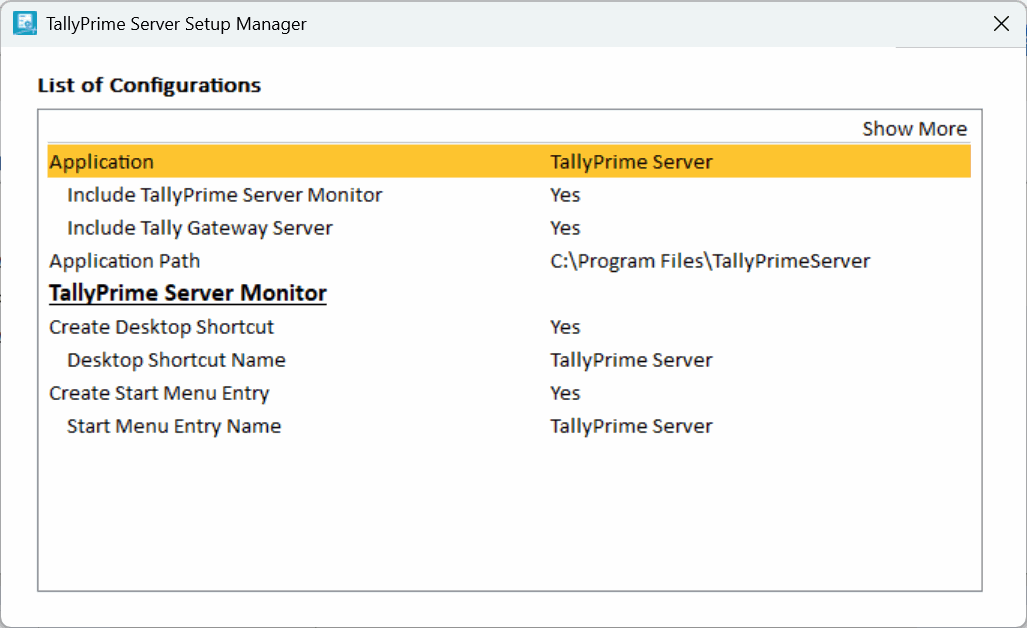
- Press Esc to save and go back to the TallyPrime Server Setup Manager screen.
- Configure the options such as the Application Path, Desktop Shortcut, Start Menu Entry Name, and so on.
- Press I (Install) to continue the installation.
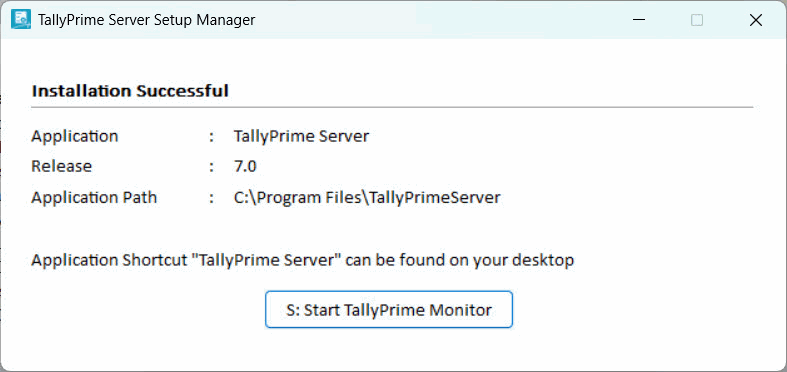
Now you can activate your TallyPrime Server license, complete the setup, and begin managing your business operations efficiently.
Components of TallyPrime Server
The application folder in TallyPrime Server contains the following files:
- Setup.exe: This will start the Setup Manager, which will help you install the various components of TallyPrime Server.
- tallygatewayserver.exe: This is the Tally Gateway Server application.
- tallyserver.exe: This is the TallyPrime Server Monitor application.
- tssvc.exe: This is the TallyPrime Server service that facilitates the functions of the Data Server.
Install TallyPrime Server Monitor
As an organisation owner or administrator, if your requirement is limited to monitoring activities, you may choose to install only the TallyPrime Server Monitor.
To install TallyPrime Server Monitor on your computer, you need to have administrator rights on Windows.
- Download the TallyPrime Server setup file from the Tally website.
- Double-click the setup.exe file to open the TallyPrime Server Setup Manager.
- Press C (Configure) to open the List of Configurations.
- Select TallyPrime Server Monitor as the Application, and press Ctrl+A to accept.
You can also configure other options such as the application path, desktop shortcut, Start menu entry, and so on.
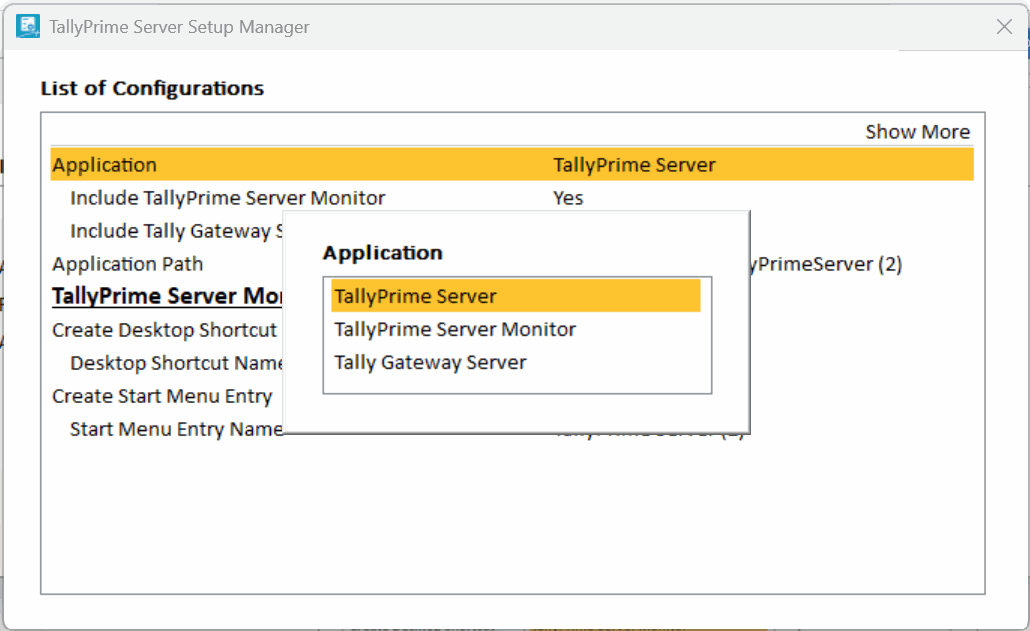
- Press Esc to save, and then I (Install) to continue the installation.
Now, TallyPrime Server Monitor is successfully installed on your computer, allowing you to efficiently track and manage server activities as per your administrative requirements.
Tally Gateway Server Compatibility Check/Installation
The current release of TallyPrime Server should be compatible with Tally Gateway Server. If a lower version of the Tally Gateway Server is used, then TallyPrime Server displays the following message:
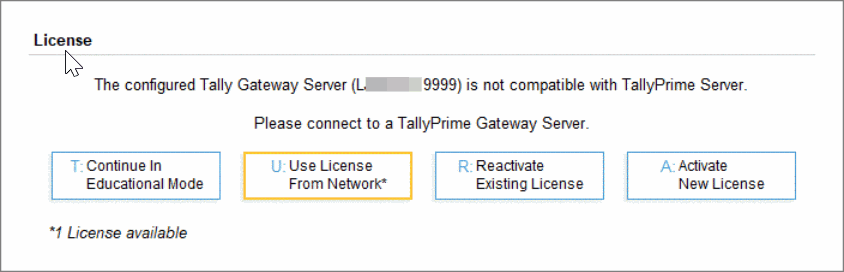
To continue, you have to install the latest version of Tally Gateway Server.
- Download the TallyPrime Server setup file from the Tally website.
- Double-click the setup.exe file to open the TallyPrime Server Setup Manager.
- Press C (Configure) to open the List of Configurations.
- Select Tally Gateway Server as the Application, and press Ctrl+A to accept.
You can also configure other options such as the application path, desktop shortcut, Start menu entry, and so on.
- Press Esc to save, and then I (Install) to continue the installation.
Now Tally Gateway Server is installed successfully or compatible with the TallyPrime Server.
Questions & Answers
- TallyPrime Server Service is not compatible with the version of Monitor. Upgrade TallyPrime Server to the latest version/release.
Cause
This error might occur when a TallyPrime Server service earlier than Release 3.0 has been installed on the server system, while TallyPrime Server Monitor of Release 3.0 has been installed on the client system. In such cases, you will not be able to open TallyPrime Server Monitor.
Solution
Upgrade to the latest version of TallyPrime Server and try again.
- TallyPrime Server service (Tssvc.exe) not Installed!
Cause
This error might occur when a TallyPrime Server service of Release 3.0 has been installed on the server system, while TallyPrime Server Monitor earlier than Release 3.0 has been installed on the client system. In such cases, you will not be able to open TallyPrime Server Monitor.
Solution
Upgrade to the latest version of TallyPrime Server Monitor and try again.
- This version of TallyPrime is not compatible with the version of TallyPrime Server. Upgrade to the latest version/release of TallyPrime Server.
Cause
This error might occur while selecting the
This issue might occur when a TallyPrime Server service earlier than Release 3.0 has been installed on the server system, while TallyPrime Release 3.0 has been installed on the client system.
Solution
Upgrade to the latest version of TallyPrime Server and try again.
- This version of TallyPrime is not compatible with the version of TallyPrime Server. Upgrade to the latest version of TallyPrime.
Cause
This error might occur while selecting the
This error might occur when TallyPrime Server 3.0 has been installed on the server system, while TallyPrime earlier than Release 3.0 has been installed on the client system.
Solution
Upgrade to the latest version of TallyPrime and try again.


