
Activate Multi-Site License for TallyPrime Server
In a business that operates from multiple locations, each outlet that uses one or more Tally products in the same network is referred to as a site. When the licenses used across these sites are linked to a single account for administrative purposes, the overall setup is known as a multi‑site account. This setup is commonly used by organisations with branch offices in multiple locations. By creating a multi‑site account, an Account Administrator can centrally manage all branch‑level licenses from one place.
Each site is identified by a unique Site ID, while the multi-site account is identified by a single Account ID.

- Ensure that you have TallyPrime Server Serial Number, Activation Key, Account ID, and Tally.NET credentials.
- Start TallyPrime Server.
- Press A (Activate New License) in the Startup screen.

Alternatively, press F1 (Help) > Settings > License > Manage License.
You can also reach the Manage License screen,- Click the EDU icon on the top left corner, just below the TallyPrime Server icon.
- Press Alt+S (Multi-Site) to view the Activate Site License screen.
- Enter the Serial Number and Activation Key.
- Enter the Account ID to which you want to add this license.
- Enter a Site ID. The Site ID should be unique in the account to help you identify this license.
- Enter the E-mail ID/Tally.NET ID of the Site Administrator.
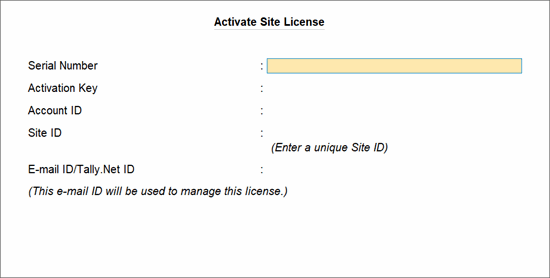
- Press Enter to save the site license details.
- Press C (Create New Site) to activate this site license.
- Enter the Unlock Key sent to your e-mail ID in the Unlock License screen.
- Press Enter to unlock your license. A confirmation message appears.
Your site license is activated and linked to the account. You can start using TallyPrime Server Monitor for managing your site.
In case you need to reactivate or surrender this license later, refer to Activate, Reactivate, or Surrender TallyPrime Server License.


