Set Up GST Rate and HSN/SAC Details
Setting up GST Rate details correctly in the required masters ensures that your transactions are recorded with the correct tax amount and they reflect correctly in the Returns.
Before you begin | Prerequisite
- Understand GST hierarchy in TallyPrime.
- Refer to the latest GST rate list to configure rates correctly in ledgers and stock items.
- Understand the tax rate hierarchy to decide where you want to set up the GST details.
- Set the source of GST Rate and HSN/SAC (optional).
- Create the required masters: Sales/Purchase Ledgers, Stock Items, Service Ledgers, Expense Ledgers, GST Classification.
The steps to set up GST Rates and HSN/SAC Details remain the same in all masters.
- For company: Company Features > Set/Alter Company GST Rate and Other Details: Yes.
- For any other masters: In the master creation or alteration screen, set GST applicability to Applicable.
Set Up HSN/SAC Details
These details can be defined in Company, Ledger, Group, Stock Item, Stock Group, or GST Classification.
For HSN/SAC details, select one of the following:
- As per Company/Group: This is applicable only in case of masters other than company. Choose this option if you have defined the details in the Company or Group and want to apply the same HSN/SAC details for other masters.
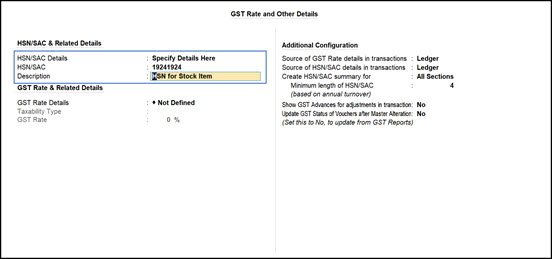
- Specify Details Here. Select and enter the HSN/SAC directly on this screen.
- HSN/SAC: Enter the HSN for stock items or SAC for services.
- Description: Enter a relevant description.
Validate the HSN/SAC of your stock items against the details available on the portal, if needed.
- Use GST Classification: Create a classification template by defining all the GST details. Apply the template in multiple masters to save time.
- Specify in Voucher: Select this option to enter the GST Details directly while recording the transaction.
Set Up GST Rate Details
Similar to HSN/SAC, even the GST Rate details can be defined in Company, Ledger, Group, Stock Item, Stock Group, or GST Classification master.
For GST Rate Details, select one of the following:
- As per Company/Group: Applicable only in case of masters other than company.
Select this option if you have defined the details in the Company/Group and want to apply the same GST Rates for other masters. - Specify Details Here. Select and enter the rate details directly on this screen. However, you can:
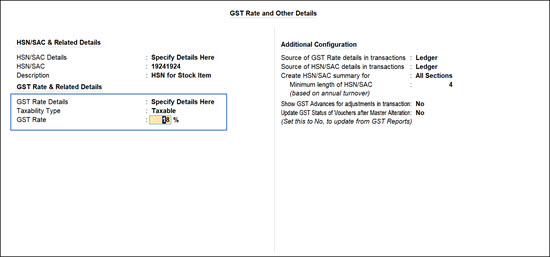
- Taxability Type: Taxable.
- Set up the GST rates: Fill in the rate for GST – for example, 18%. The IGST rate and CGST and SGST rates are automatically set to 9% each.
- To view the tax rate breakup, press F12 (Configure) > set Provide breakup of Tax Rate to Yes.
- Slab-Based Tax Rate: If your business practices tax rates based on different slab rates, select this to define the tax for each slab.
- Use GST Classification: Create a classification template by defining all the GST details. Apply the template in multiple masters to save time.
- Specify in Voucher: Selecting this option allows you enter the GST Details while recording the transaction.
In case you have set up HSN/SAC and GST Rates in different masters or in multiple masters, TallyPrime makes it easier to set up the source of these details to ensure accurate tax computation.
Set Up Source of HSN/SAC and GST Rates
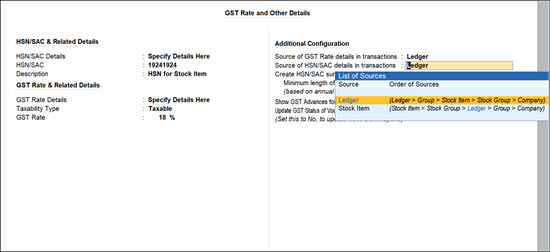
Specify if TallyPrime should pick up the GST rates and other details from the Ledger (default) or Stock Item hierarchy. Refer to Understand GST Hierarchy in TallyPrime.
- Under Company Features > Set/Alter GST Rate & Other Details > Company GST Details > GST Rate & Other Details, press F12 (Configure).
- Enable Source of GST Rate Details in Transactions.
- Enable Source of HSN/SAC Details in Transactions.
- Choose the order in which TallyPrime should apply the GST rate and HSN/SAC details. Know more!
- Option 1: Ledger first (this is the default)
Ledger → Accounting Group → Stock Item → Stock Group → Company - Option 2: Stock Item first
Stock Item → Stock Group → Ledger → Accounting Group → Company
- Option 1: Ledger first (this is the default)
Configure for Viewing HSN Summary
Under GST Rate and Other Details > Additional Configuration
- Set Create HSN/SAC summary for as All Sections
- Minimum length of HSN/SAC:
- For turnover up to 5 crores, select 4.
- For turnover exceeding 5 crores, select 6.
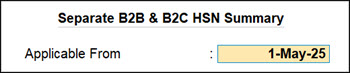
- Configure for viewing separate B2B and B2C HSN summary: Press Ctrl+I (More Details), and set Separate B2B & B2C HSN Summary applicable from: 01-May-25.