
View NPS Summary Report in TallyPrime (Payroll)
The NPS Summary is a dedicated report that captures both employer and employee contributions to the National Pension Scheme, similar to the Payroll Statutory Summary. It provides a detailed breakup of contributions made to Tier-I and Tier-II accounts along with the applicable calculation percentages. Additionally, the report displays the total payable and paid amounts.
- Press Alt+G (Go To) > type or select NPS Summary > and press Enter.
- In the Payroll NPS Summary screen, drill down from the required Pay Head Type.
- Press Ctrl+J (Exception Reports) to view TDS Variance.
- In the Payroll Statutory Pay Head Details screen, drill down from the required Pay Head.
- Press Ctrl+H (Change View) to view Related Reports like Employee Pay Head Breakup and Payroll Statement.
- In the Employee Breakup of Pay Head screen, drill down from the employee’s name.
- View the type of Voucher entries.
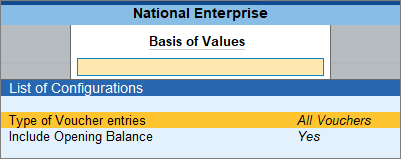
- In the Employee Voucher screen, press Ctrl+B (Basis of Values).
- Select All Vouchers, Credit Entries Only or Debit Entries Only, as needed.
- Press Ctrl+H (Change View) to view Related Reports like Monthly Summary, Pay Head Employee Breakup, IT Computation and Salary Projection.
- Open the required voucher and modify it as needed.
Is this information useful?
YesNo


