
Use Master Mapping Report in TallyPrime
If your suppliers use different names for masters, you can create or map the missing masters while recording a purchase voucher, or map them separately.
- Gateway of Tally > Bharat Connect > Master Mapping.
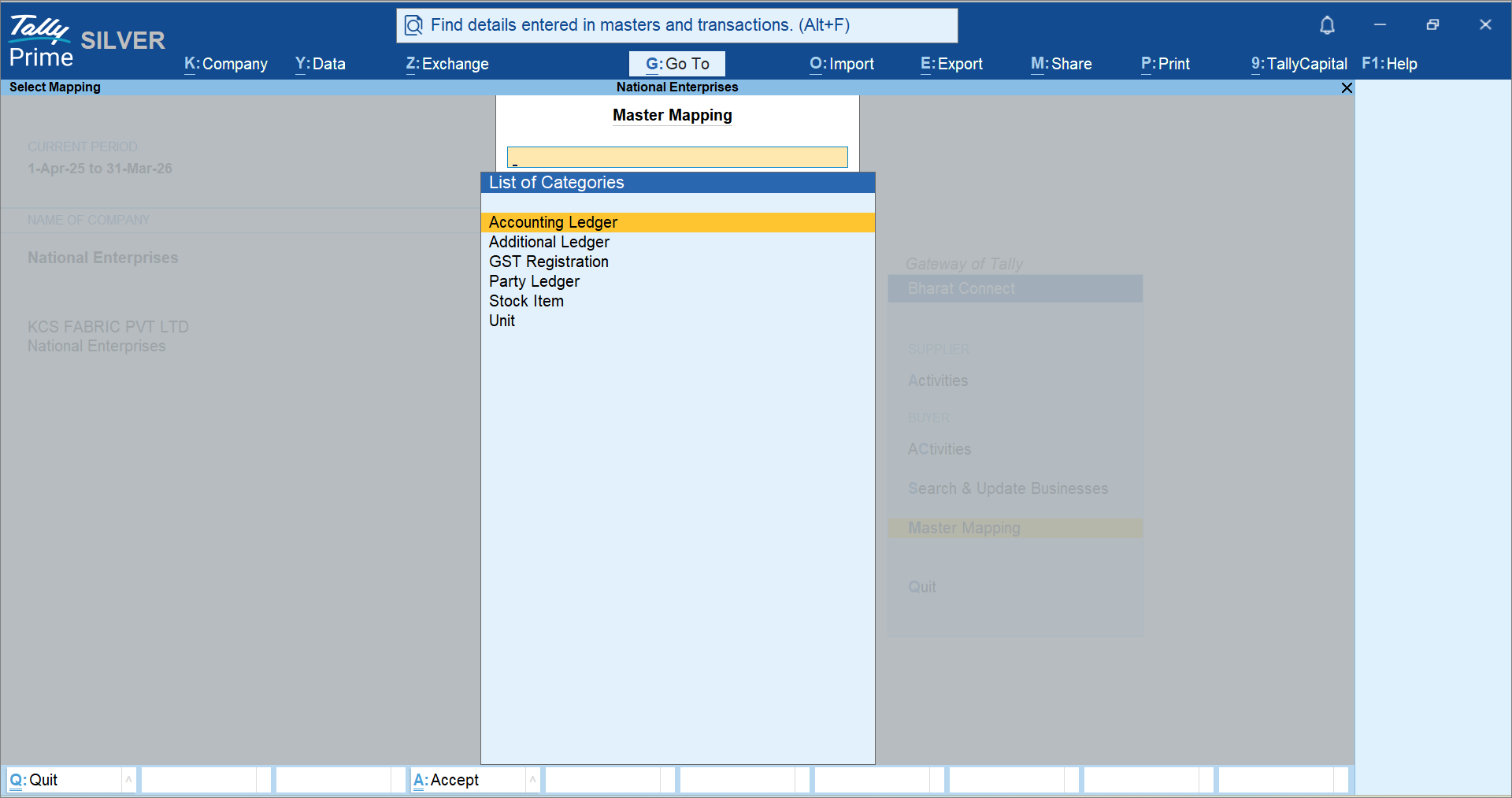
- Select the master from the List of Categories for which you want to create the mapping. For example, Stock Item
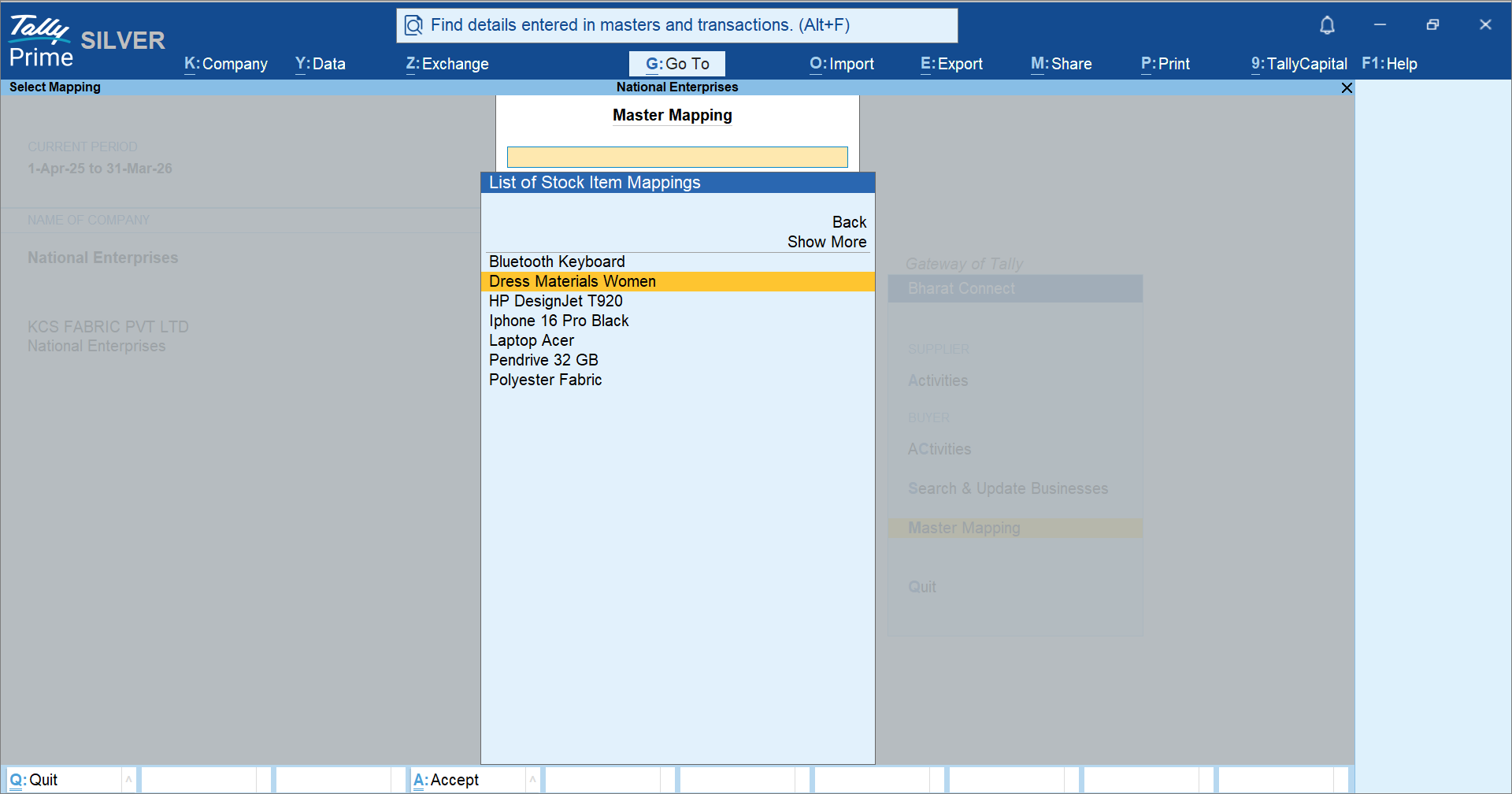
- Select the required stock item.
In the Master Mapping screen, the selected stock item appears under Map To. - Under Applicable To, select the supplier name.
- Select the stock item name as mentioned by the supplier in the invoice under Extracted Value.
- Select the voucher type for which the mapping will apply. By default, it is applicable to All Items.
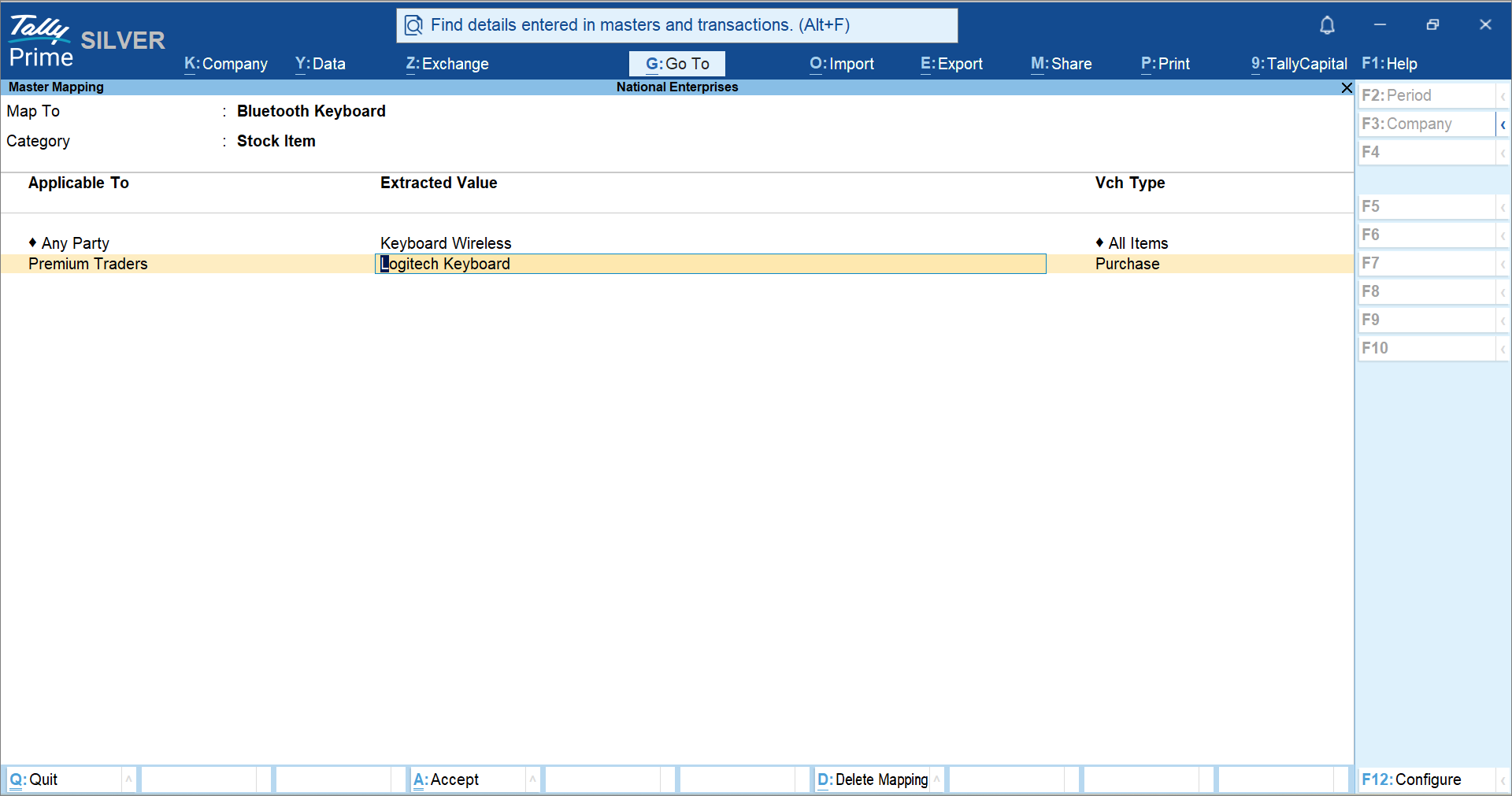
- Press Ctrl+A to save.
Once the mapping is completed, when you create a purchase voucher from the invoice of the selected supplier with the same stock item, the mapped stock item name will appear automatically in the voucher.
Is this information useful?
YesNo


