
View IMS Inward Invoices and Set Action Status
Once you download invoices using the Invoice Management System (IMS), they appear in the IMS Inward Supplies report. The report header displays the active GST registration, and if you manage multiple registrations, you can configure the report accordingly.
-
Press Alt+G (Go To) > type or select Invoice Management System, and press Enter.
The IMS Inward Supplies report appears.
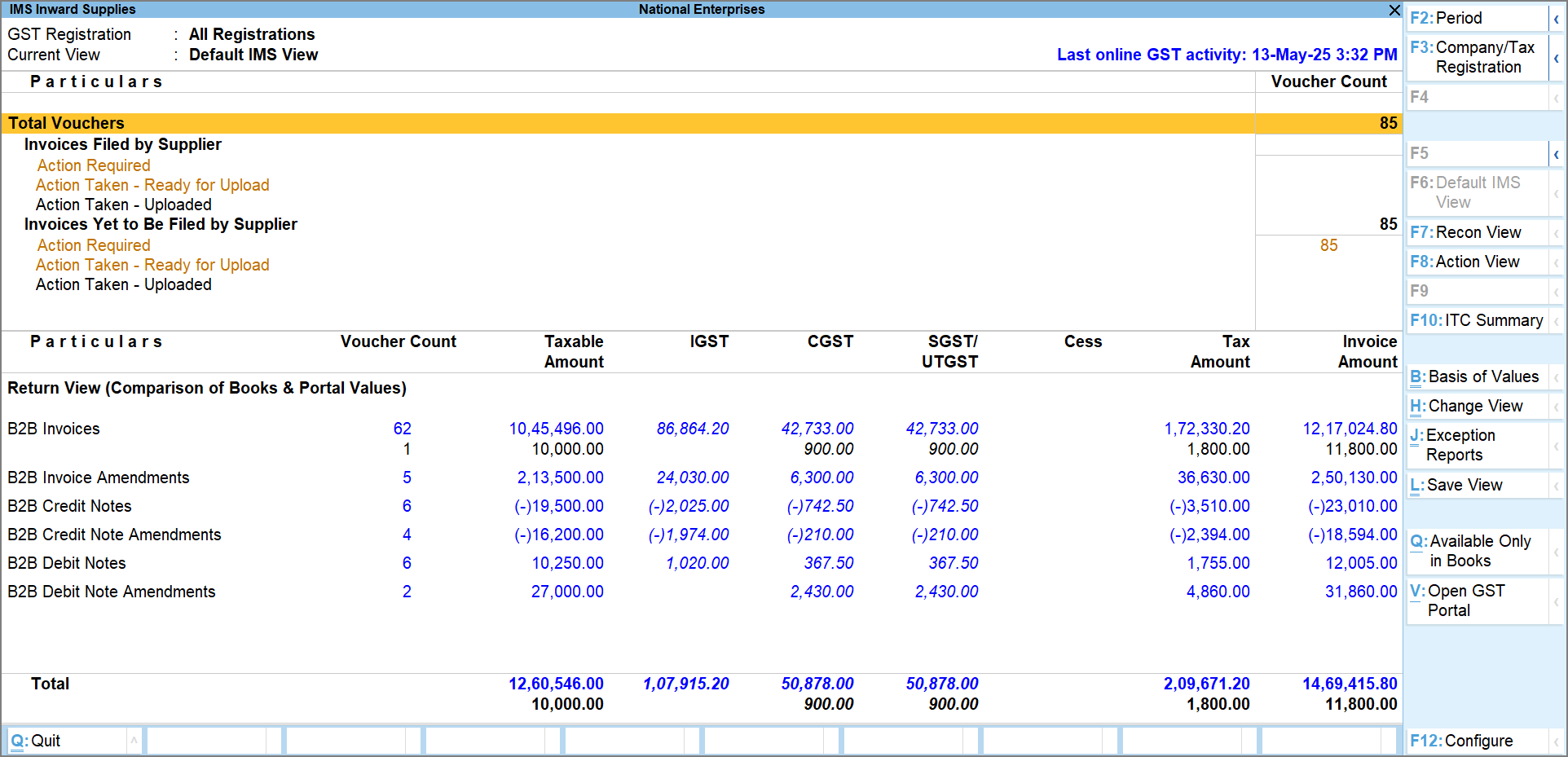
You can drill down from any of these sections to view the respective invoices in the IMS Inward – Voucher Register and take action accordingly.
By default, the report opens in the IMS Default View. You can switch between views:
- Press F7 to switch to IMS Reconciliation View.
- Press F8 to switch to IMS Action View.
- Press F9 to switch to Books View.
Each view highlights the filing status, followed by a relevant classification.
- Invoices Filed by Supplier: Invoices already filed by your supplier in their GSTR-1. These directly affect your ITC for the current month and should be prioritised for action.
- Invoices Yet to Be Filed by Supplier: Invoices uploaded to the GST portal but not yet filed by your supplier. These can be reviewed and acted on when appropriate.
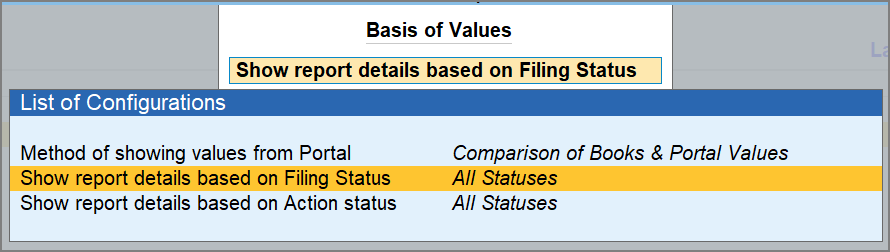
To focus on specific sets of invoices, press Ctrl+H (Basis of Values) to filter by Filing status and Action Status.
Press Alt+Q (Available Only in Books) to view invoices that are present in your books but missing in the IMS Inward Supplies report and GSTR-2B.
If you want to see the Declared ITC value for invoices in the Return View, press F12 (Configure) and enable the option Show Declared ITC.
IMS Default View
View your invoices based on the action and upload status:
- Action Required: Downloaded invoices with no action taken.
- Action Taken – Ready for Upload: Invoices acted upon, but not yet uploaded to the GST portal.
- Action Taken – Uploaded: Invoices acted upon and uploaded to the portal.
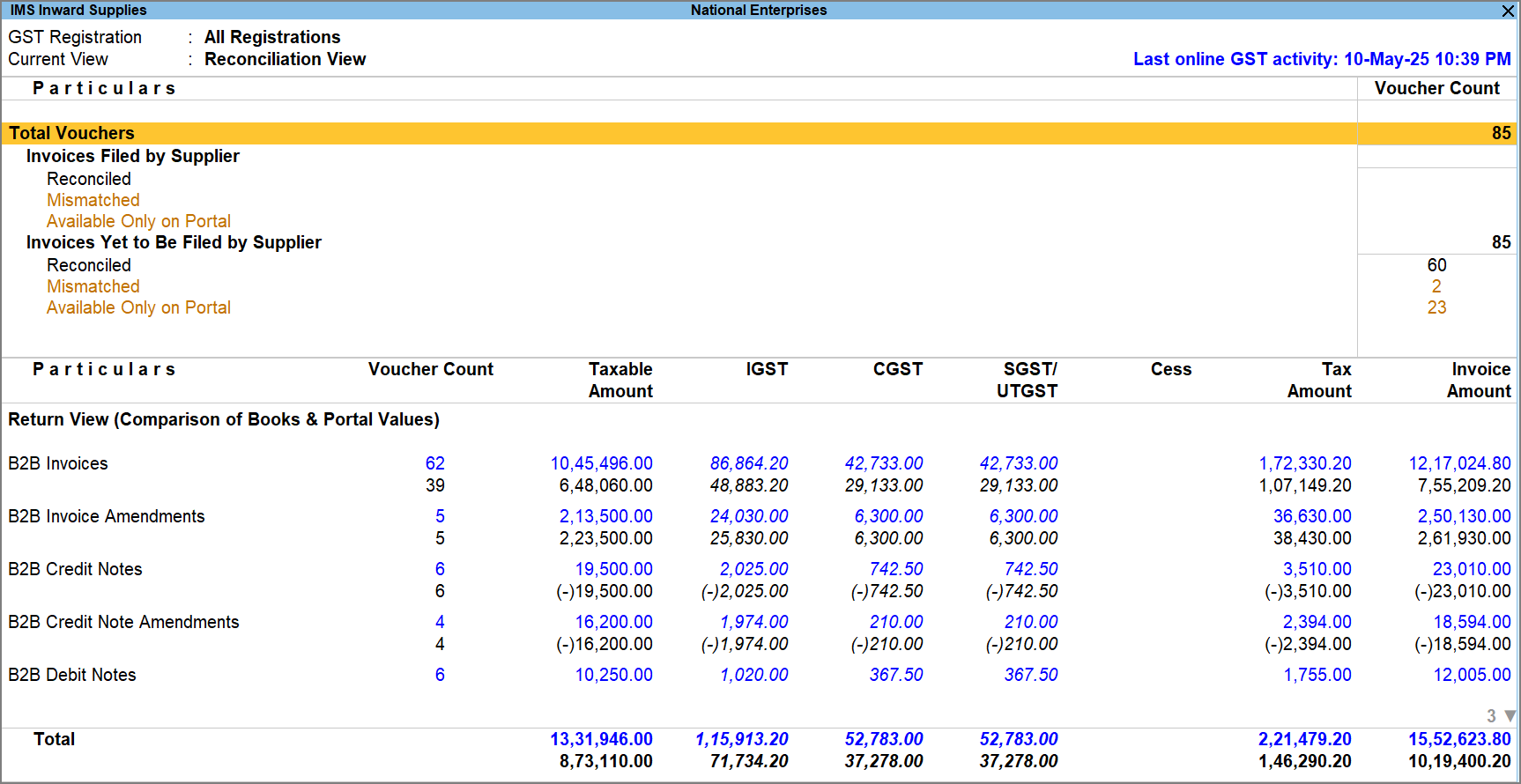
IMS Reconciliation View
View your invoices based on the reconciliation results:
- Reconciled: Invoices that match your book entries.
- Mismatched: Invoices that differ from your book entries.
- Available Only on Portal: Invoices present on the portal with no matching entry in your books.
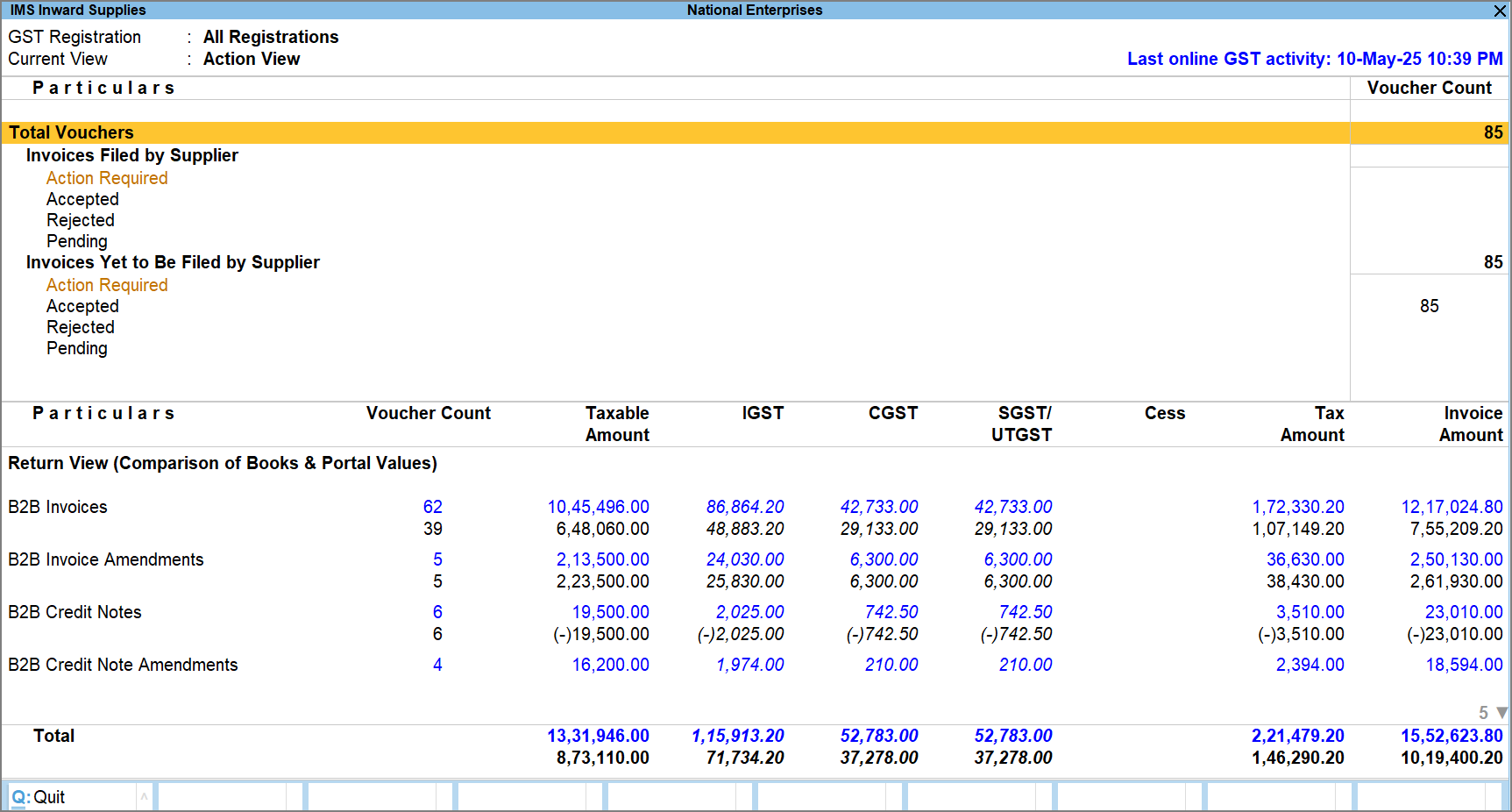
IMS Action View
View your invoices based on the action taken:
- Action Required: Invoice with no action taken yet.
- Accepted: Invoices you have accepted.
- Rejected: Invoices you have rejected.
- Pending: Invoices you want to keep as pending for future action.
IMS Books View
View your invoices based on the reconciliation status of vouchers in your books and the availability of corresponding entries on portal.
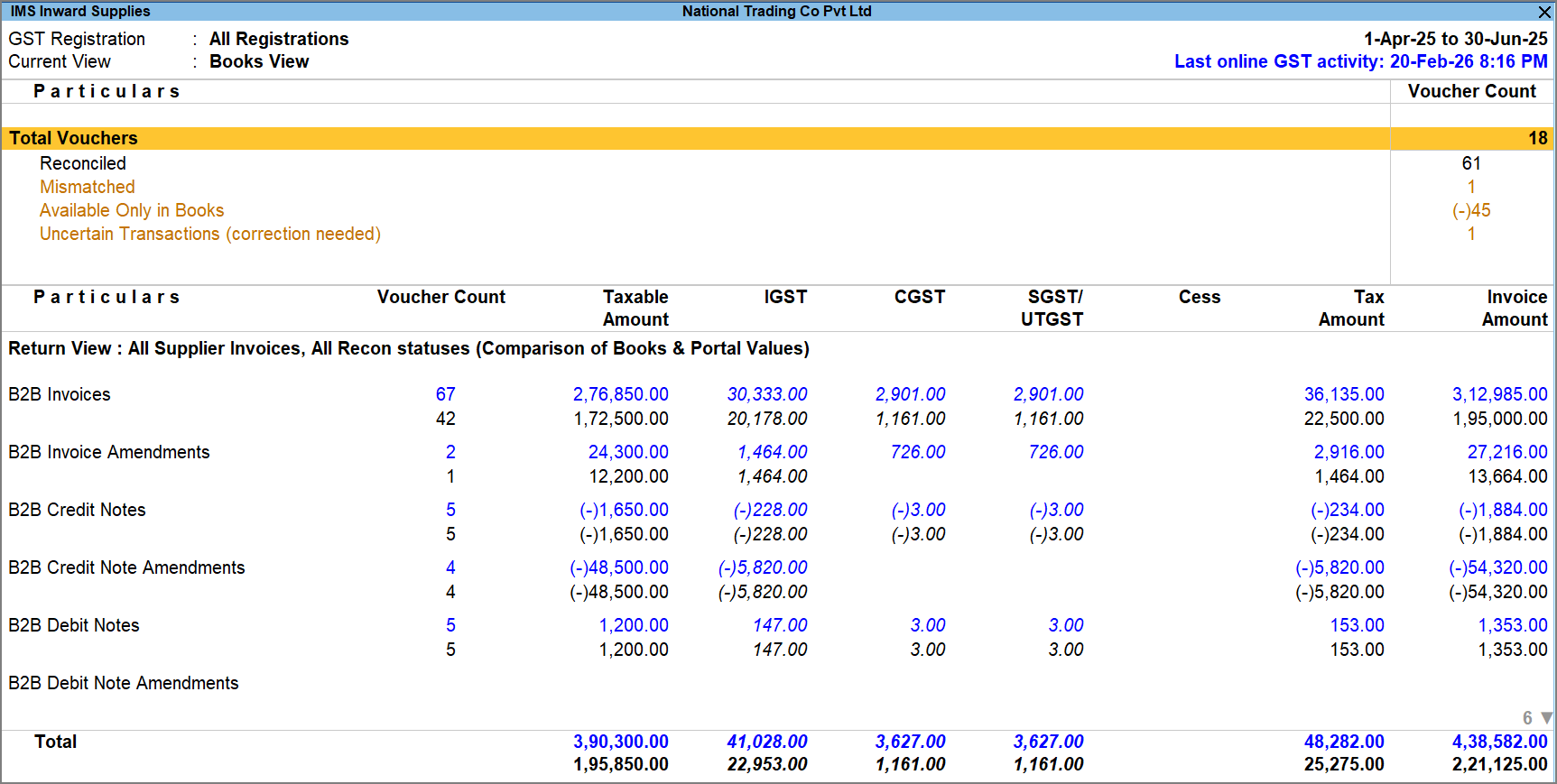
- Total Vouchers: Displays the total number of vouchers, calculated as the sum of Reconciled, Mismatched, Available Only in Books, and Uncertain Transactions.
- Reconciled: Displays the total number of book vouchers that are matched with the corresponding portal vouchers, including manually reconciled entries.
- Mismatched: Displays the total number of book vouchers that differ from the corresponding portal vouchers.
- Available Only in Books: Displays the total number of vouchers that exist in books but do not have a corresponding record on the GST portal.
- Uncertain Transactions (Corrections Needed): Displays vouchers that require correction as per GSTR-2B.
Drill down from any of these sections to view the respective invoices in the IMS Inward – Voucher Register and take actions such as creating vouchers, reconciling entries, or updating details as required.
The following enhancements in Release 7.1 help you easily navigate the IMS Inward reports:
Condense section for easy navigation: On the voucher register, you can quickly focus on the required section. Press Enter on the section heading to expand or collapse the details, helping you navigate to the required vouchers and view only the relevant information.
You can also use this to take actions in bulk. For example, expand the Reconciled section, select all vouchers, and mark them as Accepted. Similarly, expand the Mismatched section, select all vouchers, and mark them as Pending.
Highlighted mismatched entries: Mismatched entries are now highlighted in red in both the voucher register and the portal data. This makes it easier to quickly identify incorrect or mismatched entries and take the required action.
Copy document number and date: When multiple book transactions are linked to a single portal entry in Potential Matches, you can now select the required book transaction and press Alt+W (Copy Doc No. & Date from Portal) to copy the document mumber and date from the portal.
Send e-mail or WhatsApp to the required party: While sharing report via E-mail or WhatsApp, the system now shows only the contact details of the respective party. Earlier, contact details of multiple parties could appear in the recipient list, making it difficult to select the correct one.
Fetch Party Name Using GSTIN/UIN
In the IMS Inward report, some downloaded invoices may appear without a party name. This happens when a party ledger with the same GSTIN/UIN is not available in your books. You can use the Fetch Party Name Using GSTIN/UIN feature to retrieve the supplier details from the GST portal and update or create the required ledger before proceeding with voucher creation.
- Press Alt+G (Go To) > Invoice Management System, and drill down to the voucher register from the required section.
- Press F9 (Fetch Party Name Using GSTIN/UIN) to retrieve supplier details of all invoices with missing party names. If needed, press Spacebar to select one or more invoices.
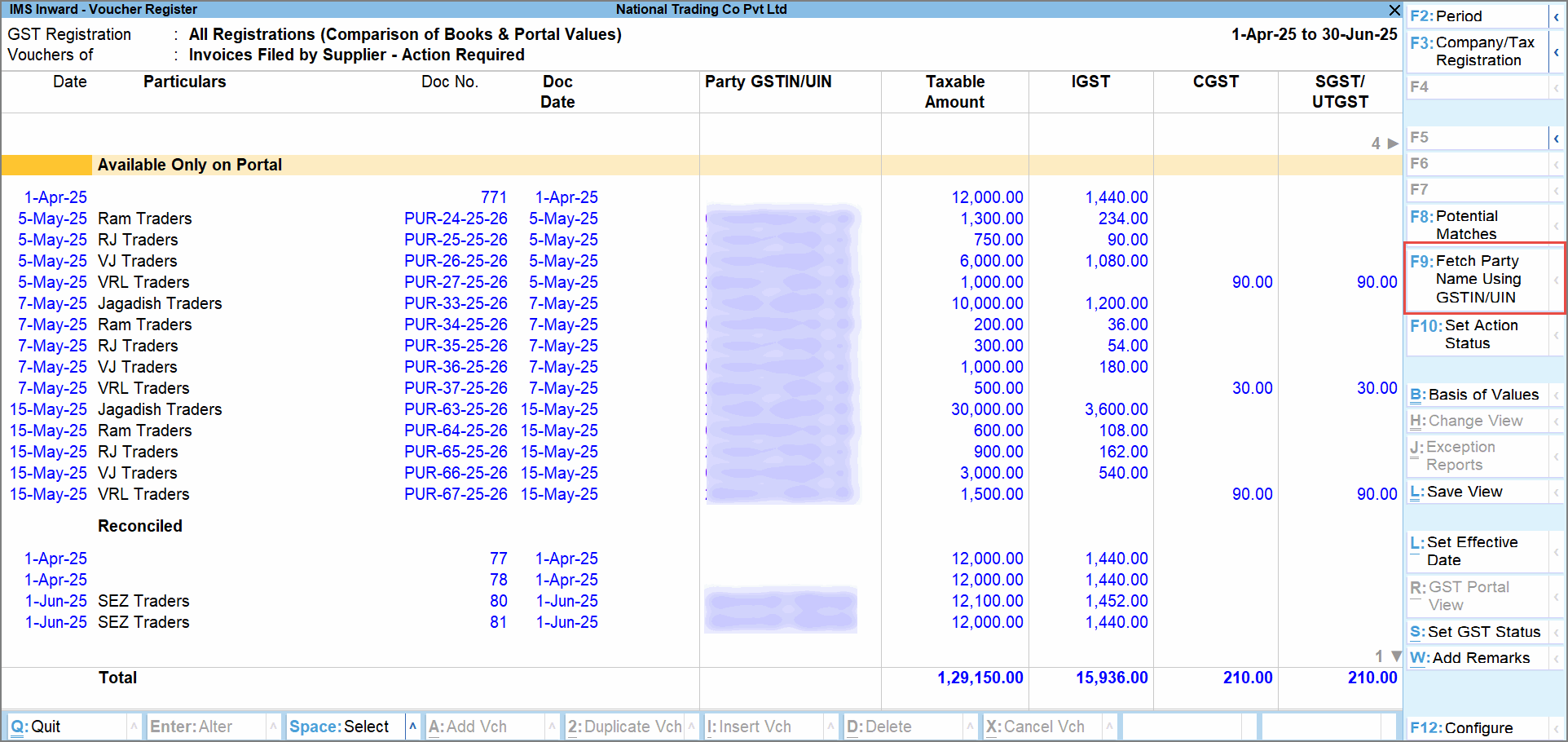
The Fetch Party Name Using GSTIN/UIN screen appears with all the GSTIN/UIN for which the party names will be fetched.
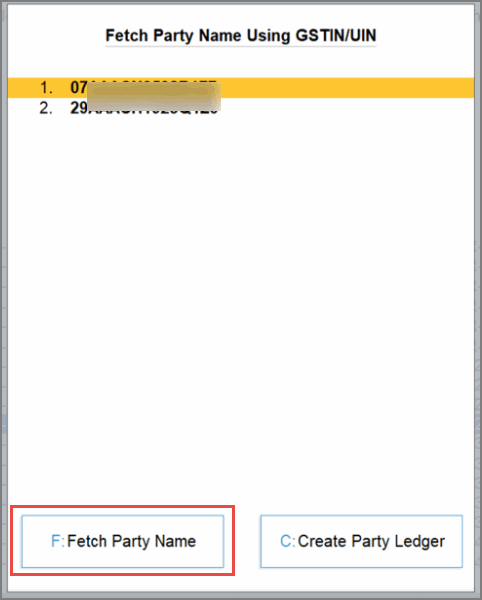
- Press F (Fetch Party Name).
The Trade Name, Legal Name, and Address will be fetched from the GST portal.
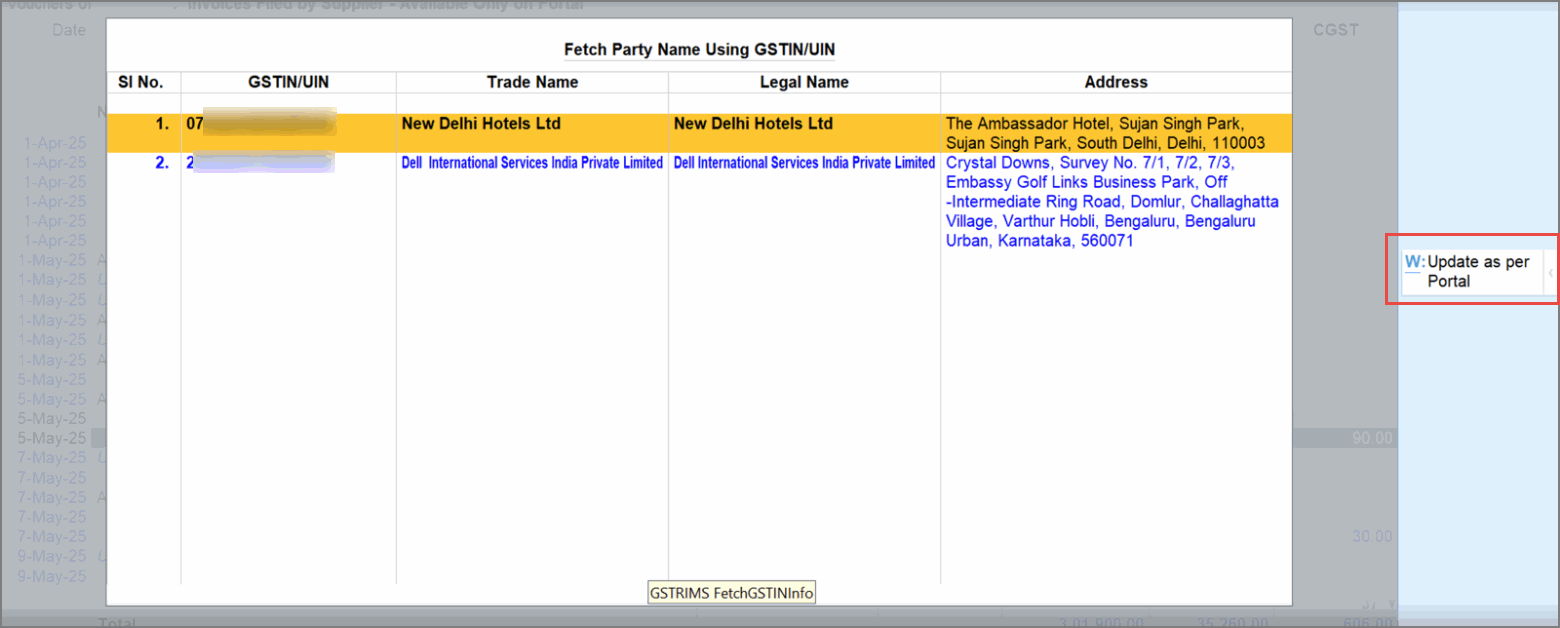
- Press Alt+W (Update as per Portal) to copy the party name and other details.
The party name will be updated in the IMS Inward – Voucher Register.
Accept, Reject, or Keep ITC Pending | Set IMS Action Status
Once you have downloaded the invoices, you can easily set the IMS Action status from the IMS Inward Supplies report. Depending on the action taken, your ITC will be considered accordingly in GSTR-2B.
- Press Alt+G (Go To) > type or select Invoice Management System, and press Enter.
- Drill down from the required section.
The IMS Inward – Voucher Register screen appears. You can see the vouchers as per the selected section.
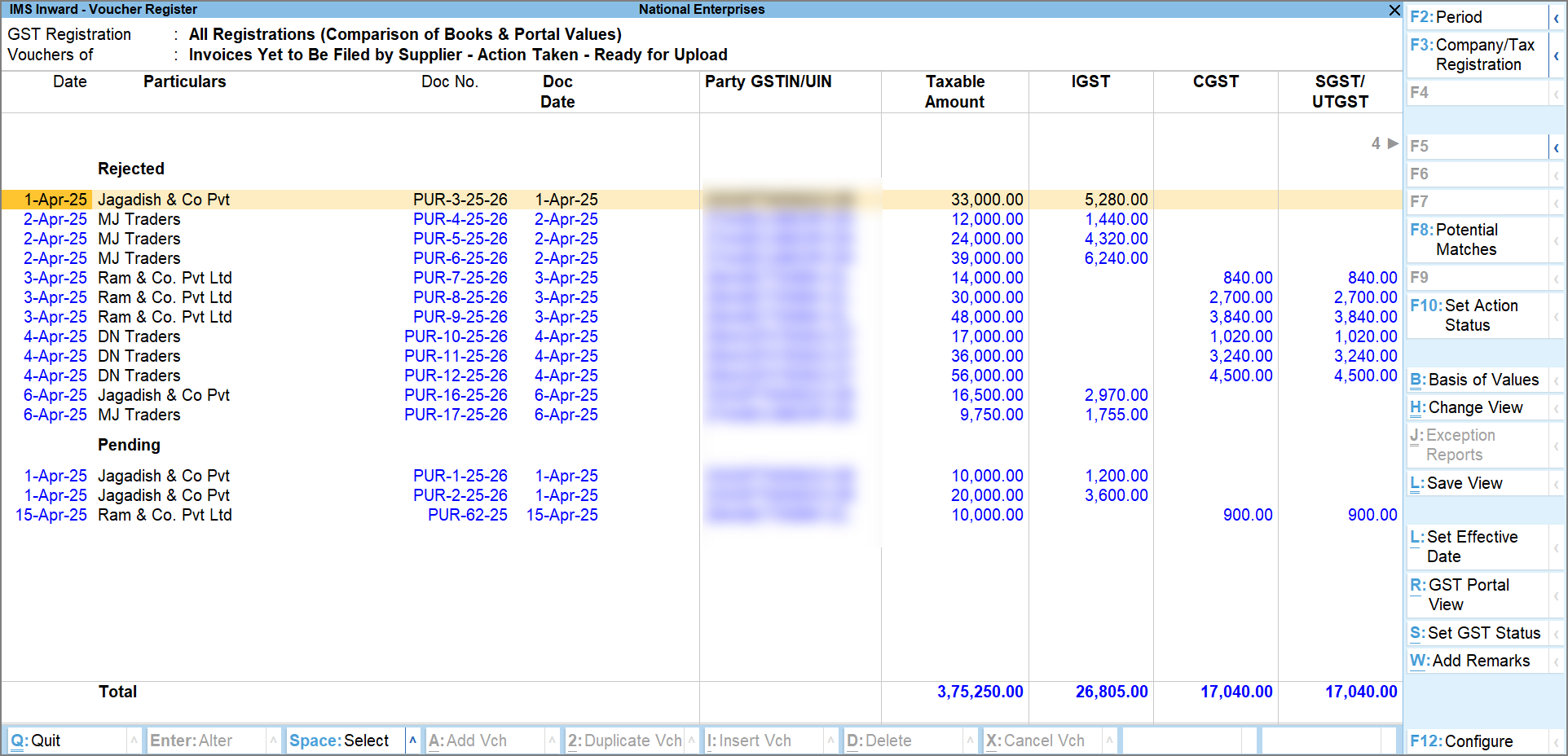
- Press Spacebar to select one or more invoices and press F10 (Set Action Status).
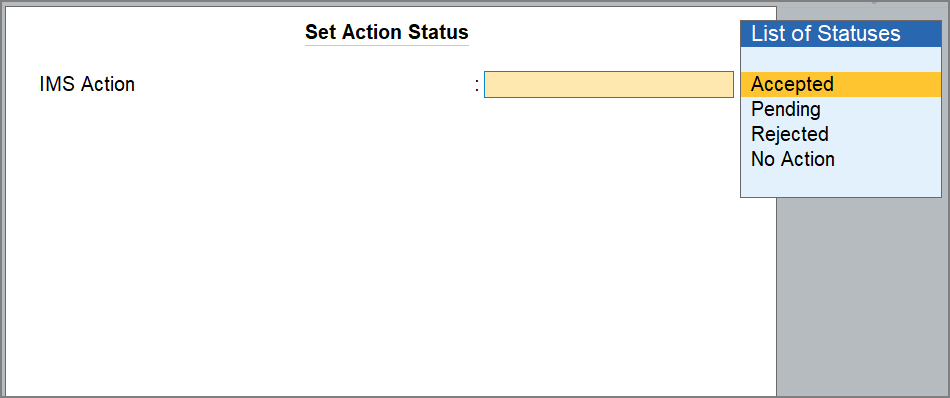
The Set Action Status screen appears:
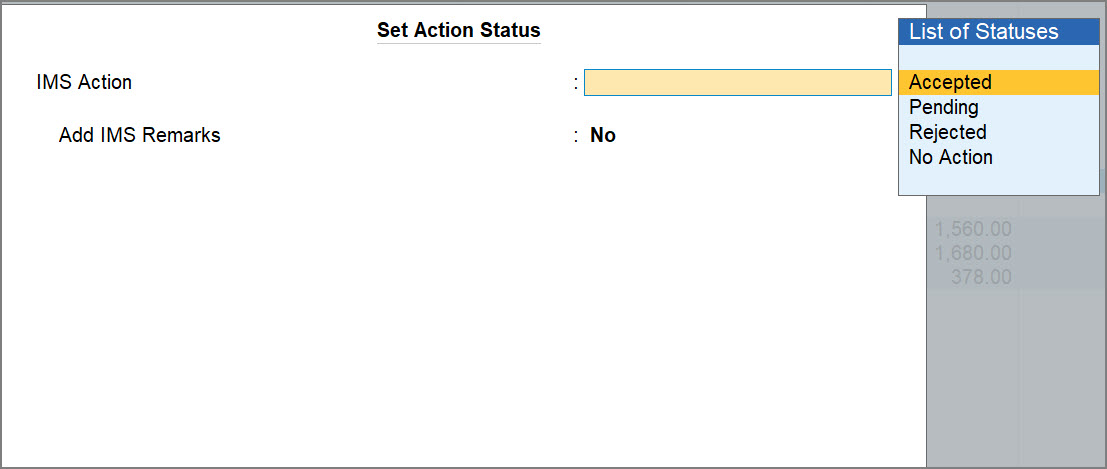
- Select the required action from the List of Stauses.
- Accept: The invoice will be accepted, and ITC will be included in GSTR-2B. Note that you can reduce the ITC while accepting an invoice, if applicable.
- Reject: The invoice will be rejected, and ITC will be excluded from GSTR-2B. It will appear in the ITC Rejected section of GSTR-2B.
Note that while rejecting an invoice, you can exclude it from GSTR-3B of your book data. - Pending: If you set the Action status as Pending, the invoice will be kept pending for you to review later. It will appear in the Inward Supplies report until you accept or reject it.
Note that while keeping an invoice as pending, you can set the effective date for GSTR-2B and GSTR-3B of your book data. - No Action: If you set the Action status as No Action, the invoice will be auto-accepted when GSTR-2B is generated.
- Enable the option Add IMS Remarks, if you want to add a remark on the invoice, and press Ctrl+A to save.
While uploading the IMS Inward invoices, TallyPrime exchange Remarks with the GST portal for invoices with the Action Status as Pending or Rejected across all sections. In addition, for invoices with the Action Status as Accepted, Remarks are exchanged only for specific sections when ITC Reduction is enabled and ITC is partially reduced, or ITC Reduction is set to No. This additional exchange for Accepted invoices is applicable to the following sections: B2BA, B2BCN, B2BCNA, B2BDNA, IMPGA, and IMPGSEZA.
In Release 6.2 and earlier, remarks were exchanged only when the action status was Pending or Rejected.
Change the GSTR Effective Date
While setting the action status as Pending, you can enter the Effective date for GSTR-2B & GSTR-3B. If you want to enter separate effective dates for GSTR-2B & GSTR-3B, press F12 (Configure) and enable the option Set separate Effective Dates for GSTR-2B & GSTR-3B.
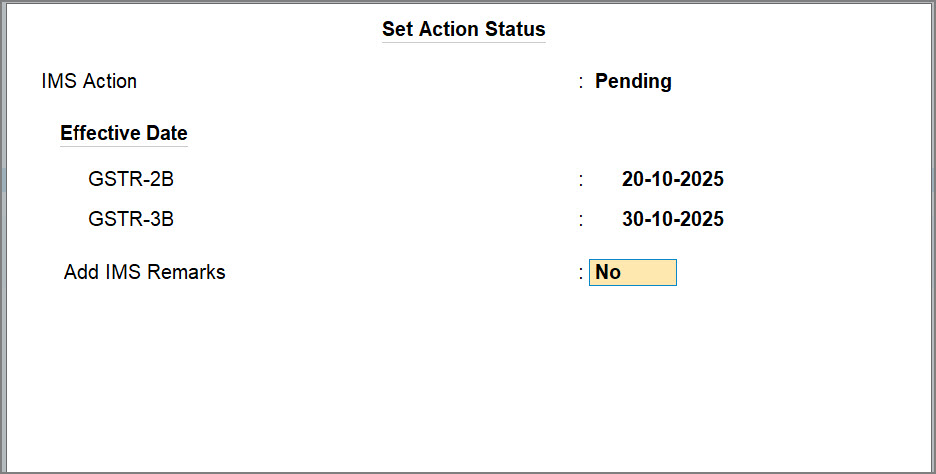
This feature is especially useful when invoices are kept pending for verification and can be accepted after the return for the original period has already been filed. Instead of revising the earlier return, you can simply update the effective date and include the invoice in the current return period.
Exclude Invoices from GSTR-3B
In certain situations, you might want to retain an invoice in your books but prevent it from being included in the GSTR-3B computation. This is helpful when an invoice is being discussed with the party, and not meant for tax calculation in the current return.
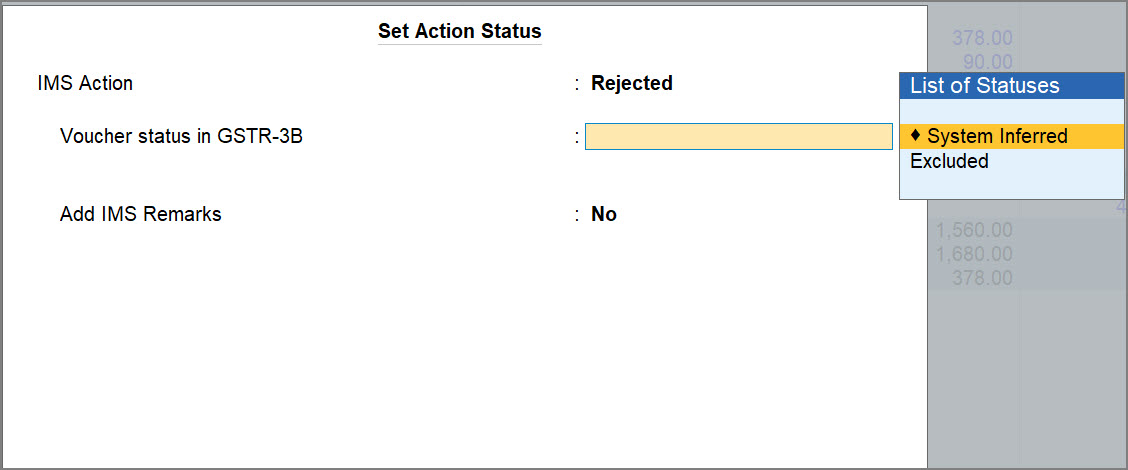
For example, if an invoice is rejected due to a price discrepancy or contractual issue, you can choose to exclude it from GSTR-3B.
If you are on TallyPrime Release 6.2, click here.
Once you have downloaded the invoices, you can easily set the IMS Action status from the IMS Inward Supplies report. Depending on the action taken, your ITC will be considered accordingly in GSTR-2B. You can also manage the GST Return Effective date while keeping an invoice pending during the current period, and choose to exclude invoices from GSTR-3B while rejecting them.
Moreover, you can add remarks on invoices to note down the reason for assigning an action status.
-
Press Alt+G (Go To) > type or select Invoice Management System, and press Enter.
-
Drill down from the required section.
The IMS Inward – Voucher Register screen appears. You can see the vouchers as per the selected section.
-
Press Spacebar to select one or more invoices and press F10 (Set Action Status).
The Set Action Status screen appears:
-
Select the required action from the List of Stauses.
-
Accept: The invoice will be accepted, and ITC will be included in GSTR-2B.
-
Reject: The invoice will be rejected, and ITC will be excluded from GSTR-2B. It will appear in the ITC Rejected section of GSTR-2B.
Note that while rejecting an invoice, you can exclude it from GSTR-3B of your book data. -
Pending: If you set the Action status as Pending, the invoice will be kept pending for you to review later. It will appear in the Inward Supplies report until you accept or reject it.
Note that while keeping an invoice as pending, you can set the effective date for GSTR-2B and GSTR-3B of your book data. -
No Action: If you set the Action status as No Action, the invoice will be auto-accepted when GSTR-2B is generated.
-
Once you have acted on the invoices, you can view the IMS – ITC Summary report for a detailed view of the ITC.
Change the GSTR Effective Date
While setting the action status as Pending, you can enter the Effective date for GSTR-2B & GSTR-3B.
If you want to enter separate effective dates for GSTR-2B & GSTR-3B, press F12 (Configure) and enable the option Set separate Effective Dates for GSTR-2B & GSTR-3B.
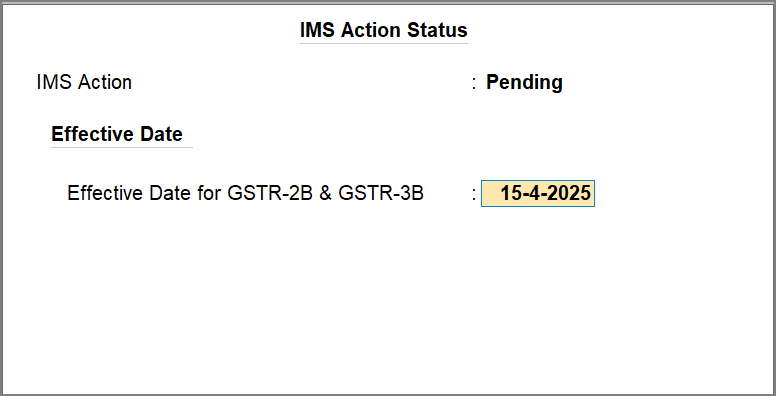
This feature is especially useful when invoices are kept pending for verification and can be accepted after the return for the original period has already been filed. Instead of revising the earlier return, you can simply update the effective date and include the invoice in the current return period. Changing the GSTR effective date allows you to manage delayed acceptances or backdated invoices without disrupting your return cycle.
Exclude Invoices from GSTR-3B
In certain situations, you might want to retain an invoice in your books but prevent it from being included in the GSTR-3B computation. This is helpful when an invoice is being discussed with the party, and not meant for tax calculation in the current return.
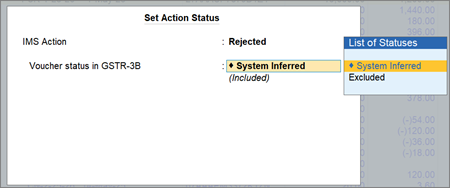
For example, if an invoice is rejected due to a price discrepancy or contractual issue, you can choose to exclude it from GSTR-3B.
Add Remarks on Invoices
In IMS Inward Supplies, you can add remarks in invoices to record any additional context. This is especially useful for tracking follow-ups, clarifying the reason for marking an invoice as Pending or Rejected, or simply noting important details for audit or review.
-
Press Alt+G (Go To) > type or select Invoice Management System, and press Enter.
-
Drill down from the required section.
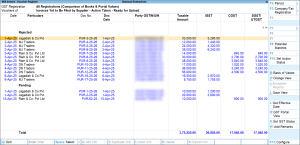
The IMS Inward – Voucher Register screen appears. The invoices will be grouped as per the selected section.
-
Select the required invoices by pressing Spacebar, and press Alt+W (Add Remarks).
-
In the GST Remarks field, enter the required notes or comments, and press Ctrl+A to save.
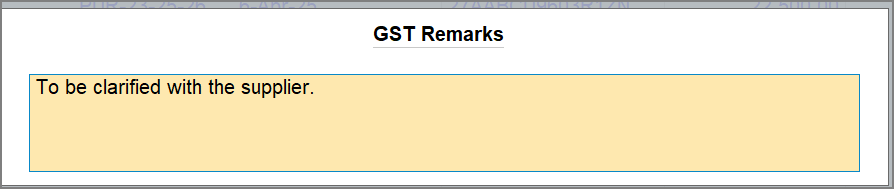
To view the Remarks in IMS Inward – Voucher Register, press F12 (Configure) and enable the option Show Remarks.
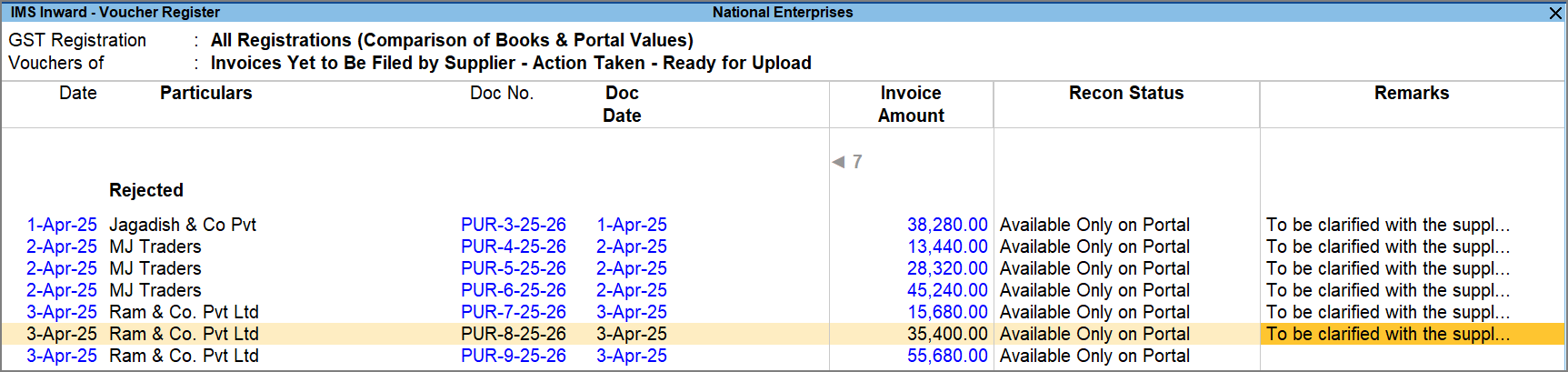
Added remarks will appear in the voucher register.
Questions & Answers
- Why are all invoices not appearing in the IMS Inward Supplies report after downloading?
If you have filed your GSTR-3B, invoices with No Action, Accepted, or Rejected status will be removed from the report. You can track these invoices separately from the GSTR-2B report.
- Why is the IMS Inward Supplies report blank?
You need to download the IMS Inward invoices to view them in the IMS Inward Supplies report. To download invoices, press Alt+Z (Exchange) > All GST Options > Download IMS Inward Invoices.
- On setting Action status as Pending and Rejected, why are the Effective Date and Exclude GSTR-3B fields not appearing?
Setting the Effective date for GST Returns and the option to exclude the invoice from GSTR-3B is only available for linked vouchers, that is, vouchers on the portal with a corresponding entry in the books. For vouchers that are Available Only on Portal, these options are not available.


