
Download IMS Inward Invoices
Using the IMS feature in TallyPrime, you can directly download your supplier’s purchase invoices from the GST portal. Once downloaded, invoices are automatically grouped in the IMS Inward Supplies report, based on the supplier’s filing status, reconciliation status, and action status.
- Press Alt+Z (Exchange) > All GST Options > Download IMS Inward Invoices.
The Download IMS Inward Invoices screen appears.
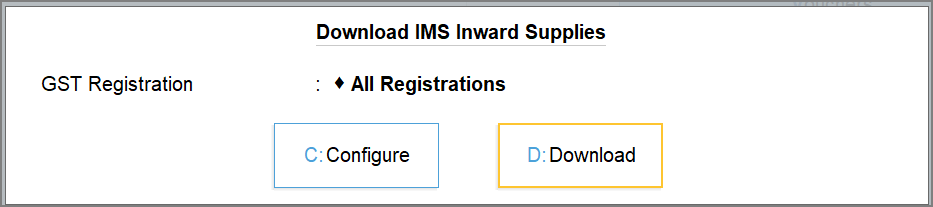
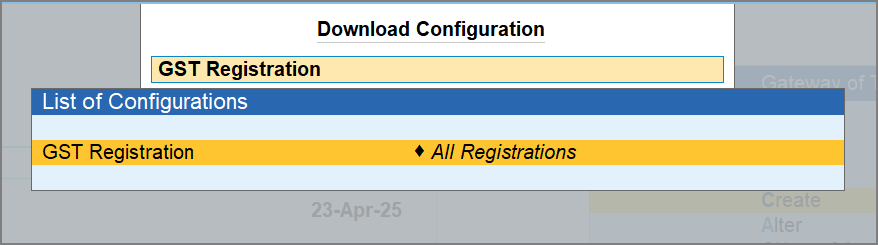
- Press C (Configure) to select the required GST Registration, if needed.
By default, the GST registrations will be picked from Exchange > Configure > GST Registration for Download.
- In the Download IMS Inward Invoices screen, press D (Download).
- Log in to your GST profile, if you have not already done so.
- Enter your GST Username.
- Enter the OTP received on your registered mobile number.
Once you have logged in, the session will be valid for six hours, which will ensure the safety and security of your activities.
Once the download is successful, you will get a confirmation message.

You can also redownload invoices at any time, the latest data will seamlessly replace the previous one.
Sometimes, invoices may not download instantly due to server issues or high traffic on the GST portal. In such a case, you may check the progress of the download in the Online GST Activity Tracker.
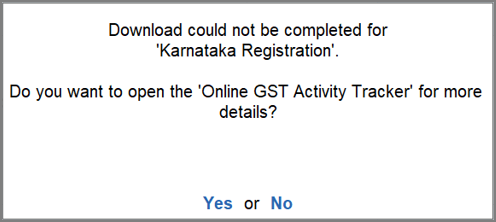
- Press Y to view the report.
You can refresh the GST status after a few minutes.
Once you have downloaded the invoices, you can open the IMS Inward Supplies report and set the IMS Action Status as required.
Automatically Accept Reconciled Vouchers in IMS
When you download invoices from the GST portal, many invoices are automatically reconciled by TallyPrime based on the matching details. To make things even easier, you can automatically mark reconciled vouchers after download as Accepted in the IMS Inward Supplies report.
-
In the GST Details screen, press F12 (Configure) and enable the option Marked Reconciled Vouchers as Accepted in IMS.
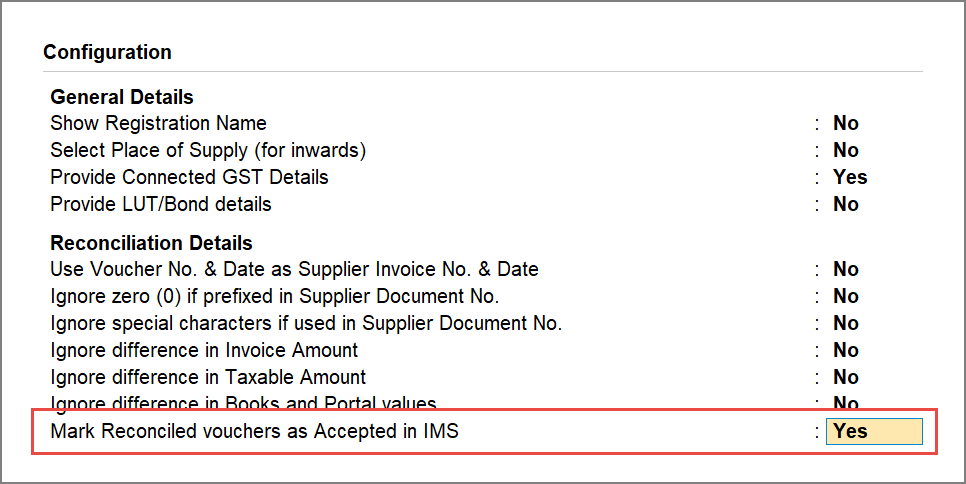
Once you enable this configuration, the reconciled invoices after download will automatically move to the Accepted section of the IMS Inward Supplies report.
Questions & Answers
- Why are all invoices not appearing in the IMS Inward Supplies report after downloading?
If you have filed your GSTR-3B, invoices with No Action, Accepted, or Rejected status will be removed from the report. You can track these invoices separately from the GSTR-2B report.
- Why is the Declared ITC value breakup not visible in Voucher Register even after download?
This can happen due to the following reasons:- You need to enable Show Declared Values from F12 configuration.
- The portal response does not contain declared values for that voucher.
- The voucher belong to supported sections: B2BA, B2BDNA,B2BCN & B2BCNA.
- Why did the declared ITC values change after re-downloading the IMS invoices?
Declared values are fetched live from the portal. If the portal data was updated after your last download, the new values will be reflected in the next download.


