
Make GST Amendments for Purchases
If there is a change in the invoice after you have purchased a particular set of goods or services, then the supplier of the goods or services will amend the invoice, provided that the return is already signed.
In such a case, you can find the supplier’s transaction in GSTR-2A/GSTR-2B on the portal, and then download and import it to TallyPrime to update your data.

- Mark the voucher as counterparty signed in TallyPrime.
- In GSTR-2A or GSTR-2B, press F2 to open the report for the original period in which the counterparty has signed the return.
- Check if the voucher is signed by the counterparty.
- Drill down to the voucher.
- Press Ctrl+I (More Details) > Counter Party Return Signing Status.
- If the counterparty has signed the return on the portal, but the status is not updated here, then set Return signed by Counter Party to Yes.

- Press Ctrl+A to accept.
- Make the required changes in the invoice.
For instance, you may want to change the amount. - Amend the voucher by providing the Return Effective Date.
- In the voucher, press Ctrl+I (More Details).
- Under Additional Details, type or select GST Return Effective Date and press Enter.
- Enter the Return Effective Date and press Ctrl+A to save.
If the voucher was originally signed by the counterparty for May-25 and amended in Jun-25, then the Return Effective Date will fall in Jun-25.
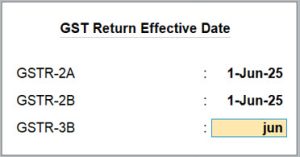
- Press Ctrl+A to save the voucher.
Once you amend the voucher, in the subsequent month, you can import the supplier’s invoice to reconcile (GSTR-2A/GSTR-2B) the purchase voucher in TallyPrime. You can learn more about the impact of amendments on returns in the table below.
If you do not provide the Return Effective Date, such transactions become a part of the Uncertain Transactions (Corrections needed) section in GSTR-1. Refer to Effective Date of the Amendment is not specified or invalid.


