
Export/Upload Payment Instructions to the Bank
After recording e-Payments in TallyPrime with all the information, you will need to a payment instruction file to upload on the bank portal. Payment instructions contain all details needed for processing the payment on the bank portal. You can then upload the payment instructions on the bank portal to initiate the processing of payment.

- Your bank must support uploading payment instruction files.
- The payment voucher recorded must have all the necessary bank details for e-Payments.
In the e-Payments report, you can check if they’re ready for export. Once ready, export the payment instructions from TallyPrime.
Export Payment Instructions from Exchange
- Press Alt+Z (Exchange) > Send Payments.
- Select the bank ledger to export payment instructions and press Enter.
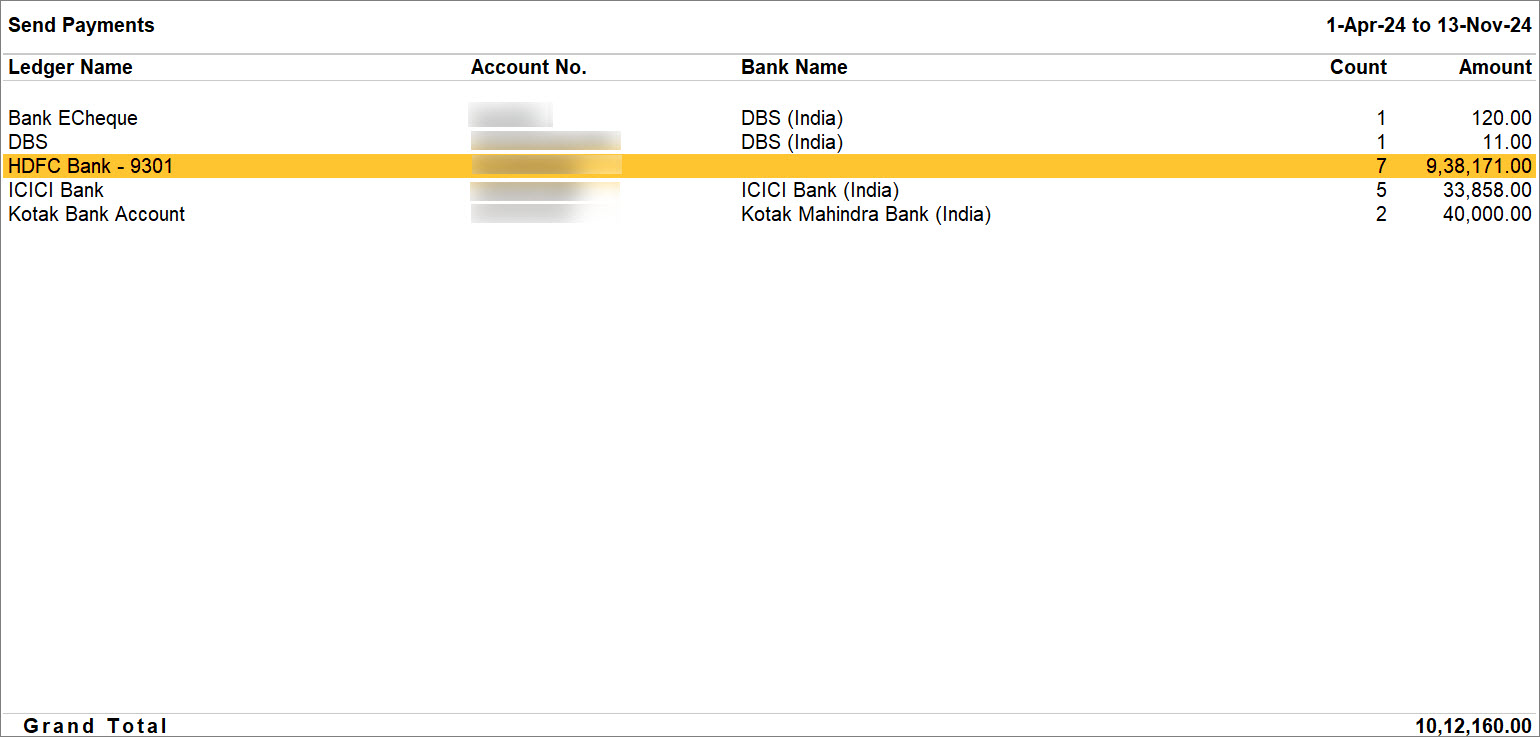
If you want to add transactions with mismatch in the Bank Details, then press Ctrl+B (Basis of Value) and enable Include Transactions with Mismatch in Bank Details.
You can press F12 (Configure) to view Base Currency and enable Stripe View. - Select transactions to export.
- Press E (Export) to complete the export of the selected transactions.
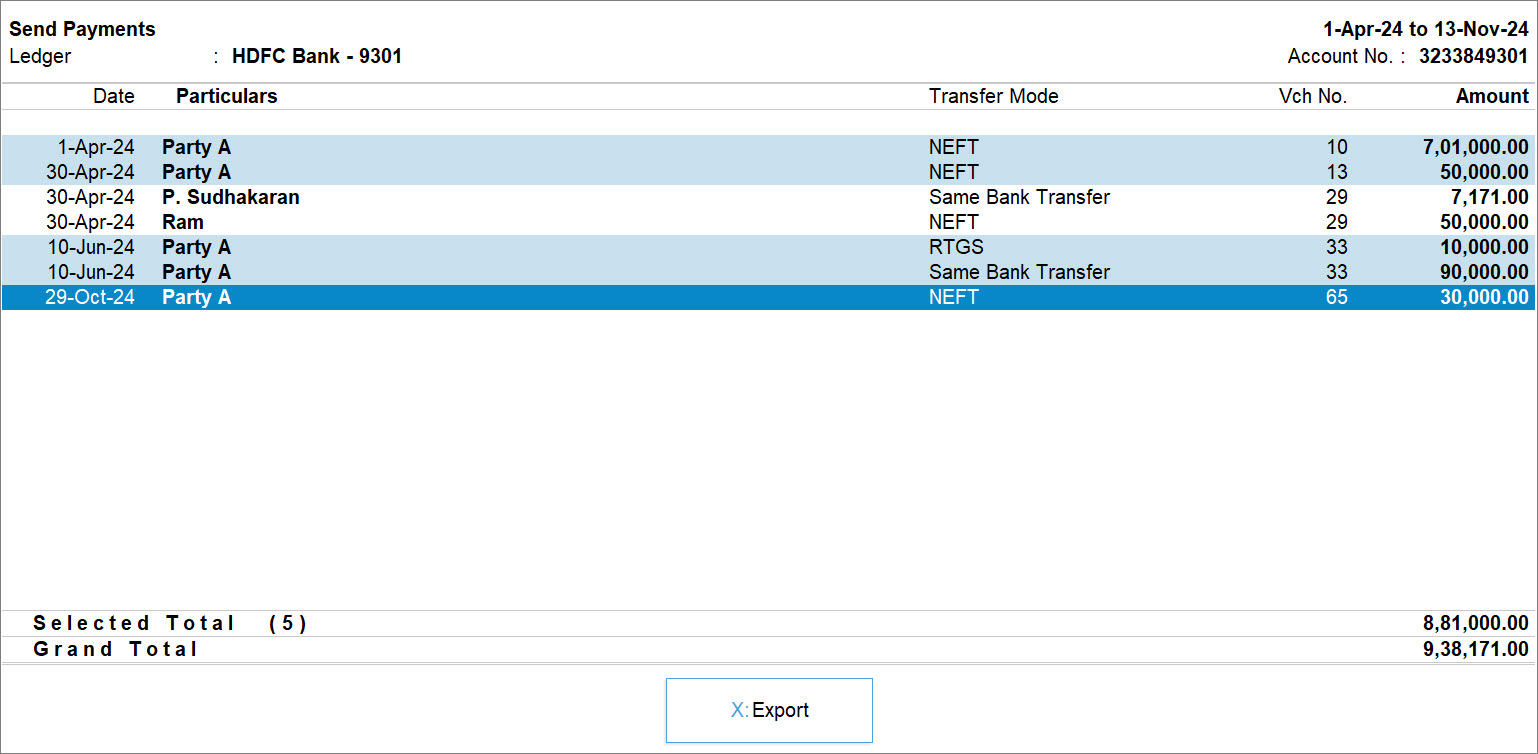
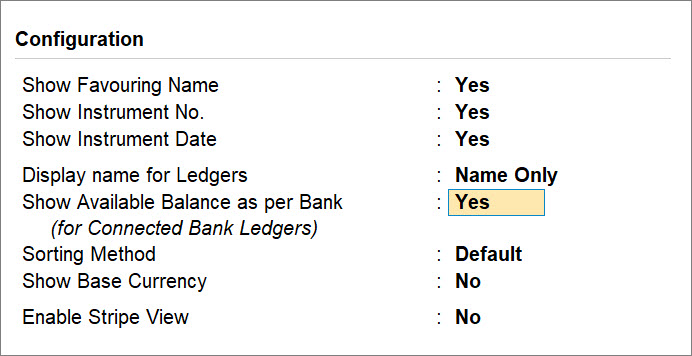
To configure the export, press C (Configure) to configure the export.
Folder Path: Specify the folder to which you want to export the payments.
Open folder after Export: Yes to open and view the file in the folder immediately after exporting the payment instructions.
Export e-Payments from the Export Menu
- Press Alt+G (Go To) > type or select e-Payments > press Enter.
- Select the required bank row, and press Enter.
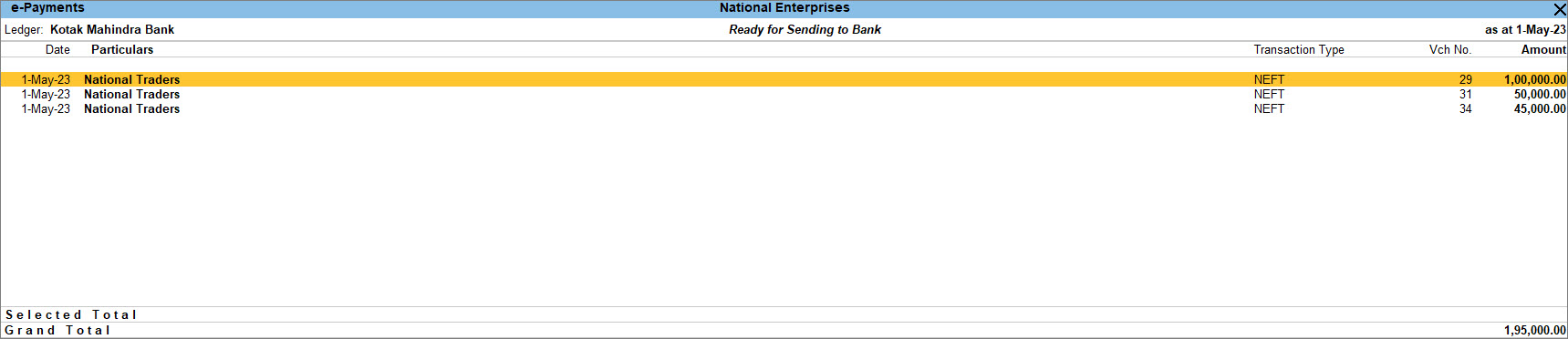
- Drill down from the Ready for Sending to Bank section.
- Select the transactions, and press Alt+E (Export) > Payment Instructions.
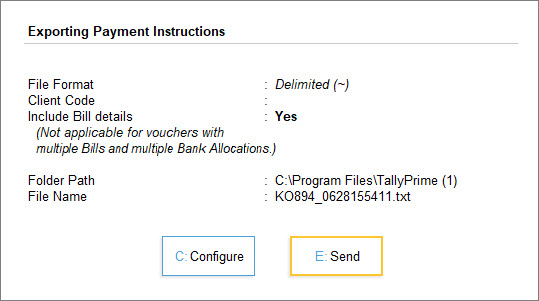
- Press C (Configure) to change the configurations, if needed.
- Press E (Send) to export the details.
Once you export the payment instructions, you can log in to your bank portal and upload the file to process the payment.
To get an idea about the bank-specific process to upload payment instructions and process payments, refer to Contact Details of Banks for e-Payment.
Questions & Answers
- Why am I unable to view any payments that are ready to export?
To view the payments that are ready to export, you need to ensure that you have all the bank details necessary for e-Payments.
If you have recorded the vouchers with all the bank details, then you might be viewing the report for a period that doesn’t have transactions ready to export.
Press F2 (Period) to change the period of the report.
- Where can I find the payment instructions after exporting?
While setting up for e-Payments in the bank ledger, you can configure folder path for payment instruction files.
If you have not configured, then the files get exported to your TallyPrime folder.
- How can I export a payment again?
To export a payment again:
1. Open the Sent to Bank (Unreconciled) section in the e-Payments report.
2. Select the transaction that you want to re-export or resend.
3. Press F8 (Reset Pymt Status).


