View Exceptions Report in TallyPrime
The Exceptions Report provides a consolidated view of exceptions identified in your company data. You can review exceptions arising from Import, Migrate/Repair, and Synchronisation, and drill down to view the affected masters and vouchers.
Masters and Transactions under exception are not included in your reports until the exceptions are resolved.
Data Exceptions in Import
If the data in the Excel has any exceptions or errors, TallyPrime completes the Import process, but with a few exceptions/errors. TallyPrime imports the data, and displays the following message:
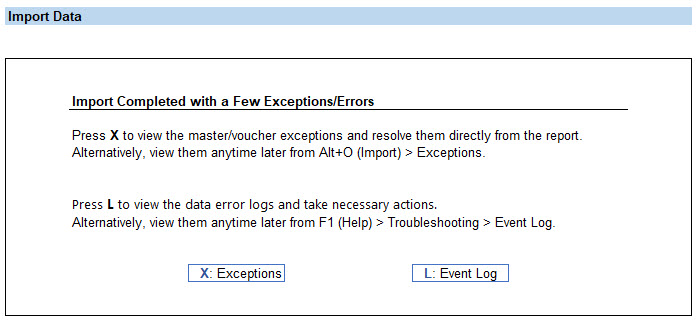
You also have the choice to either stop import of the data in the Import Configuration screen, if there is any exception or import data without recording any exception to avoid any risk of corrupting your existing data.
By default, TallyPrime will record the exceptions and proceed with the Import process.
While importing data, if any masters or transactions have any errors, the same is recorded either in the Exceptions Report or Event Log, depending on the type of error.
- Exceptions that require creation of new masters or transactions are logged under the Import Exceptions report. To resolve the Import exceptions,
- Press Alt+O (Import) > select Exceptions.
- Exceptions that require alteration of the existing masters or transactions are logged under the Event Log report. You will need to alter the specific masters or vouchers to resolve the errors listed in Event Log.
- Press F1 (Help) > Troubleshooting > Event Log.
View Data Exceptions
- Press Alt+Y (Data) > All Exceptions.
The All Exceptions report displays the number of exceptions identified during Import, Migrate/Repair, and Synchronisation. - Drill down into the required section to view the exceptions.
You can also open the respective exception reports directly:- Import Exceptions: Press Alt+O (Import) > Exceptions.
- Repair/Migrate Exceptions: Press F1 (Help) > Troubleshooting > Repair/Migrate Exceptions.
- Synchronisation Exceptions: Press Alt+Z (Exchange) > Exceptions.
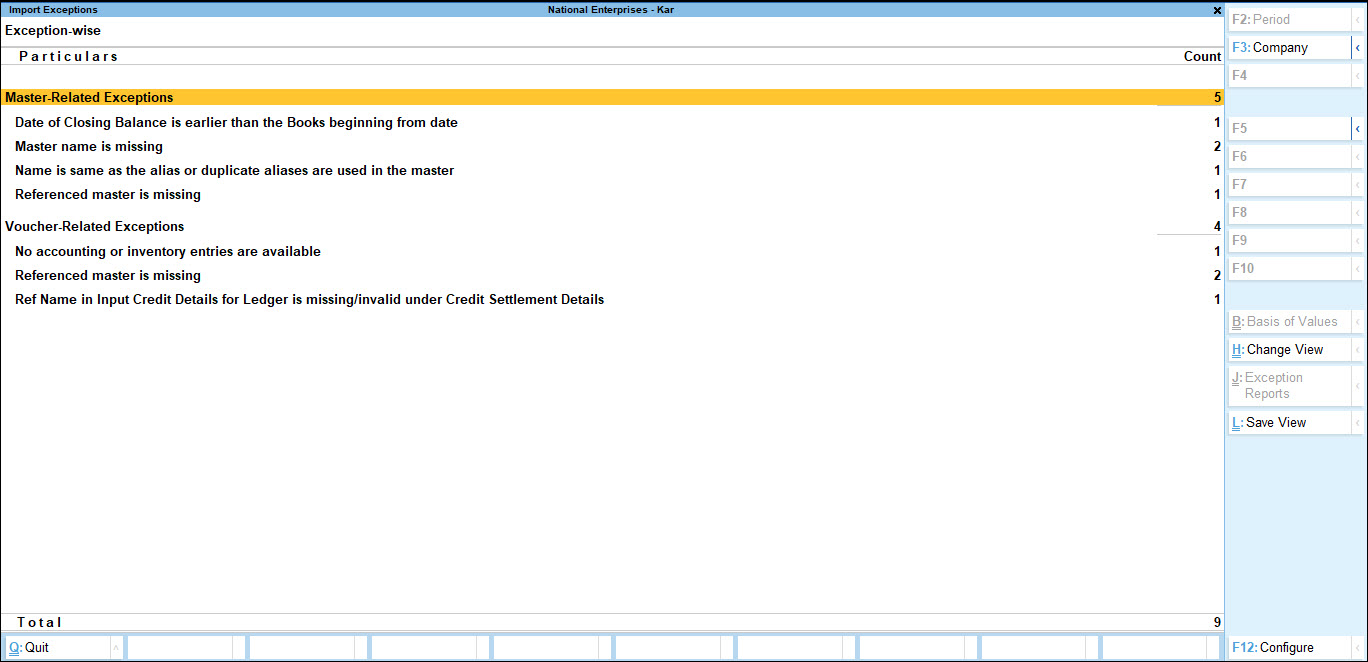 By default, the Exceptions Report displays the exceptions Exception-wise, under:
- Master-Related Exceptions
- Voucher-Related Exceptions
- To view exceptions based on the affected masters and vouchers, press Ctrl+H (Change View) > select Master-wise or Voucher-wise.
- Drill down from an exception or a master/voucher to view the details of the exception, such as the affected master or voucher and the number of affected masters or vouchers.
- To view the report in detailed format, press Alt+F5 (Detailed).
- In the Exception-wise view, you can view the masters and vouchers related to the selected exception.
- In the Master-wise & Voucher-wise view, you can view all the exceptions related to the selected master or voucher.
- To save the report for future reference, press Alt+S (Save View), provide the required details, and save the report.
Resolve Data Exceptions
Once you identify the exceptions, you can resolve them based on the type of exception.
Impact after Exception Resolution
Books of Account: Masters and vouchers under exception are not included in your Books. This ensures that inaccurate information does not affect your business reports. Once you resolve the exception, the affected masters and vouchers are included in your Books.
Edit Log: When you resolve an exception and a master or voucher is created, the activity is recorded in Edit Log as Created due to…
Voucher Numbering: When you resolve an exception in a voucher, it is treated as a new voucher in the Books and is saved with the next available voucher number.