Collect TCS at a Higher Rate for Specified Persons under Section 206CCA
Section 206CCA provides for collection of TCS at a higher rate from specified persons who meet the conditions prescribed under the section. In TallyPrime, you can configure the party ledger to collect TCS at twice the applicable rate or 5%, whichever is higher.

- Verify that the party is a Specified Person using the valid PAN on the department portal – Section 206AB & 206CCA-Compliance Check Facility
Configure TCS Nature of Goods for Higher Rate
- Press Alt+G (Go To) > Create Master > TCS Nature of Goods.
- Enter the applicable TCS details.
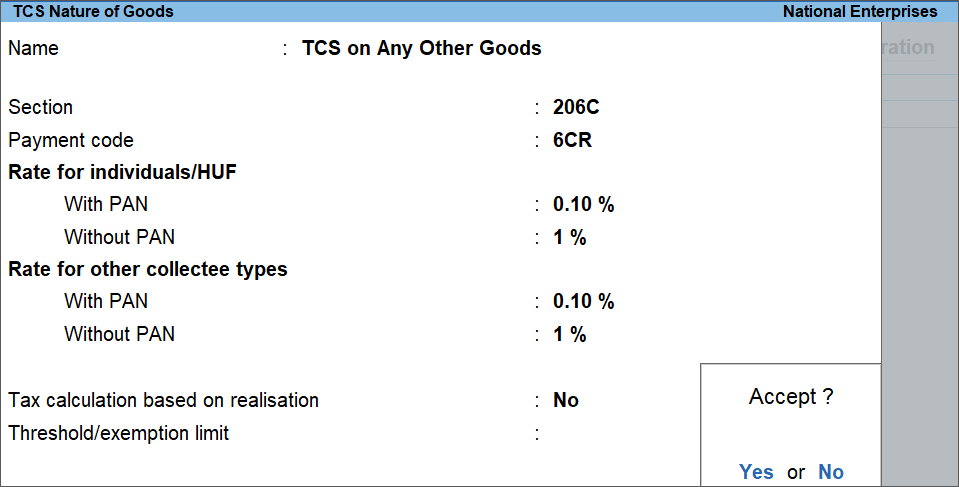
- Set the TCS rate to twice the applicable rate or 5%, whichever is higher.
- Press Ctrl+A to save.
- Press Alt+G (Go To) > Create Master/Alter Master > Ledger.
- Select the required party ledger.
- Under Statutory Details:
- Set Is TCS Applicable to Yes.
- If the Statutory Details section is not visible, press F12 (Configure) and set Provide TDS/TCS details to Yes.
- Set Buyer/Lessee type to Individual/HUF-Resident.
- Set Use advanced configurations for TCS to Yes.
- If the advanced configuration option is not visible, press F12 (Configure) and set Allow advanced entries in TDS/TCS master to Yes.
- In Advanced TCS Configurations, set Set/alter zero/lower rate for collection to Yes.
- In Zero/Higher Collection Details:
- Select the required Nature of Goods configured for the higher TCS rate.
Press Ctrl+Enter on the Nature of Goods to open the master and verify the configured TCS rate, if needed. - Set Provision to 206CCA Collection at Higher Rate.
- Enter a unique Certificate No./Date. The source recommends entering 0000 so that the transactions can be identified during return filing.
- Enter Applicable From and Applicable To dates.
- Enter the TCS rate as twice the applicable rate or 5%, whichever is higher.

- Press Ctrl+A to save the ledger.
- Select the required Nature of Goods configured for the higher TCS rate.
Record Sales with Higher TCS
- Press Alt+G (Go To) > Create Voucher > F8 (Sales).
- Select the Party A/c name and Sales ledger.
- Enter the sales amount.
- In TCS Allocation Details, select the required Nature of Goods.
The Assessable Value is prefilled. - Select the TCS duty ledger under List of Ledger Accounts.
TallyPrime calculates TCS at the higher rate configured for the party.
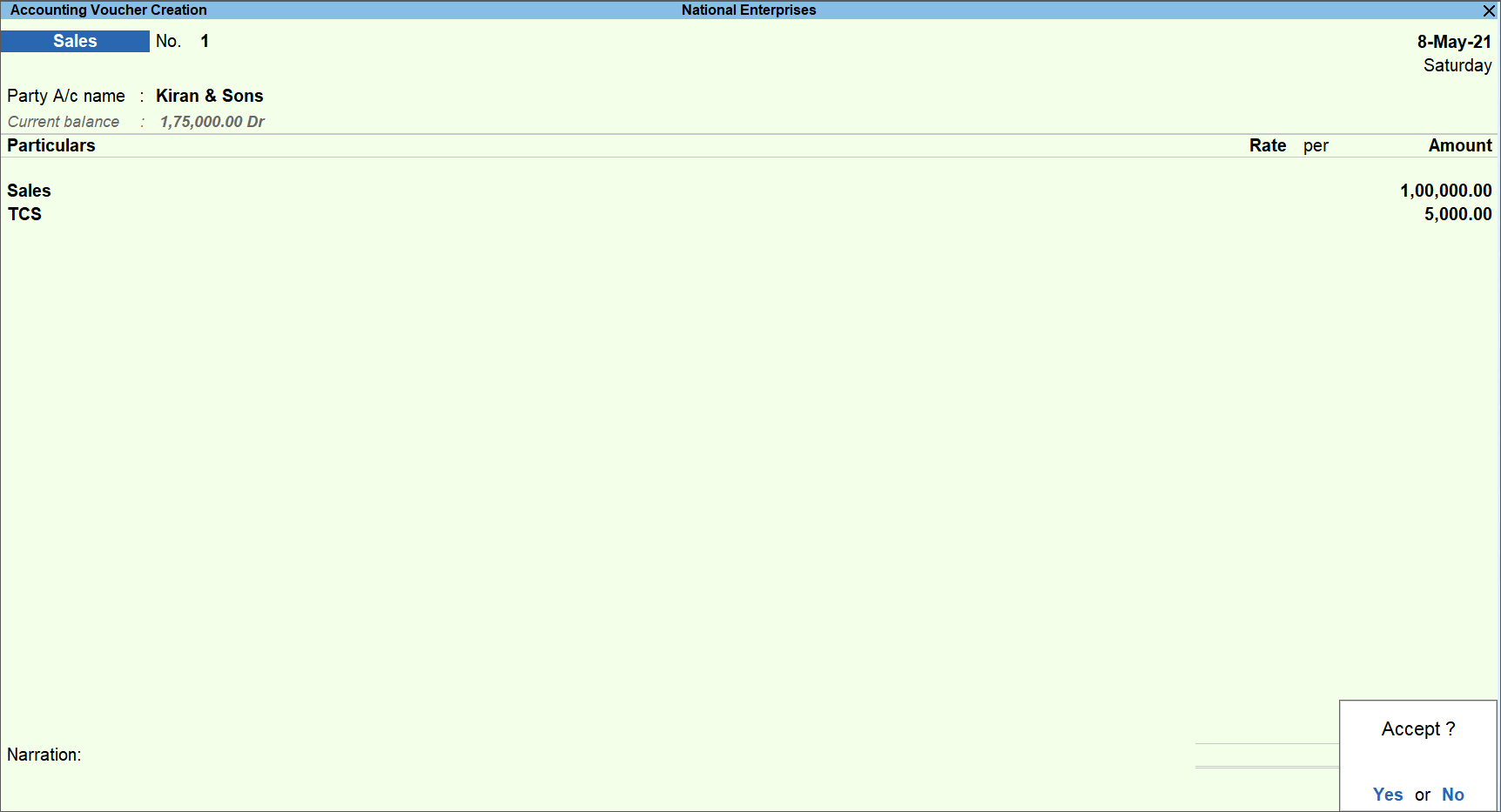
- Press Ctrl+A to save the voucher.
Record TCS on Receipt
Record the receipt voucher by selecting the party ledger configured for the higher TCS rate. TallyPrime calculates TCS at the higher rate configured for the party.To record TCS on advance receipts, see Record TCS on Advance Receipts in TallyPrime.
Adjust TCS in Sales Against Advance
When recording the sales transaction against an advance received from a specified person, select the party ledger configured for the higher TCS rate to adjust the TCS collected on the advance.
For the procedure, see Record TCS on Advance Receipts in TallyPrime.
Record Sales Return or Cancellation
When recording a sales return or cancellation against a transaction for a specified person, select the party ledger configured for the higher TCS rate.
Calculate TCS When PAN Is Not Available
If the buyer’s PAN is not available, TCS is calculated at the rate applicable without PAN.
For example, if the TCS rate is 15% with PAN and 20% without PAN, the higher rate under Section 206CCA is 30% (twice the 15% rate applicable with PAN). Therefore, TCS is collected at 30%, even though the rate without PAN is 20%.
File Returns Under Section 206CCA
If TCS has been collected at the higher rate under Section 206CCA, you need to update the exported TCS return text file with the applicable remark value before validating and filing the return.
After exporting Form 27EQ,
- Open the .text file.
- Identify the transactions recorded for the Party.
- Press Ctrl+F.
- Under Find what: type 0000 and press Enter or click Find Next.
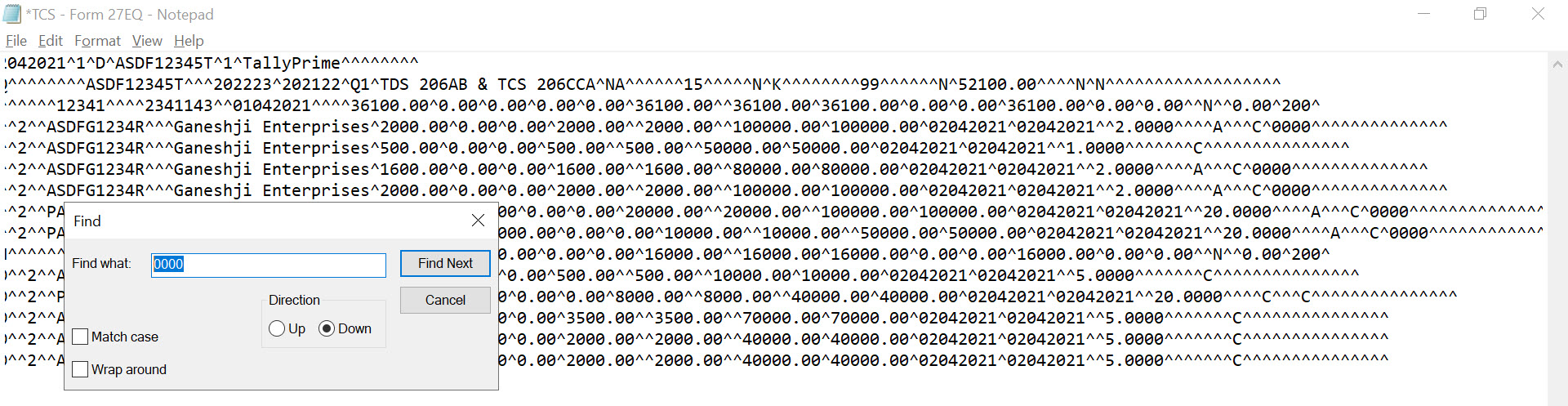
- Identify the transactions with 0000 at the end of the row.
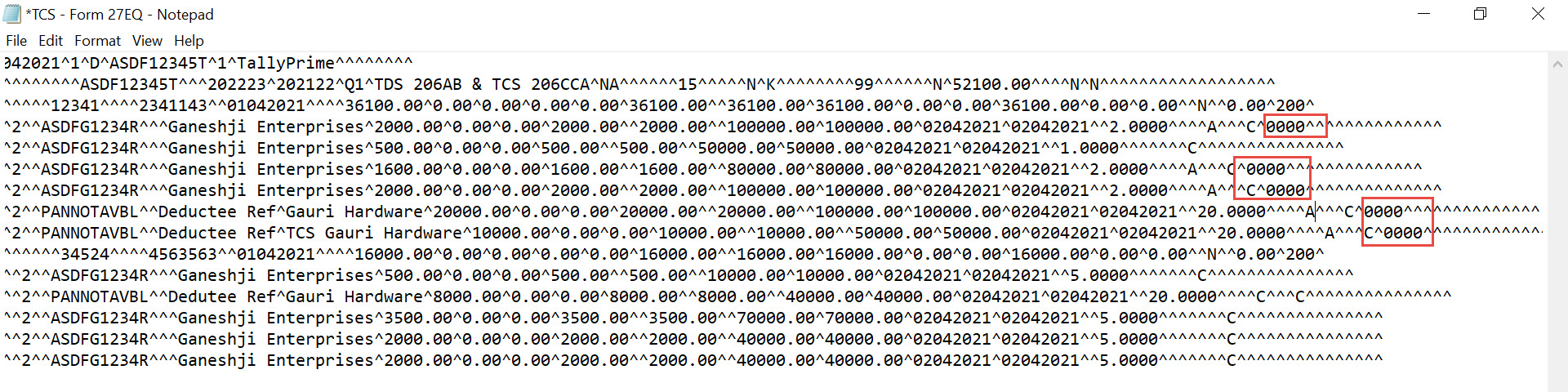
If the Zero/Lower Collection Details screen of the Party ledger Party ledger is not configured with 0000 as the Certificate No., then press Ctrl+F, enter Party’s PAN or Name of the Party, and press Enter to identify the PAN or Party.
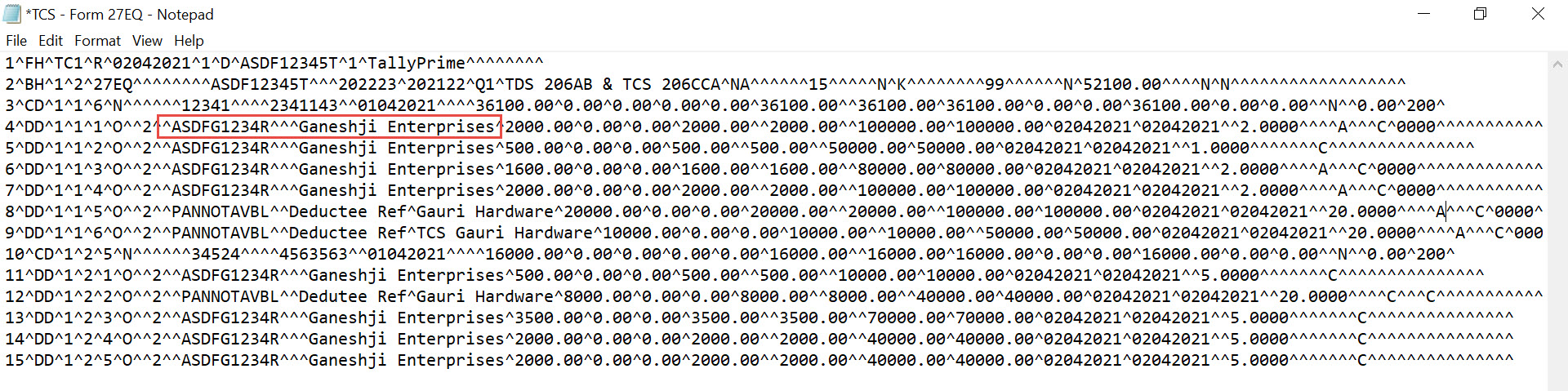
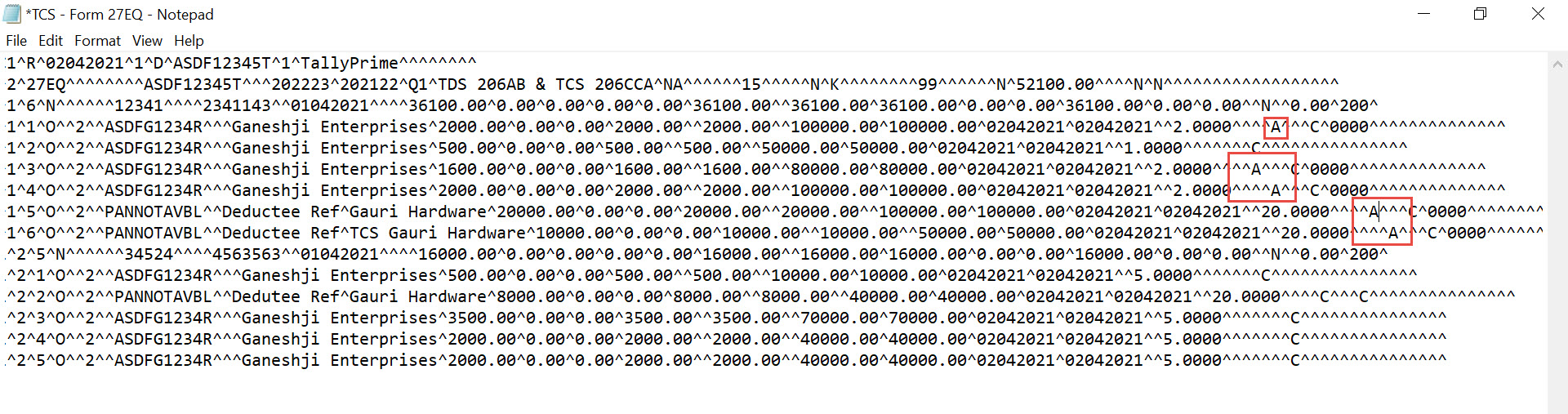
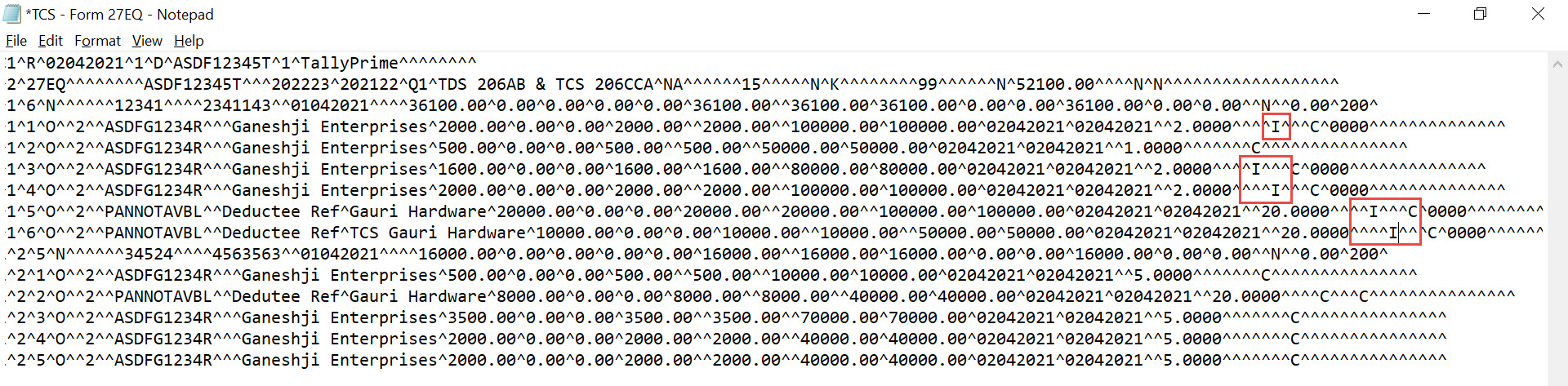
- In the identified transactions, replace the alphabet A with I.
Before replacing A with I, the .text file appears as shown below.
After replacing A with I, the .text file appears as shown below.
- After entering the applicable remark value, remove 0000 from the rows.
.text file before removing 0000 appears as shown below.
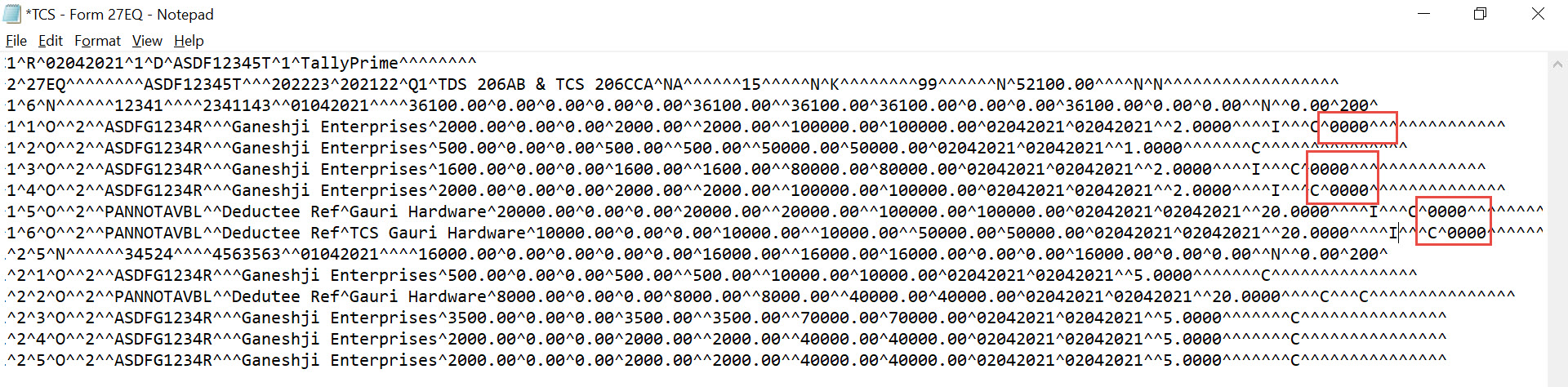
.text file after removing 0000 appears as shown below.
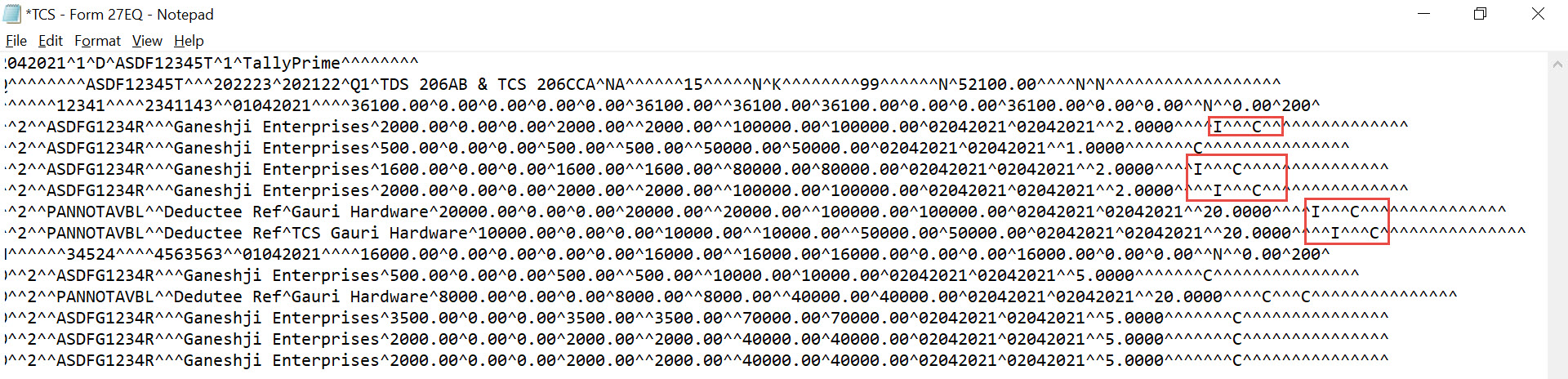
- Press Ctrl+S to save the .text file.
After making the changes and saving the .text file, you can go ahead and file the returns.