
Configure License from Network
All About Licenses | Activate | CONFIGURE | Reactivate | Update | Surrender | Multi-Site
If you are using a silver license, no additional configuration is needed for the license. If you have a gold license, once you have activated the license in one system, you can use the active license from the network or configure for the license in all other user systems in that LAN network.
Ensure that you configure the existing license server details across clients, to avoid any license conflicts.
- In TallyPrime, press F1 (Help) > Settings > Manage License.
- Select
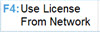 , and select the license with the status shown as Active.
Don’t see the active license? Configure License Manually.
To watch our short video, click: 
- Select Configure License Manually.
- Enter the Computer Name/IP and the port number where your Tally Gateway Server is hosted, and save.
The system where you activated the license will be the server system henceforth. This system needs to be available all the time for the other systems to access the license.
What’s Next: Update your License in TallyPrime
Have more questions? Refer to our  section.


