
View Transaction Details in e-Invoice Event Log in TallyPrime (KSA)
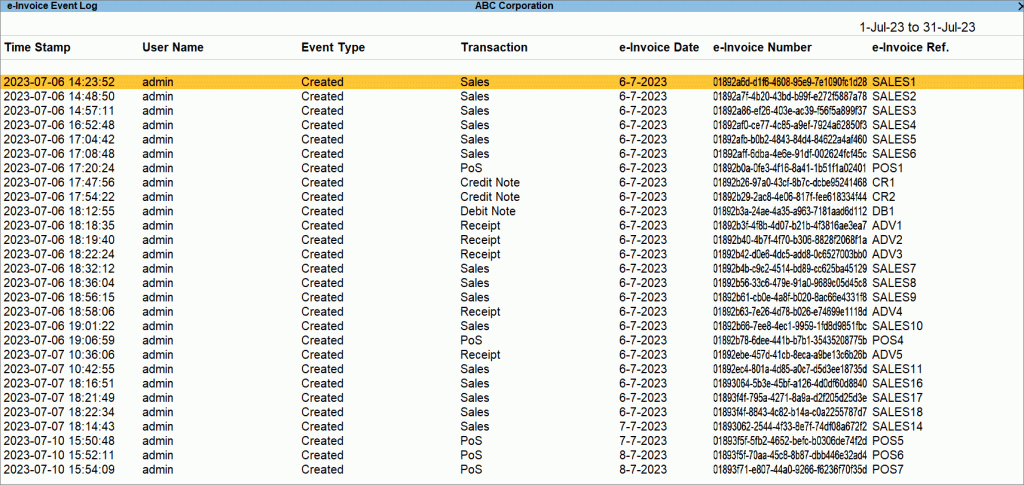
In the e-Invoice Event Log, you will view the timestamp of the recorded transaction, the username, the event type, the transaction type, the e-Invoice date, the e-Invoice number, and the corresponding e-Invoice reference number.
- Press Alt+G (Go To) > e-Invoice Event Log and press Enter.
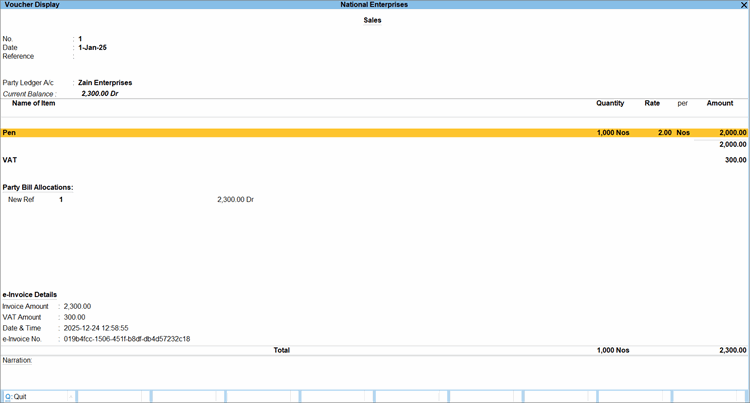
- Drill down from an event to view the transaction details in Voucher Display mode.
-
To view the tampered e-Invoices, in the e-Invoice Event Log, press Alt+T (Show Tampered).
-
Select the tampered e-Invoice and drill down to view the changes in Voucher Display.
A tampered invoice indicates that the voucher was altered after the e-Invoice was successfully generated or reported to ZATCA. As the voucher data no longer matches the reported e-Invoice data, pass the appropriate corrective document, such as a Credit Note or Debit Note, as required.
Is this information useful?
YesNo


