
Create TCS Masters in TallyPrime
You can create the masters required for recording TCS transactions by first creating the TCS Nature of Goods. Once created, you can assign it to the relevant stock items, stock groups, sales or income ledgers, party ledgers, and TCS duty ledgers, enabling accurate TCS calculation and transaction recording.

Ensure that:
- You have enabled TCS for your company.
Create TCS Nature of Goods
Create TCS Nature of Goods to define the section, payment code, TCS rates, and exemption limit applicable to the nature of goods.
- Press Alt+G (Go To) > Create Master > TCS Nature of Goods.
- Press Alt+H (Helper) and select the Nature of Goods from the list.
- Select the required Nature of Goods.
The Section and Payment Code are displayed automatically. - Enter the TCS rates for With PAN and Without PAN.
- Set Is zero rated to Yes, if applicable.
- Set Tax calculation based on realisation to Yes if you want to calculate TCS when the payment is received.
Otherwise, set it to No to calculate TCS during billing. - Set Calculate tax on value exceeding Exemption Limit to Yes to calculate TCS only on the amount exceeding the threshold limit.
If set to No, TCS is calculated from ₹1. - Enter the applicable Threshold/Exemption Limit.
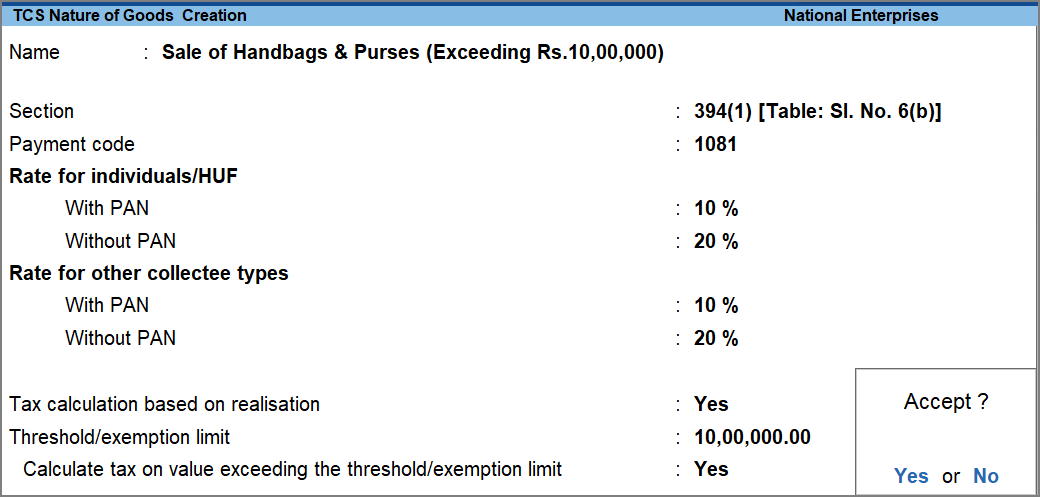
- Press Ctrl+A to save.
You can view the history of rate changes using Ctrl+I (More Details) > TCS Details (History).
Create Stock Items with TCS Details
If each stock item belongs to a different TCS category, specify the TCS Nature of Goods while creating the stock item.
- Press Alt+G (Go To) > Create Master > Stock Item.
- Enter the Name and select the Stock Group.
- Set Is TCS Applicable to Applicable.
If you do not see this option, press F12 (Configure) and enable the option Set TCS Details. - Select the required Nature of Goods.
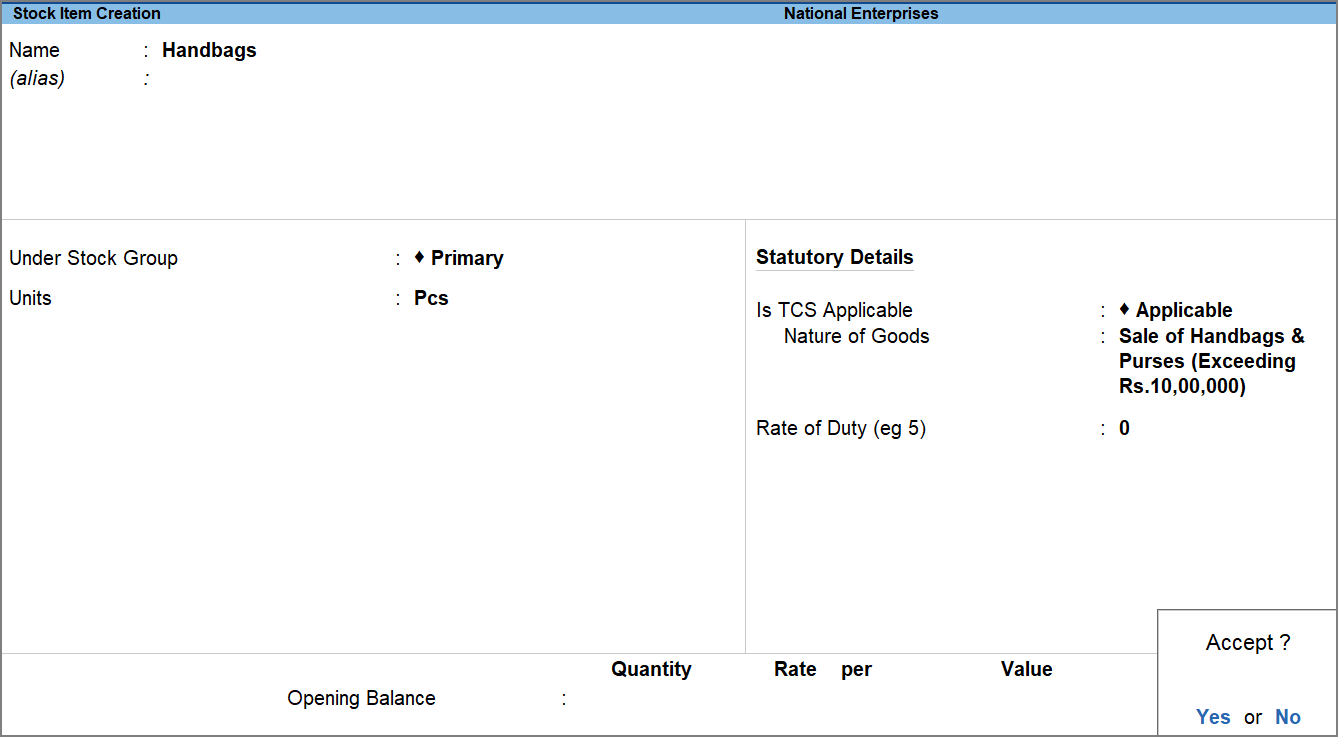
- Press Ctrl+A to save.
The stock item uses the TCS rate defined for the selected Nature of Goods.
Create Stock Groups with TCS Details
If multiple stock items belong to the same TCS category, configure the TCS details at the stock group level instead of configuring individually in each stock item.
- Press Alt+G (Go To) > Create Master > Stock Group.
- Enter the Name and in the Under field select the Stock Group.
- Enable TCS Details.
- Press F12 (Configure) and enable the option Show more configurations.
- Under Statuory Details, enable the option Set TCS Details.
- Press Ctrl+A to save the configuration.
- On the Stock Group Creation screen, set Set/Alter TCS Details to Applicable.
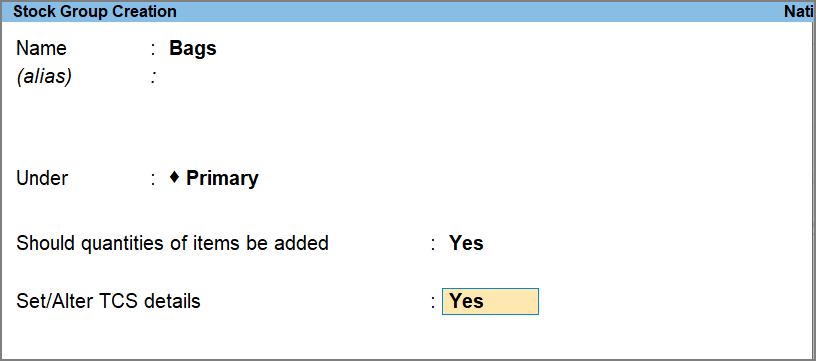
- Select the required Nature of Goods and save the details.
- Press Ctrl+A to save.
TCS rates can be defined at the stock group level when multiple stock items fall under the same TCS category.
Create Sales or Purchase Ledgers with TCS Details
If you do not maintain inventory and manage only accounts, you can specify TCS details at the sales or purchase ledger level.
- Press Alt+G (Go To) > Create Master > Ledger.
- Enter the Name, and in Under, select the Sales Accounts or Purchase Accounts, as required.
- Set Is TCS Applicable to Applicable and select the required Nature of Goods.
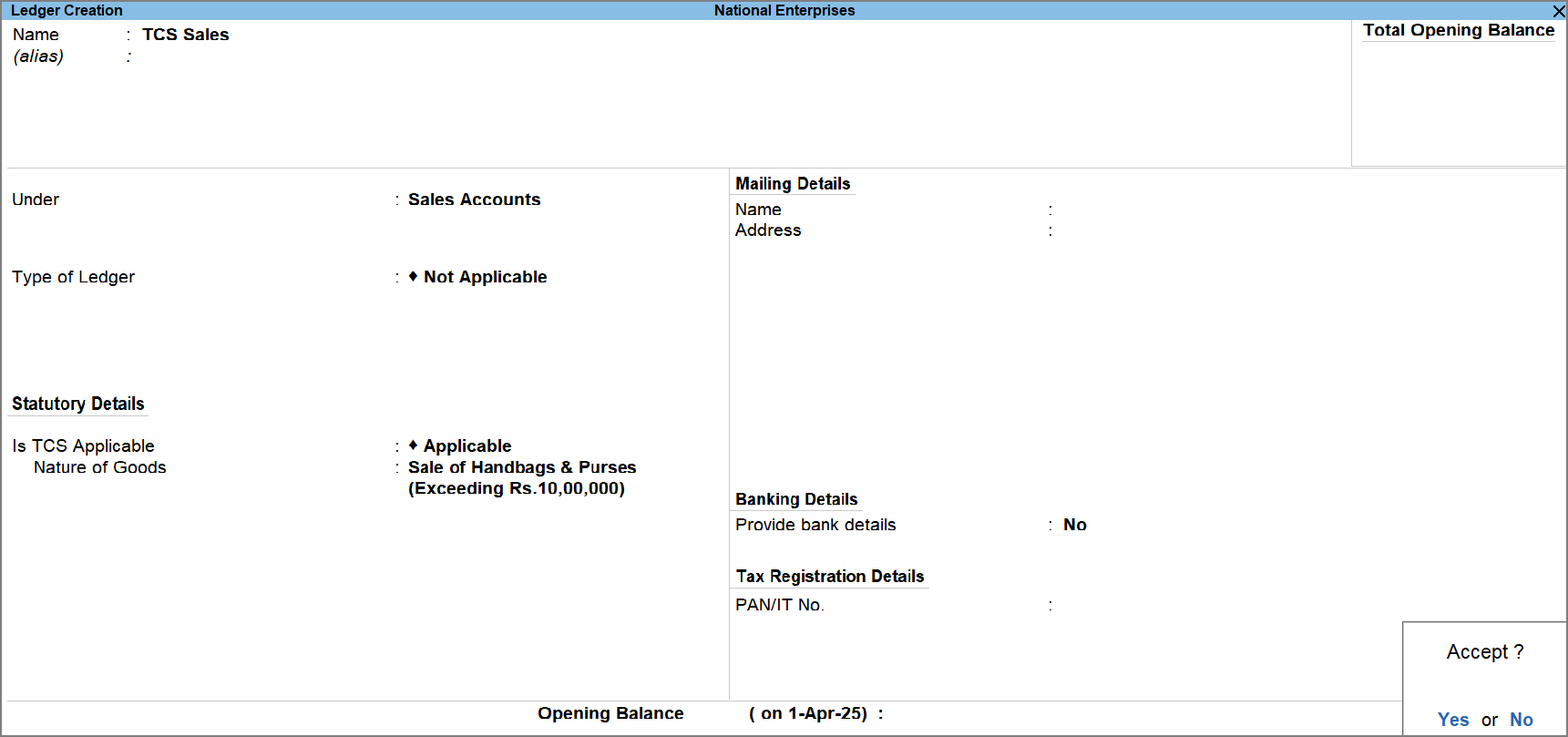
- Press Ctrl+A to save.
Create Party Ledgers with TCS Details
Create party ledgers with TCS details to calculate TCS based on the collectee type, PAN details, and applicable zero or lower collection rates.
- Press Alt+G (Go To) > Create Master > Ledger.
- Press F12 (Configure) and set Allow advanced entries in TCS masters to Yes.
- Enter the party Name, and in Under select Sundry Debtors.
- Set Is TCS Applicable to Applicable.
- Select the Buyer/Lessee Type.
- Set Use Advanced configurations for TCS to Yes.
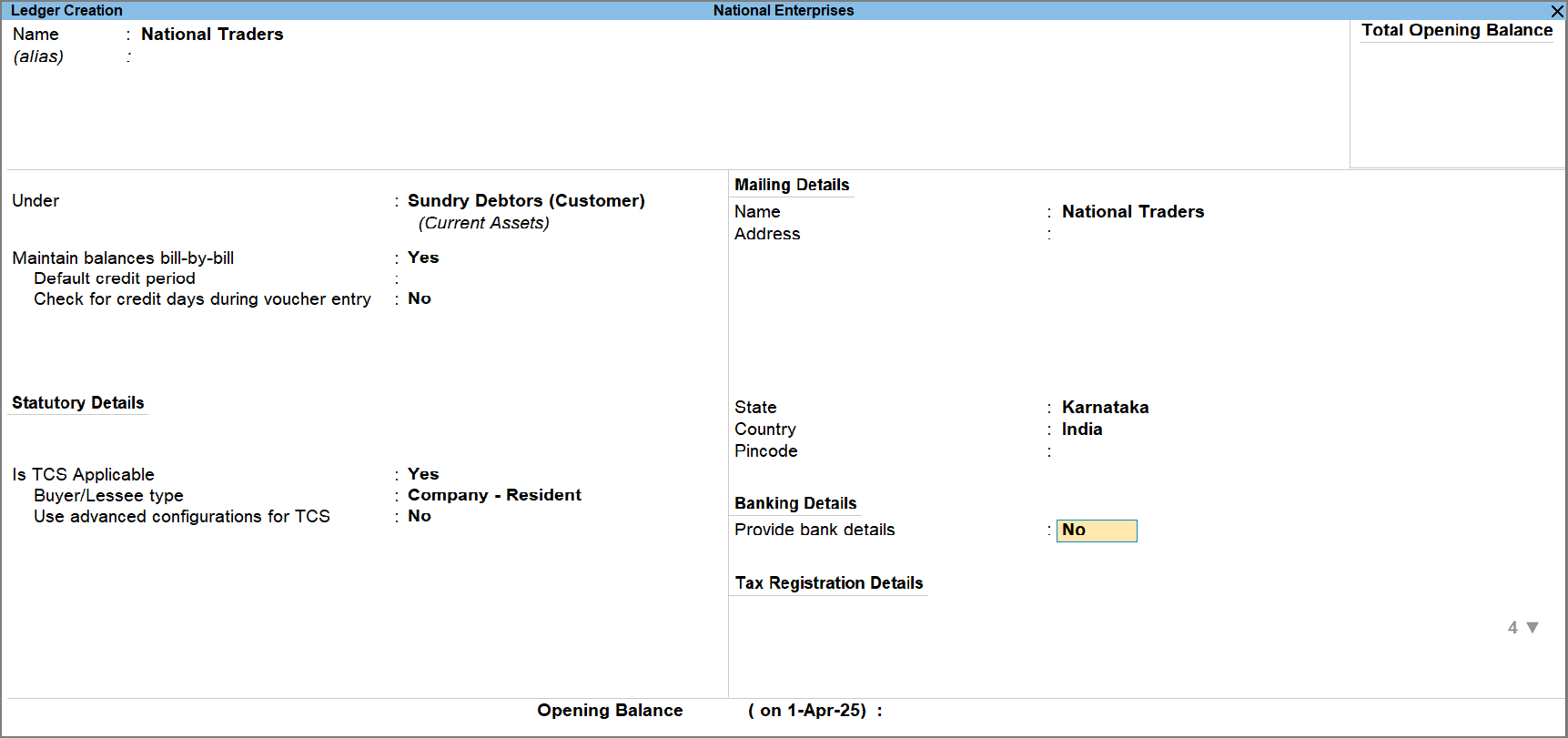
- If required, set the following options to Yes or No, as needed.
- Ignore Income Tax Exemption Limit: Allows TCS calculation without considering the applicable income tax exemption limit.
- Ignore Surcharge Exemption Limit: Allows surcharge calculation without considering the applicable surcharge exemption limit.
- Set/alter zero/lower rate for collection: Allows you to specify a zero or lower TCS rate for collection when applicable.
- Override tax Calculation of realisation-based Nature of Goods: Allows you to override the default tax calculation for a Nature of Goods configured for realisation-based TCS.
- If you have selected Set/alter zero/lower rate for collection, provide the Nature of Payment, Certificate No., Date, and applicable dates.
- Enter the PAN/IT No. under Tax Information and enable Provide PAN Details, if required.
If PAN is not available, enter the appropriate value:- PANAPPLIED – The party has applied for PAN but has not received it.
- PANINVALID – The PAN provided by the party is incorrect.
- PANNOTAVBL – The party has not provided a PAN or declaration.
- Press Ctrl+A to save.
Override TCS Calculation for a Party
If a party requires TCS to be calculated on accrual even though the selected Nature of Goods is configured for realisation, you can override the calculation method in the party ledger.
While creating the TCS party ledger:
- Press F12 (Configure) and set Allow advanced entries in TCS masters to Yes.
- Set Is TCS Applicable to Applicable.
- Select the Buyer/Lessee Type.
- Set Use advanced configuration for TCS to Yes.
- Set Override Tax calculation of realisation-based Nature of Goods to Yes.
If you want to override the calculation only for a specific transaction, you can change it from TCS Allocation Details in the voucher. - Select the Nature of Goods for which you want to override the calculation method.
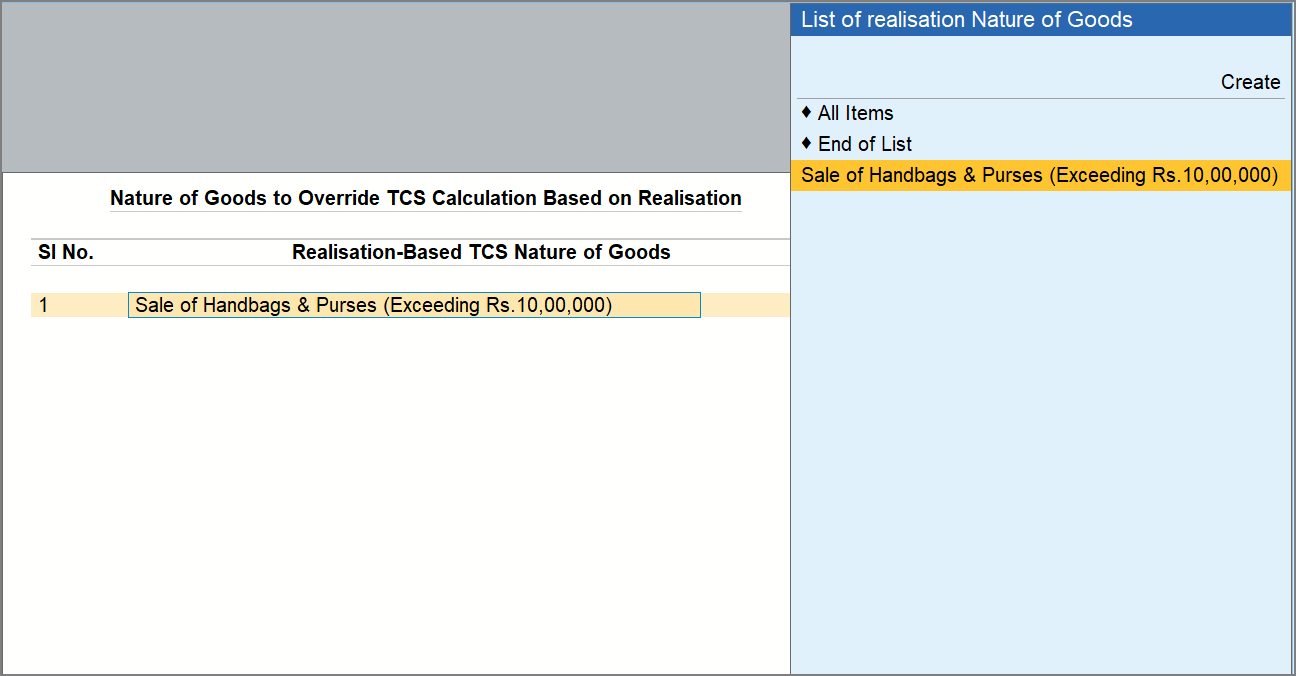
- Press Ctrl+A to save.
This makes TCS applicable in the sales transaction even when the selected Nature of Goods is configured for calculation on realisation.
Configure a Government-Listed Party for TCS Exemption
Configure the party master when the buyer is a government-listed party eligible for TCS exemption.
While creating the TCS party ledger:
- Press F12 (Configure) and set Allow advanced entries in TCS masters to Yes.
- Set Is TCS Applicable to Applicable.
- Set Buyer/Lessee Type to Government.
- Set Use advanced configuration for TCS to Yes.
- Set Set/alter zero/lower rate for collection to Yes.
- In Zero/Lower Collection Details, select 206C(1H) – Collectees Eligible for Exemption under Provision.
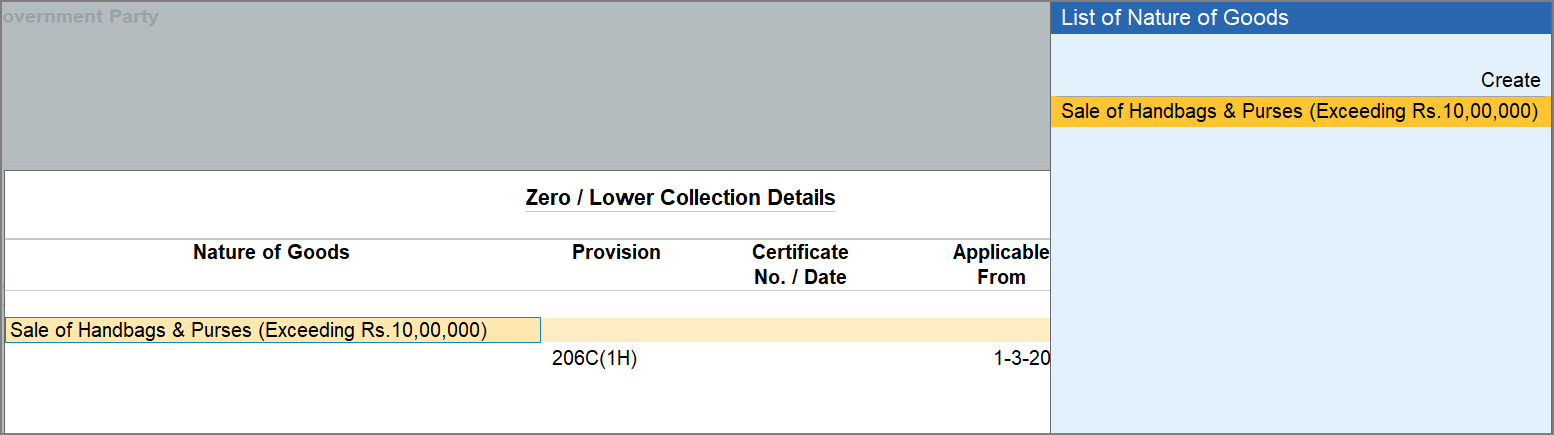
- Press Ctrl+A to save
Create TCS Duty Ledgers
Create a TCS duty ledger to account for TCS and associate it with the relevant Nature of Goods, Contract, License, or Lease.
- Press Alt+G (Go To) > Create Master > Ledger.
- Enter the Name, and in Under select Duties and Taxes.
- Select TCS as the Type of Duty/Tax.
- Select the required Nature of goods/contract/license/lease from the list.
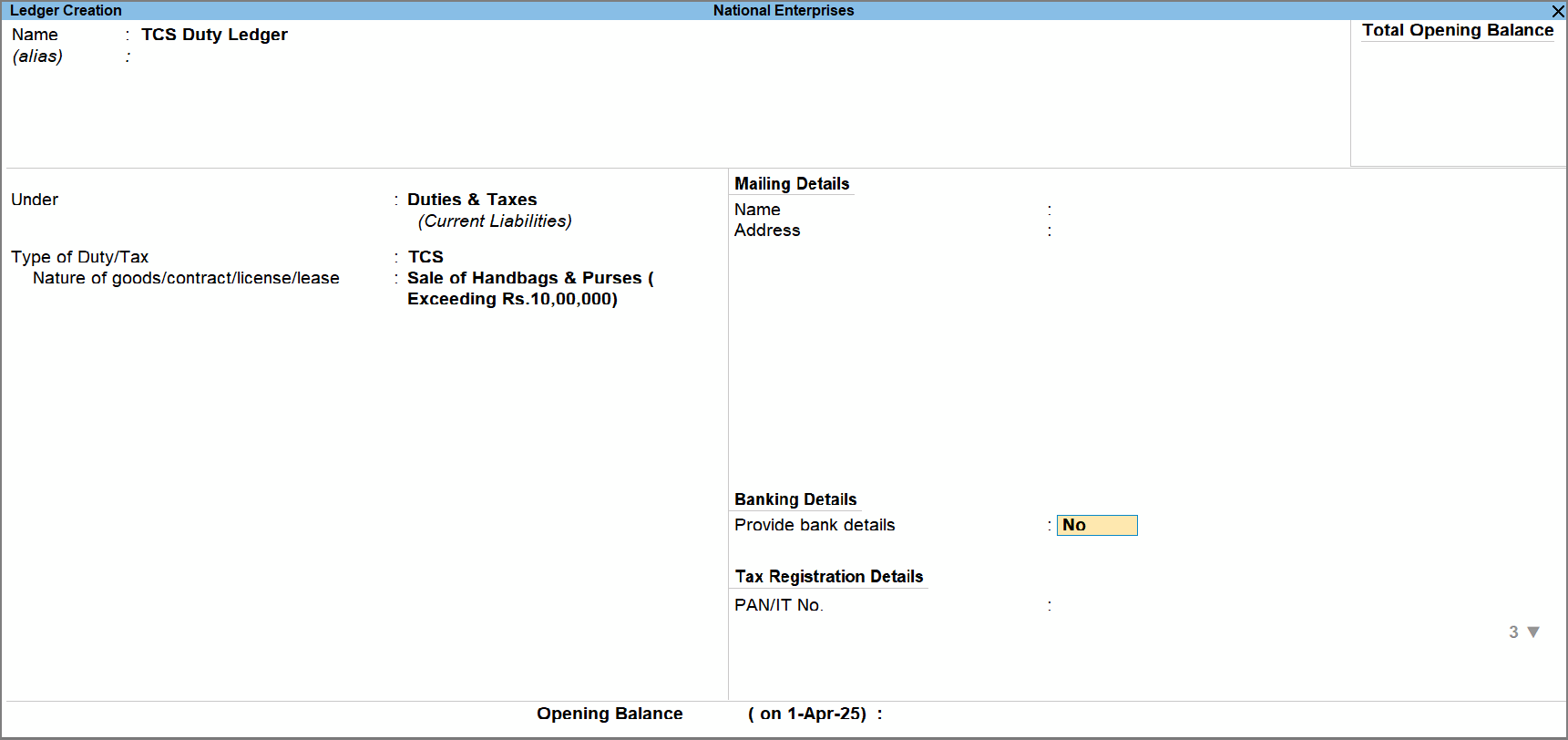
- Press Ctrl+A to save.
Questions and Answers
Which TCS master should I create first?
Create the TCS Nature of Goods first. You can then associate it with the relevant stock items, stock groups, sales or income ledgers, party ledgers, and TCS ledgers.


