
GSTR-1 FAQ
This page lists some frequently asked questions about the GSTR-1 report in TallyPrime.
If you encounter any GSTR-1 errors, refer to the Exceptions & Resolutions page to learn how to resolve them.
General
The From and To dates will appear blank in the Download GSTR-1 report if you have already completed the download activity.
It is required to show GST calculation in the delivery challan. A delivery challan can only be used for the transfer of stock between branches operating with the same GSTIN number within a state.
The GST details recorded in the delivery challan will not have an impact on GSTR-1.
You can do the following to identify the differences.
- Check if any of the transactions are appearing under Uncertain Transactions (Corrections needed) in GSTR-1, and resolve them.
- Check if any of the transactions are appearing under Not relevant for returns and include them, if relevant.
- Check for sales entries recorded in Receipt or Journal vouchers. These transactions are included in the GST returns, but will not form part of the Sales Register.
The Department hasn’t provided a specific format for Payment Vouchers. They’ve only mentioned the minimum required fields like invoice number, GSTIN, invoice date, and amount.
In TallyPrime, if you record an unregistered RCM purchase, the voucher can be printed, and it will be included in Table 13 of the GSTR-1 report.
In Release 3.0, the values will not be split across different sections, irrespective of the type of GST Return.
In GSTR-3B, both the Taxable and Nil-Rated/Exempt values will be recorded in the Taxable section, while exclusively Nil-Rated/Exempt transactions will be captured in section 3.1c. Thereby, the values in TallyPrime will be a true reflection of the Return values recorded on the portal.
You can use Google Chrome to open the offline utility tool. Download Google Chrome and make it your default browser.
The e-commerce transactions are not accepted as B2B transactions in the portal. You need to record the sales transactions by selecting Sales to consumer as the nature of transaction, to view it under B2C.
Currently, the GST Offline Tool does not allow entry of negative quantities in the HSN Summary, even though negative values can be entered.
However, you can manually enter the negative quantities in the HSN Summary directly on the GST portal.
The transactions of transport fall in the category of reverse charge. The expenses of transporting the goods is incurred by the supplier. The scenario of cash payment is a purchase transaction, and purchases will not be captured in GSTR-1. This purchase transaction will form part of section 3.1(d) of GSTR-3B.
Exempt sales will get captured in table 9 (Nil Rated Invoices) in the Return format view of GSTR-1.
Upload GSTR-1
Yes, you can now directly upload your Returns on the GST portal from TallyPrime Release 5.0 using IFF, without the need for any manual activity.
- In the Upload GSTR-1 report, press F12 (Configure), and set Consider Report Period instead of Return Filing Period for Online Upload (for QRMP/IFF) to Yes.
This option will help you upload your vouchers for each month of the quarter (as per the IFF scheme) and the summary at the end of the quarter.
However, if you have opted for the Quarterly Return Monthly Payment (QRMP) scheme, then you will have to manually upload the details of your B2B invoices and credit notes every month using the Invoice Furnishing Facility (IFF) provision on the GST portal.
Yes, you can upload GSTR-1 and GSTR-3B for multiple registrations if you are using TallyPrime 5.0 and above.
Yes, you can upload GSTR-1 and GSTR-3B for multiple periods together.
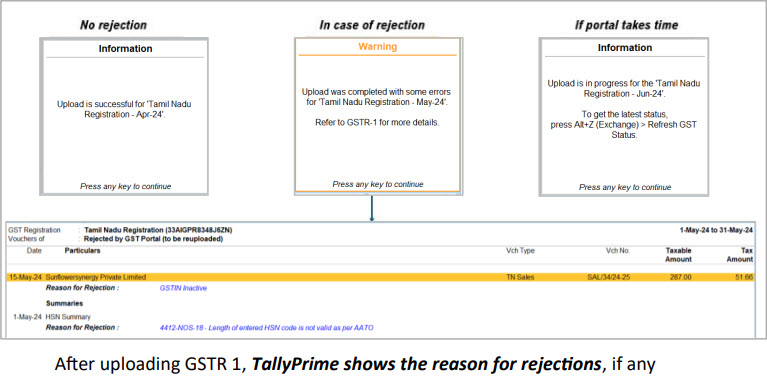
After uploading GSTR-1, TallyPrime shows the reasons for any rejections. If there are any delays from the portal, the details will be automatically updated.
To upload all the transactions, you can do one of the following:
In the Upload GSTR-1 report,
- Press F8 (Include Uploaded).
- Press Ctrl+B (Basis of Value), and set Include transaction where no action is required to Yes.
Once all the transactions appear on the report, you can press S (Send) to upload the transactions to the portal.
File GSTR-1
While filing your Returns, if there is a mismatch between your Books and portal values, TallyPrime will pause the filing process.
You can do one of the following:
- Continue filing with the mismatch – You can resolve the mismatches before filing the Returns in the subsequent period.
- Resolve the mismatches in the Books or Portal value and file again.
The amendment introduced by the Finance Act, 2022, effective from 1st October 2022, reduces the time frame for issuing credit notes and making corresponding tax adjustments from approximately 20 months to 18 months. This change requires businesses to act promptly to stay compliant with the new rules.
For GSTR-1 reporting, you can update the Credit Notes and Tax Adjustments using either the effective date or the amendment date under the new 20-month rule.
GSTR-1A is an amendment Return for correcting or adding transactions after filing GSTR-1.
- Available after filing GSTR-1 or due date (whichever is later)
- Can be filed before GSTR-3B.
- Can be filed only once per period.
Say, you have filed GSTR-1 for July-24 but have not filed GSTR-3B of July-24, and you have modified one or more invoices. You can file such invoices as part of GSTR-1A of July-24. The combined value of GSTR-1 and GSTR-1A will be considered for GSTR-3B. Note that if an invoice is present in both GSTR-1 and GSTR-1A, then the values shown in GSTR-1A will be considered.
Currently, TallyPrime does not support filing GSTR-1A. However, as an alternative, if you have modified or added any invoices after filing GSTR-1, such transactions will be reflected under the Uncertain transactions section of your GSTR-1.
- Drill down from that section to review the respective invoices, manually update the correct details of the following invoices on the portal:
-
- Invoices modified: Effective Date of the Amendment is not specified or invalid.
- Invoices added: Transaction cannot be added in this Return period, as the Return is filed. Such transactions cannot be uploaded.
Although GSTR-1A is available, you can set the effective date for the following month and upload the amendments in your regular GSTR-1.
You might have filed your return on the GST portal and signed it in TallyPrime. However, in some scenarios, incorrect values might have been recorded on the GST portal due to a data entry error. You can easily rectify such transactions in TallyPrime and specify the Effective Date, after which they will be recorded as Amended transactions in the return.
However, if the error is noted after an invoice is already issued to your party, then it is recommended that you issue a credit/debit note for the difference in amount. Alternatively, you can issue a credit note for the full amount, and then issue a new invoice. It is also recommended that Amendments be used only for correcting mistakes in data entry.
Yes, if you opt for QRMP scheme, both Form GSTR-1 and Form GSTR-3B will be required to be filed at quarterly frequency. However, Payment needs to be made every month, for tax dues on monthly basis through a challan PMT-06.
Export GSTR-1
Ensure that you are using TallyPrime 5.0 or above to be able to export GSTR-1 with revised HSN/SAC in Excel format.
To know more, refer to Export GSTR-1 in Excel format and How to Enable Breakup of HSN Summary into B2B and B2C Supplies in TallyPrime video.
Yes, TallyPrime supports exporting the GSTR-1 report in JSON format for multiple months, but it does not support exporting the report for multiple months in CSV format.
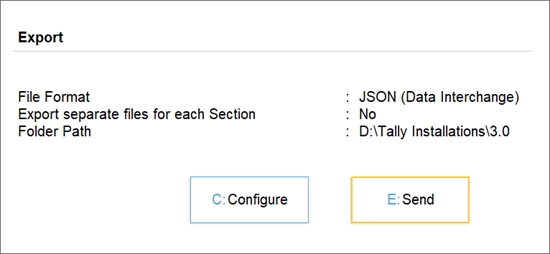
You can create individual JSON files for each section of GSTR-1 by enabling the Export separate files for each Section option in the Export screen.
Some of the vouchers may be listed under the Uncertain Transactions section of GTSR-1. You can drill down from the respective section and resolve the uncertain transactions so that they participate in the correct section, and then export.
In case no vouchers or only some vouchers are displayed during export, check the voucher count under the section No Action Required. If any vouchers exist there, then you might have already exported the return.
To re-export GSTR-1 with all the transactions again, enable the option to include transactions in which no action is required.
- Press Alt+E (Export) > GST Returns.
- In the Export GST Returns screen, press Ctrl+B (Basis of Values).
- Set the option Include transactions where no action is required to Yes.

If you have enabled e-Invoicing, you will get the option Include transactions where no action is required (excluding invoices with IRN information). - Press X (Export) to export the JSON file.
All transactions in GSTR-1 will be exported.
You cannot export the Document Summary from the GSTR-1 because it might lead to a mismatch in the count.
For example, if a user has multiple registrations and uses the same voucher numbering for both, the counts might not match up correctly due to the automatic numbering feature.
The user-defined name entered for the ledger in TallyPrime, may or may not be the same as the trading name registered with GSTN. Also, the registered Trading Name gets auto populated under Receiver Name in the GST portal. Hence, the Receiver Name will be blank in the GSTR-1 file exported from TallyPrime.


