
Reset GSTN Data in TallyPrime
For TallyPrime 3.0 & later
In case you had imported GST Returns data into TallyPrime to reconcile the portal data with your return data, you might need to remove them, especially if:
- You have already reconciled the data and no longer need the imported data.
- The imported data is corrupted and cannot be used.
- You have imported an incorrect JSON file.

- Press F1 (Help) > Troubleshooting > Reset GSTN Data.
- Company Name: If you have loaded more than one company, you can select the company for which you want to reset the GSTN Data.
- GST Registration: Based on the selected company, this will get prefilled. However, if you have created multiple registrations for the selected company, you can select the GST Registration.
- Return Type: Select the return type from the list of Return Types including GSTR-1, GSTR-2A, GSTR-2B, GSTR-3B, IMS Inward, or All Returns (Excluding IMS).
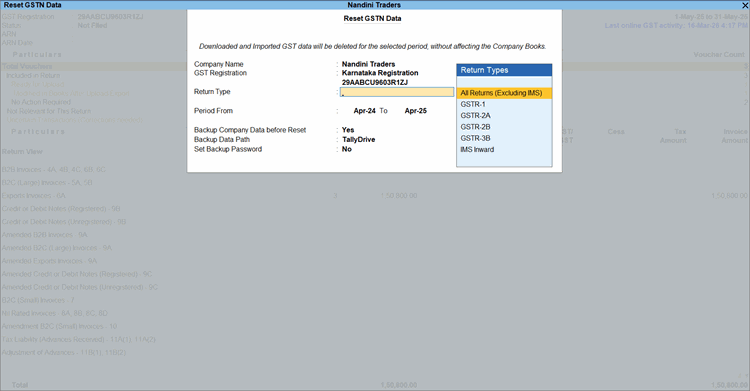
If you select GSTR-1 or All Returns (Excluding IMS), then you can choose to Remove GSTR-1 Filed Summary Data, if needed. - Period: You can update the From date from when you wish to reset the GSTN Data. However, the To date is prefilled and you will not be able to change it.
- The From date is prefilled by default by the latest among the following:
- Books beginning from date of the company
- Financial year beginning date of the company
- GST applicability date (01-Jul-2017) as per Department
- GST applicability date as specified by you for the respective GSTIN
- The To date is prefilled as per the latest date of any stat data available for the vouchers. If no such date is available, TallyPrime will prefill the To date with the Books beginning from date of the company. This field cannot be changed.
- The From date is prefilled by default by the latest among the following:
- Back up Company Data before Reset: It is recommended that you take a backup of the company data before you reset the data.
- Set Backup Company Data before Reset to Yes.
- Provide the Backup Destination Path.
- Press Ctrl+A to save.
A message appears to confirm if you want to reset the data.
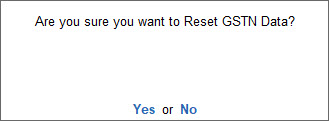
- Press Yes to confirm reset.
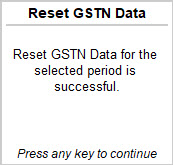
The following information screen appears confirming successful reset of the GSTN Data.
Is this information useful?
YesNo


