
View HSN/SAC Summary in TallyPrime
For TallyPrime 2.1 & Earlier
In the GSTR-1 report of TallyPrime, the HSN Summary – 12 section displays the HSN/SAC-wise details of all outward supplies, along with the taxable value and applicable taxes.
- Press Alt+G (Go To) > GSTR-1 > HSN Summary – 12, and press Enter.
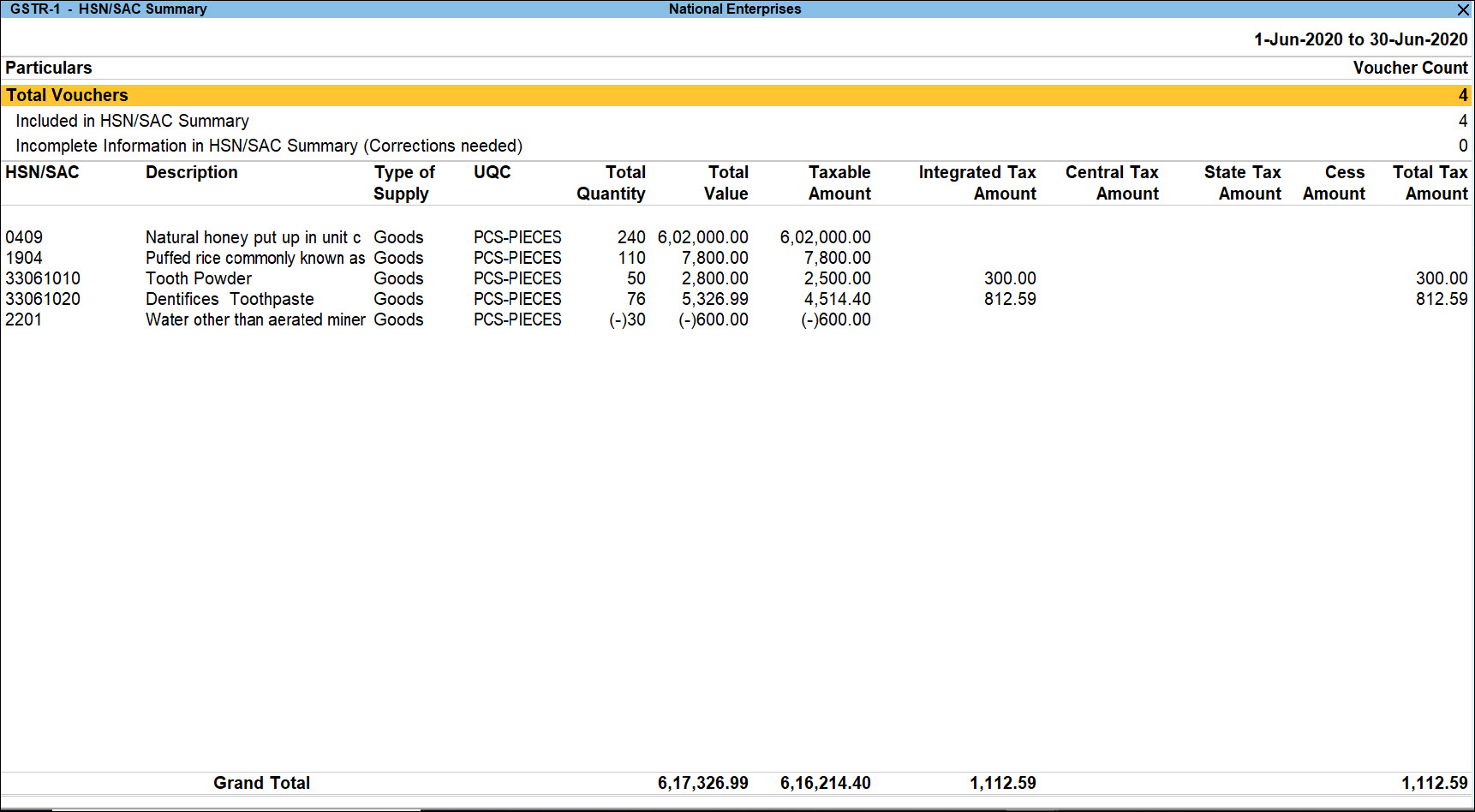
The Total Vouchers section provides an overall count of all the vouchers included in your HSN/SAC summary. Under this section, two subsections display the status of all vouchers, Included in HSN/SAC Summary and Incomplete Information in HSN/SAC Summary (Corrections Needed). You can drill down into each subsection to review the transaction details.
- Press Ctrl+B (Basis of Values) to set your Type of Supply as Goods, or Services, or both, and configure the report accordingly.

- Press Ctrl+H (Change View) and select HSN/SAC, HSN/SAC and Description, or Description from the List of Views sub-screen, as needed.
The view of the report will change based on your requirement and the information you have provided in the Stock Item, Stock Group, or Ledger. - Press F12 (Configure) to sort the report by Description, HSN/SAC, Quantity, Total Taxable Value, or UQC in ascending or descending order.
For any further queries, refer to Online Validation of GSTIN and HSN Using TallyPrime – FAQ and GST – FAQ.
Is this information useful?
YesNo


