
Set Up GST in Your Company
To record GST-compliant invoices, you will first need to enable GST for your Company and set up the required GST details. Some of the details must be set up at the company level, whereas details such as GST Rate and HSN/SAC can be configured in different masters depending on your business practices.

Ensure that:
- You have created your company with necessary details in TallyPrime.
- The GSTIN and other registration details are readily available with you.
- For setting up Connected GST, you have:
- GST username
- Filing mode
- For setting up e-Invoice and e-Way Bill, you have the required details – Applicable date, billing location, and so on.
Specify Company GST Registration details
- Open your company in TallyPrime.
- Press F11 (Company Features) > set Enable Goods and Services Tax (GST) to Yes.
Fill in GST Registration Details.
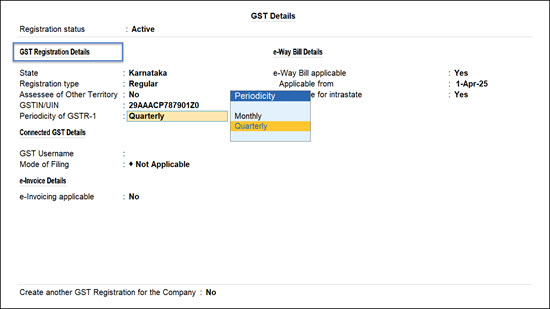
- State: This is auto-filled from your company info. You can change it if needed.
- GSTIN/UIN: Enter your 15-digit GST number.
Entering a wrong GSTIN for customers or suppliers can cause mismatches and rejection during filing. - Registration Type: Choose Regular, Composition, Regular – SEZ
- Assessee of Other Territory: Enable only if your business is in other territory.
- Periodicity of GSTR-1: Choose Monthly or Quarterly based on your turnover.
- Registration Name: In case of multiple registrations (applicable for Rel 3.0 and later):
- TallyPrime auto-generates the name based on the State mentioned in the Company details, for example Karnataka Registration.
- You can rename it (e.g., Bengaluru Branch) for better clarity if you have multiple GST registrations.
Specify Connected GST Details
For TallyPrime 5.0 & later
Ensure that you have enabled API request for your GSTIN/UIN on the GST Portal.
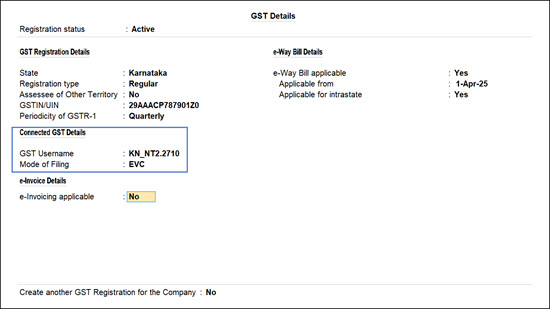
In the GST Details screen, under Connected GST Details
- Specify the GST Username that was registered on the GST portal.
- Specify the Mode of Filing as either Digital Signature Certificate (DSC) or Electronic Verification Code (EVC), as per your business requirements.
- Press Ctrl+A to save.
Now you are all set to experience upload, download, and filing of the returns directly from TallyPrime.
Set Up e-Invoice Details
If your business requires invoices to be sent for e-invoicing:
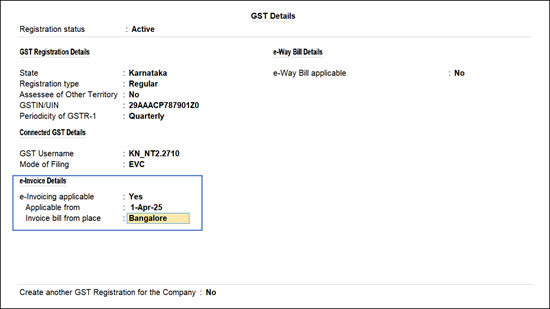
- e-Invoicing applicable: Yes
- Applicable from: Date from which e-invoicing is applicable for your business transactions
- Invoice bill from place: The place of your business from where e-invoice needs to be generated
Set Up e-Way Bill Details
If your business delivers goods from one state to another for which e-Way Bill is needed, as per department mandates:
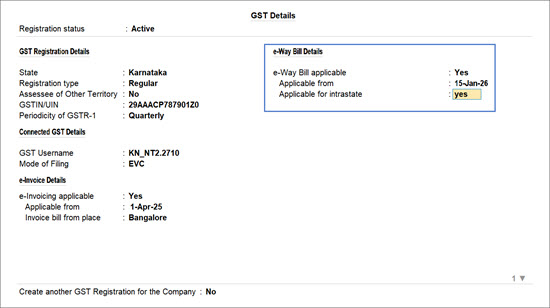
- Under GST Details, set e-Way Bill applicable to Yes.
- Applicable from: Date from which e-Way Bill is applicable for your business transactions.
- Applicable for intrastate: Yes, if e-Way Bill is required for delivering goods within the state.
Configure for Sending e-Way Bill and e-Invoice Details to the Portal
If your business transactions involve both e-Invoice and e-Way Bill transactions, you can configure your Company for sending e-Way Bill details while sending for e-Invoice generation.
- Press F11 (Company Features) > enable Set/Alter Company GST Rate and Other Details.
- Press F12 (Configure) > enable Send e-Way Bill details with e-Invoice in sales transactions.
- Set Send e-Way Bill details with e-Invoice in sales transactions to Yes, and save.
Configure for GST Reconciliation
The following configurations help avoid mismatches when comparing your data with the GST portal:
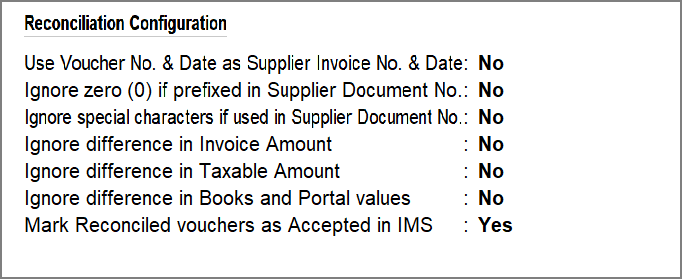
- Use Voucher No. & Date as Supplier Invoice No. & Date: Useful if you do not have or enter supplier invoice details.
- Ignore zero (0) in Supplier Document No.: Helps match invoices even if your supplier uses leading zeroes and you do not enter it.
- Ignore special characters in Document No.: Avoids mismatch due to hyphens or slashes.
- Ignore difference in Taxable Amount: Focuses on tax amount instead of minor value differences.
- Mark Reconciled vouchers as Accepted in IMS: (For TallyPrime 6.1 & later) Automatically marks matched invoices as accepted.
To set up GST Rate and HSN/SAC details, refer to Set Up GST Rate and HSN/SAC Details in TallyPrime.
Set Up LUT/Bond Details for Your Business
If your business deals with export scenarios:
- In the GST Details screen, press F12 (Configure) > enable Provide LUT/Bond details.
- Under LUT/Bond Details section, enable Provide LUT/Bond details.
- In the LUT/Bond Details subform:
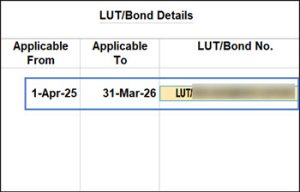
- Specify the Applicable from and Applicable to dates
- Enter the LUT/Bond No. available from the GST portal.
Create Multiple GST Registrations
For TallyPrime 3.0 & later
When you have more than one GST Registrations, in the GST Details screen:
- Set the option Create another GST Registration for the Company to Yes.
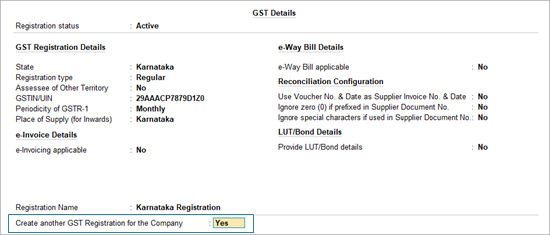
- Set the required GST Details as explained in the previous sections.
Enable Advance Adjustment in Transactions
To view GST advances for adjustment in transactions,
- Press F11 (Company Features) > enable Set/Alter Company GST Rate and Other Details, and press Enter.
- Enable the option Show GST Advances for adjustments in transaction.
- Enter the Applicable from date.
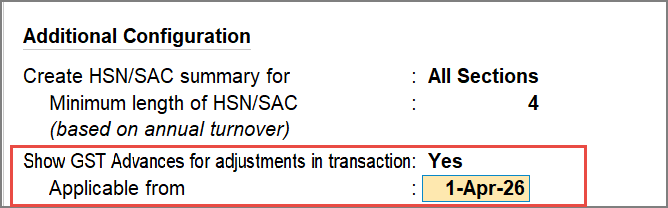
Use a date after the last return period in which you reported GST. This ensures that earlier returns remain unaffected.
Merge Companies with Different GST Registrations
If you maintain separate companies for different GST registrations, you can merge them into a single company using the multi-GST registration feature in TallyPrime. To know more, refer to Merge Companies with Different GSTINs in TallyPrime.
Reconcile Transactions with Difference in Taxable Amount
If the taxable value differs from the portal, you can configure TallyPrime to reconcile transactions based on tax amount only.
- In the GST Details screen, press F12 (Configure) > under Reconciliation Details, enable Ignore difference in Taxable Amount.

The same option will now appear on the GST Details screen, under Reconciliation Configuration. - In the GST Details screen, enable Ignore difference in Taxable Amount > set the Effective Date for the revised GST details.
- In the GSTR-2B Reconciliation report, F12 (Configure) > enable Match transactions by ignoring difference in Books and Portal values and configure the options as required.
- Allow difference in value up to: Enter the amount up to which you want to ignore the difference
- Applicable for: Select whether you want to apply this rule for Taxable & Tax Amounts, Invoice Amount, or Taxable, Tax, & Invoice Amount.
- Ignore the difference when value in Books is: Select whether you want to apply this when value is Greater or Less than Portal Value, Greater than Portal Value, or Lesser than Portal Value.

Once the option is enabled, TallyPrime ignores differences in taxable value between books and portal and reconciles based on tax amount automatically.
Reconcile Transactions with Difference in Round-off Amount
If transactions remain unreconciled due to round-off differences, you can configure TallyPrime to reconcile them automatically.
- In the GST Details screen, press F12 (Configure) > under Reconciliation Details, enable Ignore difference in Books and Portal values.
The same option will now appear on the GST Details screen, under Reconciliation Configuration - In the GST Details screen, enable Ignore difference in Books and Portal values and configure the options as required.
- Allow difference in value up to: Enter the amount up to which you want to ignore the difference.
- Applicable for: Select whether you want to apply this rule for Taxable & Tax Amounts, Invoice Amount, or Taxable, Tax, & Invoice Amount.
- Ignore the difference when value in Books is: Select whether you want to apply this when value is Greater or Less than Portal Value, Greater than Portal Value, or Lesser than Portal Value.
- Enter the Effective Date for the revised GST details.
- Press Ctrl+A to save the configuration.
Once the option is enabled, TallyPrime ignores differences in round-off values between books and the portal and reconciles transactions automatically.
Reconcile Purchases with TDS or TCS Amount
If TDS or TCS has been applied in a purchase, the invoice amount in your books may differ from the portal. You can configure TallyPrime to ignore this difference.
- In the GST Details screen, press F12 (Configure) > under Reconciliation Details, enable Ignore difference in Invoice Amount.
The same option will now appear on the GST Details, under Reconciliation Configuration. - In the GST Details screen, enable Ignore difference in Invoice Amount.
- Press Ctrl+A to save the configuration.
Once the option is enabled, TallyPrime ignores differences in taxable value between books and the portal and reconciles based on tax amount automatically.


