
Create Sales Invoice with Foreign Currency and Print It in TallyPrime
If you sell goods or services to a customer outside India and they require an invoice in their local currency, create the sales invoice with foreign currency in TallyPrime.
If both Last Voucher Rate and Specified Rate exist, TallyPrime uses the Last Voucher Rate.
National Handicrafts exports woven carpets and transactions are in USD.
Before you begin | Prerequisites
- Before you create sales invoice with foreign currency, create the currency you use for your business and identify its exchange rate.
Create a Sales Voucher with Foreign Currency
- Press Alt+G (Go To) > Create Voucher > press F8 for Sales.
- Provide the required details.
- After entering item details, enter the Rate of the item in the foreign currency by adding the currency symbol along with the rate.
If you have already created the Rate of Exchange, the Forex Rate of Exchange screen appears.- Enter the latest Rate of Exchange.

- Press Ctrl+A to save the Forex Rate of Exchange screen.
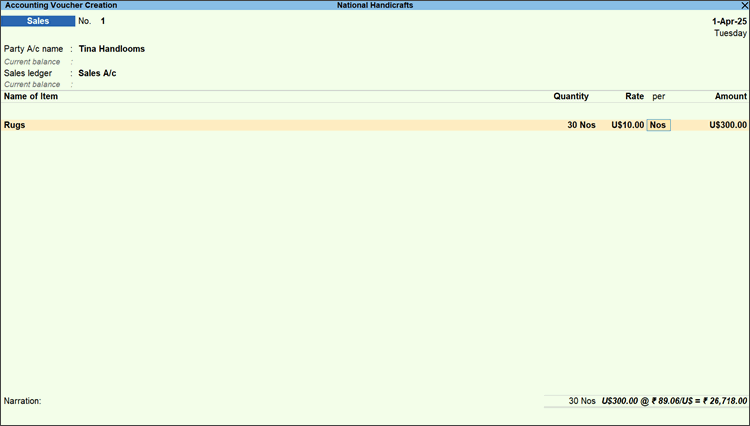
- Enter the latest Rate of Exchange.
- Provide other details, as needed, and press Ctrl+A to save the sales invoice.
Print a Sales Invoice with Foreign Currency
- Open the sales voucher.
- Press Ctrl+P (Print) and press Enter on Current.
- Configure the print to include foreign currency.
- Press F12 (Configure) or press C.
- In the Print Configuration screen, locate Show Base & Foreign Currency for Total press Enter to enable it.
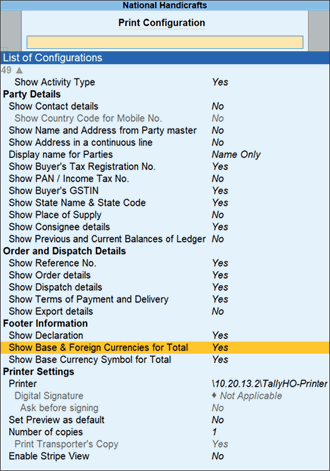
- Press Ctrl+A to save the setting.
- Press I (Preview) to check the invoice before printing, if needed.
- Press P (Print) to print. The print preview of the sales invoice appears.
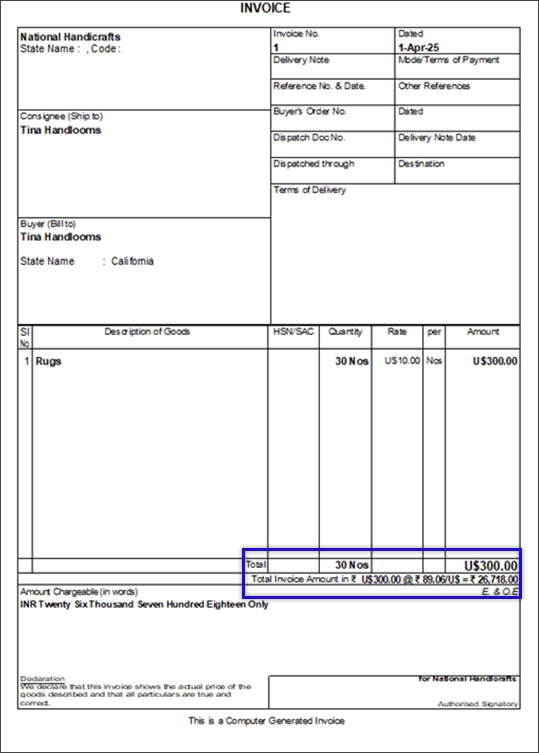
The Total Invoice Amount appears in both the base currency and the foreign currency.
Questions & Answers
- I am getting an error Must use currency ‘$’ for ledger ‘Sales’ when passing a transaction with remote connection. Why does this happen?
If the Formal Name defined in a ledger while passing a transaction is not the same as defined in the company selected, such an error message will appear. Make sure that the currency names match.
Is this information useful?
YesNo


