
Approve User Access to Bharat Connect for Business on the Portal
As an admin, you can create a user and user access to Bharat Connect for business on the portal. If a user already exists and has requested access, you can review and approve the request directly from the portal.

- Admin approval requests raised in the portal.
- Ensure that Internet connectivity is available for accessing the portal.
Create User with Access to Bharat Connect for Business
- Log in to the Tally Solutions Customer Portal.
- Click CONTROL CENTRE > User Management > Manage Users.
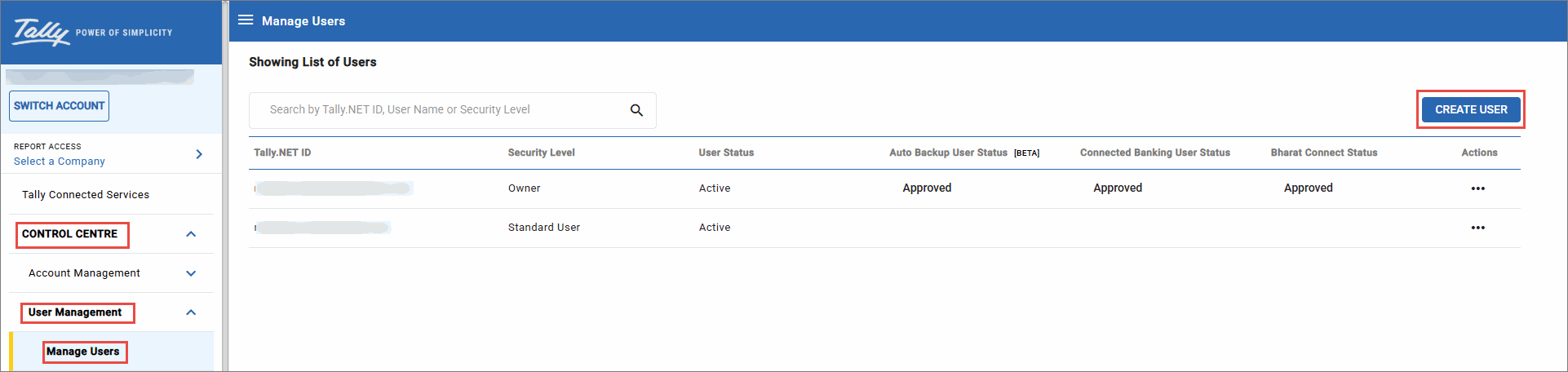
- Click CREATE USER.
- Select the Security Level, for example, Standard User.
- Enter the e-mail address of the user. This will be the Tally.NET ID of the user, and the user will receive a temporary password in the same e-mail address.
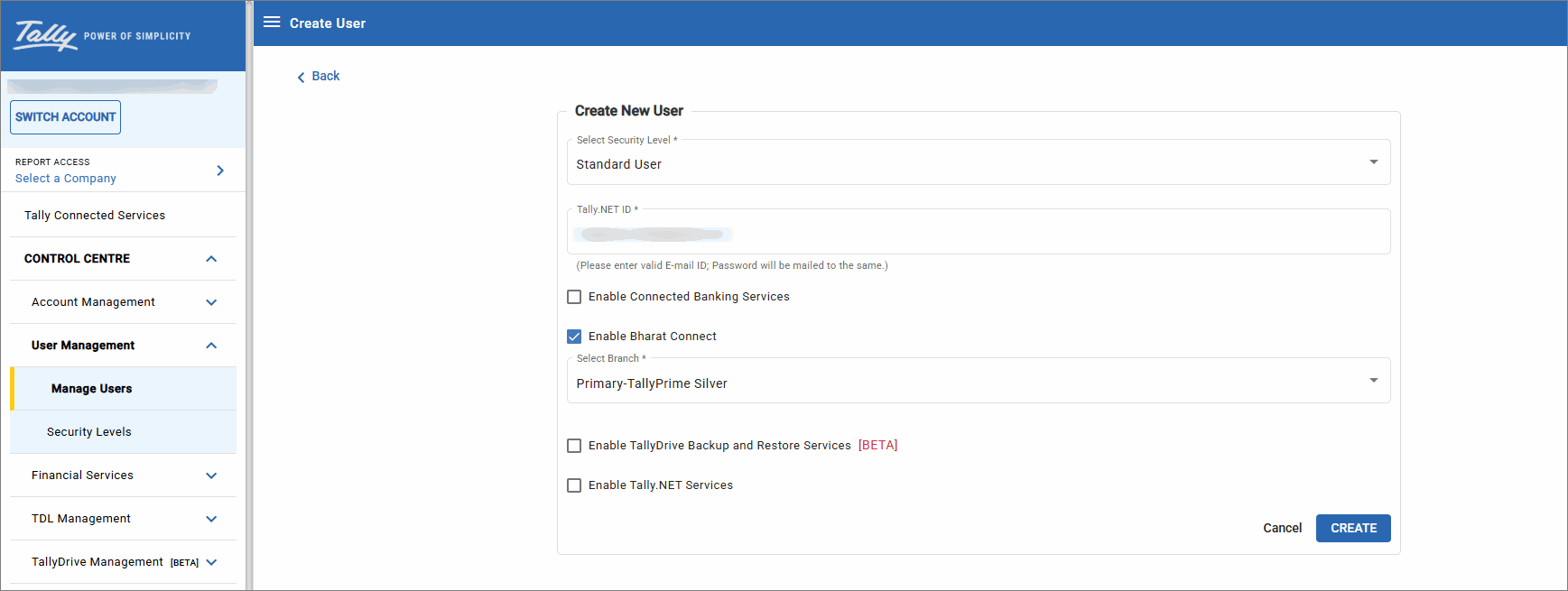
- Select the Enable Bharat Connect box and click CREATE.
- Click OK to confirm.
As a result, the user gets created with Bharat Connect approval.
Approve User Access to Bharat Connect for Business
When a new user requests access in TallyPrime, you can approve the user right in TallyPrime or on the Tally Solutions Customer Portal.
- Log in to the Tally Solutions Customer Portal.
- Click CONTROL CENTRE > User Management > Manage User.
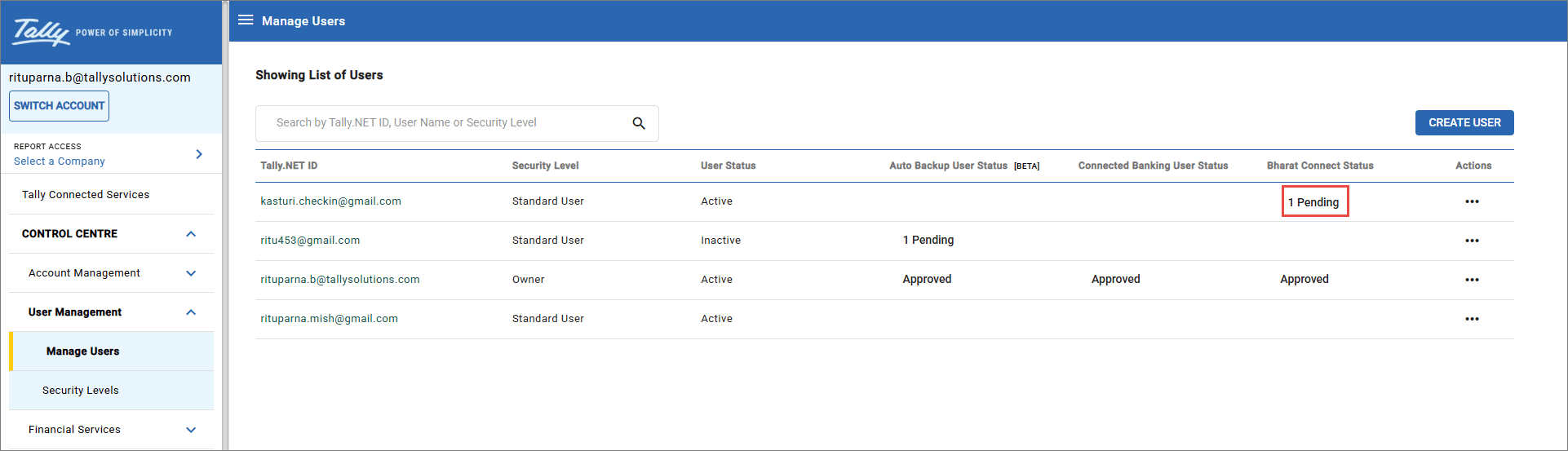
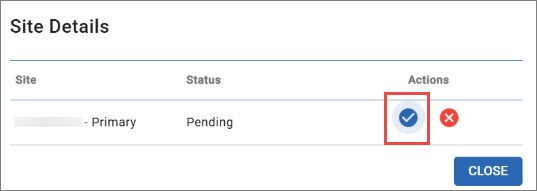
- Under Bharat Connect Status, click 1 Pending on the required user’s row.
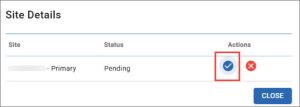
- Click the tick mark icon (✓).
- Click OK.
The user gets approved to use the Bharat Connect for Business in TallyPrime.
Is this information useful?
YesNo


