
Set Up Bharat Connect for Business in TallyPrime
To set up the Bharat Connect for Business plug-in, enable it in TallyPrime using your Tally.NET ID and password. Once enabled, log in to the plug-in to start using its features.
Non-admin users require admin approval to access the plug-in. Their requests are sent to the admin, who can approve them directly within TallyPrime.
Before you begin | Prerequisites
Ensure you have
-
TallyPrime License with Release 6.0
-
Active Tally Software Subscription (TSS)
-
Tally.NET ID – your registered email address
-
Valid 10-digit mobile number linked to your Tally.NET ID (for OTP)
-
Internet connection with a speed of 3–5 Mbps for smooth usage
Enable Bharat Connect for Business on Portal
-
Open the Tally Solutions website.
- Click Customer Hub.
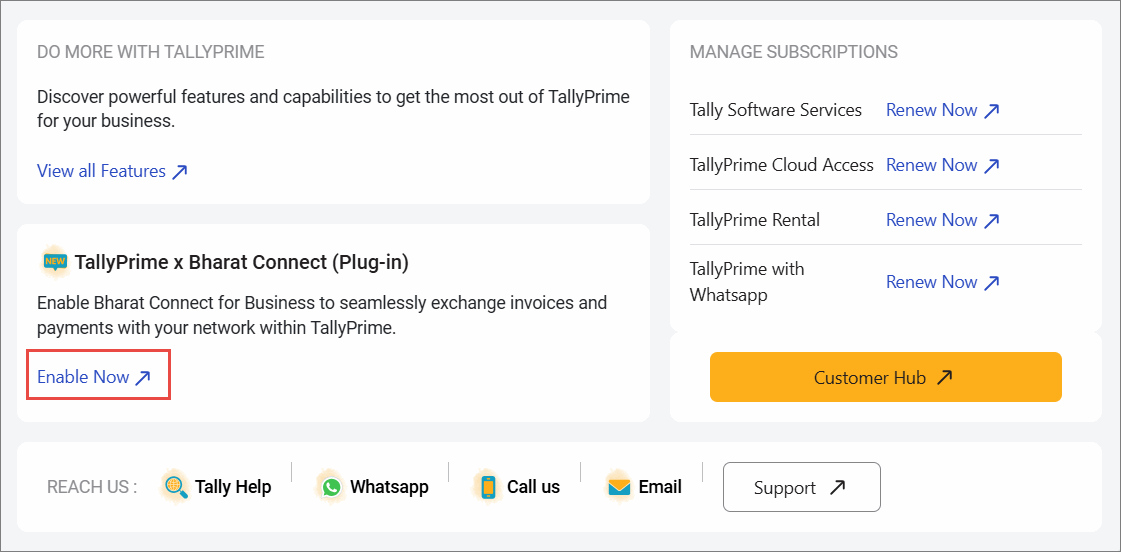
- Under TallyPrime X Bharat Connect (Plug-in) click Enable Now.
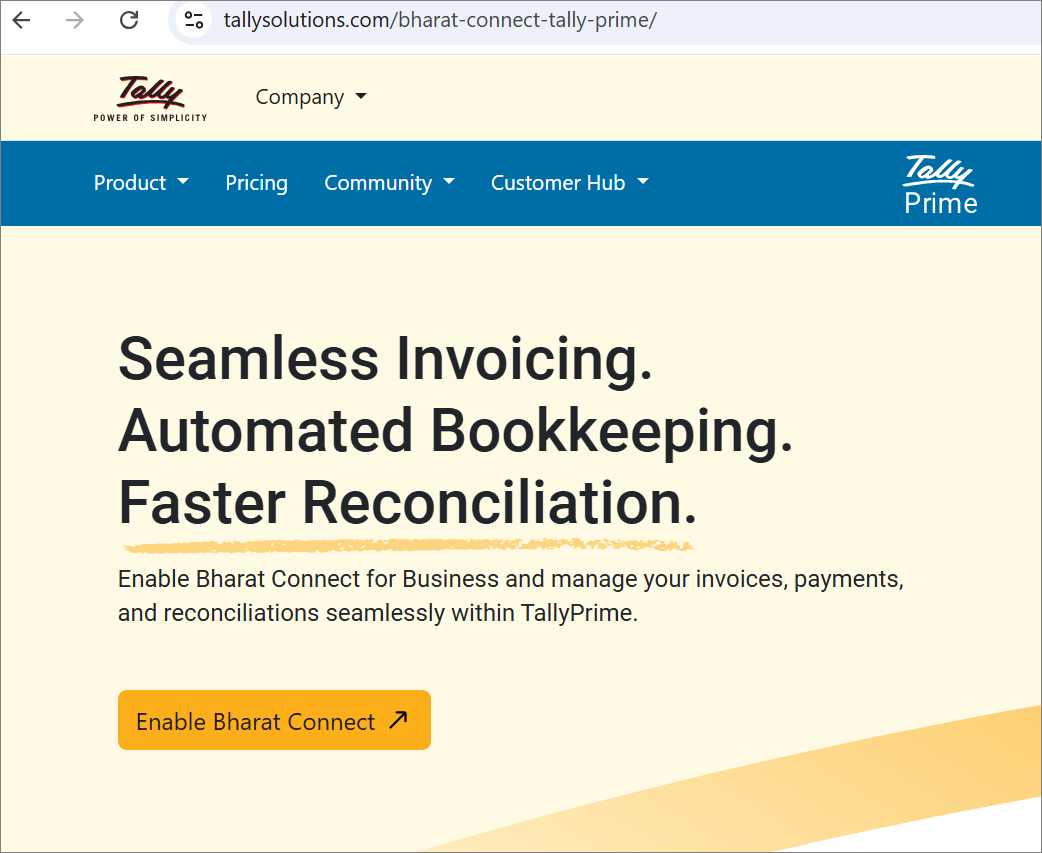
- Click Enable Bharat Connect.
-
Provide the necessary information.
-
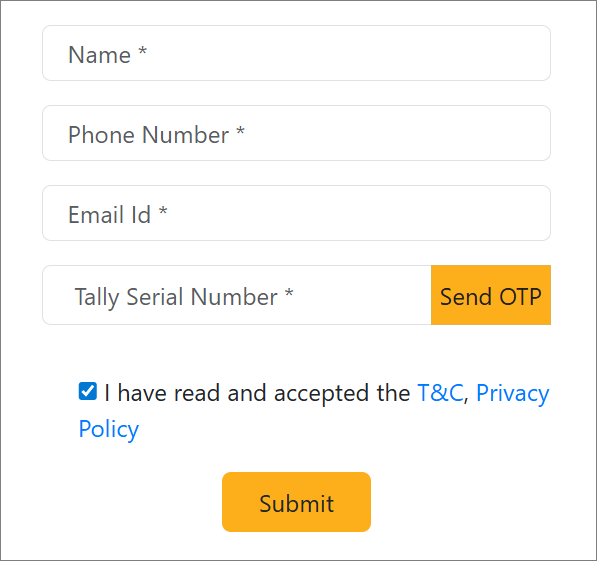
Enter the Name, Phone Number, Email Id, and Tally Serial Number.
-
Enter the OTP sent on the TallyPrime License Administrator’s e-mail address.
-
Click SUBMIT.
The Bharat Connect for Business plug-in gets enabled for the Tally Serial Number.
-
-
To start using the plug-in, open TallyPrime and update your license.
Enable Bharat Connect for Business in TallyPrime
-
Log in to Bharat Connect for Business plug-in with Tally.NET ID.
-
Press Alt+Z (Exchange) > All Bharat Connect Options > Login & Logout.
-
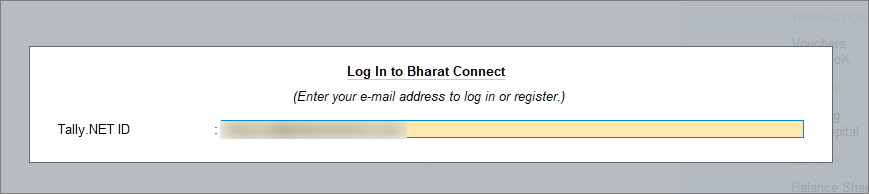
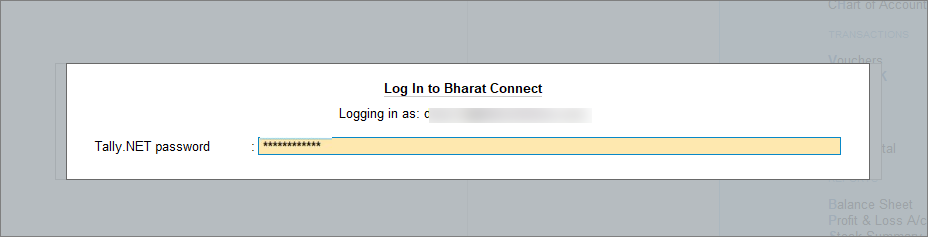
In the Log In to Bharat Connect screen, enter your Tally.NET ID.
- Enter your Tally.NET password.
If your password does not meet the new password policy, then you will need to change the password.
-
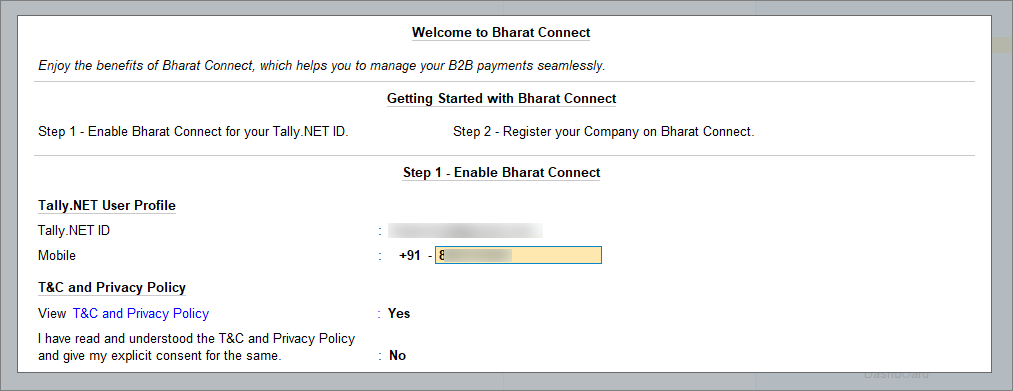
- Enable Bharat Connect for Business.
- Enter the mobile number that you want to link to your Tally.NET ID.
-
View T&C and Privacy Policy: Yes.
You will get redirected to the web page where you can read the T&C and Privacy Policy and then accept it. -
Enter theOTP received on your mobile number.
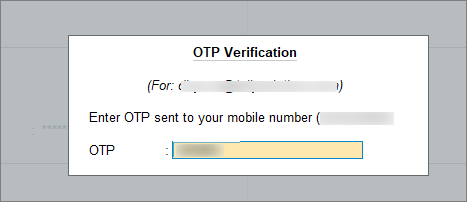
The mobile number gets linked to your Tally.NET ID, and Bharat Connect for Business gets enabled. You will be directed to register your GSTIN.
- Enter the mobile number that you want to link to your Tally.NET ID.
- Register GSTIN on Bharat Connect for Business platform.
Click Manage Registration button to register now, or you can register your GSTIN later.
Now that Bharat Connect for Business is enabled, you can allow non-admin Tally.NET users to access Bharat Connect for Business.
Log in to Bharat Connect for Business
A Bharat Connect for Business session expires after 24 hours. In such a case, you can enter your Tally.NET password and OTP to log in.
-
Press Alt+Z (Exchange) > All Bharat Connect Options > Login & Logout.
-
Enter your Tally.NET ID in the Log In to Bharat Connect screen.
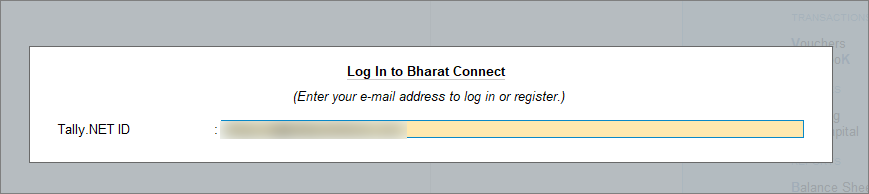
- Enter your Tally.NET password.
- Enter the OTP received on your mobile number.
If you do not receive the OTP, press Alt+R (Resend OTP).
Once you enter the OTP, you get logged in to Bharat Connect for Business.
Admin Approval of User Access for Bharat Connect for Business
In case of multiple users under a license site, as an admin, you need to enable Bharat Connect for Business for the non-admin users. Once you approve the users, they can use the Bharat Connect for Business plug-in.
-
Press Alt+Z (Exchange) > All Bharat Connect Options > Login & Logout.
The Log In to Bharat Connect screen appears. -
Enter your Tally.NET ID.
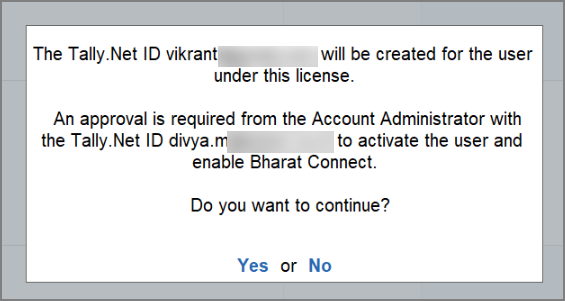
If the Tally.NET ID does not exist, is inactive, or Bharat Connect for Business is not enabled for the user, then a message appears.
-
Press Y to proceed.
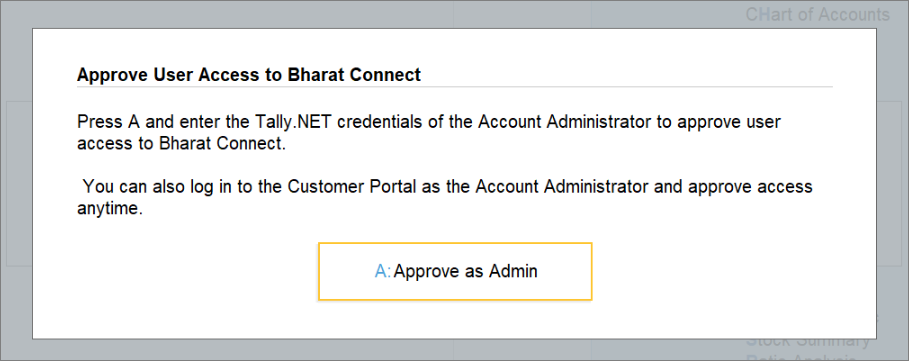
If you have the admin credentials, you can approve the user now. Alternatively, the admin can approve the user access from the customer portal at any time later. An approval request is sent to the registered e-mail address of the admin. -
To approve now, press A (Approve as Admin). If you press Esc, you won’t be able to approve the access from TallyPrime, but you can still approve it from the portal.
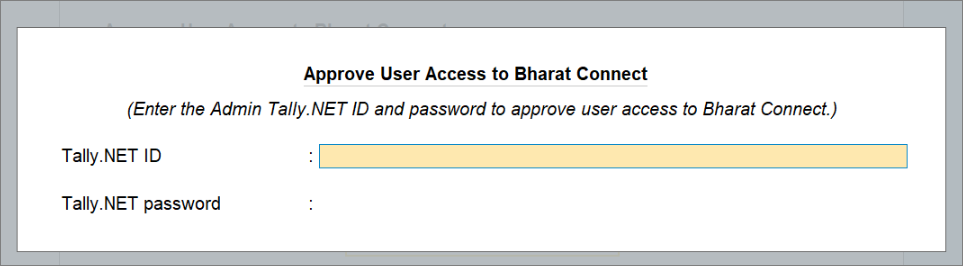
- Enter the Tally.NET ID and Password of the Account Administrator or owner for approval.
Now, you can access the Bharat Connect for Business plug-in.
Log Out from Bharat Connect for Business
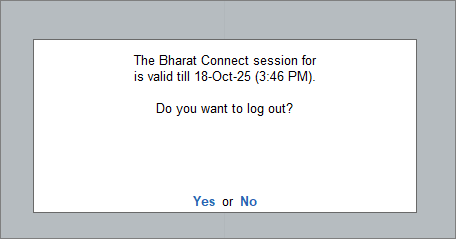
When you are not using Bharat Connect for Business, you can log out.
-
Press Alt+Z (Exchange) > All Bharat Connect Options > Login & Logout.
-
Press Y to log out.
Questions & Answers
- Which mobile number and Tally.NET ID should I use while logging in to Bharat Connect?
It is recommended to use a Tally.NET ID and mobile number that you regularly access. Since Bharat Connect uses 2-factor authentication (OTP verification), having consistent access to both ensures smooth login and helps maintain data privacy and secure access. - Can I use the same Tally.NET ID to access Bharat Connect for multiple companies or licenses?
Yes, you can use the same Tally.NET ID across multiple companies and even different licenses. However, you must be granted user access for each company’s Bharat Connect data before you can use the plug-in for those companies. - Why is Bharat Connect not visible in TallyPrime after enabling it on the website?
After enabling the plug-in on the Tally Solutions website, you need to update your TallyPrime license. Open TallyPrime, go to the licensing section, and refresh/update the license. Once updated, the Bharat Connect options will appear under Alt+Z (Exchange). - Why am I not receiving the OTP on my mobile during login?
Ensure that the mobile number linked to your Tally.NET ID is correct and active, and that you have a stable network connection. If you do not receive the OTP, press Alt+R (Resend OTP). If the issue persists, verify that the mobile number was correctly linked during the initial setup. - How can I check whether I have access to Bharat Connect as a non-admin user?
When you attempt to log in, you will be notified if access has not yet been granted. Your request is automatically forwarded to the administrator for approval. After the administrator approves the request from TallyPrime or the customer portal, you can log in and start using the plug-in. - Do I need to register my GSTIN immediately after enabling the plug-in?
No, GSTIN registration is optional at the initial stage. You can click Manage Registration to register immediately or skip it and complete the registration later when needed.


