
Create Purchase Voucher Under GST RCM
TallyPrime helps you maintain your purchase of RCM goods and services with ease, with auto-calculation of ITC liability. You can see the calculated values in GSTR-3B and GSTR-1.
The topic Purchases with GST in TallyPrime further showcases the business scenarios that TallyPrime handles with ease.
Let us proceed using the sample company, National Electronics, which pays rent for their shop every month. They also avail services from Safe Delivery to transport goods to different places of supply.
Before you begin | Prerequisites
- Make sure you are familiar with creating Purchase vouchers in TallyPrime.
- Ensure that the Stock Items and Service ledgers are configured as Applicable for Reverse Charge.
Create Purchase Voucher for Services with GST RCM

- Press Alt+G (Go To) > Create Voucher > F9 (Purchase), and press Ctrl+H to choose Accounting Invoice.
- Select the RCM service ledger from the List of Ledgers. For example, rent.
You can see the amount of tax subjected to reverse charge in GST – Tax Analysis.
For TallyPrime Release 1.1.3 or earlier: Press Ctrl+I (More Details) > GST – Tax Analysis to view the tax details. Press Alt+F5 (Detailed) to view the reverse charge amount. - Complete the entries, and save the voucher by pressing Ctrl+A.
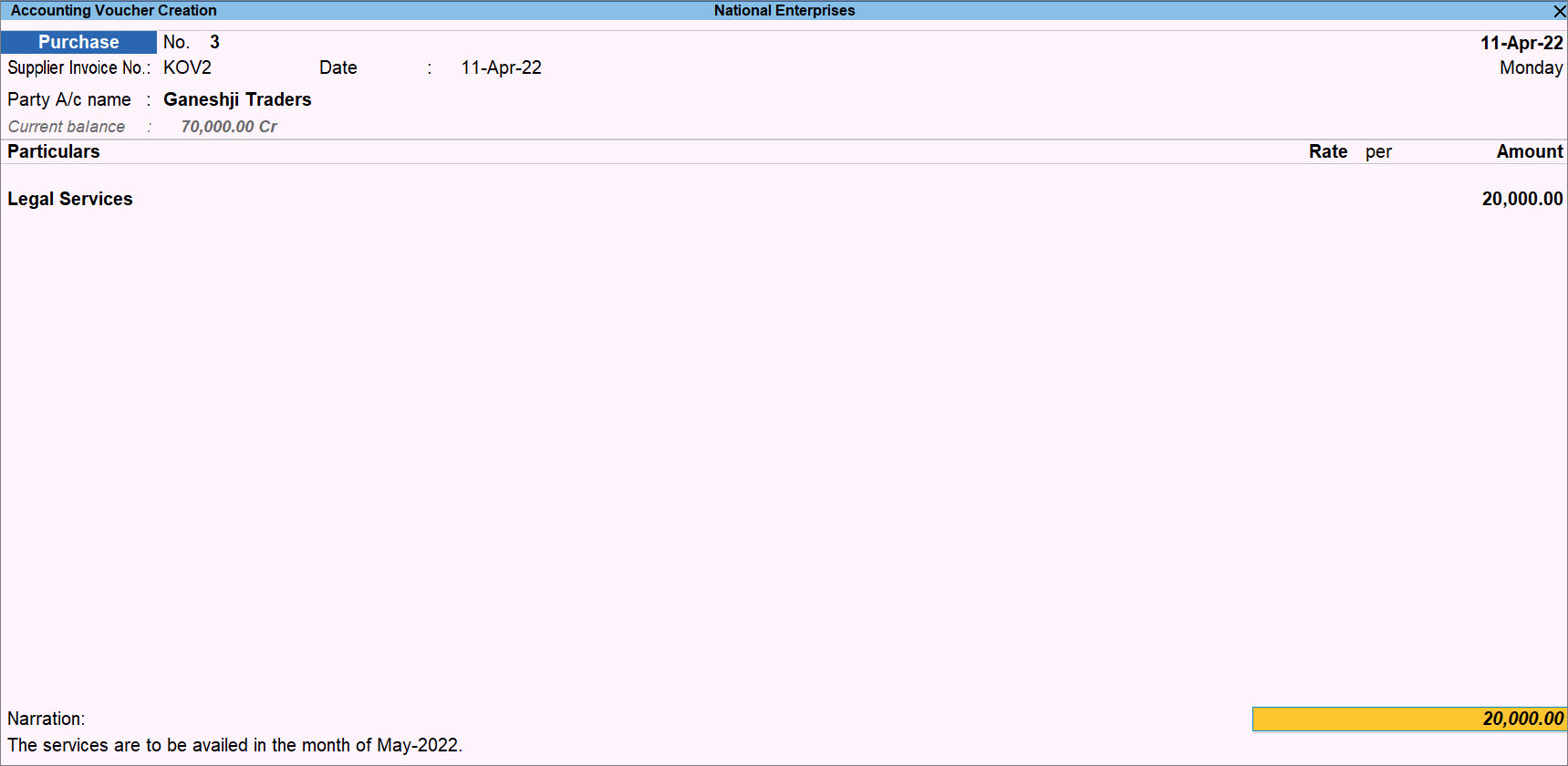
The transaction appears in GSTR-3B under 3.1 Tax on Outward and Reverse Charge Inward Supplies.
Create Purchase Voucher for Goods with GST RCM
- Press Alt+G (Go To) > Create Voucher > F9 (Purchase), and press Ctrl+H to choose Item Invoice.
- Select the RCM Stock Item from the List of Stock Items.
You can see the amount of tax subjected to reverse charge in GST – Tax Analysis.
For TallyPrime Release 1.1.3 or earlier: Press Ctrl+I (More Details) > GST – Tax Analysis to view the tax details. Press Alt+F5 (Detailed) to view the reverse charge amount. - Complete the entries, and save the voucher by pressing Ctrl+A.
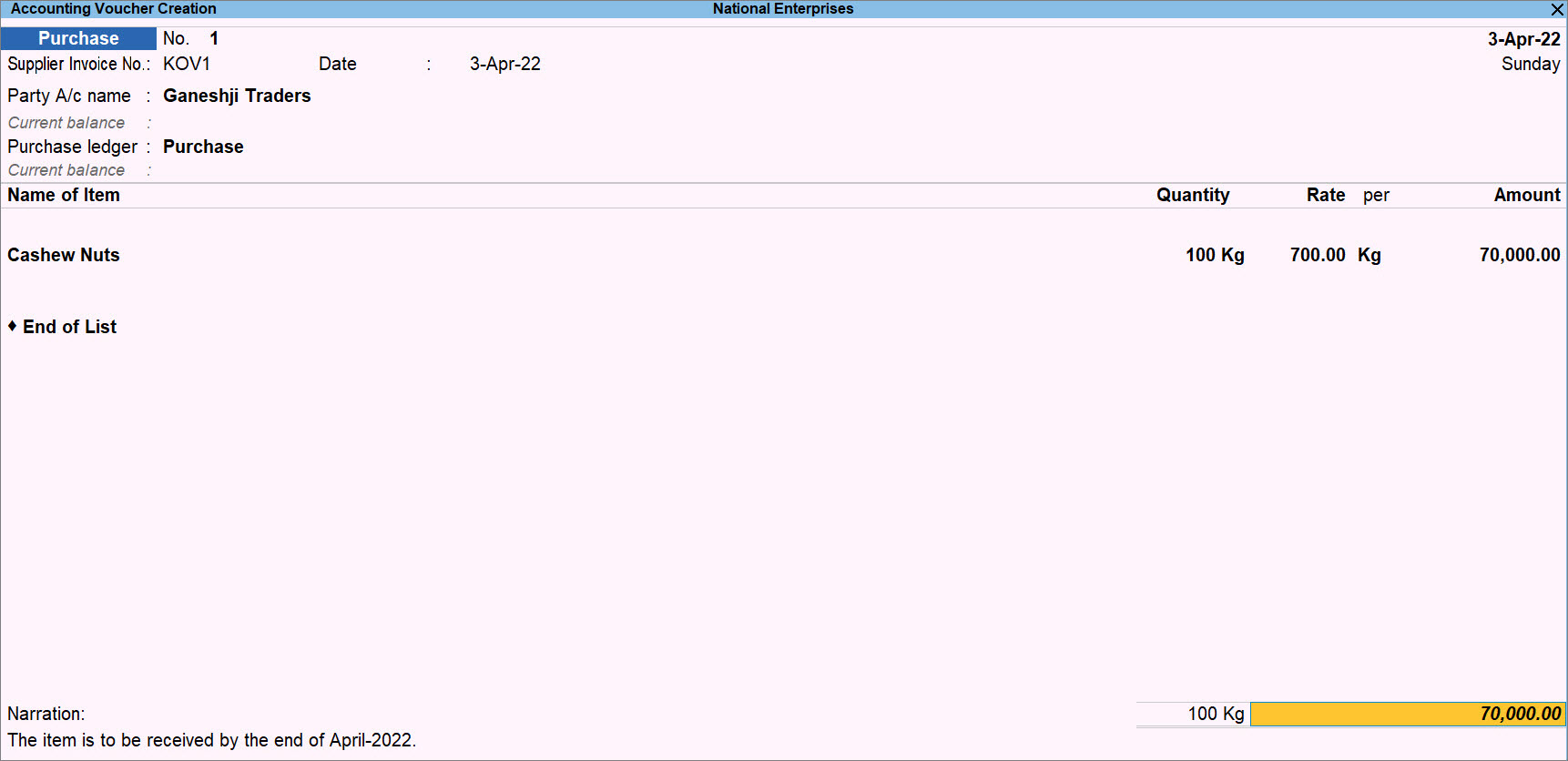
The transaction appears in GSTR-3B under 3.1 Tax on Outward and Reverse Charge Inward Supplies.
Create Purchase Voucher for RCM Supplies from Unregistered Dealers
Purchases from unregistered dealers will be considered as local or interstate, based on the location of the party.
- Press Alt+G (Go To) > Create Voucher > F9 (Purchase), and press Ctrl+H to choose Item Invoice.
- Select the party ledger marked as Unregistered Dealer.
- Complete the entries, and save the voucher by pressing Ctrl+A.
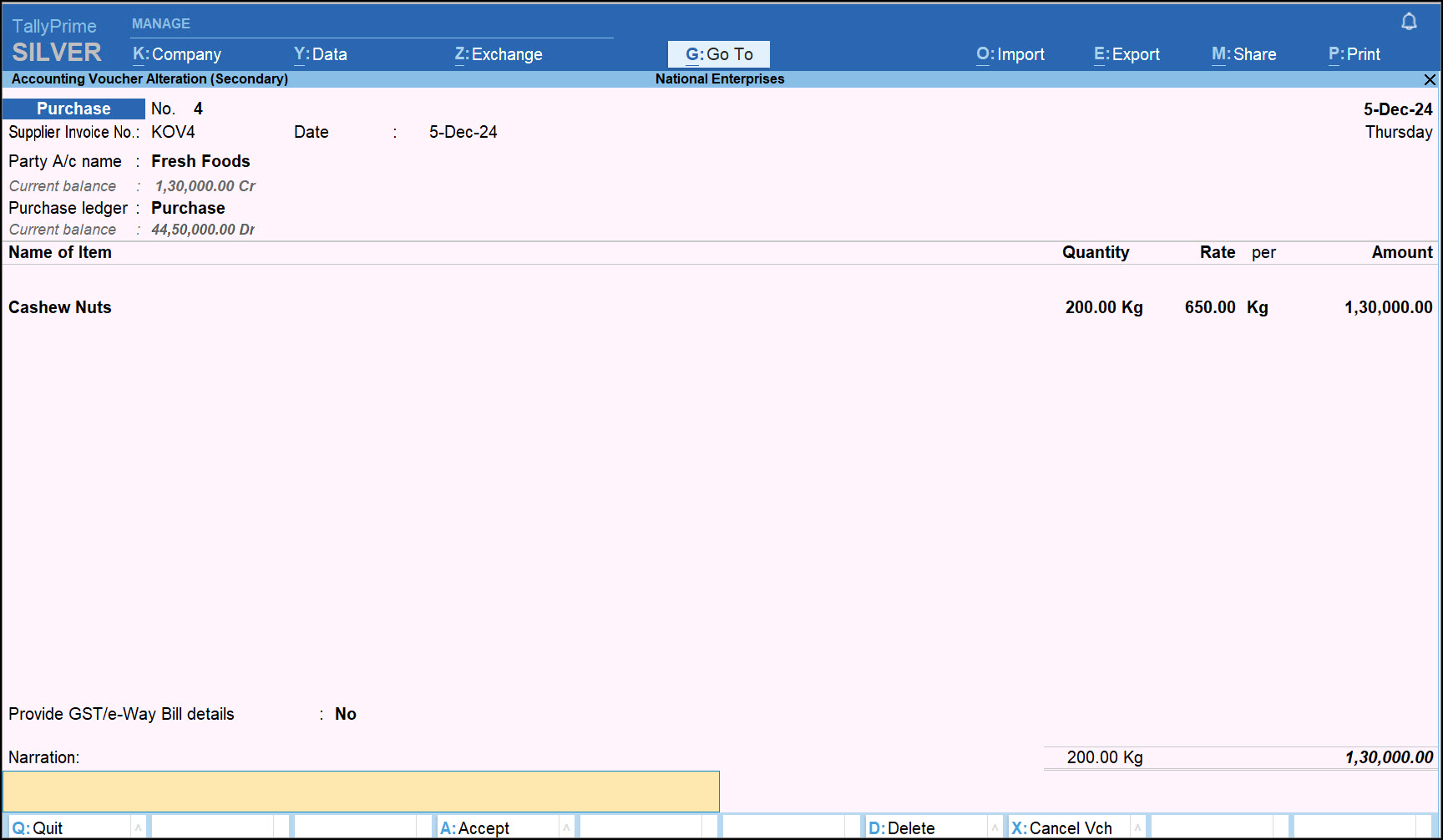
If you are using TallyPrime 3.0 or later versions, the transaction appears in GSTR-1 under Document Summary – 13.
Create Purchase Voucher by Marking RCM Items in the Voucher
If you want a stock item or ledger under RCM only in certain transactions, you can easily do that.
- Press Alt+G (Go To) > Create Voucher > F9 (Purchase), and press Ctrl+H to choose Item Invoice.
- Configure the Purchase voucher to modify GST & HSN/SAC details.
- Press F12 (Configure) and enable Modify GST & HSN/SAC related details.
- In GST Rate and Related Details, press F12 and enable Set Reverse Charge applicability.
- Update GST details, as required, and enable Applicable for Reverse Charge.
- Complete the entries, and save the voucher by pressing Ctrl+A.
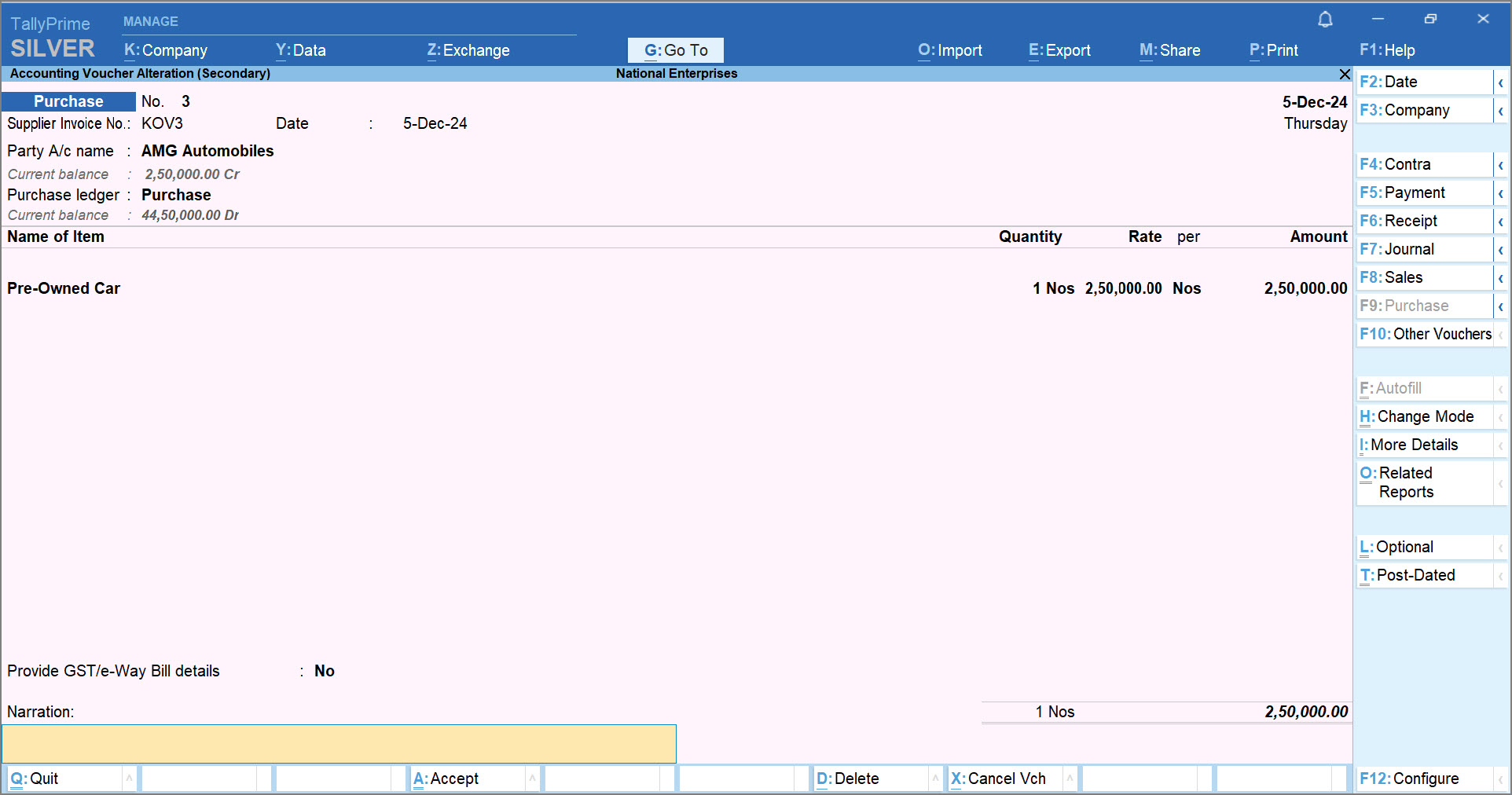
If you are using TallyPrime 3.0 or later versions, like any other RCM purchase from a registered dealer, the transaction appears in GSTR-3B under 3.1 Tax on Outward and Reverse Charge Inward Supplies.
Stat Adjustment for Recording Reverse Charge Payment
Using a single payment voucher, you can record reverse charge payments made over a period of time, say, a month.
- Press Alt+G (Go to) > Create Voucher, and press F5 (Payment).
- Press Alt+J to update the Stat Adjustment Details:
- Type of duty/tax: GST
- Nature of Adjustment: Decrease in Tax Liability
- Additional Nature of Adjustment: Purchase Under Reverse Charge from Registered Dealer
If the purchase was from an unregistered dealer, then select Purchase Under Reverse Charge from Unregistered Dealer.
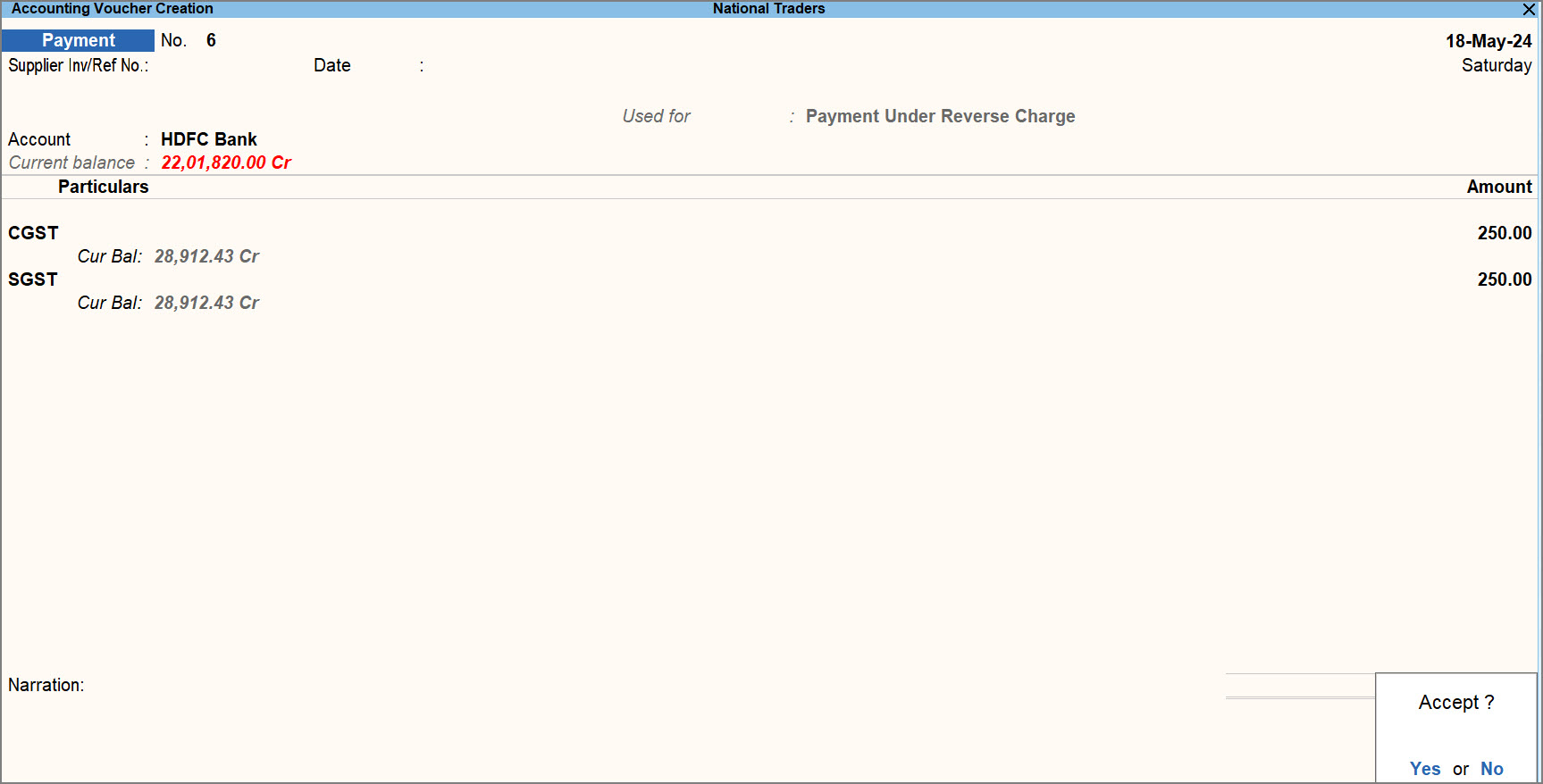
- Under Account, select the cash or bank account from the List of Ledger Accounts.
- Under Particulars, select the tax ledgers and specify the Credit amount applicable on the stock item.
- Complete the entries, and save the voucher by pressing Ctrl+A.
The Increase in tax liability and ITC will appear in GSTR-3B.
Raise Tax Liability and Claim Input Tax Credit
If your business follows a practice of manually calculating the tax liability against the purchase of goods or services under reverse charge mechanism, then you can record a journal voucher to raise the tax liability and avail ITC.
You may utilize ITC in the same month or the subsequent month, as per the practice followed in your business.
To know more, refer to GST Adjustment for Increase in Tax Liability.
- Press Alt+G (Go To) > Create Voucher, and press F7 (Journal).
- Press Alt+J to update the Stat Adjustment Details:
- Type of duty/tax: GST
- Nature of Adjustment: Increase in Tax Liability & Input Tax Credit
- Additional Nature of Adjustment: Purchase Under Reverse Charge from Registered Dealer
If the purchase was from an unregistered dealer, then select Purchase Under Reverse Charge from Unregistered Dealer.
- Under By (Debit), select the tax ledgers, as applicable, and enter the amount that you have calculated.
- Credit the tax ledgers.
- Under To (Credit), select the tax ledgers, as applicable.
- In the screen to calculate tax, enter the Rate and Taxable Value, and press Enter.
The Taxable Value is the total value of RCM purchases for which you want to raise the liability in a particular month.
- Complete the entries, and save the voucher by pressing Ctrl+A.
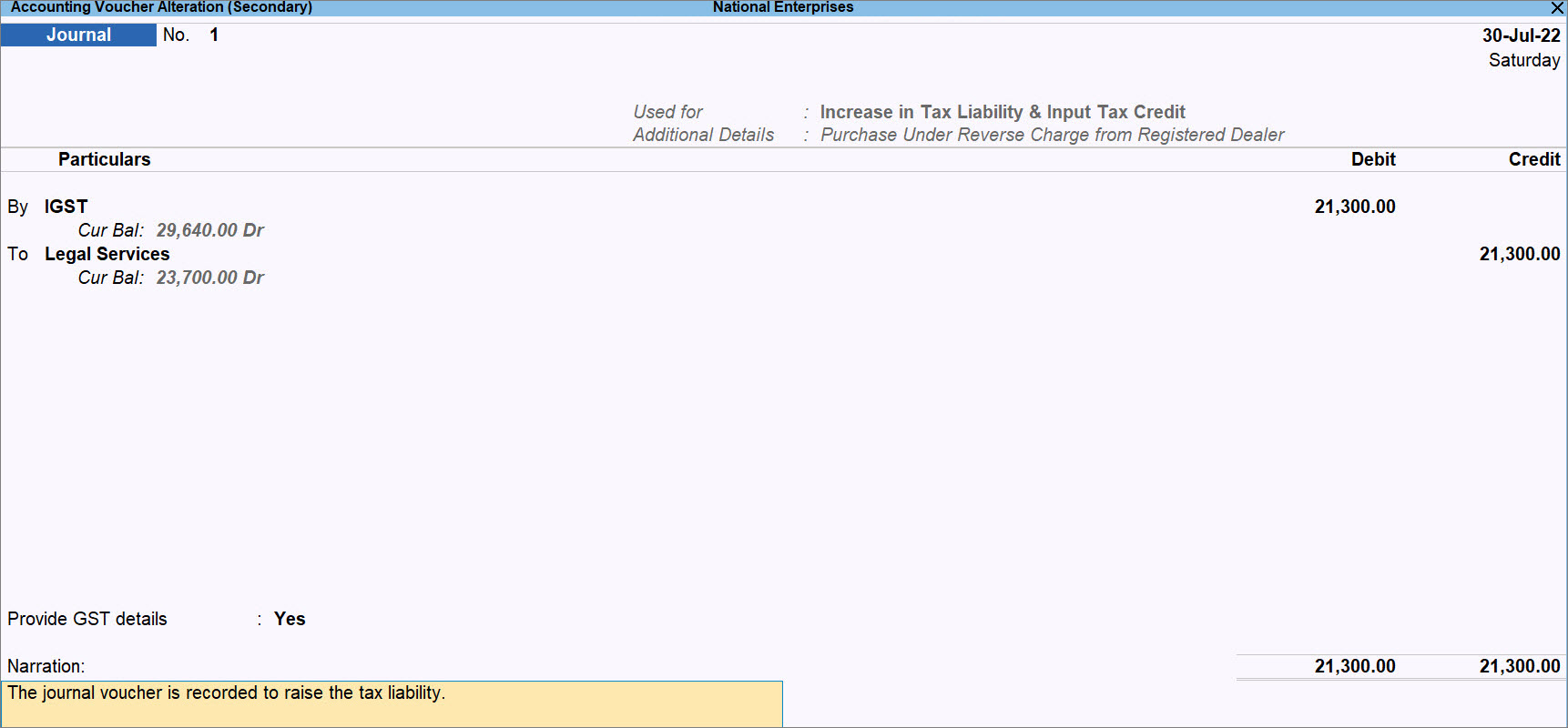
The transaction starts appearing in GSTR-3B as Liability from Inward RCM Supplies from Registered Dealer.
As a result, the sample purchase vouchers against which the tax liability was raised to claim ITC will move to Not Relevant for This Return under GSTR-3B.
To know how to record GST payment to the department for RCM purchases, refer to the GST Payment Entry in TallyPrime topic.
Good to know
- After raising the tax liability, adjust ITC and make tax payments as usual.
- Similarly, address Penalty/Late Fee, as needed.
Q&A
How do I print my Purchase voucher with the statement: Tax subject to reverse tax?
- Press Alt+P (Print) > Current > Configure.
- Set Show GST Analysis to Yes.
Once you enable the option, the amount subject to reverse tax will be visible on the voucher while printing.


