
Create Attendance Vouchers to Record Attendance in TallyPrime (Payroll)
Use the Attendance Voucher to record employee attendance or leave. You can also capture overtime hours worked by employees in the same voucher. Before processing salaries, record a single consolidated voucher for all employees. You can enter the attendance voucher manually for individual employees or use the Autofill option to record attendance for an employee group at once.
Before you begin | Prerequisites
- Enable Payroll
- Ensure that you have created the following:
Create Attendance Voucher Manually for Salaried Employees
- Press Alt+G (Go To) > Create Voucher > F10 (Other Vouchers), and select Attendance.
- In the Attendance Voucher Creation screen, under Employee Name, select the employee whose attendance you want to record.
- Select the Attendance/Production Type (for example, Present or Absent for a salaried employee).
- In the Value field, enter the number of days.
- To record attendance for additional employees in the same voucher, repeat steps 2 to 4.
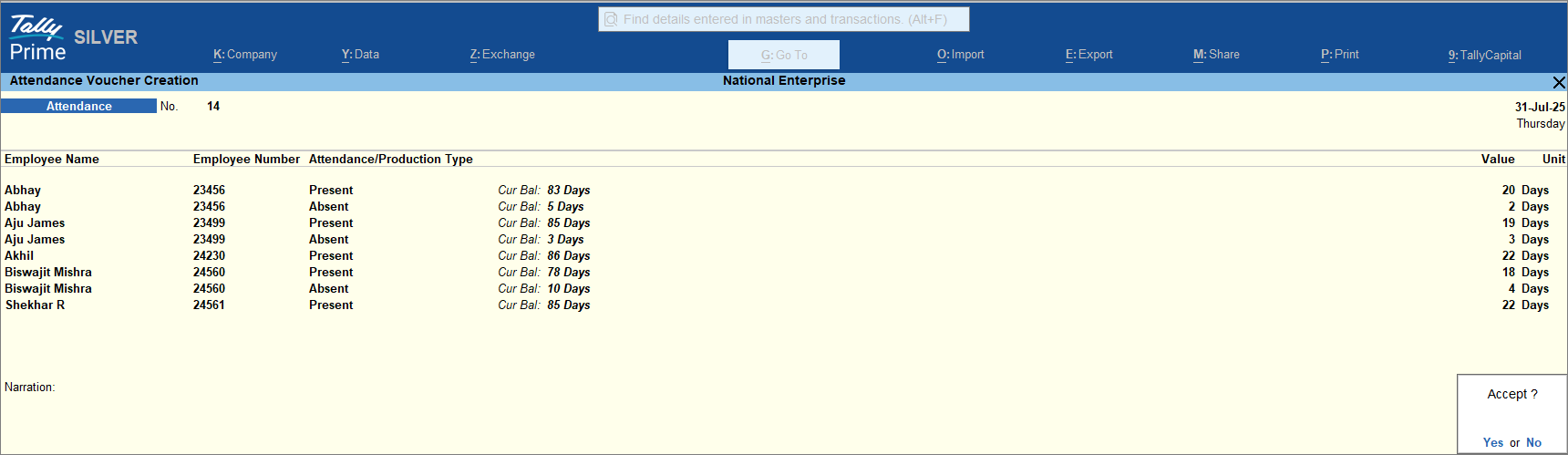
- Enter the narration and press Ctrl+A to save the voucher.
The recorded attendance will be considered while calculating payroll for the employees.
Create Attendance Voucher Using Autofill for Salaried Employees
- Press Alt+G (Go To) > Create Voucher > press F10 (Other Vouchers) > type or select Attendance.
- Press Ctrl+F (Autofill) button.
- In the Autofill screen, enter the transaction details.
Note: The Autofill option is not available in the Attendance Voucher Alteration screen.
- Type of transaction: Select Attendance Autofill from the list.
- Voucher Date: The date defaults to the last entry date, but you can modify it as needed.
- Employee Category: This option is enabled when employees or employee groups are created under a category.
You can create a new category or select an existing one. - Employee/Group: Select the employee or employee group for whom you want to record attendance.
- Provide the Attendance details.
- Attendance/Production Type: Select Present or Absent for a salaried employee.
- Default Value to Fill: Enter the default number of days, which can be modified during voucher entry. For example, 0 days for absent and 22 days for present.
- Sort by: Select the sorting method for displaying employee details in the voucher, such as Employee Name or Employee Number.
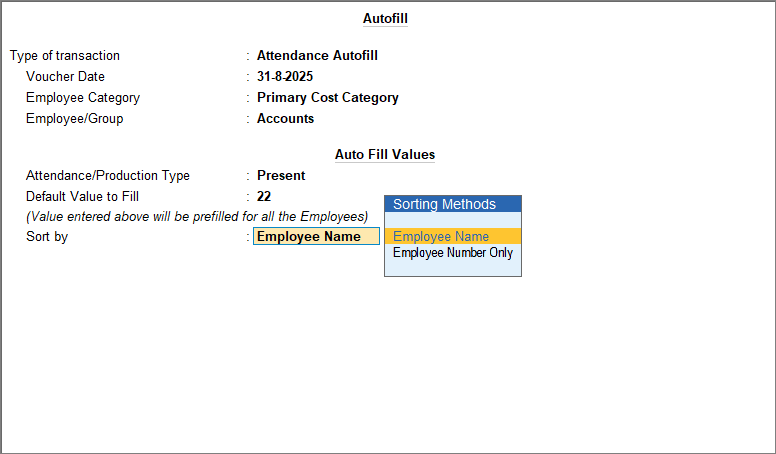
- Press Ctrl+A to save the voucher.
Similarly, for piece-rate workers, you can record the number of units produced and select the corresponding Attendance/Production Type.
Is this information useful?
YesNo


