
GST Not Calculated Automatically in TallyPrime
For TallyPrime 3.0 & Later
Source of GST and HSN/SAC Details
Cause
If GST rate and HSN/SAC details are defined in multiple masters (such as ledger and stock item), TallyPrime may pick the GST rate from a different source than expected. This can lead to a difference in the expected and actual GST amount.
Resolution
- Identify the source of GST rate
- Open the voucher and press Alt+A (GST – Tax Analysis).
- Press Alt+F5 (Detailed).
- Check whether GST rate is picked from the ledger or the stock item.
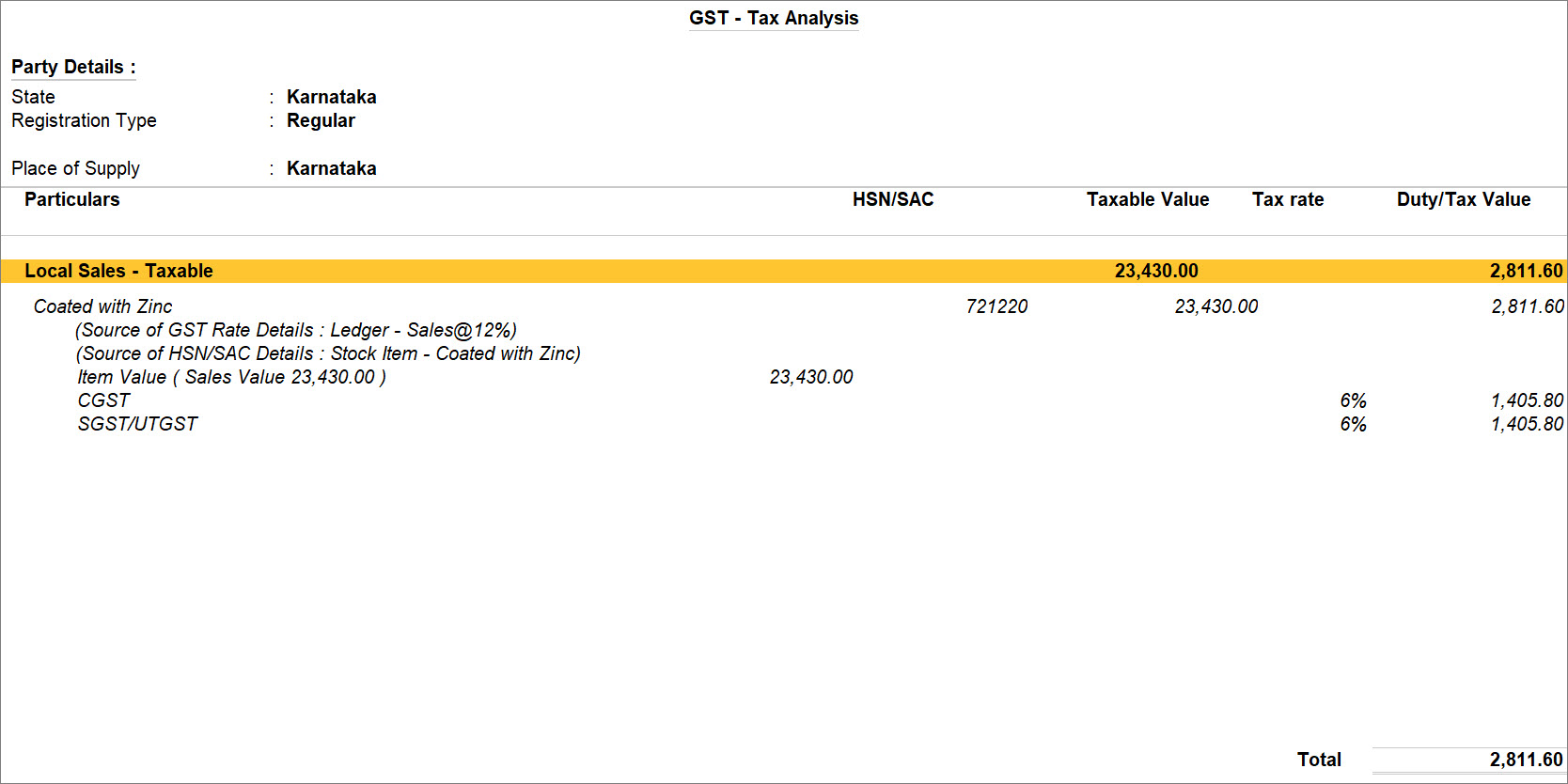
- Update GST details in the required master
- Decide whether GST should be applied from the stock item or the ledger. Refer to HSN/SAC & GST Rate Hierarchy in TallyPrime to learn more.
- If using stock item, ensure the correct GST rate and HSN/SAC details are defined in the stock item, and remove GST details from the ledger.
- If using ledger, ensure the correct GST rate is defined in the ledger, and remove GST details from the stock item.
- Record the transaction again
- Re-record the voucher by selecting the altered stock item and ledger.
This will ensure that GST is calculated based on the correct source.
Incorrect Place of Supply or GST ledger selected
Cause
If Place of Supply and GST ledger do not match, GST will not be calculated correctly. For example, selecting IGST for a local transaction or CGST/SGST for an interstate transaction.
Resolution
- In the Voucher Creation/Alteration screen, press Enter on the Party A/c Name.
- Press Ctrl+A to save the Dispatch Details screen.
The Party Details screen appears. - Enter the correct Place of Supply, and press Ctrl+A to save.
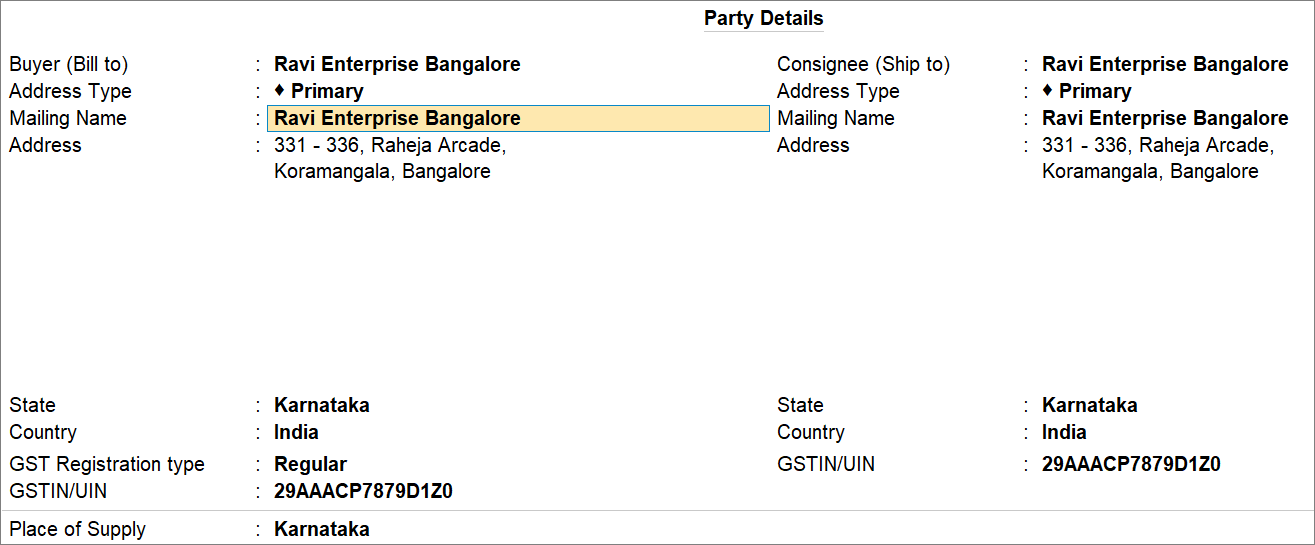
- Select the GST Ledgers.
- Intrastate or Local Place of Supply: Select the SGST and CGST ledgers.
The taxes get calculated. - Interstate Place of Supply: Select the IGST ledger.
The tax gets calculated.
- Intrastate or Local Place of Supply: Select the SGST and CGST ledgers.
- Press Ctrl+A to save the voucher.
Incorrect GST Rate in Taxes and Duties Ledger
Cause
If GST rates are specified in the tax ledger as well as the stock item, it creates a conflict and GST may not be calculated.
Resolution
Use common GST ledgers without specifying tax rates, so that GST is picked from the stock item.
- In the Voucher Creation/Alteration screen, identify the source of GST rates.
- Press Alt+A to view GST-Tax Analysis.
- Press Alt+F5 (Detailed).
You can view GST rates of the respective stock items.
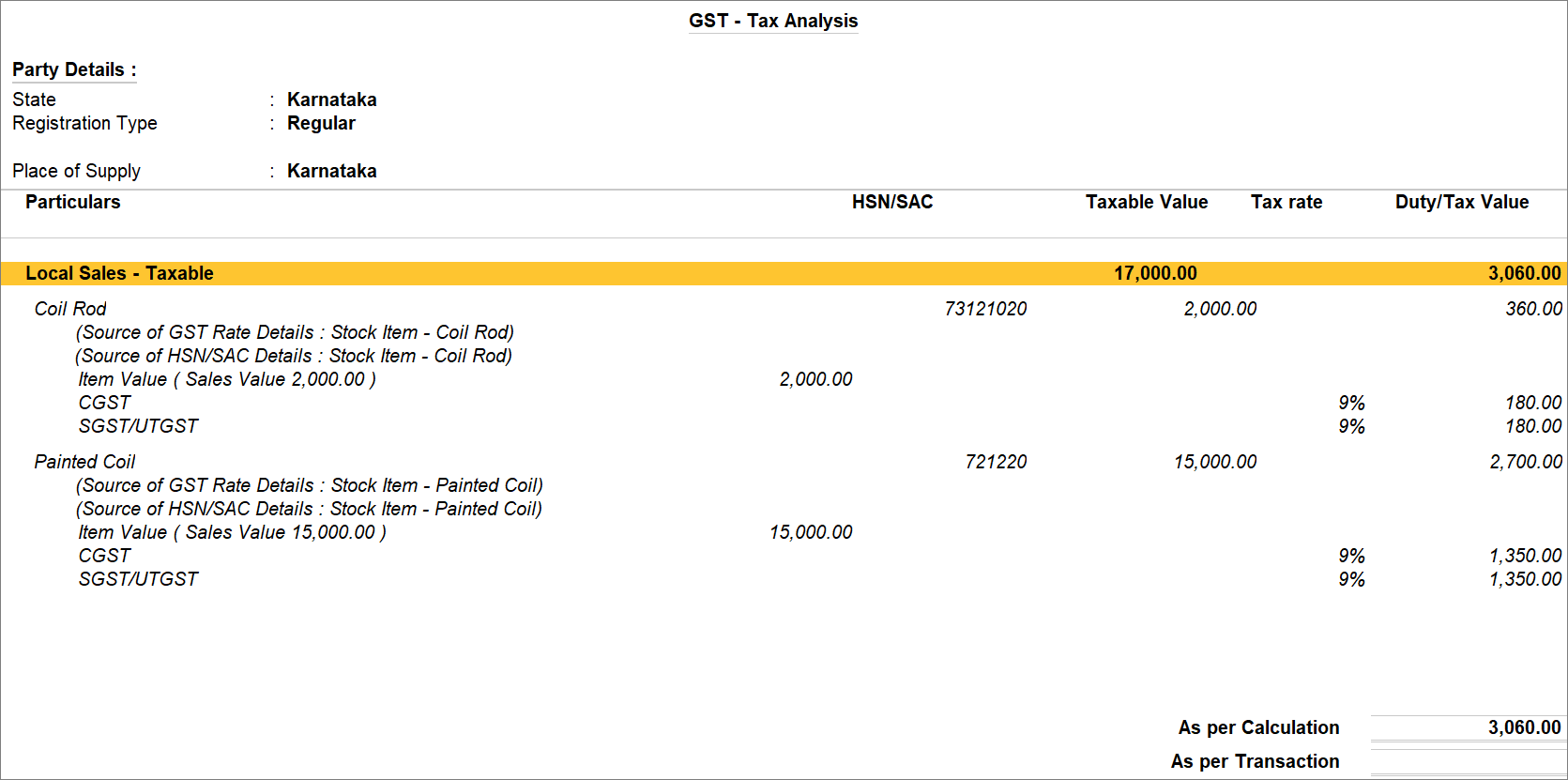
- Press Esc.
- Select GST ledger in which you have not specified the respective GST rates.
- Press Ctrl+A to save the voucher.
Assessee of Other Territory Enabled
Cause
If the party is marked as Assessee of Other Territory, only IGST is applicable. Selecting CGST/SGST will result in no tax calculation.
In such cases, there can be two scenarios – incorrect GST ledger or ledger accidentally configured as assessee of other territory.
Resolution
Incorrect Ledger
Use the correct GST ledger, IGST, during voucher creation, and GST gets calculated.
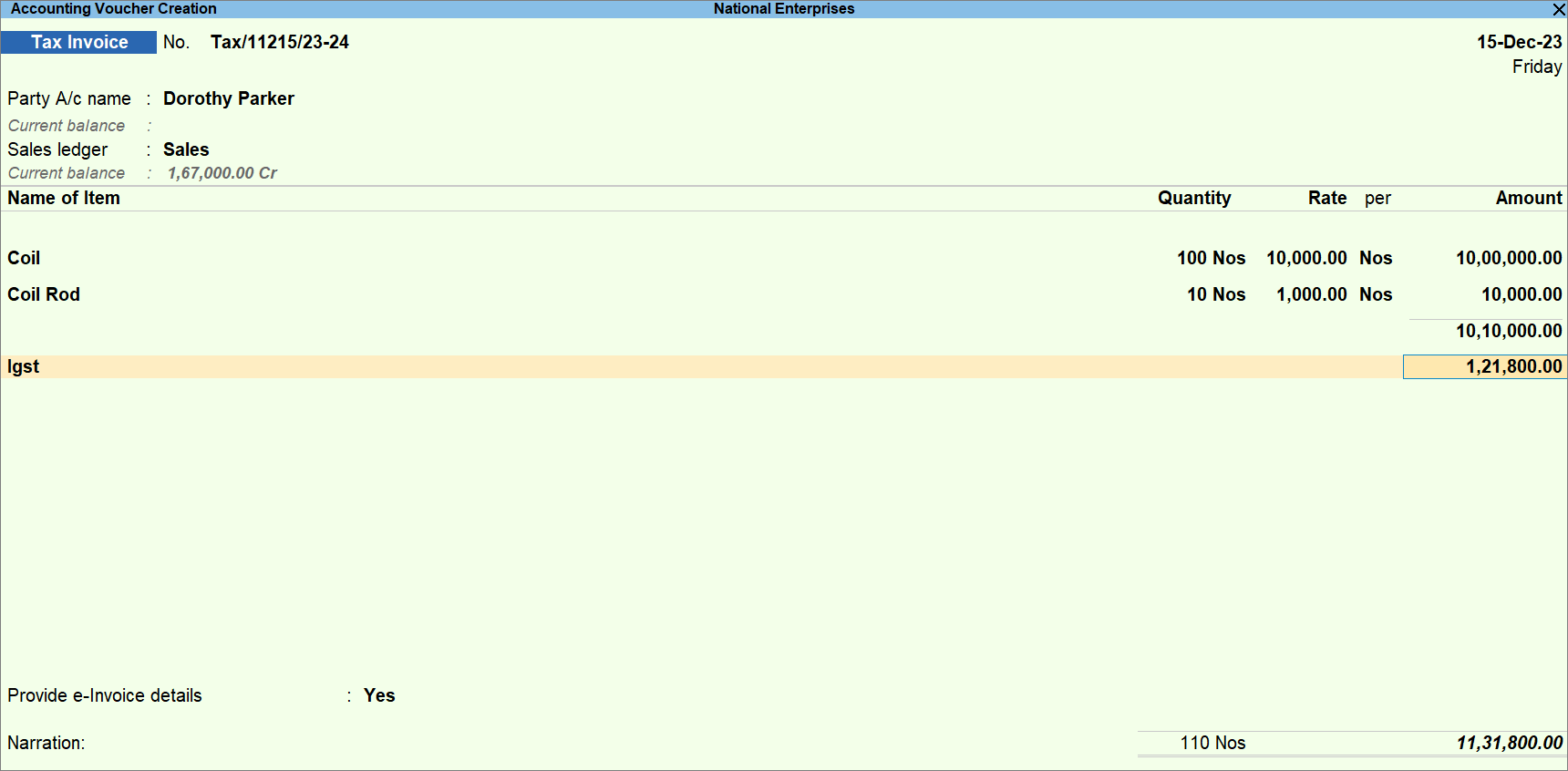
Ledger accidentally configured as Assessee of Other Territory
- Press Alt+G (Go To) > Alter Master > type or select the Ledger, and press Enter.
- Set Assessee of Other Territory as No.
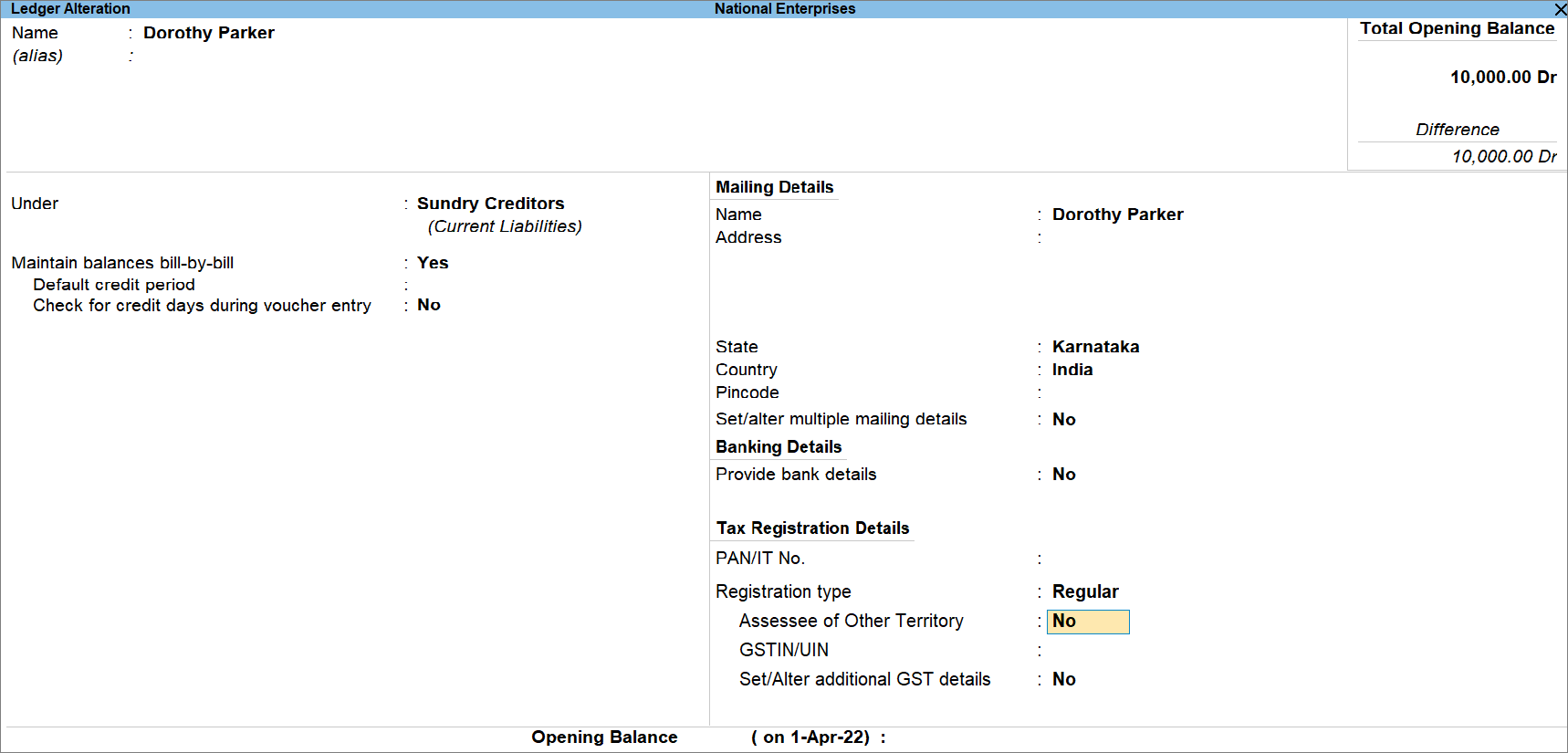
- Press Ctrl+A to save the screen.
Thereafter, you can select the SGST and CGST ledgers in the voucher, and GST will get calculated.
GST ledger created under Indirect Expenses
Cause
If GST ledger is created under Indirect Expenses instead of Duties & Taxes, GST will not be calculated.
Resolution
- Press Alt+G (Go To) > Alter Master > type or select the tax Ledger and press Enter.
- Under: Duties & Taxes.
- Press Ctrl+A to save the ledger.
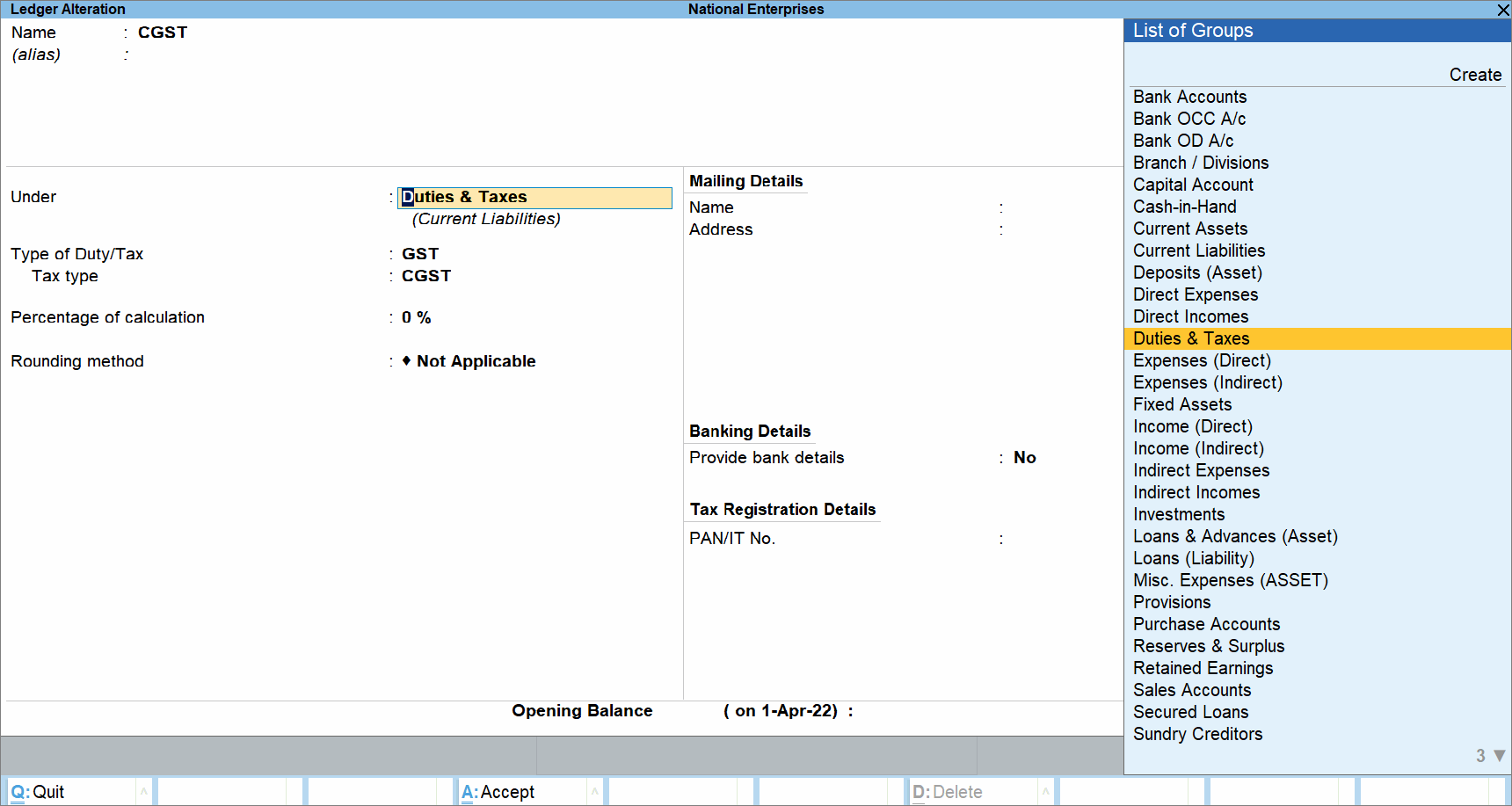
- Re-record the transaction with the altered ledger.
Ledger or Stock Item configured for RCM
Cause
If the ledger or stock item is marked for Reverse Charge, GST will not be calculated in the invoice, as the buyer is liable to pay tax.
Resolution
- Alter the Sales Ledger/Stock Item used in the voucher, and set Applicable for Reverse Charge to No.
- As always, press Ctrl+A to save.
- Reselect the Ledger and Stock Item in the Sales voucher for calculating GST.


