Reasons for Rejection of e-Way Bill and Resolutions
The following are the error descriptions and error codes for e-Way Bill provided by NIC. Error descriptions are self explanatory. Wherever additional explanation is required we have added those under resolutions column.
Error description: Ship to details are mandatory for export transactions to generate EWB.
This error might occur while recording an export transaction for the generation of e-Way Bill along with e-Invoice.
Cause
This error occurs when a foreign party is selected in both the Bill to and Ship to sections of the Party Details or Additional Details screen.
Moreover, in the Ship to section, you may have specified the Pincode as 999999 and the State as Other Territory, or you may have skipped the necessary Ship to details.
Resolution
You can easily fix this error by updating the necessary details in the Party Details or Additional Details screen of the recorded transaction.
Depending on whether you want to generate only e-Way Bill or both e-Invoice and e-Way Bill, you can refer to one of the following procedures.
For both e-Invoice and e-Way Bill
- Open the e-Invoice report.
- Drill down from Information required for e-Invoice not provided under Missing/Invalid Information section.
The e-Invoice – Resolution of Uncertain Transactions screen appears.

- Update the State (Ship To) and Pincode (Ship To).
You can update the Indian state and pincode at the time of recording transaction so that the transaction does not appear under Missing/Invalid Information section.
- Open the Sales Voucher.
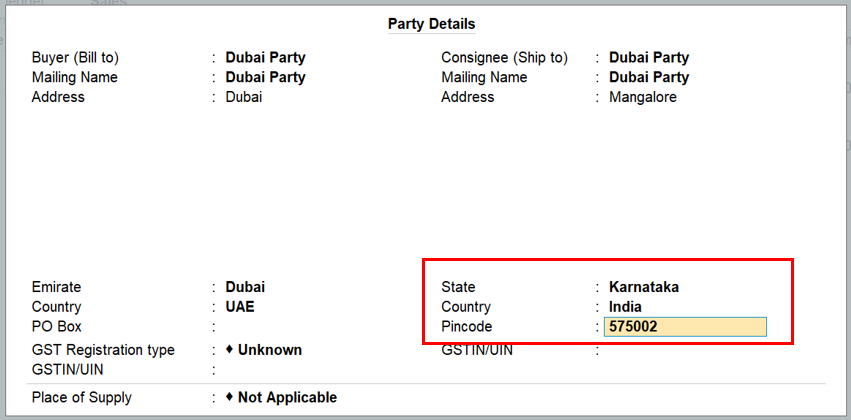
- In the Party Details screen, update the State and pincode under Consignee (Ship to).
- In the Consignee (Ship to) section, specify the Country as India, and then specify the local State and the local Pincode.
For example, if goods are exported from a port in Mangalore, Karnataka, specify the Pincode of Mangalore.
- Press Ctrl+A to accept the details and then save the transaction.
The e-Way Bill will get generated successfully along with e-Invoice.
For only e-Way Bill
- Open the e-Way Bill report.
- Drill down from Information required for e-Way Bill not provided under Missing/Invalid Information section.
The e-Way Bill – Resolution of Uncertain Transactions screen appears.

- Update the Consignee (To) Pincode and Consignee (To) Actual State.
You can update the Indian state and pincode at the time of recording transaction so that the transaction does not appear under Missing/Invalid Information section.
- Open the Sales Voucher.
- In the Party Details screen, update the State and pincode under Consignee (Ship to).
If the Consignee (Ship To) is left blank or is updated with foreign country, then the e-Way Bill sub-form will not be updated.
Or, - Update the Actual State and pincode in the e-Way Bill Sub-form.
- In the Consignee Details (To) section, specify the local state as Actual State, and accordingly, specify the local Place and the local Pincode.
For example, if the goods are exported from Dehradun in the Actual State of Uttarakhand, then specify the Pincode for Dehradun.
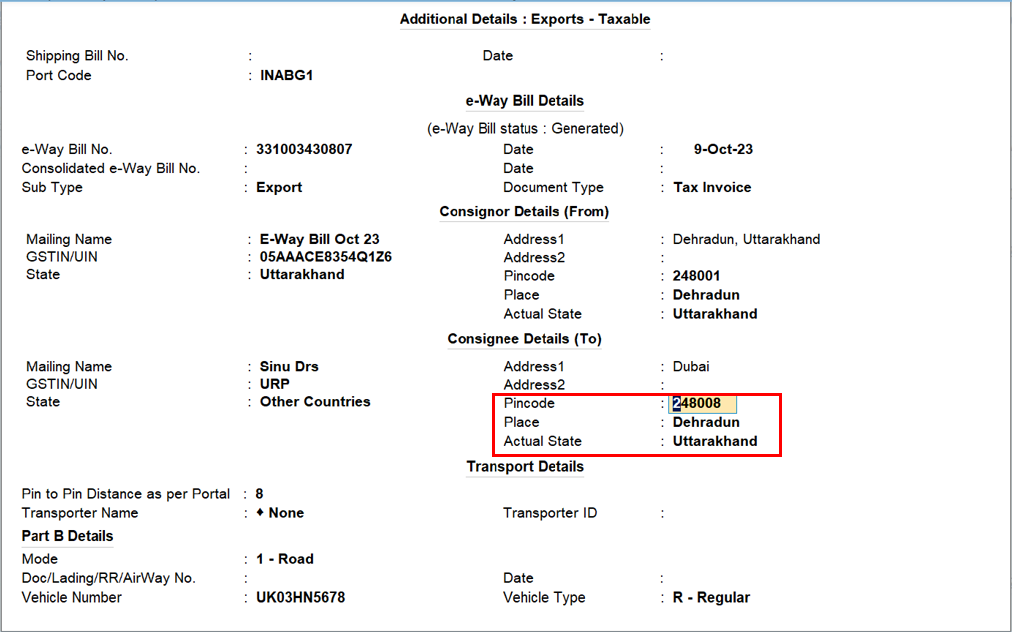
- Press Ctrl+A to accept the details and then save the transaction.
The e-Way Bill will get generated successfully.
To know more, refer to the e-Way Bill FAQ issued by the GSTN on export transactions.
Error description: Invalid Consignee GSTIN
This error occurs when while uploading e-way bill on portal, GSTN reject the voucher with reason as Invalid GSTIN.
Cause
This error occurs when GSTIN of the party gets Cancelled or Suspended or become Invalid due to some reason.
When we try to upload the vouchers of such parties on e-Way Bill portal, system reject e-way bill with reason as Invalid GSTIN.
Resolution
You can easily fix this error by converting the voucher from B2B to B2C. As the GSTIN of the is invalid, you need to convert the voucher to B2C from B2B.
- Press Alt+G (Go To) > type or select e-Way Bill.
- Drill down from Rejected by e-Way Bill System.
From TallyPrime Release 5.1, Inactive GSTINs will be grouped separately for easy identification. - Select one or more vouchers using Spacebar.
- Press Alt+V (Convert to B2C).
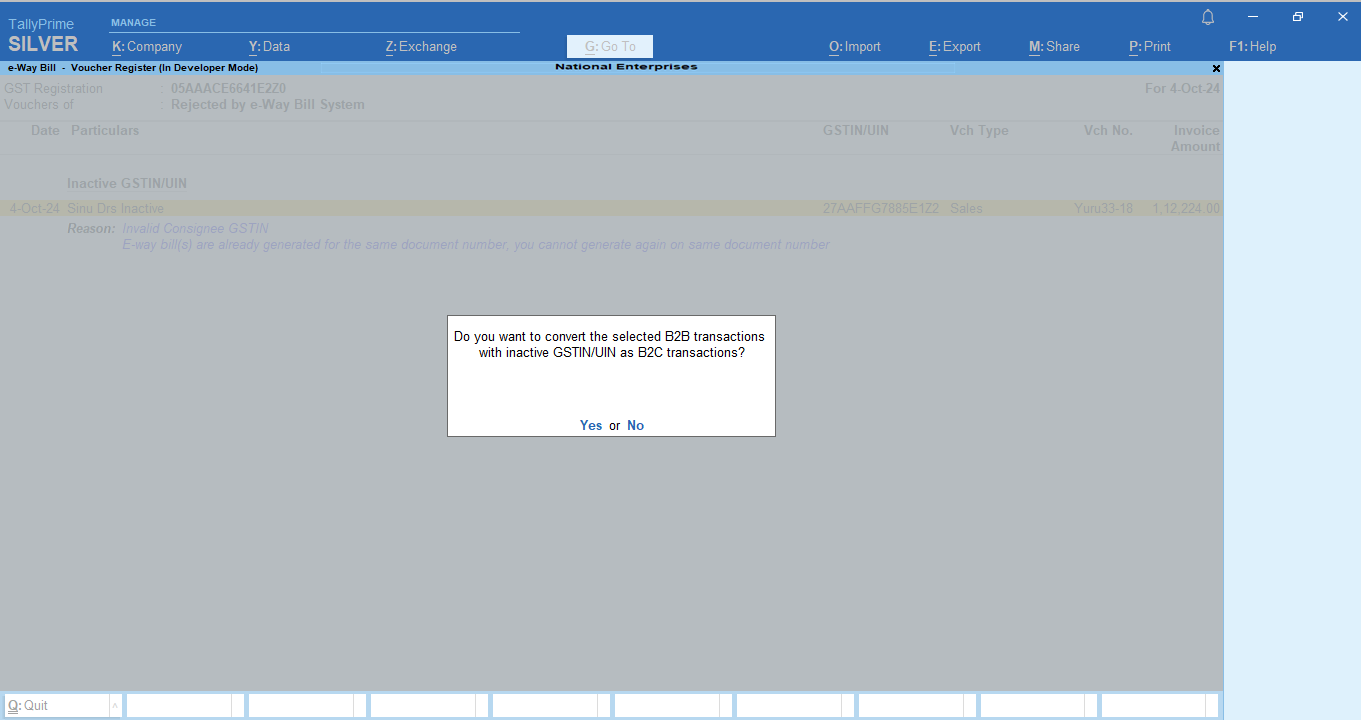
TallyPrime will convert the vouchers from B2B to B2C. Now when you reupload the voucher for e-way bill, it will get accepted on e-way bill system.
Error Description: Distance between the Pincodes is too high or low.
Cause: If the distance is either more than or less than 10% of the Pin to Pin Distance as per Portal, a message will be displayed as the distance between Pincode is too high or low.
Resolution: If you are in TallyPrime Release 5.1 and later, you can leave the Pin to Pin distance field blank and generate e-way bill. The distance will get automatically updated in the distance field.
If you are in TallyPrime Release 4.1 or later versions, press Alt+L (Calculate Distance on Portal) and you will be redirected to the NIC website to calculate the distance. If you are in any version earlier to TallyPrime Release 4.1, then you have to check the distance between two Pincodes and then update the distance in TallyPrime.
| Error Description | Resolutions |
| Invalid login credentials | The entered username/password may be incorrect or may contain special characters, please provide the correct one and try again. Check whether any prefix or suffix was added while creating the API credentials, and ensure that the complete details are used when sending the request for e-Way Bill generation. |
| GSTIN is not registered to this GSP | The entered GSTIN is not registered using Tally as a GSP. Register this GSTIN for e-way bill with Tally as a GSP. To know more, refer to the Prerequisites in Generate e-Way Bill Online in TallyPrime. |
| Invalid Sub-supply Type |
Based on the voucher type you have used for generating invoice, the Supply Type field will be auto-filled. To know more, refer to Supply Type – Document Type Mapping. |
| Invalid Supply Type |
Based on the voucher type you have used for generating invoice, the Supply Type field will be auto-filled. To know more, refer to Supply Type – Document Type Mapping. |
| Invalid Document type | Enable the configuration ‘Show Document type’ in F12 and select the appropriate Document type for the transaction from the e-Way Bill Details screen. For document types master and their mapping, visit the following link and refer the Document Type section – https://docs.ewaybillgst.gov.in/apidocs/sub-docType-mapping.html. |
| Document type does not match with transaction & Sub trans type | Selected Document type does not match the transaction and the sub transaction type. Enable ‘Show Document type and ‘Show sub type’ under F12 and ensure that the appropriate sub type and document type are selected on the e-Way Bill Details screen. For supply type – document type mapping, refer to the following link https://docs.ewaybillgst.gov.in/apidocs/sub-docType-mapping.html |
| Invalid Supplier GSTIN |
Provide the correct GSTIN of the company Verify the GSTIN in TallyPrime from Gateway of Tally → F11 > Enable Goods and Service Tax > Under GSTIN enter proper 15 digits has been given with the state selected from the list. |
| Invalid or Blank Supplier PIN Code |
Ensure that the Pincode specified for the Supplier (Company) is correct. In TallyPrime, you can change the Pincode in company alteration or in e-way bill screen under consignor details (from). The pincode should be of 6 digits without any space in between. |
| Invalid or Blank Supplier state Code | Pass the correct State Name for the Supplier Details. For the selected party ledger or Company, select the appropriate state in the e-Way Bill Details Screen by enabling “Show Consignor Details (From) and Consignee Details (To)”. |
| Invalid Consignee GSTIN |
Provide the correct GSTIN for the Consignee/Buyer / Recipient To verify the GSTIN, in the Ledger Alteration screen, press Alt+L (Fetch details using GSTIN/UIN). |
| Invalid Consignee PIN Code |
Ensure the correct Pincode based on the State has been configured for the party master. To update or validate the Pincode of the buyer/consignee or recipient, in the Ledger Alteration screen, press Alt+L (Fetch details using GSTIN/UIN). |
| Invalid Consignee State Code |
Pass the correct State Name in the Consignee details on the e-Way Bill Details screen. |
| Invalid HSN Code |
Pass the correct HSN code. Verify the HSN code in tally from Gateway of Tally → Alter → Stock Item(Select the required item) → Set/Alter GST details → Enable ‘Allow HSN/SAC details’ under F12→ Get HSN/SAC Info If HSN code provided is not valid then please search for HSN/SAC code from below link : https://services.gst.gov.in/services/searchhsnsac. |
| Invalid Approximate Distance |
If you are using TallyPrime Release 3.0 and later, then you can navigate to the link for the calculation of the distance from within the product.
You will be redirected to the portal on which you can calculate the distance between the pincodes. However, if you are using TallyPrime Release 2.1 or earlier, then you can open the following link on a browser and calculate the distance between the pincodes: |
| Description not available |
To fix error code 283, at least 6 digits HSN code is mandatory for taxpayers with turnover more than 5cr. and above |
| Invalid transporter mode |
Pass the correct Trans mode. Select the appropriate trans mode in Tally on the e-Way Bill Details screen under Transport Details section. In case New mode is selected ensure that the codes are limited to 1,2,3,4. |
| Transporter document date cannot be earlier than the invoice date |
Transporter document date should be later than the invoice date |
| You Cannot Extend as EWB can be Extended only 8 hour before or after w.r.t Validity of EWB..!! |
The validity of EWB can be extended between 8 hours before expiry time and 8 hours after expiry time. Try again within that time. You are not allowed to extend your e-way bill after 8 hours of generation. |
| Remaining Distance Can not be greater than Actual Distance. |
In the e-way bill extension details page, Provide a remaining distance which is lesser than the provided actual distance during e-way bill generation |
| Invalid GSTIN |
Provide the correct GSTIN Verify the GSTIN in tally from Gateway of Tally → Alter → Ledger(Select the required party) → Get GSTIN/UIN info |
| E-way bill(s) are already generated for the same document number, you cannot generate again on same document number |
E-way bill has been generated for the provided transaction. Verify the voucher number and ensure that the e-Way Bill is active on the portal. If so, the same document number can’t be used for generating e-Way Bill again. |
| invalid document type for the given supply type |
Enable ‘Show Document type’ and ‘Show sub type’ under F12 and ensure that the appropriate sub type and document type are selected on the e-Way Bill Details screen. |
| The Consignor GSTIN is blocked from e-waybill generation as Return is not filed for past 2 months |
If the tax payer wants to generate the e-way bills immediately, after filing the GSTR 3B Returns (on GST Portal), then they can login to the e-way bill portal and select the option <“Search Update Block Status” and then enter his/her GSTIN and see the status. |
| The Consignee GSTIN is blocked from e-waybill generation as Return is not filed for past 2 months |
If the tax payer wants to generate the e-way bills immediately, after filing the GSTR 3B Returns (on GST Portal), then they can login to the e-way bill portal and select the option <“Search Update Block Status” and then enter his/her GSTIN and see the status. |
| The Transporter GSTIN is blocked from e-waybill generation as Return is not filed for past 2 months |
If the tax payer wants to generate the e-way bills immediately, after filing the GSTR 3B Returns (on GST Portal), then they can login to the e-way bill portal and select the option <“Search Update Block Status” and then enter his/her GSTIN and see the status. |
| The User GSTIN is blocked from Transporter Updation as Return is not filed for past 2 months |
If the tax payer wants to generate the e-way bills immediately, after filing the GSTR 3B Returns (on GST Portal), then they can login to the e-way bill portal and select the option <“Search Update Block Status” and then enter his/her GSTIN and see the status. |
| The Transporter GSTIN is blocked from Transporter Updation as Return is not filed for past 2 months |
If the tax payer wants to generate the e-way bills immediately, after filing the GSTR 3B Returns (on GST Portal), then they can login to the e-way bill portal and select the option <“Search Update Block Status” and then enter his/her GSTIN and see the status. |
| The distance between the given pincodes are not available in the system. Please provide distance. |
If you are using TallyPrime Release 3.0 and later, then you can navigate to the link for the calculation of the distance from within the product.
You will be redirected to the portal on which you can calculate the distance between the pincodes. However, if you are using TallyPrime Release 2.1 or earlier, then you can open the following link on a browser and calculate the distance between the pincodes: |
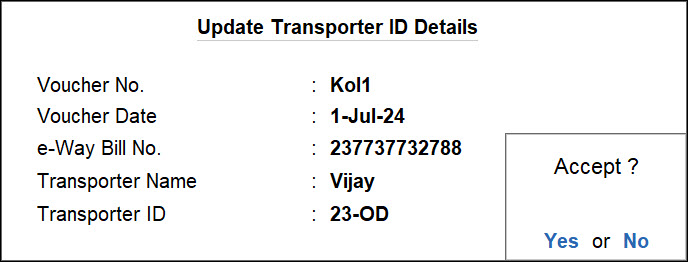
| Update Transporter ID is not applicable when multiple vouchers are selected. |
This error occurs if you have selected multiple transactions in the e-Way Bill – Voucher Register report to update the Transporter ID.
|
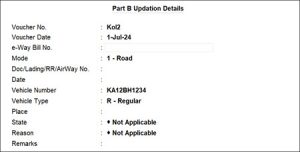
| Update Part B is not applicable when multiple vouchers are selected. |
This error occurs if you have selected multiple transactions in the e-Way Bill – Voucher Register report to update the Transporter ID.
|
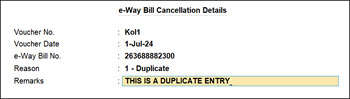
| Cancel EWB is not applicable when multiple vouchers are selected. |
This error occurs if you have selected multiple transactions in the e-Way Bill – Voucher Register report to cancel the e-Way Bill.
|
| There is no Sandbox facility available for e-Way Bill. |
This error occurs when you have enabled the Sandbox access but during the alteration of a stock item, you don’t have any dummy credentials to validate HSN/SAC info for e-Way Bill. These dummy credentials are only for trial purpose. You need to get the proper credentials to validate HSN if you are registered for e-Way bill as there are no option to demonstrate trails in TallyPrime. Also, you have to set the Enable Sandbox Access option for the particular Company in TallyPrime to No. In TallyPrime, press F11 (Company Features) > Ctrl+I (More Details) > under Other Details, set Enable Sandbox Access to No. After disabling Sandbox, you can enter the correct credentials to validate HSN. |