
Generate e-Way Bill Online
In TallyPrime, you can generate e-Way Bills while saving invoices or later from the e-Way Bill report, for single or bulk transactions. Depending on your preference, you can also generate e-Way Bill in the offline mode and upload it the portal at your convenience.
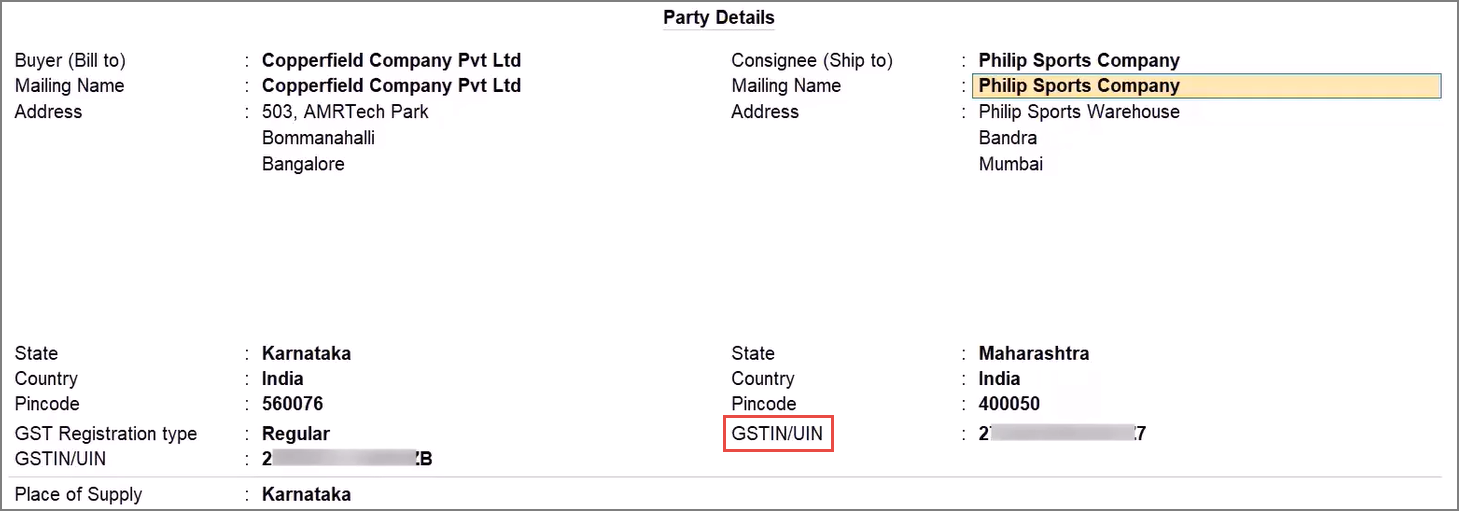
As per the GSTN Advisory No. 661, effective August 1, 2026, the GSTN has mandated the entry of the Ship-To GSTIN for transactions where the Ship to address is different from the Bill to address. TallyPrime 7.1 onwards, you need to specify the GSTIN/UIN in transactions in which the Bill To and Ship To addresses are different. Thereafter, you can generate e-Way Bill.

- Ensure that you have created an API user profile by selecting Tally (India) Pvt Ltd as the GSP.
- Ensure that you have logged in the e-Way Bill portal.
- Ensure that you have Enabled e-Way Bill in TallyPrime.
Now, you can proceed to generate e-Way Bill online while saving your invoice and also print the QR code and other details.
Let’s consider a GST Sales transaction to generate e-Way Bill.
- Specify the required voucher details, such as the Party A/c name, Sales ledger, Name of Item, GST ledger, and so on.
- If the invoice has separate Bill to and Ship to addresses, then in the Party Details screen:
- Press F12 (Configure) and set Provide separate Buyer and Consignee Details as Yes.
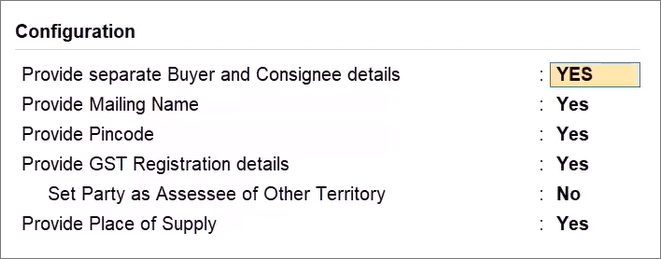
- Press Ctrl+A to save the configuration.
- In the Party Details screen, enter GSTIN/UIN under Consignee (Ship to) details.
- For example, refer to the following transaction with separate bill to and ship to details:
If the consignee is an unregistered dealer, then leave the Consignee (Ship to) field blank.
The party will be reported as Unregistered Person (URP). - Press Ctrl+A to save the screen.
- Press F12 (Configure) and set Provide separate Buyer and Consignee Details as Yes.
- If the invoice has separate Bill to and Ship to addresses, then in the Party Details screen:
- Set the option Provide GST/e-Way Bill details to Yes.
- In the Statutory Details screen, update the additional details.
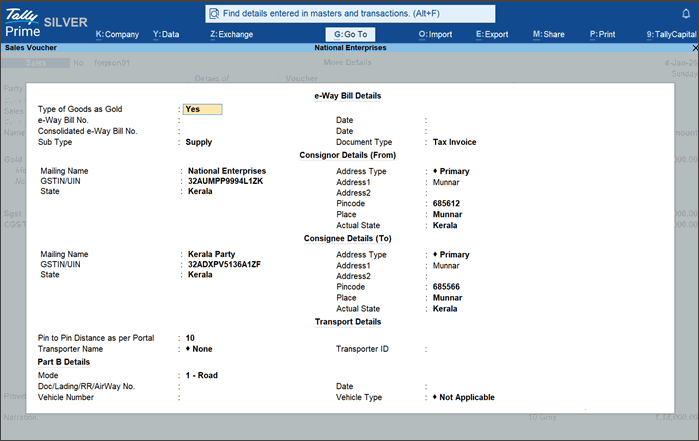
If the invoice has separate Bill to and Ship to addresses, then in the Additional Details screen, ensure that the Consignee Details (To) are specified.
For example, in the follow transaction buyer and consignee are different.
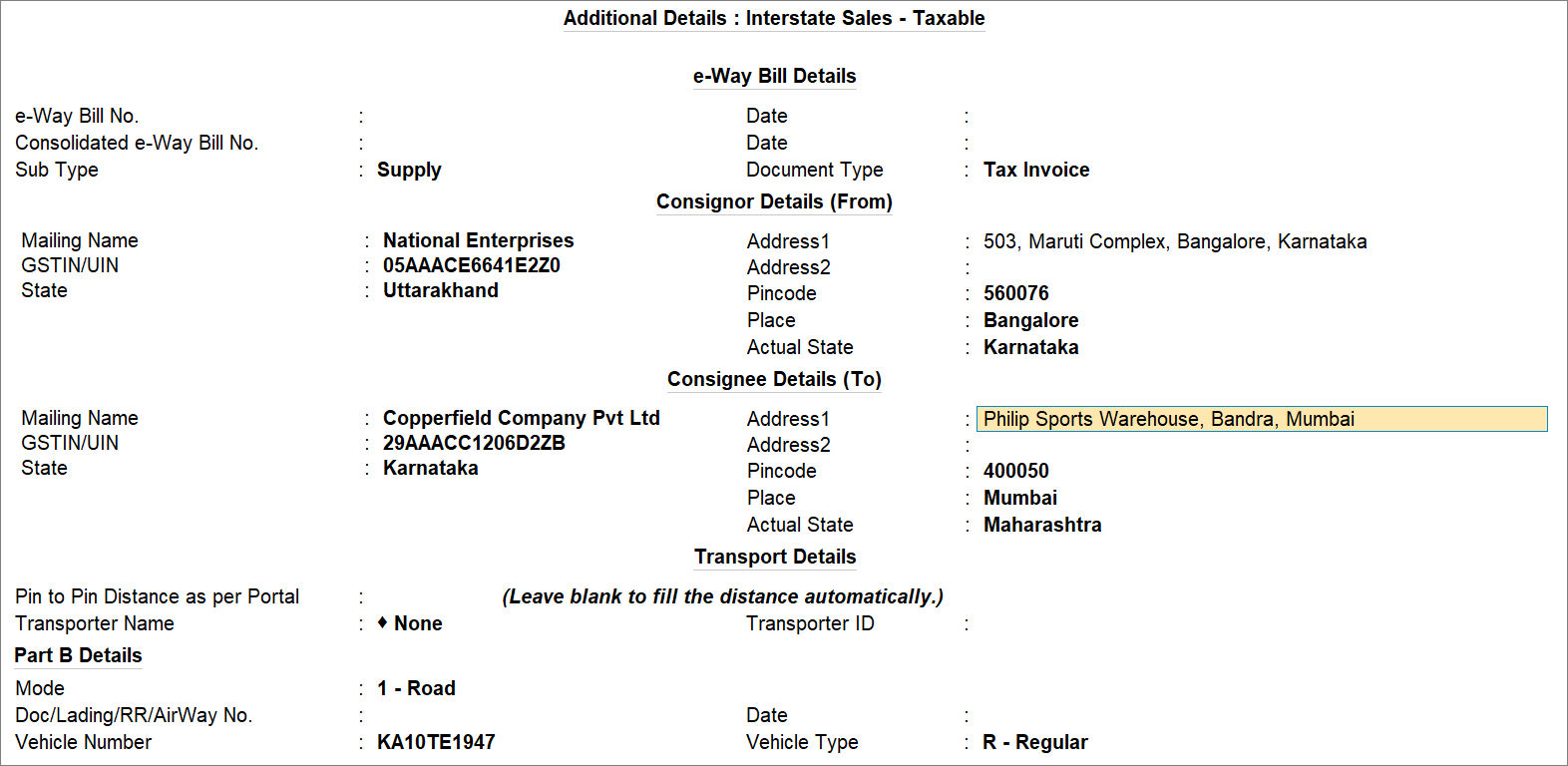 For TallyPrime 7.0 or earlier, the Type of Goods as Gold option is not supported.
- Type of Goods as Gold: Set this to Yes, if you are supplying gold or other precious metals covered under HSN Chapter 71 within Kerala, excluding imitation jewellery (HSN 7117).

- e-Way Bill Details: After the exchange of e-Way Bill with the portal, the e-Way Bill No. and Date will get updated automatically.
- Consignor Details (From): Check the details such as Mailing Name, GSTIN/UIN, Address and Pincode which will be prefilled as per your Company details.
- Consignee Details (To): Check the details such as Mailing Name, GSTIN/UIN, Address and Pincode which will be prefilled as per your Ledger details.
- Transport Details: Fill in the Pin to Pin Distance, Transporter Name, and Transporter ID. If you don’t have a Transporter ID, updating the Part B Details is mandatory. After the exchange of e-Way Bill with the portal, the Pin to Pin Distance will get updated automatically.
Know more about additional details.- Pin to Pin Distance as per Portal: To calculate Pin to Pin Distance as per Portal, press Alt+L (Calculate Distance on Portal).
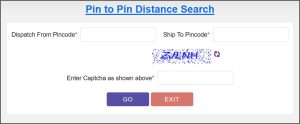
You will be redirected to the NIC website and the Pin to Pin Distance Search screen will appear, as shown below:
From and To pin codes will be displayed as an Information message in TallyPrime, as shown below:
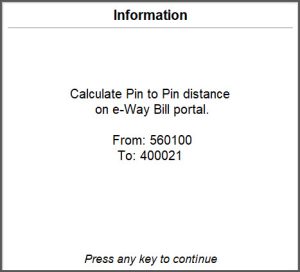
You can enter the pincodes in the Pin to Pin Distance Search screen to calculate the distance.
If you are in TallyPrime Release 5.1 and later, the portal calculates the Pin to Pin distance and the system updates it in the e-Way Bill Sub-form when the e-Way Bill is generated. Ensure that the Pin to Pin distance is left blank for the system to calculate. Once updated you can see the distance in the e-Way Bill Annexure Print.
If you have generated e-Way Bill from the portal, and accepted the transaction, the transaction will appear in the e-Way Bill report under Pending for Exchange with e-Way Bill System.- In the e-Way Bill report, drill down from Pending for Exchange with e-Way Bill System.
- In the e-Way Bill – Voucher Register screen, click F6 (Get EWB Info).
This will update all the other details along with Pin to Pin distance in e-Way Bill.
- Transporter Name: Select the Transporter Name. You can set it as None if you are transporting the goods using your own or hired vehicle, or if you are using a different mode of transport such as Rail, Air, or Ship.
- Transporter ID: Enter the Transporter ID provided by the transporter.
If Part B Details are available, then you can enter the following details. - Mode: Select the mode of transport, such as Road, Rail, Air, or Ship. You can also create a New Mode, if required.
- Doc/Lading/RR/AirWay No.: You can fill in this option as an acknowledgment that your goods will be transported by rail, ship, or airway.
- Vehicle Number: Specify the number of the vehicle used for transporting the goods.
- Vehicle Type: Specify the size of the vehicle, such as Regular, Over Dimensional Cargo, and so on. You can also create a New Vehicle Type, if required.
e-Way Bills for Gold and precious stones supplied within Kerala will not appear as Uncertain even if Part B and Transporter ID are not entered. By selecting Type of Goods as Gold, you can generate the e-Way Bill without these details. This applies to items under HSN Chapter 71 items, excluding imitation jewellery (HSN 7117).
- Pin to Pin Distance as per Portal: To calculate Pin to Pin Distance as per Portal, press Alt+L (Calculate Distance on Portal).
- Type of Goods as Gold: Set this to Yes, if you are supplying gold or other precious metals covered under HSN Chapter 71 within Kerala, excluding imitation jewellery (HSN 7117).
A confirmation screen for e-Way Bill generation will appear.
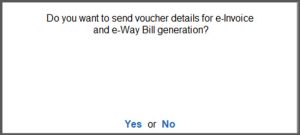
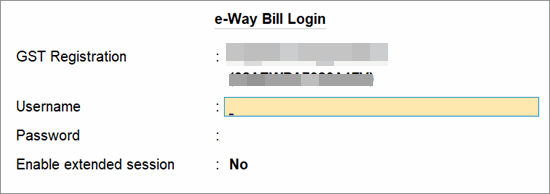
For TallyPrime 7.1 or earlier, the extended session option is not applicable.
Once you have logged in, if you want to disable the extended session, you have to reset your e-Way Bill login and then set Enable Extended Session to No.
TallyPrime will start exchanging information with the e-Way Bill system.
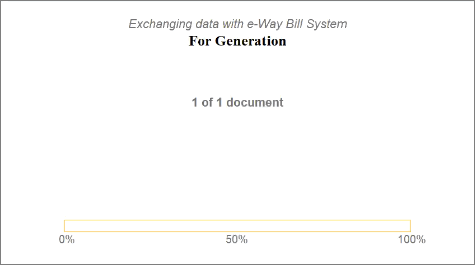
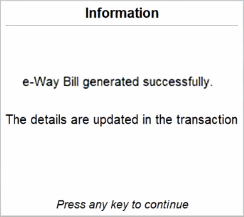
After the exchange of information, a confirmation message will appear.
You can see a preview of the invoice.
The e-Way Bill No. and Validity Date will also get updated in the Statutory Details screen.
If you want to explore additional options for configuring your e-Way Bill, then you can press Ctrl+I (More Details) or F12 (Configure).
- Open the voucher and press Ctrl+I (More Details) > set e‑Way Bill Applicability to Yes.

For TallyPrime 7.0 or earlier, the Exclude from Generation option is not supported. - In the Set e‑Way Bill Applicability field > select Exclude from Generation.
- Accept the screen. As always, you can press Ctrl+A to save.
The e‑Way Bill will now be excluded from generation for this transaction.
Q&A
-
How can I disable the Extended Session for e-Way Bill and revert to the 6-hour login session?
To disable the extended session and retain the session only for 6 hours:-
Press F1 (Help) > Troubleshooting > Reset Login > Reset e-Way Bill Login and select Yes or press Y to reset the login credentials.
-
In the e-Way Bill Login screen, set Enable Extended Session to No.
Users with access to generate e-Way Bills can use the extended session capability.
-
- I am an e-Invoice-enabled customer. Can I use my e-Invoice credentials to generate e-Way Bills?
Yes, e-Invoice API user credentials can be used to generate e-Way Bill. - Can I export the e-Way Bill in offline mode if I have already generated the e-Invoice online?
Online generation of e-Invoice and e-Way Bill both are provided in TallyPrime from TallyPrime Release 1.1 and 2.0, respectively. In the case of exceptional scenarios, the offline generation of e-Invoice and e-Way Bill is supported. However, after the generation for e-Invoice or IRN, the generation of e-Way Bill offline using the IRN number is not supported. You will need to generate e-Way Bills for IRN transactions online only. - Can I generate an e-Way Bill online without generating IRN for the transaction?
If a sales transaction is applicable for e-Invoicing, then you first need to generate IRN. Then and only then you can generate e-Way Bill. Alternatively, you can generate e-Way Bill along with IRN.
For Debit and Credit Notes applicable for e-Invoice, you can generate e-Way Bill without generating IRN. -
Can I exclude e-Invoice or e-Way Bill for a transaction, even before saving it?
Yes, you can exclude e-Invoice or e-Way Bill while entering the voucher details.-
Press Ctrl+I (More Details)> Show More > e-Way Bill Applicability.
-
In Set e‑Way Bill Applicability, select Exclude from Generation.
-
Accept the screen. As always, you can press Ctrl+A to save.
The e‑Way Bill will now be excluded from generation for this transaction.
-
-
How can I generate an e‑Way Bill for intrastate gold transactions in Kerala?
To generate an e‑Way Bill for intrastate gold transactions in Kerala
- In Party A/C name, select a Kerala based-party.
- Enter gold or gold items in Name of Item, ensure the items are under HSN Chapter 71, except HSN 7117.
- Set Provide GST/e-Way Bill details to Yes.
- In the Statutory Details screen, set Type of Goods as Gold to Yes.
- Accept the screen. As always, you can press Ctrl+A to save.
The e-Way Bill will automatically get generated.
- I don’t see the Type of Goods as Gold option. What should I do?
To see the Type of Goods as Gold option- Select the required stock item, ensure the items are under HSN Chapter 71, except HSN 7117.
- Press Ctrl+I (More Details) > Show More > e‑Way Bill Applicability.
- Press F12 (Configure) > set Type of Goods as Gold to Yes.
- Accept the screen. As always, you can press Ctrl+A to save.
You can now view the option.
- Can I include gold and non-gold items in the same transaction while recording a voucher?
No, gold and non-gold items cannot be combined in a single transaction, as gold transactions have separate compliance and e-Way Bill requirements.
For any further queries, refer to e-Way Bill – FAQ.


