Raise Tax Liability and Claim Input Tax Credit in TallyPrime
For TallyPrime 2.1 & earlier
Under GST, purchases under Reverse Charge Mechanism (RCM) make the recipient liable to pay tax instead of the supplier. Now, Input Tax Credit (ITC) can only be claimed after the tax is paid and a valid invoice is available. You can raise liability and claim ITC in the same period.
ITC may sometimes be claimed in the next period due to timing or operational factors, such as:
- Month-end payments: RCM tax paid late in the month often shifts ITC to the next return cycle.
- Internal processes: Early book closure or verification steps can delay claiming.
- Practical timing issues: Late payments naturally push ITC to the following period.
Raise Tax Liability and Claim Input Tax Credit in the Same Period
- Press Alt+G (Go To) > type or select GSTR-3B and press Enter.
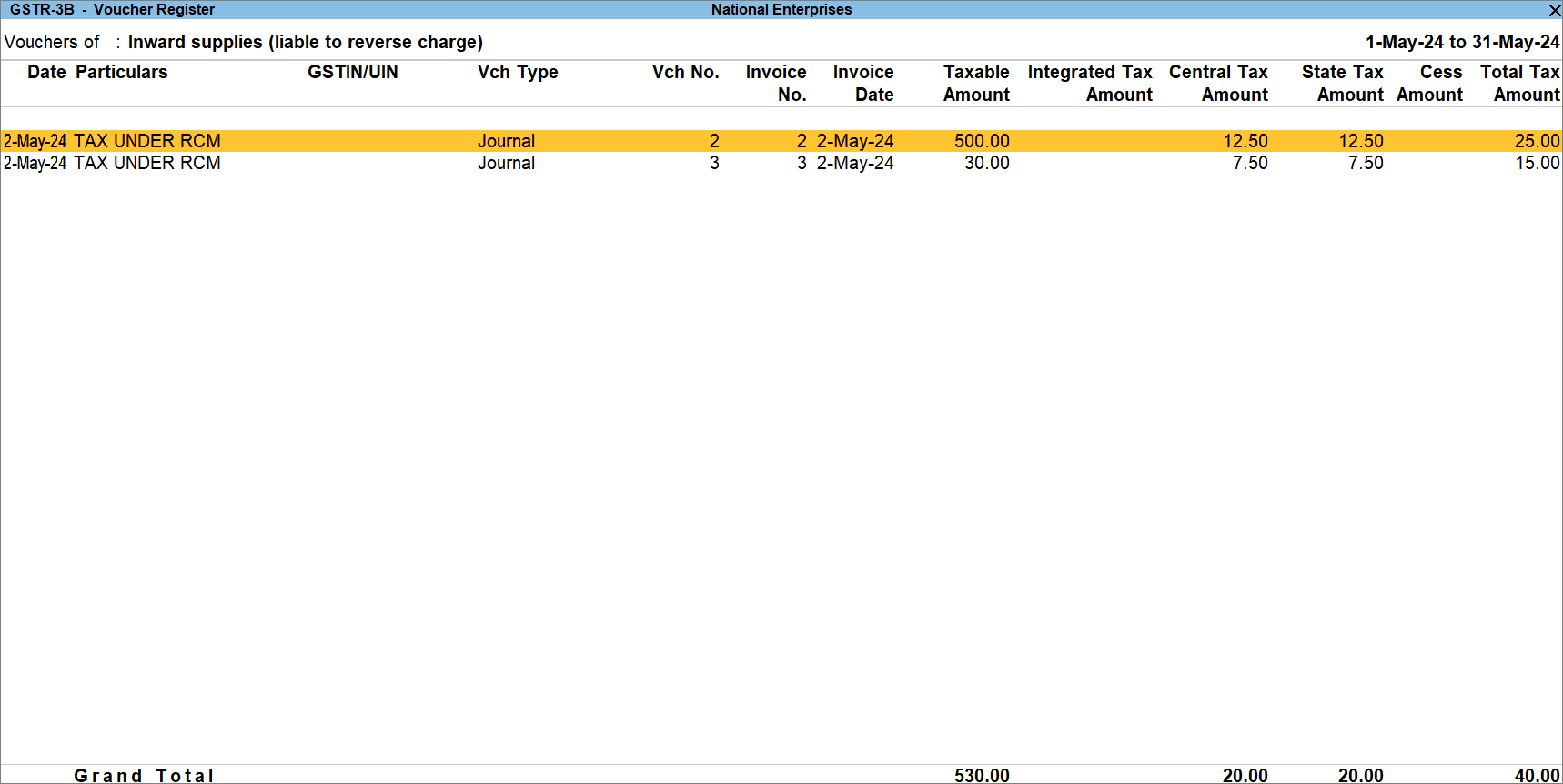
- Drill down from Inward Supplies (liable to reverse charge).
If you do not want to take these values inward supplies in GSTR-3B, then you can calculate the liability and ITC manually and create a journal voucher. When you record a journal voucher to raise tax liability, you should also pass a journal voucher for availing ITC.

- Press Alt+G (Go To) > Create Voucher > press F7 (Journal).
If you have created multiple registrations in TallyPrime Release 3.0 or later, then to change the registration, press F3 (Company/Tax Registration) > type or select the Registration under which you want to create the voucher and press Enter. - Specify statutory adjustment details.
- Press Alt+J (Stat Adjustment).
- Type of duty/tax: GST.
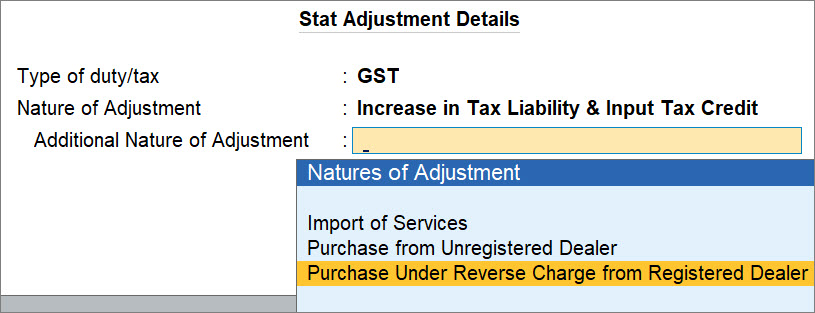
- Nature of Adjustment: Increase in Tax Liability & Input Tax Credit.
If you want to claim ITC in the subsequent month, then select Increase in Tax Liability. Thereafter, you will need to create a journal voucher in the subsequent month with Nature of Adjustment as Increase in Input Tax Credit. - Additional Nature of Adjustment: Purchase Under Reverse Charge from Registered Dealer.
If the dealer is unregistered, then select Purchase from Unregistered Dealer.
A Journal Voucher screen appears.
- Create the Journal Voucher to raise the liability.
- Under By (Debit), select the tax ledgers, as applicable and enter the amount manually calculated by you.
- Credit the tax ledgers.
- Under To (Credit), select the tax ledgers, as applicable.
- Enter Rate, Taxable Value, and press Enter.
The Taxable Value is the total value of RCM purchases for which you want to raise the liability in a particular month. - Provide other necessary details, and press Ctrl+A to save.
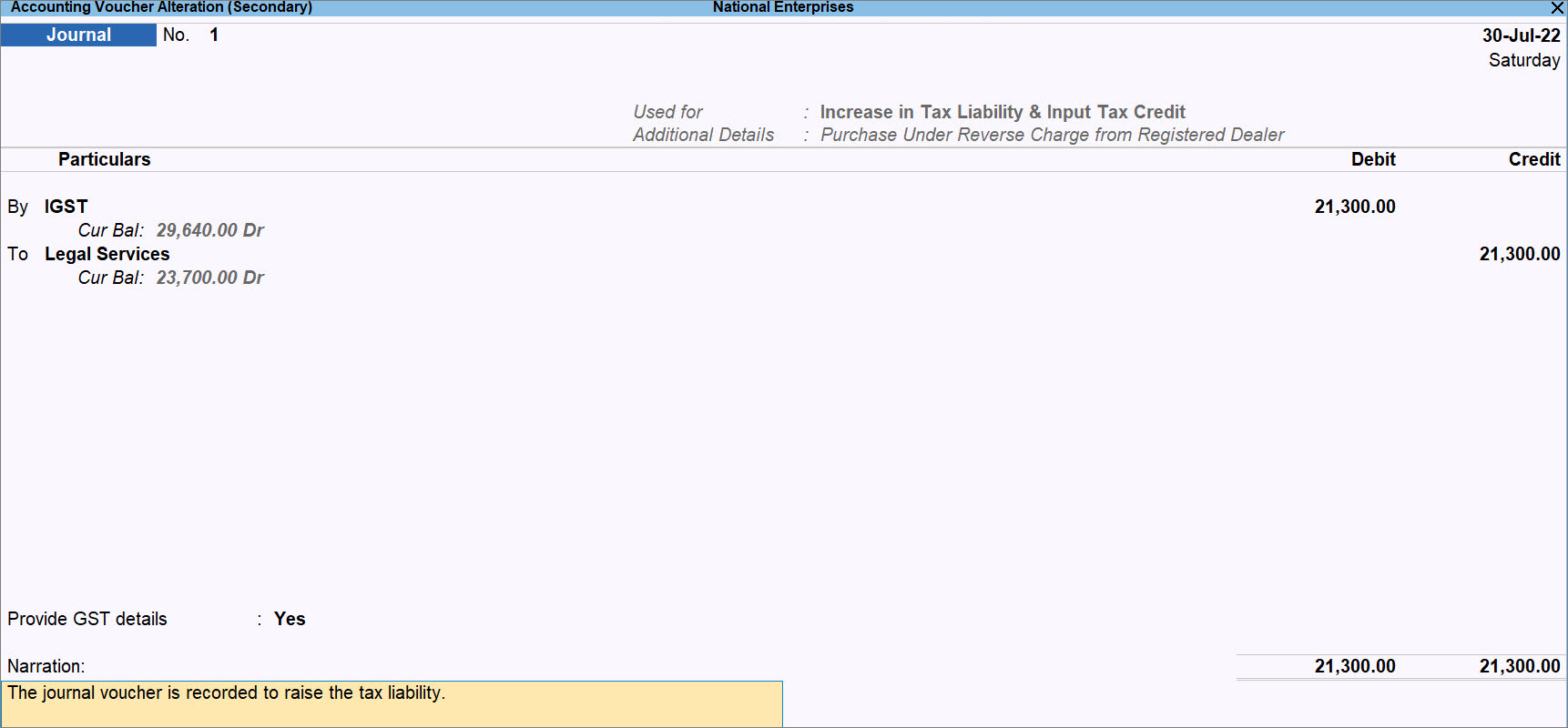
Once you record the journal voucher to raise the tax liability for the purchase of RCM goods in TallyPrime, the transaction gets included in the return and starts appearing in GSTR-3B as Liability from inward RCM supplies from registered dealer.
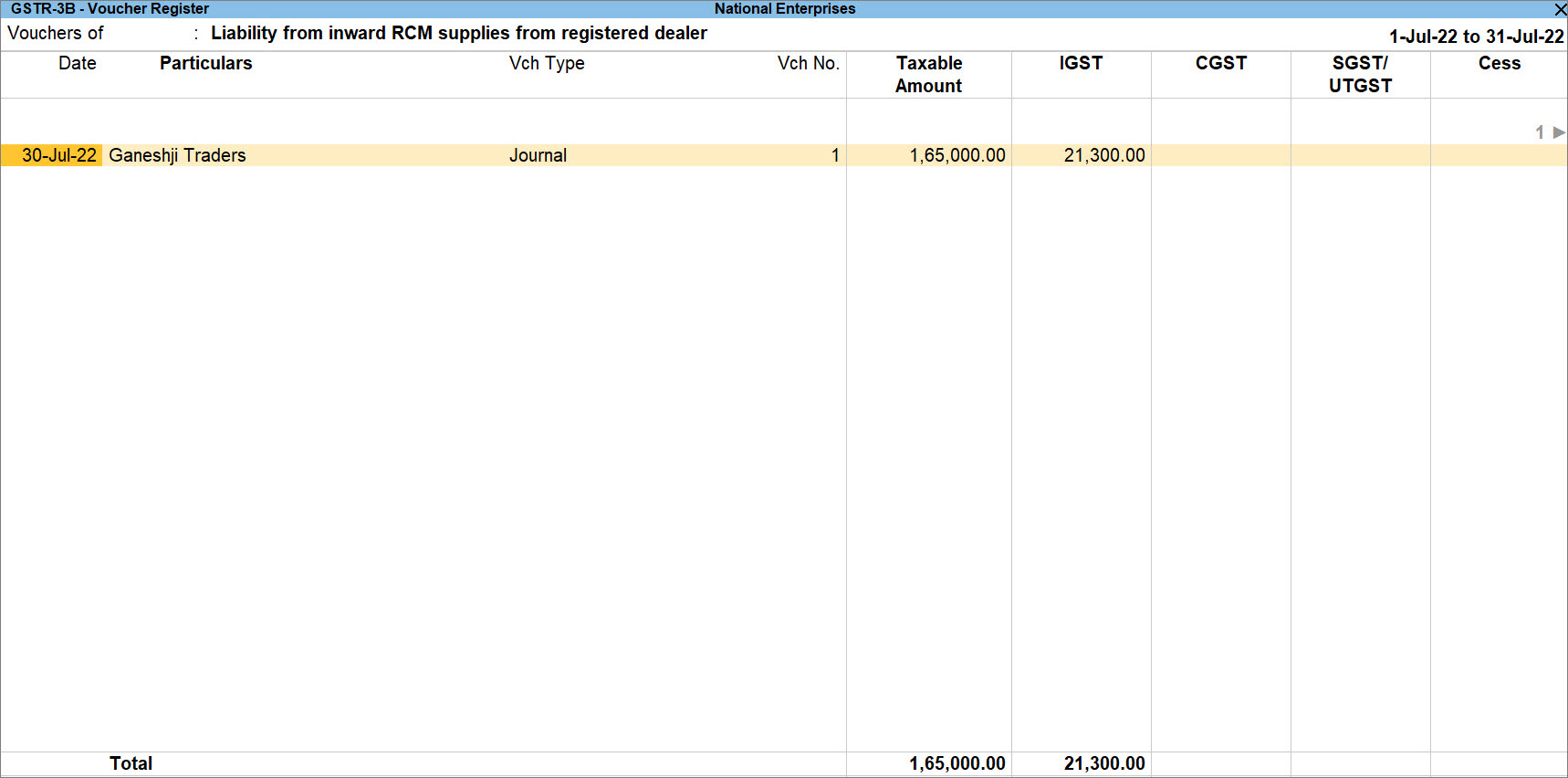
As a result, the sample purchase vouchers against which the tax liability was raised to claimed ITC will move to the Not Relevant for This Return section of GSTR-3B.

To know how to record GST payment to the department for RCM purchases, refer to the GST Payment Entry in TallyPrime topic.
Raise Liability in one Tax Period and Claim ITC in the Subsequent Period
Raise Tax Liability in a Period
- Press Alt+G (Go) > type or select GSTR-3B, and press Enter.
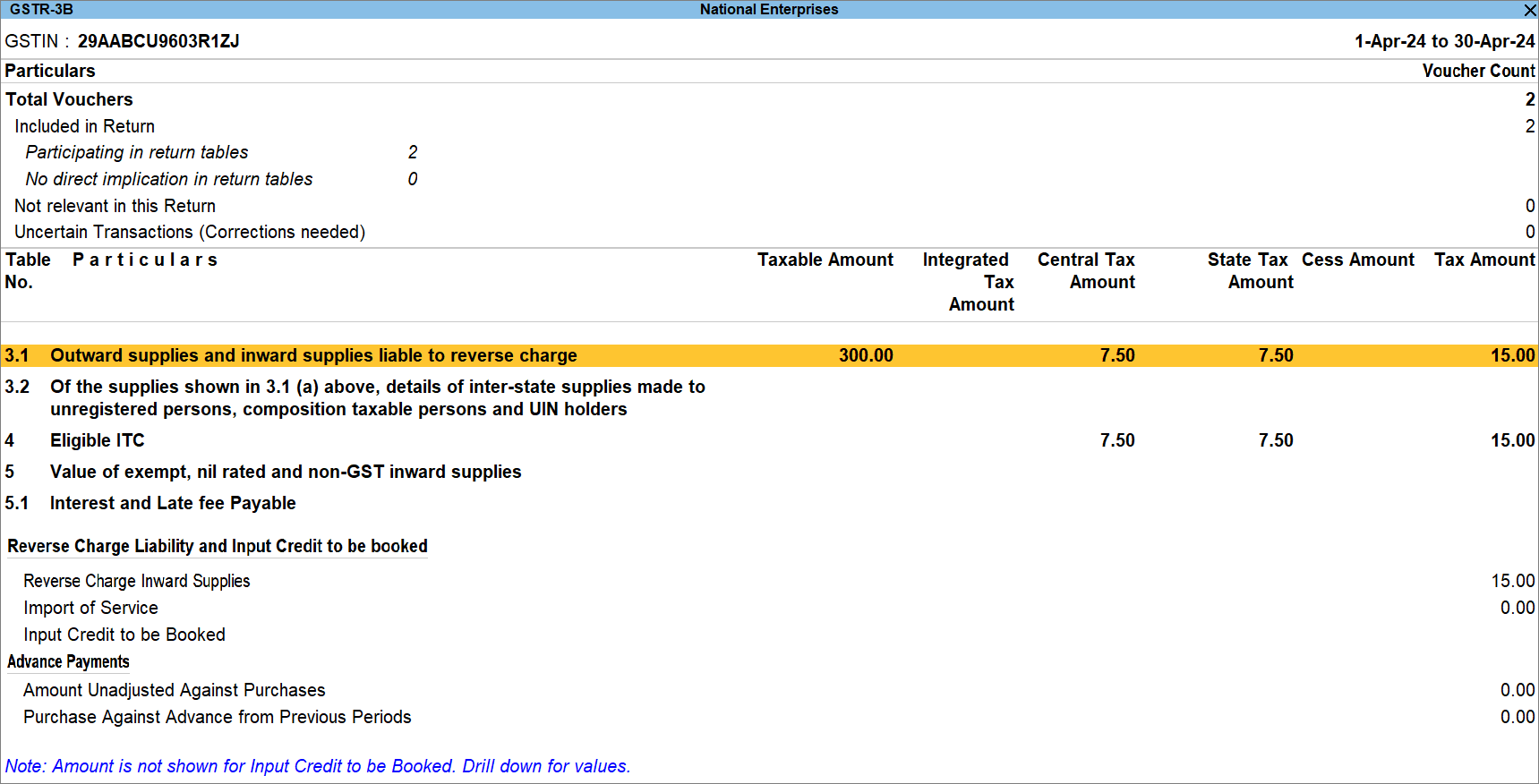
- Press Enter on Outward supplies and Inward supplies liable to reverse charge.
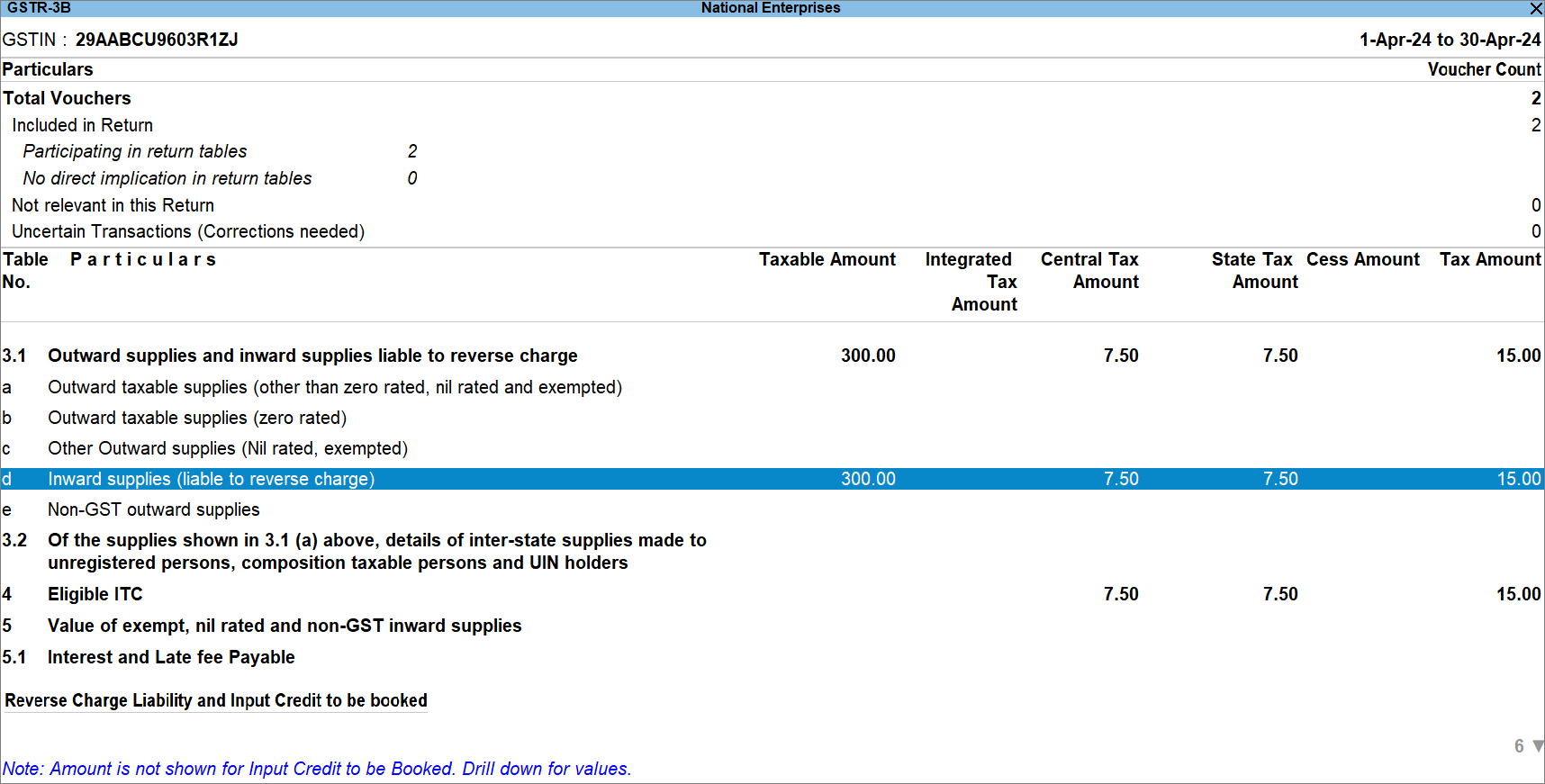
- Press Alt+J (Stat Adjustments) and provide the relevant details in the Stat Adjustment screen.
- Nature of Adjustment: Increase of Tax Liability.
- Additional Details: Purchase under reverse charge.
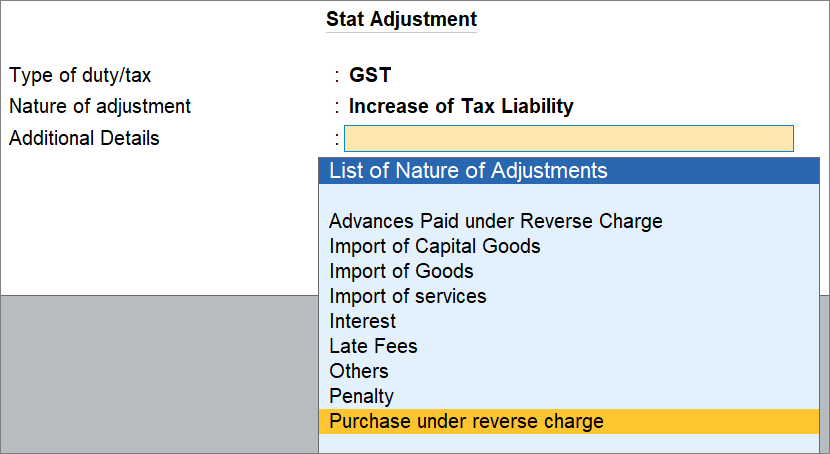
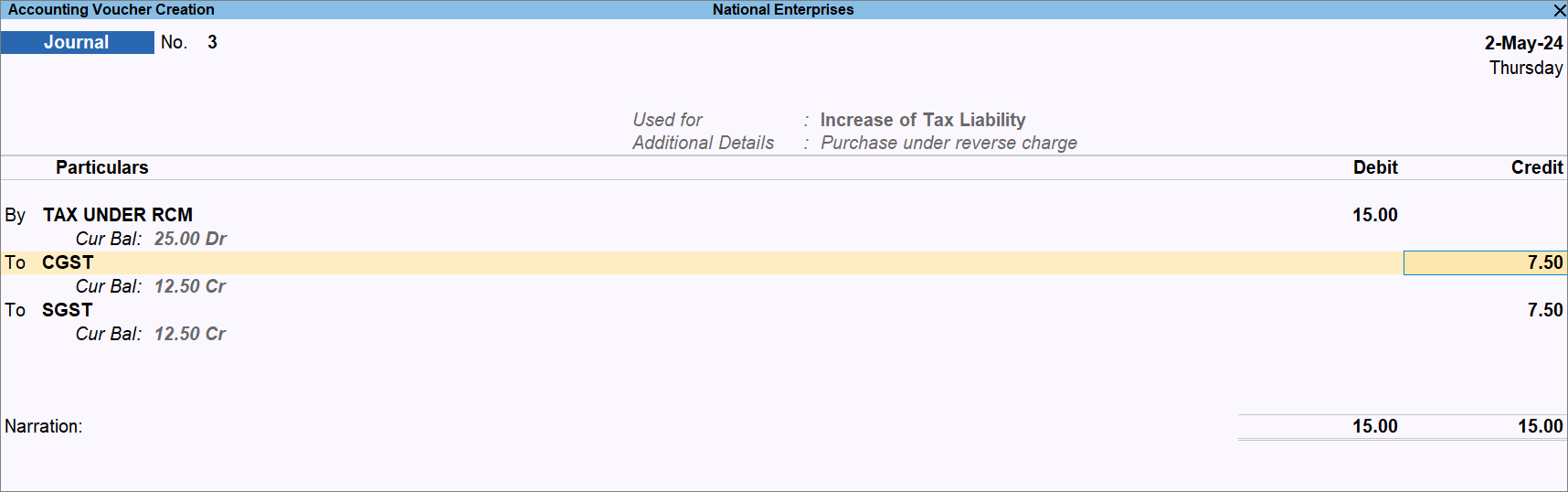
A Journal Voucher screen appears.
- Create the Journal Voucher to raise the liability.
- Under By, Select the relevant ledger created for Liability and enter the amount.
- Provide the tax ledger details.
- Under To, Select the relevant GST ledger.
- Enter the tax rate and the invoice amount.
The tax amount gets calculated.
Enter another GST ledger, if it is an intrastate transaction.
- Press Ctrl+A to save the voucher.
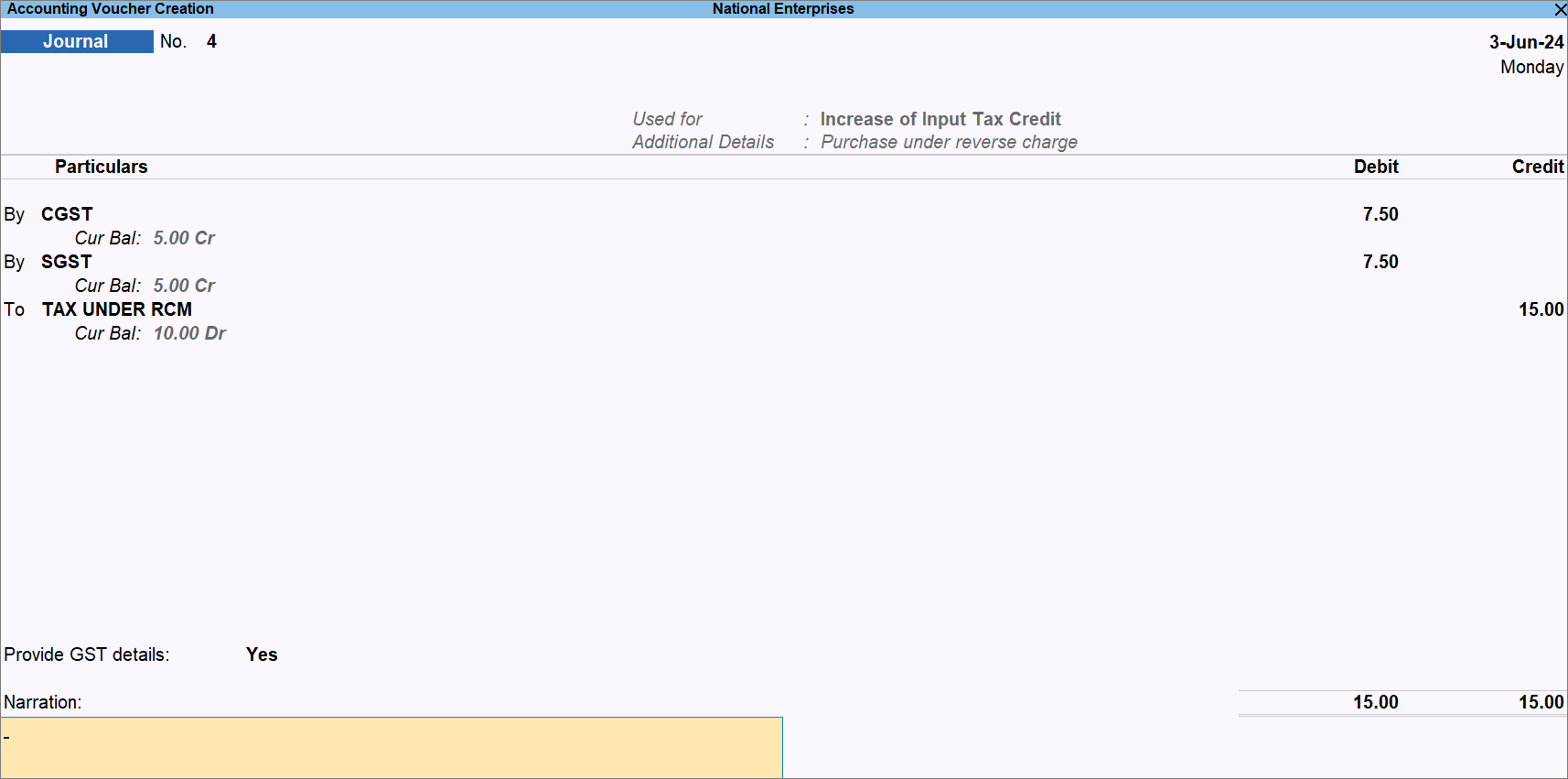
Claim ITC in the Subsequent Period
- Press Alt+G (Go) > type or select GSTR-3B, and press Enter.
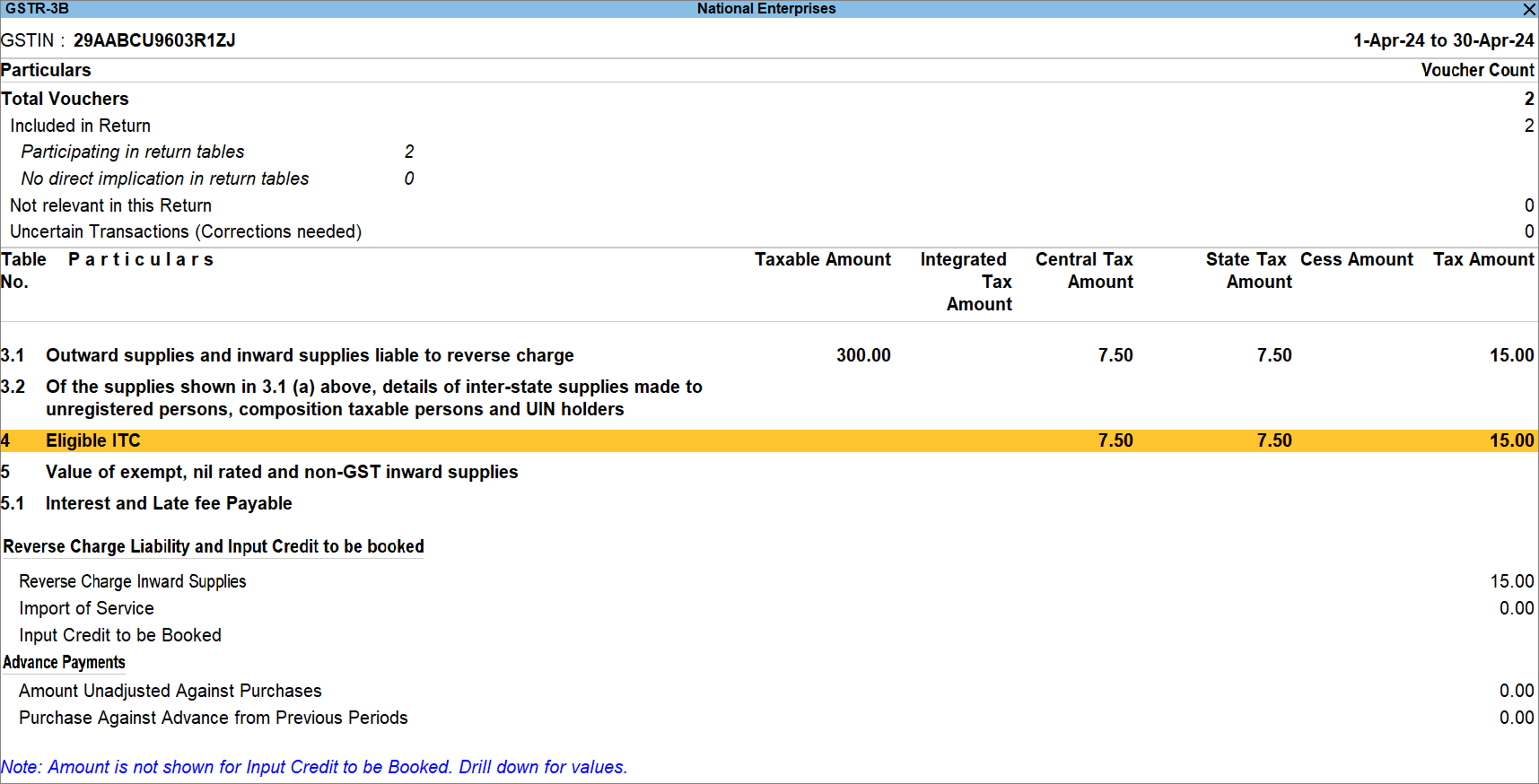
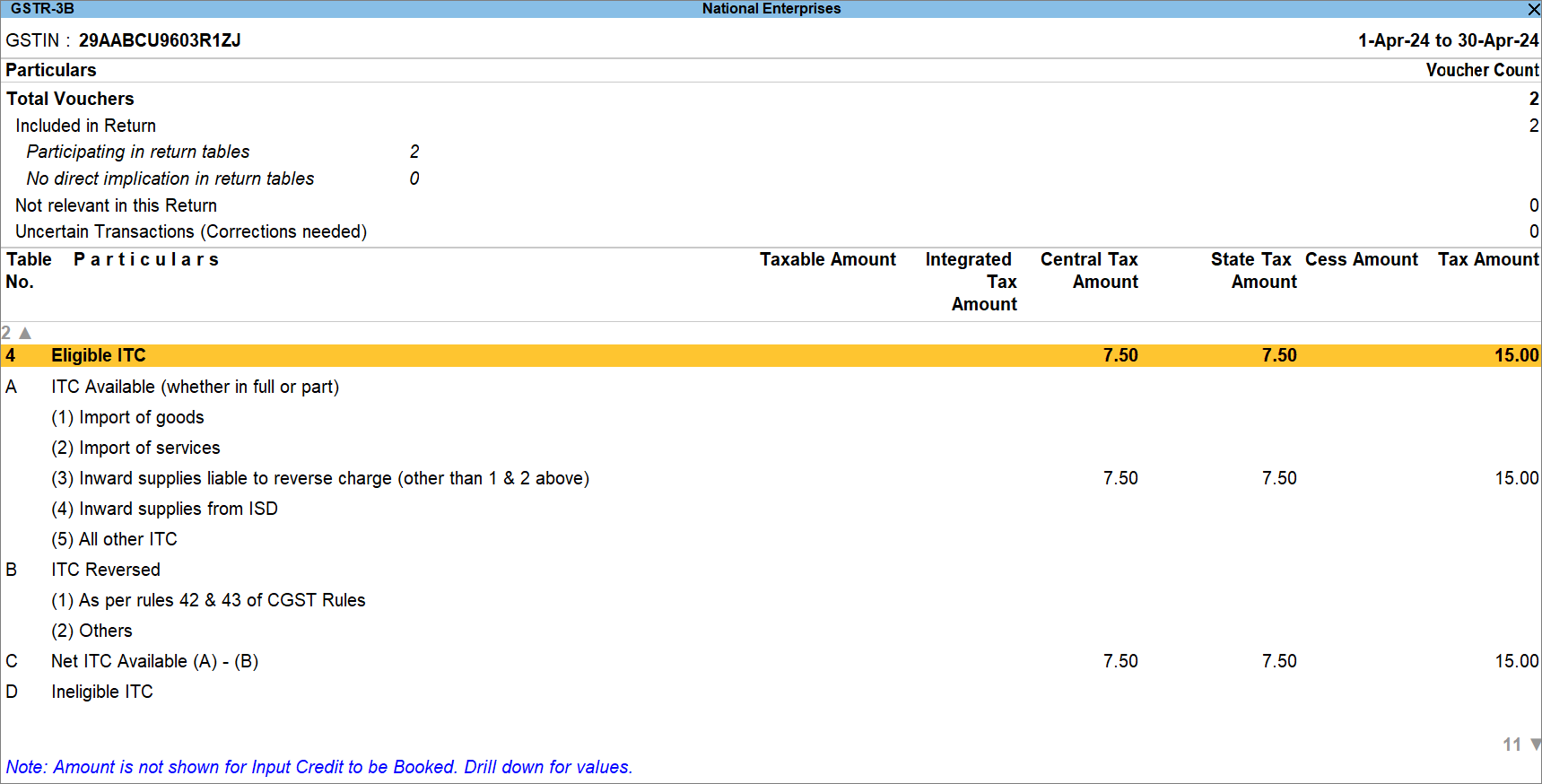
- Press Enter on Eligible ITC.
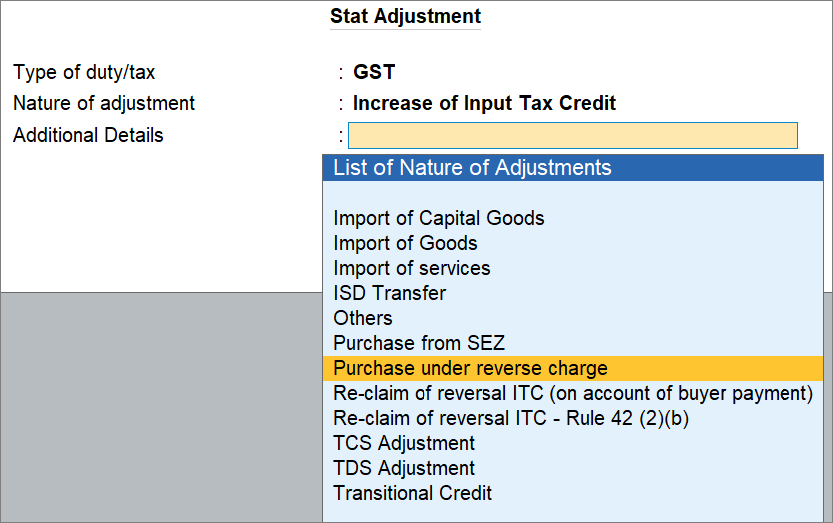
- Press Alt+J (Stat Adjustments) and provide the relevant details in the Stat Adjustment screen.
- Nature of Adjustment: Increase of Input Tax Credit.
- Additional Details: Purchase under reverse charge.
A Journal Voucher screen appears.
- Create the Journal Voucher to raise the liability.
- Press F2 (Date) and enter the date of the subsequent period in which you are claiming the ITC.
- Provide the tax ledger details.
- Under By, select the relevant GST ledger.
- Enter the tax rate and the invoice amount.
The tax amount gets calculated.
Enter another GST ledger, if it is an intrastate transaction. - Under To, Select the relevant ledger created for Liability and enter the amount.
- Specify the tax period.
- Provide GST details: Yes.
- Enter the Period From and To dates.
- Press Ctrl+A to save the voucher.
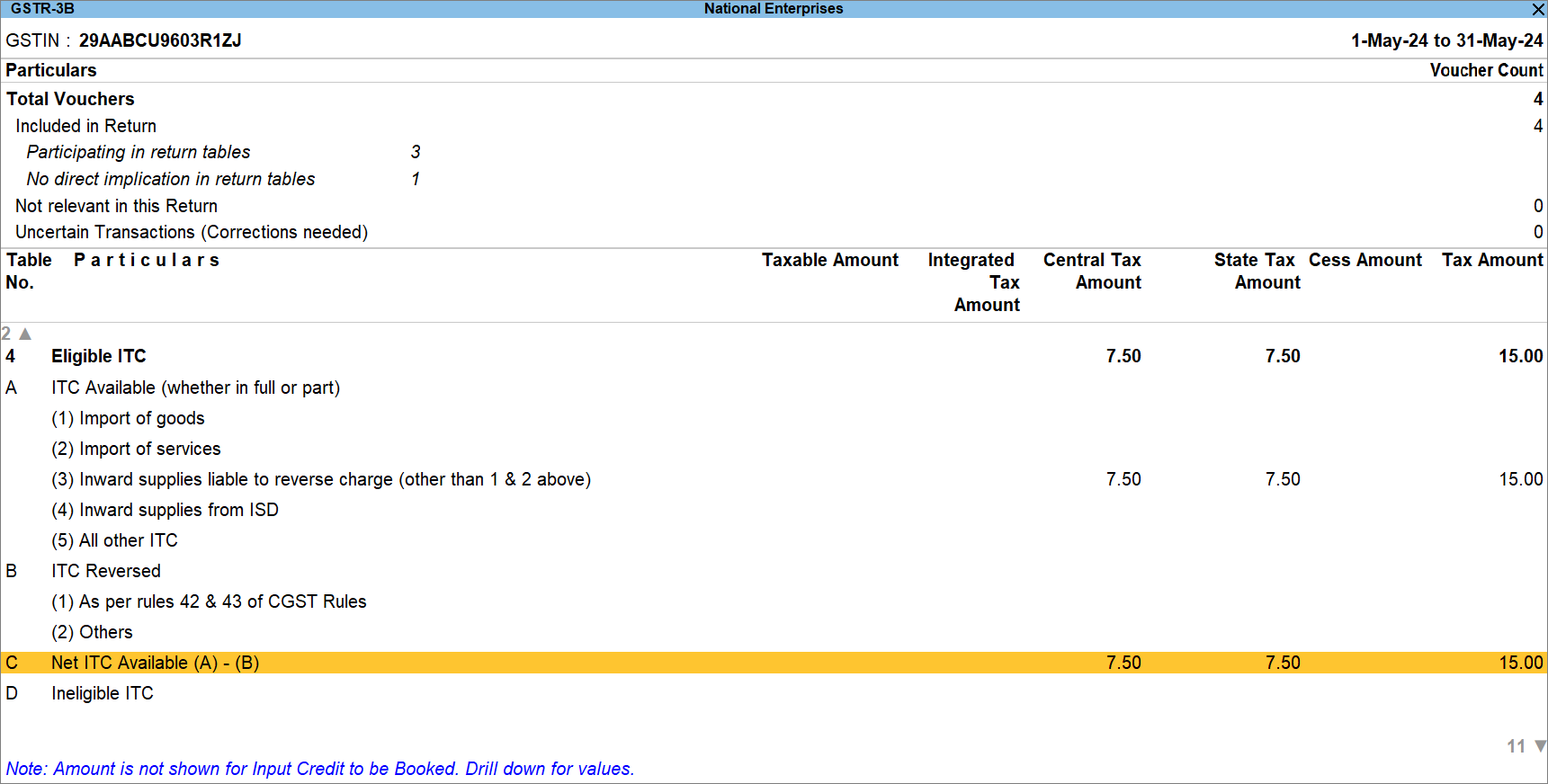
In GSTR-3B, you can view that the Net ITC Available (A) – (B):