
Create Variable Pay & Bonus Pay Head in TallyPrime
In TallyPrime, you can create user-defined earnings pay heads that you want to use at the time of processing the payroll, such as Variable Pay, Bonus, and so on.
Create Pay Head for Bonus
- Press Alt+G (Go To) > Create Master > type or select Pay Head and press Enter.
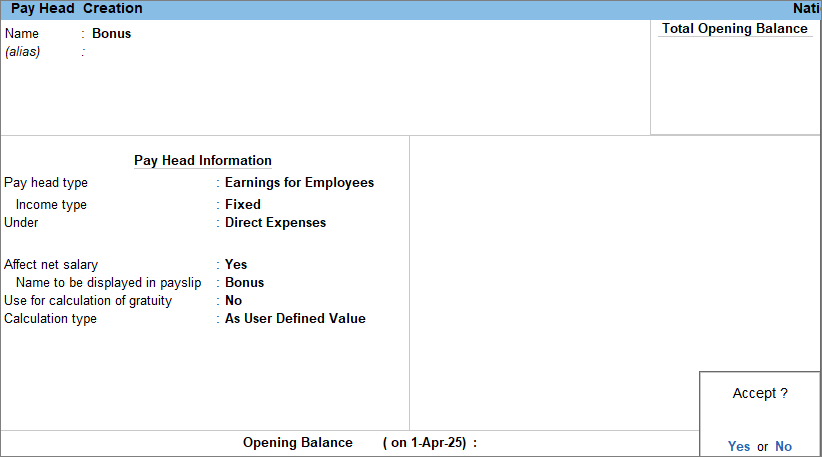
- Enter the Pay Head details.
- Name: Enter the name of the pay head as Bonus.
- Pay head type: Select Earnings for Employees from the List of Pay Head Types.
- Income type: Select income type as Fixed.
- Under: Select Direct Expenses from the List of Groups.
- Affect net salary: Set the option to Yes.
Enabling this option determines whether the pay head affects the employee’s final take-home salary. - Name to be displayed in payslip: Enter the pay head name to display on the payslip. By default, the system displays the name you create for the pay head.
- Enter the Pay Head calculation details.
- Use for calculation of gratuity: Enable this option to consider this pay head for Gratuity calculation.
- Calculation type: Select As User Defined Value from the List of Calculations.
- Press Ctrl+A to save the pay head master.
Create Pay Head for Variable Pay
- Press Alt+G (Go To) > Create Master > type or select Pay Head and press Enter.
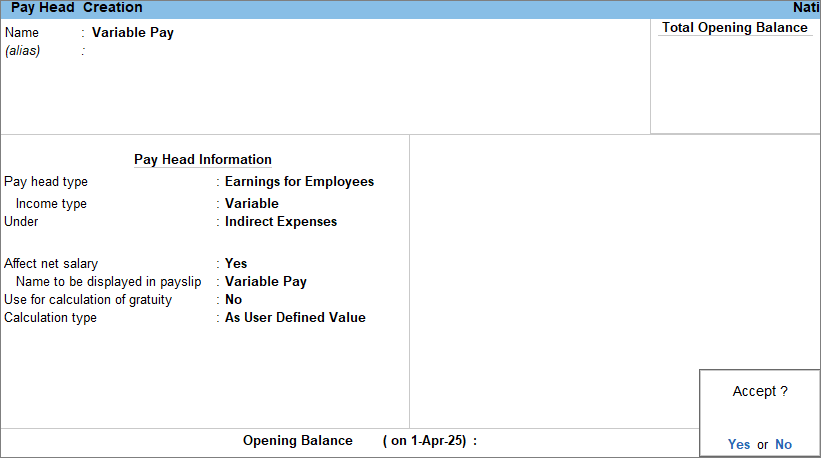
- Enter the Pay Head details.
- Name: Enter the name of the pay head as Variable Pay.
- Pay head type: Select Earnings for Employees from the List of Pay Head Types.
- Income type: Select income type as Variable.
- Under: Select Indirect Expenses from the List of Groups.
- Affect net salary: Set the option to Yes.
Enabling this option determines whether the pay head affects the employee’s final take-home salary. - Name to be displayed in payslip: Enter the pay head name to be shown in the payslip. By default, the system displays the name you create for the pay head.
- Enter the Pay Head calculation details.
- Use for calculation of gratuity: Enable this option to consider this pay head for Gratuity calculation.
- Calculation type: Select As User Defined Value from the List of Calculations.
- Press Ctrl+A to save the pay head master.
After you create the pay head, include it in the payroll only for the month in which you disburse the variable pay or bonus.
If your organisation follows statutory compliance and the statutory feature is enabled, you will need to enter the relevant details while creating the pay head. To know more, click here.
Is this information useful?
YesNo


