
Invoice Management System (IMS) – Errors & Resolutions
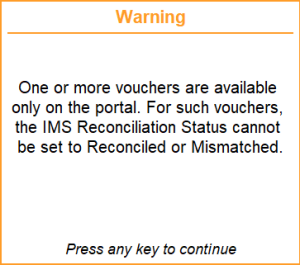
This warning appears when you try to set the IMS Reconciliation Status for the selected invoices, and one or more of the invoices are available only on the portal. As those invoices are available only on the GST portal, you cannot change the status to Reconciled or Mismatched.
The IMS Reconciliation Status will be set to Reconciled or Mismatched as selected for the remaining invoices.
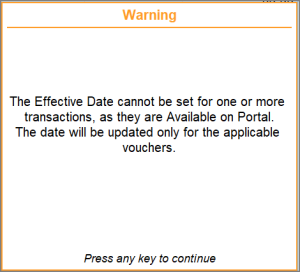
This warning appears when the you try to set the Effective Date for the selected invoices, and one or more of the invoices are available only on the portal. As those invoices are available only on the GST portal, you cannot change the date.
The Effective Date will be set as selected for the remaining invoices.
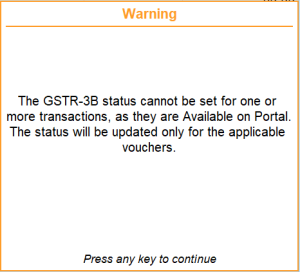
This warning appears when the you try to set the GSTR-3B Status for the selected invoices, and one or more of the invoices are available only on the portal. As those invoices are available only on the GST portal, you cannot change the status.
The GSTR-3B Status will be set for the remaining invoices.
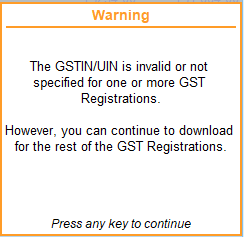
This warning appears when you have configured the download with multiple GST registrations, and one or more of the GST registrations have an invalid GSTIN/UIN.
The invoices will be downloaded for the remaining GST Registrations.
You can correct the GSTIN/UIN on the GST Details.
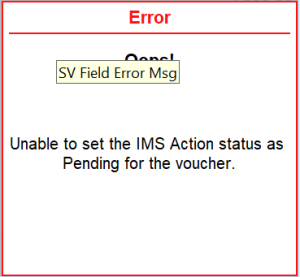
Cause: This error occurs when the invoice is restricted to be set as Pending from the GST Portal.
Resolution: You can choose the appropriate IMS Action status, if possible for the invoice.
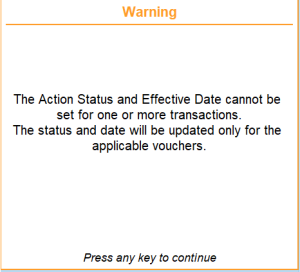
This warning occurs when,
-
One or more of the selected invoices are blocked to be set as Pending from the GST Portal.
-
One or more of the selected invoices are available only on the GST portal, and you cannot set the Effective Date for them.
The action status will be set as Pending for the selected applicable vouchers.
The Effective Date will be applied to the selected book vouchers.
Cause:
This error appears when you try to upload invoices with IMS Remarks for records whose Action Status is Accepted. Remarks can be exchanged only for Pending or Rejected records (except for specific sections where accepted records are supported).
Resolution 1: Upload without IMS Remarks
- In the Upload IMS Inward Invoices report, press Ctrl+B (Basis of Values) and disable the option Include IMS Remarks in Invoices.
- Upload the invoices again. The vouchers will be uploaded without remarks.
Resolution 2: Upload selectively using filters
- In the Upload IMS Inward Invoices report, filter the report to view Accepted transactions.
- Press Ctrl+B (Basis of Values) and set the option Include transactions based on Action Status to Accepted.
- Disable the option Include IMS Remarks in Invoices and upload the invoices.
Once uploaded,
- Filter Pending or Rejected transactions.
- Press Ctrl+B (Basis of Values) and set the option Include transactions based on Action Status to Pending or Rejected.
- Enable Include IMS Remarks in Invoices and upload them separately.
This ensures remarks are exchanged only where allowed, while avoiding upload errors.


