
Record GST Purchases from Other Territory
TallyPrime helps you easily maintain your GST purchases from Other Territory. You can record them as intrastate transactions by simply changing the nature of transaction.
The topic Purchases with GST in TallyPrime further showcases the business scenarios that TallyPrime handles with ease.
Let us proceed using the sample company, National Electronics, which purchases appliances from manufacturers under Other Territory.
Before you begin | Prerequisites
- Make sure you are familiar with creating Purchase vouchers in TallyPrime.
- If your business is in Other Territory, configure your company as an Assessee of Other Territory.
- If your supplier is in Other Territory, configure the party ledger as an Assessee of Other Territory.
Create Voucher for Purchase Within Other Territory
If your business and the supplier are in Other Territory, then Central and UT taxes are applicable.
- Press Alt+G (Go To) > Create Voucher > F9 (Purchase), and press Ctrl+H to choose Item Invoice or Accounting Invoice.
- Enter the Supplier Invoice No. and Date, as applicable.
- In Party A/c Name, select the supplier ledger configured as an Assessee of Other Territory.
- Select the CGST and UTGST tax ledgers.
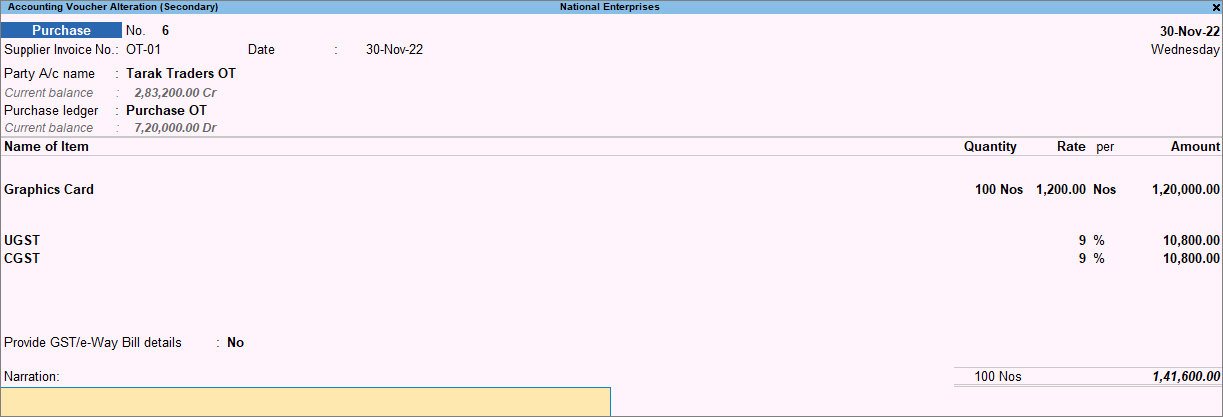
- Save the voucher by pressing Ctrl+A.
Create Voucher for Purchase from a State/Union Territory to Other Territory
If your company is in Other Territory and the supplier is in a State or Union Territory, then IGST is applicable.
- Press Alt+G (Go To) > Create Voucher > F9 (Purchase), and press Ctrl+H to choose Item Invoice or Accounting Invoice.
- Enter the Supplier Invoice No. and Date, as applicable.
- In Party A/c Name, select the supplier ledger where the location is a state or UT.
- Select the IGST ledger.
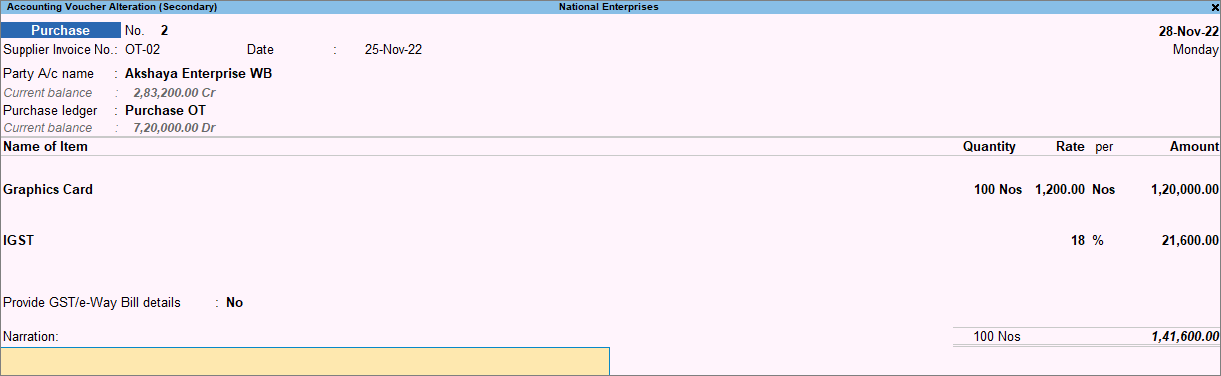
- Save the voucher by pressing Ctrl+A.
Create Voucher for GST Purchases from Other Territory to a State/Union Territory
If your company is in a State or Union territory and the supplier is in Other Territory, then IGST is applicable.
- Press Alt+G (Go To) > Create Voucher > F9 (Purchase), and press Ctrl+H to choose Item Invoice or Accounting Invoice.
- Enter the Supplier Invoice No. and Date, as applicable.
- In Party A/c Name, select the supplier ledger configured as an Assessee of Other Territory.
- Select the IGST ledger.
- Save the voucher by pressing Ctrl+A.
Purchase of Services from Other Territory to a State/Union Territory by overriding Nature of Transaction
- Press Alt+G (Go To) > Create Voucher > F9 (Purchase), and press Ctrl+H to choose Accounting Invoice.
- Select the State in which the service was availed.
- Press F12 (Configure) > set Modify GST & HSN/SAC related details to Yes.
- Select the service ledger enabled for GST, with the option Type of Supply set to Services.
- In GST Details, press F12 (Configure) and enable Allow override Classification/Nature.
- Select the Classification/Nature as Purchase Taxable.
- Set the option Is ineligible for input credit to Yes/No, as applicable.
- Press Enter to accept and return to the purchase invoice.
- Enter the amount for the service availed.
- Select the UTGST and CGST ledgers.
The message Mismatch in the Nature of Transaction and Place of Supply appears. - Press Y or O to accept the screen.
As there is a mismatch in place of supply, the transaction will appear as an exception in GSTR-3B, which you can resolve with ease.
Similarly, you can record the purchase of goods from Other Territory.
Q&A
How do I resolve the transactions under Mismatch in Nature of transaction and Place of supply, Party’s country in GSTR-3B?
- Press Alt+G (Go To) > GSTR-3B.
- Select Uncertain Transactions (Corrections needed) > Mismatch in Nature of transaction and Place of supply, Party’s country.
- Press Alt+J (Accept As Is).
- Press Enter to accept the transaction as is.
In GSTR-3B, the transaction now appears under the respective sub-section of Section 4 Eligible ITC.
To view the transaction with the selected Nature of Transaction, press F5 (Nature View) > Alt+F5 (Detailed).


