
Generate e-Way Bill Offline in TallyPrime
TallyPrime lets you manage e-Way Bill activities both online and offline. You can export the details of your e-Way Bill in the JSON format and then upload it the portal at your convenience. Additionally, the Get EWB Info feature in TallyPrime ensures that even transactions handled offline or in other platforms are always updated with the latest e-Way Bill details.
Before you begin | Prerequisite
- Ensure that you have created an API user profile by selecting Tally (India) Pvt Ltd as the GSP.
- Ensure that you have logged in the e-Way Bill portal.
- Ensure that you have Enabled e-Way Bill in TallyPrime.
Generate e-Way Bill Using Offline Export
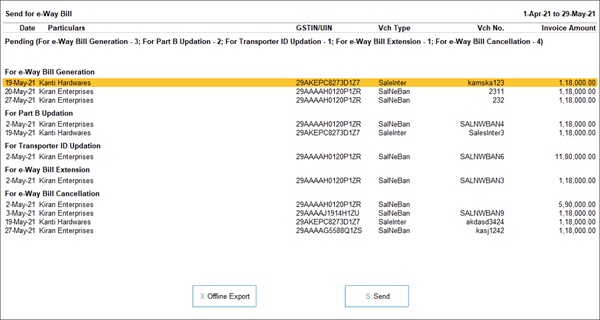
- Press Alt+Z > Send for e-Way Bill.
In the Send for e-Way Bill screen, you can view the transactions that are pending for generation. - Select the required transactions and press X (Offline Export) to export the details.
If you press X without selecting any transaction, then all the applicable transactions will be exported.
The following confirmation screen will appear, with the number of transactions lined up for e-Way Bill generation.
You can generate e-Way Bills in Bulk for Multi-GSTIN as well.
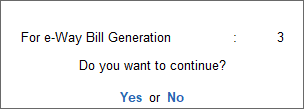
- Select Yes to continue.
- In the Export sub-screen, press C (Configure), if you want to change the details, such as the Folder path where JSON files will be exported.
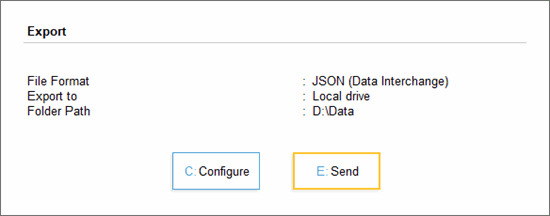
- Press E (Send) to export the JSON files.
The JSON files will be saved in the specified folder.
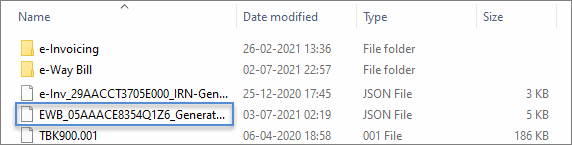
Bulk Upload of e-Way Bills on the Portal
After exporting the JSON files, you can upload them on the portal and generate e-Way Bill information for the selected vouchers.
- Open the e-Way Bill portal and go to one of the following links:
- e-Way Bill > Generate Bulk.
- Consolidated EWB > Generate Bulk.
- Click Choose File > select JSON > click Upload & Generate.
TallyPrime lets you generate e-Way Bills offline by exporting transactions as JSON files, which you can then upload to the portal to create e-Way Bills in bulk.
e-Way Bills for Multi-GSTIN
For TallyPrime 3.0 & later
You can seamlessly generate e-Way Bills even when you have multiple GST registrations.
- In the Send for e-Way Bill screen, view and select vouchers for different GST registrations.
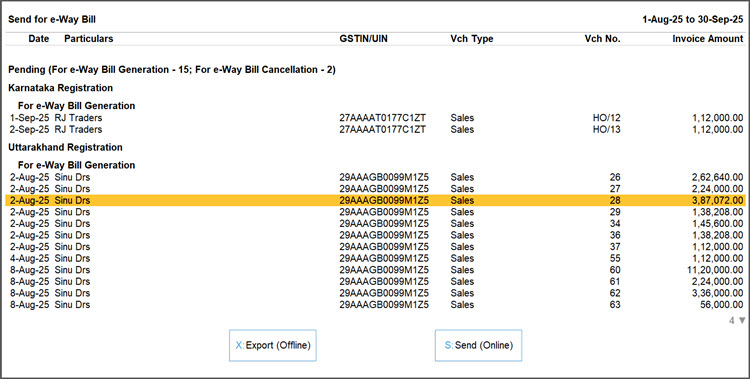
- In the e-Way Bill login screen, enter the login details for your registrations one by one.
Q&A
- How to generate MS Excel or JSON file for e-Way Bill details recorded in purchases?
- Press Alt+Z (Exchange) > Send for e-Way Bill.
- Press Ctrl+B (Basis of Values) and enable Include URD Purchases & Include Non-URD Purchases.
- Select the purchase invoices under For e-Way Bill Generation and press X (Export) to generate e-Way Bills offline.
- Press C (Configure) to change the folder path where the JSON or Excel files will be exported and press E (Send) to export the files.
- Is it necessary to generate e-Way Bills for export or import transactions?
If the transaction value exceeds the specified threshold limit, you need to generate the e-Way Bill details in MS Excel or JSON format. - Can I export e-Way Bill details of a transaction in MS Excel or JSON format, without details of Part B of e-Way Bill (transporter ID and mode of transport)?
TallyPrime supports generation of MS Excel and JSON files with e-Way Bill details, as per the requirements of offline utility tool provided by NIC. As NIC’s offline utility tool does not support export of data without transport details, the same cannot be done from TallyPrime as well. However, you can generate e-Way Bill without transport details, by entering the transaction details directly on the portal.
For any further queries, refer to e-Way Bill – FAQ.


