
Record Deemed Export Purchase of Goods with GST
TallyPrime helps you easily manage your Deemed Export purchase from EOU and SEZ suppliers within India. While recording the purchase voucher, you have the flexibility to set the taxability as Taxable, Nil Rated, and Exempt.
The topic Purchases with GST in TallyPrime further showcases the business scenarios that TallyPrime handles with ease.
Let us proceed using the sample company, National Electronics, which purchases spare parts from Deemed Exporters.
Before you begin | Prerequisites
- Make sure you are familiar with creating Purchase vouchers in TallyPrime.
- Ensure the supplier ledger has the Registration Type set as Regular – Deemed Exporter.
Create Voucher for Deemed Exports – Taxable

- Press Alt+G (Go To) > Create Voucher > F9 (Purchase), and press Ctrl+H to choose Item Invoice or Accounting Invoice.
- In Party A/c Name, select the supplier ledger in which the Registration Type is set as Regular – Deemed Exporter.
- Select the Purchase ledger with the Taxability Type as Taxable.
- Select the Nature of Transaction as System Inferred.
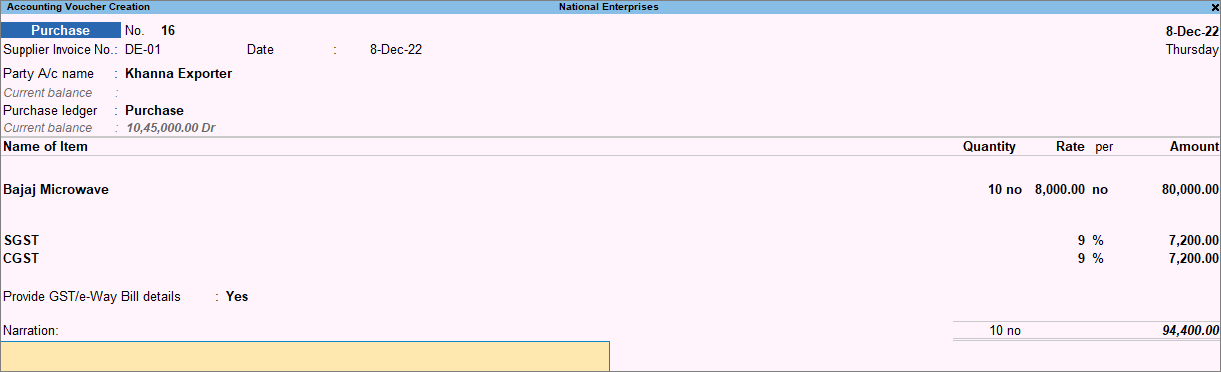
- Complete the entries, and save the voucher by pressing Ctrl+A.
You can see the transaction in GSTR-3B under Eligible for Input Tax Credit.
Create Voucher for Deemed Exports – Nil Rated
- Refer to the steps under Create Voucher for Deemed Exports – Taxable for creating a Purchase voucher.
- Select the Purchase ledger with the Taxability Type as Nil Rated.
You can see the transaction in GSTR-3B under Exempt, Nil rated, and Non-GST Inward Supplies.
Create Voucher for Deemed Exports – Exempt
- Refer to the steps under Create Voucher for Deemed Exports – Taxable for creating a Purchase voucher.
- Select the Purchase ledger with the Taxability Type as Exempt.
You can see the transaction in GSTR-3B under Exempt, Nil rated, and Non-GST Inward Supplies.
Is this information useful?
YesNo


