Create Employee Master with Statutory in TallyPrime
You can create employees individually or in bulk with the statutory details, based on your requirements.
Before you begin | Prerequisites
- Ensure you have enabled Payroll and Statutory Payroll in TallyPrime.
- Create the groups under which you want to create employees.
- Create earning pay heads, deduction pay heads, statutory contribution pay head, statutory deductions pay head, Variable pay and bonus pay head to define employee salary structures.
Create Single Employee Master with Statutory Details
- Create a Single Employee Master.
- Under Statutory Details, enter the following additional details:
-
Applicable Tax Regime: From the financial year 2020–21 onwards, you can select the applicable tax regime for an employee. The new tax regime, introduced under Section 115BAC, offers an optional tax slab structure without deductions or exemptions.
-
Enter the EPS account number, Date of joining for PF, and ESI dispensary name.
To skip this, disable Provide Statutory Details from F12 (Configure).
-
- Press Ctrl+A to save the master.
For International Companies, only Income Tax Number option is available under Statutory Details. For UAE, only Labour Card Number, Emirates ID number and Emirates ID expiry date options is available under Statutory Details.
Create Multiple Employee Masters with Statutory Details Using Chart of Accounts
- Create Multiple Employee Masters.
- Select the Regular Tax Regime (old regime) or Tax Regime U/s 115BAC (new regime) in the Applicable Tax Regime column.
You can disable tax regime details by setting Show Tax Regime to No under F12 (Configure). - Enter the employee’s PAN in the Income Tax Number (PAN) column. When the PAN is not available, enter one of the terms given below, based on the corresponding reason:
- PANAPPLIED – If the employee has given a declaration stating that he/she has applied for PAN, but are yet to receive the same.
- PANINVALID – If the PAN format provided by the employee is incorrect.
- PANNOTAVBL – If the employee has not given any declaration or PAN number.
- Press Ctrl+A to save the master.
You can add the employee details by altering the individual employee master. Once the employees are created, you can create the attendance master.
- Press Alt+G (Go To) > type or select Chart of Accounts > Employees and press Enter.
- Press Alt+H (Multi Masters) > select Multi Alter and press Enter.
In the Multi Employee Alteration screen, along with the Applicable Tax Regime, you have an additional column to provide the Effective from date for the tax regime selected. You can disable tax regime details by setting Show Tax Regime to No under F12 (Configure). - Press Ctrl+A to save the master.
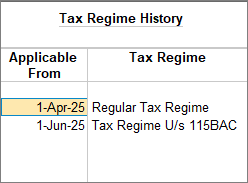
Tax Regime History
Employees can switch between the two income tax regimes during a financial year. TallyPrime allows you to change the tax regime at any time, prompts you to enter the revision date for each change, and maintains a complete Tax Regime History for the employee.
Press Alt+W (Tax Regime History) to view the Tax Regime History screen, which displays the tax regimes applied for different periods along with their applicable-from dates, in both the Employee Alteration and Multi Employee Alteration screens.