
Update Assessable Value of GST Purchases in TallyPrime
If the value of items increases or decreases after the sales invoice was raised by the supplier, then TallyPrime will help you in easy tax calculation on the revised assessable value of GST purchases.
The topic Purchases with GST in TallyPrime further showcases the business scenarios that TallyPrime handles with ease.
Let us proceed using the sample company, National Electronics. In this case, the company has imported appliances and declared at a certain value. However, customs has valuated the consignment at a higher amount. Thereby, National Electronics has to amend the taxable value while retaining the purchase value.
Before you begin | Prerequisites
- Make sure you are familiar with creating Purchase vouchers in TallyPrime.
Update Assessable Value in Purchase Voucher
Applies to TallyPrime Release 3.0 and later
- Press Alt+G (Go To) > Day Book, and open the voucher.
- Press F12 (Configure) and enable Modify GST & HSN/SAC related details.
- In GST Rate and Related Details, enter the required details.
- Press F12 (Configure) and enable Override Taxable Value.
- Enter the Taxable Value and press Ctrl+A to save.
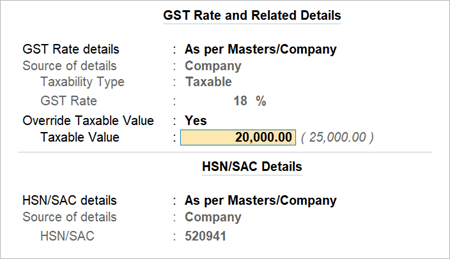
- Save the voucher by pressing Ctrl + A.
Update Purchase Voucher After the Counterparty Signed the Return
If there is a change in the invoice after your purchase, then the supplier will amend the invoice, provided that the return is already signed. In such cases, you can find the supplier’s transaction in GSTR-2A, and download and import it to TallyPrime to update your data.
Now let us amend the voucher as counterparty-signed in TallyPrime.
- Press Alt+G (Go To) > GSTR-2A, and press F2 to enter the original period in which the counterparty has signed the return.
- Ensure that the voucher is marked as counterparty-signed.
- Drill down to the voucher and press Ctrl+I (More Details).
- Under Counter Party Return Signing Status, enable Return signed by Counter Party.
- Make the necessary updates in the invoice.
- Provide the Return Effective Date.
- Press Ctrl+I (More Details) and enter the GST Return Effective Date.
- Press Ctrl+A to save.
- Enter the remaining details, and save the voucher.
Now you can import the supplier’s invoice for the new period and reconcile the purchase voucher in TallyPrime.
Q&A
- The supplier gave me a discount in November, for all the purchases I made in the FY, as I had crossed the expected target for purchase. How do I record this in TallyPrime?
You can get a credit note from your supplier for the discount amount, which you can use in subsequent purchases. - How to resolve Uncertain transactions in GSTR-3B when Return Effective Date is incorrect?
- Press Alt+G (Go To) > GSTR-3B.
- Drill down to Uncertain Transactions (Corrections needed) > Effective Date of the Amendment is not specified or invalid.
- Select the voucher, press Alt+L (Set Effective Date), enter the Return Effective Date, and press Ctrl+A to save the details.


